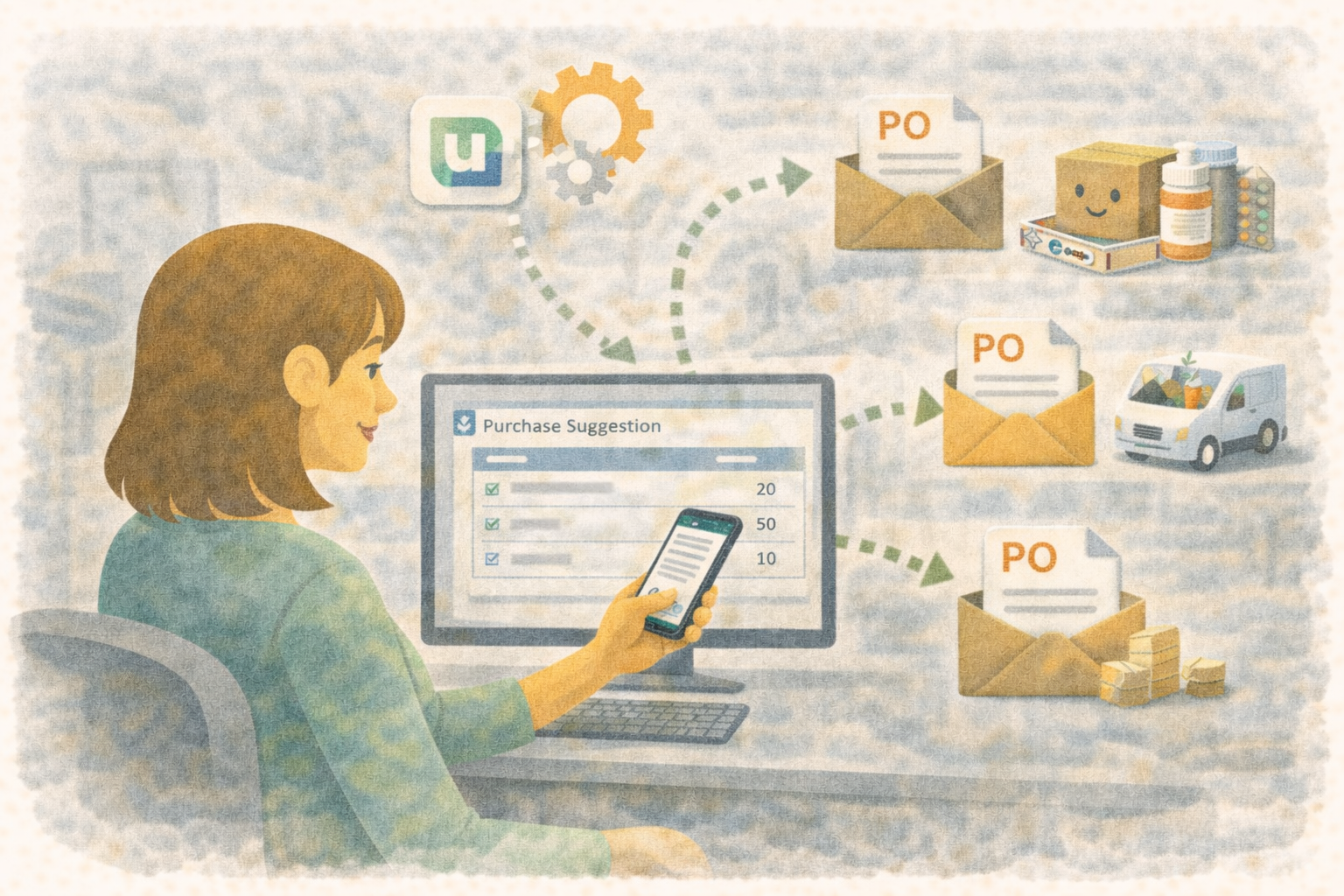
Automatic Purchase Orders in Ubik: Review Suggested Orders From One Portal
Inventory planning is valuable because it catches the products your clinic may need before someone is standing in front of an empty shelf.
But the next step still matters. A Purchase Suggestion is only a signal. Someone still needs to create the purchase order, review the quantities, confirm the supplier, and send it at the right time.
Automatic Purchase Orders help with that middle step.
When the setting is enabled, Ubik can use nightly Purchase Suggestions to create normal draft purchase orders for approved suppliers. The draft stays visible in the Purchase Orders portal, your team can edit it, see why each suggested quantity was recommended, and Ubik can send it automatically after the review window if nobody cancels or disables auto-send.
The same portal now handles orders your clinic sends and partner orders sent to your clinic. That keeps auto PO review, supplier sending, partner receiving, expensing, and payment follow-up in one place.
The goal is not to remove staff control. The goal is to remove repetitive draft creation work while keeping the next step clear.
Why Automatic POs Help
Most clinics already know the pattern:
- The team starts the day with a purchase suggestion email.
- Someone means to create the supplier order.
- The day gets busy.
- The order is created late, duplicated, or forgotten.
- Inventory pressure shows up again at the worst time.
Automatic POs make that flow less fragile.
They help your clinic:
- Create supplier PO drafts from nightly Purchase Suggestions without manual copying.
- Keep suggested orders in the same Purchase Orders workflow the team already uses.
- Give staff a review window before anything is sent.
- Limit automation to suppliers you explicitly approve.
- See why Ubik suggested a line quantity before changing or sending it.
- Work from one active PO list with attention filters and next-step guidance.
- Keep supplier setup problems visible instead of sending questionable orders.
- Preserve normal draft editing, canceling, sending, and receiving behavior.
In practice, this means the person responsible for ordering can open Purchase Orders in the morning and review drafts that Ubik already prepared.
How It Works
Automatic POs still start with Purchase Suggestions.
Each night, Ubik reviews inventory planning data and stores purchase suggestions by supplier. After those suggestions are computed, Ubik checks the Automatic POs setting for each account.
Ubik creates an automatic draft only when all of these are true:
- Automatic POs are enabled for the account.
- The supplier is explicitly selected in the Automatic POs supplier list.
- The supplier is ready for Ubik PO sending.
- The cadence is due for that account and supplier.
- There is not already an open automatic draft for that supplier.
- There is not already a draft tied to the same Purchase Suggestion.
When Ubik creates the draft, it is still a normal purchase order draft. It appears in Purchase Orders, in Orders you send, with an Auto PO badge, a generated date, and a scheduled send date.
Your team can edit quantities, remove lines, add notes, save the draft, send it manually, cancel it, or disable auto-send for that one draft.
Editing the draft does not stop the automatic send. If the draft should not send automatically, use Disable auto-send or cancel the PO.
The morning job also checks automatic drafts whose scheduled send time has arrived. If the account and supplier setup are still valid, Ubik sends the PO through the normal purchase order sending flow. If setup is no longer valid, Ubik blocks the automatic send and leaves the draft for staff review.
What Each Setting Means
You control Automatic POs from the account configuration.
Enable Automatic POs
This turns the feature on for the account.
When it is off, Ubik still creates normal Purchase Suggestions, but it does not create automatic PO drafts.
This setting is off by default.
Cadence
Cadence controls how often Ubik may generate an automatic PO for the same supplier.
Common options are:
- Daily: Ubik may create a new automatic PO draft every day when there are due suggestions.
- Weekly: Ubik may create one about every 7 days.
- Monthly: Ubik treats monthly as every 30 days.
- Custom days: Choose your own number of days.
Cadence is counted from the previous automatic PO generation for that supplier, not from the calendar week or calendar month.
Weekly is a practical starting point for many suppliers. Daily is better for high-volume suppliers where the team already reviews orders every morning.
Review Time
Review time controls how long the draft waits before Ubik sends it automatically.
For example:
- 0 days means the draft can be sent by the next morning auto-send check after it is created, if setup is still valid.
- 1 day gives staff roughly one day to review the draft.
- 2 or more days gives the team a longer ordering review window.
Review time is useful when the team wants automation but still wants a predictable chance to adjust quantities before the supplier receives the PO.
Suppliers
The supplier list is an allowlist.
Ubik does not automatically generate POs for every supplier. A supplier must be selected before Automatic POs can create drafts for that supplier.
This is intentional. Some suppliers may not use the PO sending flow well, may require a different ordering channel, or may need internal review before any order is sent.
For normal suppliers, Ubik checks whether the supplier has the required supplier tax ID and WhatsApp contact information for PO sending. If a supplier is not ready, Account Settings shows the reason so the setup can be fixed before selection.
The supplier selector is searchable, so you can filter by supplier name, DBA, tax ID, phone, email, or WhatsApp number while choosing the allowlist.
Partner suppliers can also participate when the partner purchase order and inventory transfer setup is ready.
What Staff Will See
Automatic drafts appear in Purchase Orders.
The page starts with the PO list, then shows Purchase Suggestions below it. The active PO list combines drafts and sent orders so the team does not have to jump between separate draft and sent tabs to understand what needs attention.
Orders are visually separated as:
- Orders you send: Purchase orders from your clinic to suppliers or partner accounts.
- Orders sent to you: Partner purchase orders another clinic sent to your account.
Rows also show a compact To or From label for partner-account orders, with long clinic names shortened so the table stays scannable.
Each automatic draft includes:
- An Auto PO badge.
- The generated date.
- The scheduled send date.
- Current automatic status.
- Any reason the automatic send needs attention.
- A stepper that shows the current PO state and the next useful action.
The draft can still be edited like any other draft. Staff can adjust quantities, remove lines, add notes, and save.
If the automatic send should be stopped for that draft, choose Disable auto-send. The purchase order remains an editable draft; it just will not be sent by the automatic morning processor.
If the supplier setup or account configuration becomes invalid before the scheduled send, Ubik blocks the automatic send and leaves the PO as a draft for staff review.
For partner orders, the same portal can start the receive, expense, and payment steps. Some steps still open the detailed Inventory or Accounting page, but the action starts from the PO process.
When a Ubik partner transfer already received the stock, the related expense flow protects inventory from being increased again for the same received transfer lines.
Why a Quantity Was Suggested
Suggested PO lines now keep a planning snapshot from the Purchase Suggestion run.
In the PO line table, look at the Source > Suggestion tag. If a line came from a Purchase Suggestion, hover that tag to see why Ubik recommended the quantity.
When the data is available, the explanation can show:
- Typical daily use.
- Current stock and stock already on order.
- Planning minimum, reorder point, and coverage target.
- Supplier lead time.
- Estimated days of cover and projected shortage timing.
- Safety stock and service level.
- JIT or EOQ details, depending on the item's planning strategy.
- Package rounding, supplier minimum, or max-stock adjustments applied to the final quantity.
Use this before raising, lowering, or removing a suggested line. It gives the ordering person the reason behind the number instead of only showing the result.
Older suggestion lines created before this snapshot existed may show a simpler source explanation.
Working From the Unified PO Portal
The Purchase Orders portal is now meant to be the starting point for the PO lifecycle.
The active list highlights work by attention state:
- Issues: Something needs setup or correction.
- Needs action: The next step belongs to your team.
- Scheduled: Auto-send or another scheduled step is waiting.
- Waiting: The order is waiting on the supplier or another clinic.
Purchase Suggestions still appear on the same page, below the PO list, so you can turn a suggestion into a draft when you want manual control or when automatic generation is not enabled for that supplier.
When adding inventory to a draft manually, the inventory selector only shows active inventory. Items already linked to the selected PO supplier appear first, and other active matches remain available below them if you intentionally need to add an item that is not yet linked to that supplier.
The portal also keeps partner workflows connected. For partner purchase orders, the stepper can guide the sender and receiver through transfer, invoicing, expense creation, payment recording, payment confirmation, and close-out.
Morning Email Updates
The morning account summary can include automatic PO results.
It can tell the team when Ubik:
- Created an automatic draft and when it is scheduled to send.
- Sent an automatic PO.
- Blocked an automatic send because setup changed.
- Saw that auto-send was disabled for a draft.
That gives the ordering team a daily audit trail without requiring someone to remember which suppliers are automated.
A Practical Starting Configuration
If you are turning this on for the first time, start conservatively.
Use:
- Enabled: On
- Cadence: Weekly
- Review time: 1 day
- Suppliers: One or two reliable suppliers with clean WhatsApp and tax setup
Let the team review those automatic drafts for a few ordering cycles. Once the workflow feels predictable, add more suppliers or shorten the cadence for fast-moving categories.
Schedule a Free Demo or Send Us a Message
We would be happy to show how Ubik can help your clinic turn inventory planning into a cleaner purchasing workflow.
WhatsApp: 1-612-383-6374
Website: goubik.com
Email: [email protected]
Or send us a message on Facebook
Instructions
Turn On Automatic POs
- Open Account Settings.
- Go to the account configuration area for Inventory & Sales.
- Find Automatic POs.
- Turn Automatic POs on.
- Choose a cadence: Daily, Weekly, Monthly, or Custom.
- Set the review time in days.
- Search for and select the suppliers that are allowed to receive automatic PO drafts.
- Save the account.
Review Automatic Drafts
- Open Purchase Orders.
- In Orders you send, open the active PO list.
- Look for drafts marked with the Auto PO badge.
- Review the generated date, scheduled send date, supplier, items, quantities, and notes.
- Use the stepper to see the current state and the next useful action.
- Edit the draft if needed.
- Save the draft.
See Why Ubik Suggested a Quantity
- Open Purchase Orders.
- Open a PO draft that contains suggested lines.
- In the line table, find the Source > Suggestion tag.
- Hover the Suggestion tag.
- Review the usage, stock, lead time, coverage, reorder target, and rounding details before changing the quantity.
Add Inventory to an Order
- Open the draft PO.
- Use Add inventory to order.
- Search for the item.
- Review the top results first; active items linked to that PO supplier are shown before other active matches.
- Add the item and save the draft.
Work Partner PO Steps
- Open Purchase Orders.
- Use Orders you send for POs your clinic created.
- Use Orders sent to you for partner POs another clinic sent to your account.
- Open the PO.
- Follow the stepper to start the next action, such as receive, expense, payment, confirmation, or close-out.
Stop One Draft From Sending Automatically
- Open Purchase Orders.
- Select the automatic draft.
- Choose Disable auto-send.
- Continue editing the PO as a normal draft, send it manually when ready, or cancel it if the order is not needed.
Check Why a Draft Was Not Created
If you expected an automatic draft and do not see one:
- Confirm Automatic POs are enabled on the account.
- Confirm the supplier is selected in the Automatic POs supplier list.
- Check whether the supplier has the required tax ID and WhatsApp sending details.
- Check whether the cadence is due yet.
- Check whether there is already an open automatic draft for that supplier.
- Check whether a draft already exists for the same Purchase Suggestion.
- Review the morning summary email for automatic PO created, sent, blocked, or disabled results.