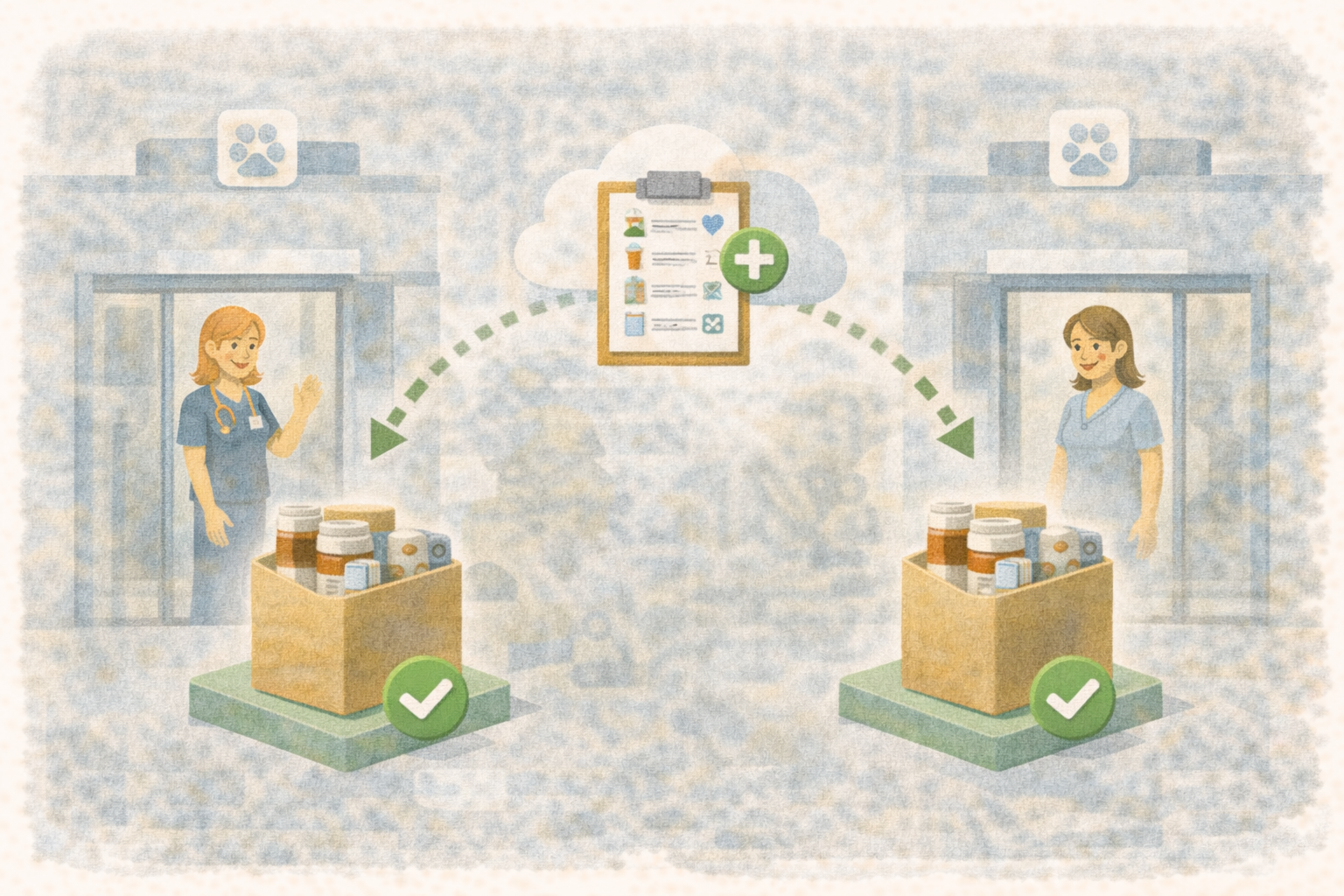
Transfer Inventory Between Branches in Ubik: The Full Loop from Need to Payment
Multi-branch clinics often move inventory internally long before the accounting is clear.
A branch needs medication. HQ has the warehouse stock. The branch asks for product, HQ sends it, someone creates an expense later, someone else tracks whether the branch paid, and accounting has to make sense of it after the fact.
Ubik's branch inventory loop is designed to keep that work in one place: inventory need, purchase order, warehouse fulfillment, partner invoice, branch expense, payment to the branch's HQ supplier record, HQ confirmation, and cashflow analytics.
The goal is not just moving stock. The goal is moving stock without losing the financial story.
Why This Matters
When branches transfer inventory through informal messages, the stock may still move, but the accounting usually becomes fragile.
- HQ may lose visibility into what each branch owes.
- Branches may receive stock without a clean expense against their HQ supplier record.
- Payments may be recorded on one side but not confirmed on the other.
- Inventory planning may miss real warehouse demand if the warehouse only supplies other branches.
- Analytics may mix customer revenue, outside-vendor expenses, and internal branch settlement.
The full Ubik loop gives each side a clear job and keeps the accounting separated:
- The branch records what it owes through expenses and payments to its HQ supplier record.
- HQ or the warehouse records what it is owed through partner invoices and confirmed partner payments.
- Both sides can review the movement later in analytics.
What Ubik Connects
The workflow uses several Ubik tools together.
| Tool | Who Uses It | What It Does |
|---|---|---|
| Inventory Planning | Branch | Shows what the branch needs based on movement and demand |
| Purchase Orders > Send Orders | Branch | Sends the request to HQ or another partner account |
| Purchase Orders > Receive Orders | HQ / warehouse | Reviews incoming partner POs and fulfills them |
| Inventory Management > Move | HQ / warehouse | Transfers stock from HQ inventory to the branch |
| Purchase Orders > Invoices | Branch and HQ | Shows partner invoices connected to POs and transfers |
| Expense Edit | Branch | Imports or builds branch expenses for the received inventory |
| Supplier Payments | Branch | Records what the branch paid or still owes to its HQ supplier record |
| Payment history on Receive Orders | HQ / warehouse | Confirms reported branch payments or records direct received payments |
| Accounting > Analytics > Cashflow | Branch and HQ | Shows partner cash in, partner cash out, and net by partner |
This keeps normal customer payments separate from branch-to-branch settlement.
The Two Actors
There are two accounts involved, and each one has a different role.
| Actor | Example | Main Responsibility |
|---|---|---|
| Sending account | Branch clinic | Requests inventory, records expenses, and pays what it owes |
| Receiving account | HQ or warehouse | Fulfills the order, creates the invoice, and confirms payment received |
The names can feel backwards at first. In Ubik, Send Orders means "I am sending a purchase order request." Receive Orders means "I am receiving partner purchase orders that I need to fulfill."
The Full Loop
Here is the full branch inventory loop from start to finish:
- The branch sees inventory need.
- The branch creates and sends a purchase order to the local supplier record that represents HQ.
- HQ sees the incoming order in Receive Orders.
- HQ prepares and completes the inventory transfer.
- Ubik creates the partner invoice, or HQ creates it from the received-order workflow.
- The branch imports the partner invoice to expenses, or creates expenses from the delivered PO and links the invoice later.
- The branch records payment to that HQ supplier record now or pays later through the normal Supplier Payments workflow.
- HQ confirms the reported payment, or records a payment it received directly.
- Both sides review the result in Cashflow analytics.
At the end, stock moved, branch expense is recorded, branch payment is tracked, HQ cash is confirmed, and both accounts can see the accounting impact.
Important Choices
Inventory units or supplier units
For a normal supplier, purchase order quantities often use supplier units. For example, buying one box may create five sellable inventory units in Ubik.
For the branch's HQ supplier record, the branch can choose the quantity basis:
- Inventory units means the branch is requesting the exact Ubik stock quantity to transfer.
- Supplier units means Ubik uses the purchase-unit conversion on the item.
Most branch-to-branch transfers should use Inventory units because both sides are already using Ubik inventory quantities.
Pay now or pay later
When the branch imports a partner invoice, it can record the payment to the HQ supplier record immediately. If the branch is not paying at that moment, leave the payment option off and pay later from the invoice or Supplier Payments flow.
Reported payment or confirmed payment
When the branch records payment against an HQ-linked partner invoice, Ubik reports the payment to HQ. It does not count as confirmed HQ cash until HQ confirms that the money was actually received.
That protects both sides: the branch can say it paid, and HQ can still control when the payment becomes posted cash-in.
Detailed Instructions
Use these steps when one branch needs inventory from HQ or a warehouse account.
Before You Start
- Make sure the two accounts have an active partnership.
- Make sure inventory transfers are enabled for that partnership.
- Make sure the branch has a local supplier record that represents HQ.
- Make sure the matching inventory items are linked between the branch and HQ.
- Confirm that HQ has transfer pricing ready for the items it will send.
- Decide whether the branch should request exact inventory units or supplier purchase-unit conversion.
If any of that setup is missing, Receive Orders may show setup issues or missing inventory links.
Branch: Create and Send the Purchase Order
- In the branch account, open Purchase Orders > Send Orders.
- Review suggestions or create a new draft order.
- Select the branch supplier record that is linked to HQ.
- Add the inventory items and quantities the branch needs.
- If that supplier record is linked to a partner account, review Quantity basis.
- Choose Inventory units for exact Ubik quantities, unless the team intentionally wants supplier-unit conversion.
- Save the draft.
- Review the draft lines.
- Send the order.
After sending, the order becomes visible to HQ in Receive Orders. The branch can keep watching the status from Send Orders.
HQ: Fulfill the Incoming Order
- In the HQ or warehouse account, open Purchase Orders > Receive Orders.
- Select the incoming order from the queue.
- Review the branch, PO ID, requested lines, fulfilled quantity, remaining quantity, stock, and any setup warnings.
- Use the receiving stepper to find the next action.
- Choose Prepare inventory transfer.
- Review the preloaded transfer rows in Inventory Management > Move.
- Confirm quantities, packages, and transfer prices.
- Leave Create partner invoice after transfer checked when the transfer should be billed to the branch.
- Complete the transfer.
Ubik reduces HQ stock, increases branch stock, logs the transfer on both sides, and can create the partner invoice from the transfer.
HQ: Create the Partner Invoice if Needed
If the invoice was not created during the transfer:
- Return to Purchase Orders > Receive Orders.
- Select the delivered or partially fulfilled order.
- Review the invoice area and transfer history.
- Use the invoice step to create the partner invoice for uninvoiced transfer lines.
Once the invoice exists, the PO detail shows the linked invoice ID and the invoice also shows the linked PO ID.
Branch: Record the Expense
The branch has two clean options.
Option 1: Import the invoice.
- In the branch account, open Purchase Orders > Invoices.
- Open the received partner invoice.
- Review the PO ID, invoice lines, totals, and the HQ supplier record.
- Choose Import to expenses.
- If the branch is paying now, check Record supplier payment now. In this flow, that means paying the branch's supplier record for HQ.
- Save.
Option 2: Create expenses from the delivered PO.
- In the branch account, open Purchase Orders > Send Orders.
- Select the delivered or closed PO.
- Choose Create expense from PO.
- Review the preloaded expense rows in Expense Edit.
- Save the expense.
- When HQ creates the invoice later, import the invoice to link it to the existing PO expenses instead of duplicating them.
Use the invoice import path when the invoice already exists. Use the PO shortcut when the branch has received the stock and needs to record the expense before the invoice is available.
Branch: Pay HQ
If the branch did not record payment during invoice import:
- Open Purchase Orders > Invoices.
- Open the imported invoice.
- Choose Record supplier payment. In this flow, that means recording a payment from the branch to HQ.
- Enter the amount, date, method, and reference.
- Save the payment.
The branch payment reduces the branch's payable to its HQ supplier record. If the invoice is linked to HQ, Ubik also reports the payment to HQ for confirmation.
HQ: Confirm or Record Payment
- In the HQ account, open Purchase Orders > Receive Orders.
- Select the related PO.
- Open Payment history.
- If the branch reported a payment, confirm it only after HQ has actually received the money.
- If HQ received a payment directly and the branch did not report it, use Record a payment from Payment history.
Reported payments are not posted HQ cash until HQ confirms them. Direct HQ payments are posted immediately.
Both Sides: Review Analytics
- Open Accounting > Analytics.
- Go to the Cashflow tab.
- Review Cash In by Partner on the HQ side.
- Review Cash Out by Partner on the branch side.
- Use Cash In/Out by Partner to compare total in, total out, net, and event count by partner.
- Use Cashflow Events to inspect the individual payment or expense events.
- If a widget has no rows, its empty message names the report, such as No Cash In by Partner or No Cash Out by Partner.
HQ should see confirmed partner receipts as partner cash-in. The branch should see payments to its HQ supplier record or expenses linked to partner invoices as partner cash-out.
What a Clean Finished Loop Looks Like
A completed branch inventory loop should leave a clear record:
- The PO shows what the branch requested.
- Inventory history shows what HQ transferred and what the branch received.
- The partner invoice shows what HQ billed.
- The branch expense shows what the branch owes or paid.
- Supplier payment history shows the branch's payments to HQ.
- HQ payment history shows reported and confirmed receipts.
- Cashflow analytics separates normal clinic income from partner settlement.
That is the value of keeping the full loop inside Ubik: the operational work and the financial record stay connected from the first inventory need through final payment.
Schedule a Free Demo or Send Us a Message
We would be happy to show how Ubik helps multi-branch clinics coordinate warehouse inventory, branch purchasing, internal billing, and accounting visibility.
WhatsApp: 1-612-383-6374
Website: goubik.com
Email: [email protected]
Or send us a message on Facebook