Turn Employee Schedules into Clear Activity Expectations
Most clinics already know who is working today. The harder question is what each person is expected to do between appointments.
Cleaning, inventory counts, training, phone calls, administrative work, and team meetings all consume real payroll time. But when those activities live in conversations or sticky notes, managers lose visibility and employees have to guess what should come next.
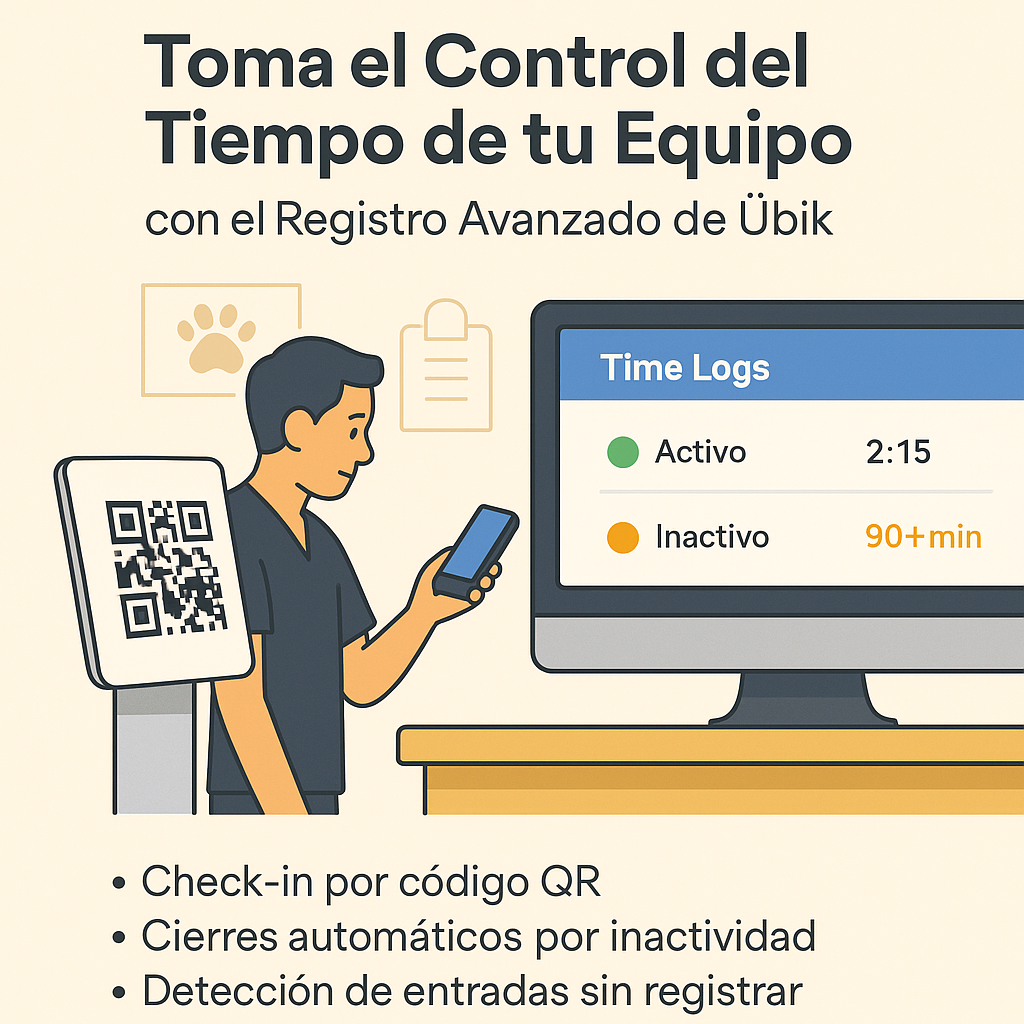
Übik now lets admins attach expected activities directly to an employee's work schedule. When the employee checks in, those activities appear in the Log Time menu so they can start tracking the right task with one click.
Why Scheduled Activities Matter
A work schedule answers the basic staffing question: who is here, and when?
Expected activities add the next layer: what should this person focus on during the shift?
That matters because clinic work is not only appointments. A strong day might include:
- A technician opening the treatment area and cleaning cages before appointments begin
- Reception calling overdue follow-ups during a slower hour
- A manager reviewing inventory before a supplier order
- A new employee spending scheduled time on training
- A team member handling administrative cleanup before checkout
When these tasks are attached to the schedule, the expectation is visible before the work starts.
From Schedule to Time Log
The workflow is simple:
- An admin creates or edits a work schedule for an employee.
- The admin selects the expected activities for that shift.
- The employee checks in for work.
- The header's Log Time menu shows the remaining expected activities.
- Clicking an activity opens the check-in/time modal with that activity already selected.
The employee can still choose another activity manually, but the schedule gives them a clear starting point.
Better Visibility Without Extra Spreadsheets
Activity tracking helps managers separate general worked time from the work that actually happened inside that shift.
Instead of seeing only "Ana worked 8 hours," a clinic can begin to understand how much time went into:
- Appointment support
- Cleaning and closeout work
- Inventory and supply tasks
- Training
- Calls and administrative work
That context helps owners make better staffing decisions. If inventory work is always happening after hours, it may need a planned block. If cleaning is regularly skipped during busy days, it can be assigned directly to specific shifts.
Employees See What Is Still Expected
Expected activities are not meant to nag employees with work they have already started or completed.
Once an employee logs time against an expected activity, Übik removes that activity from the recommendation list for the day. If they are currently doing an activity, it is also not recommended again. The list stays focused on what remains.
That makes the Log Time menu useful during the shift instead of becoming a static checklist that ignores what already happened.
Works with Your Clinic's Language and Activity Names
Clinics can configure their own activity names and notes at the account level.
If an account does not have activities configured yet, Übik provides a standard default list. English accounts see English activity names, and Spanish accounts see Spanish activity names, while the internal activity IDs remain stable. That keeps reports and saved schedule data consistent even when the display language changes.
Notes are useful for adding clinic-specific context, such as "Check controlled items first" for inventory or "Review onboarding module 2" for training.
How to Configure and Use Scheduled Activities
- Open Account Settings and expand Clinic Activities.
- Add or edit each activity name and note. Keep the names short enough for employees to recognize quickly.
- Save the account.
- Open the Employee Calendar.
- Create or edit a work schedule for an employee.
- In Expected Activities, select the activities that should be part of that shift.
- Save the work schedule.
- When the employee checks in, Übik tells them which activities are expected for the shift.
- From the header, hover over Log Time to see the expected activity list.
- Click an activity to open the check-in/time modal with that activity preselected.
- Use that header flow to check into the activity, update the note if needed, and check out of the activity when the work is done.