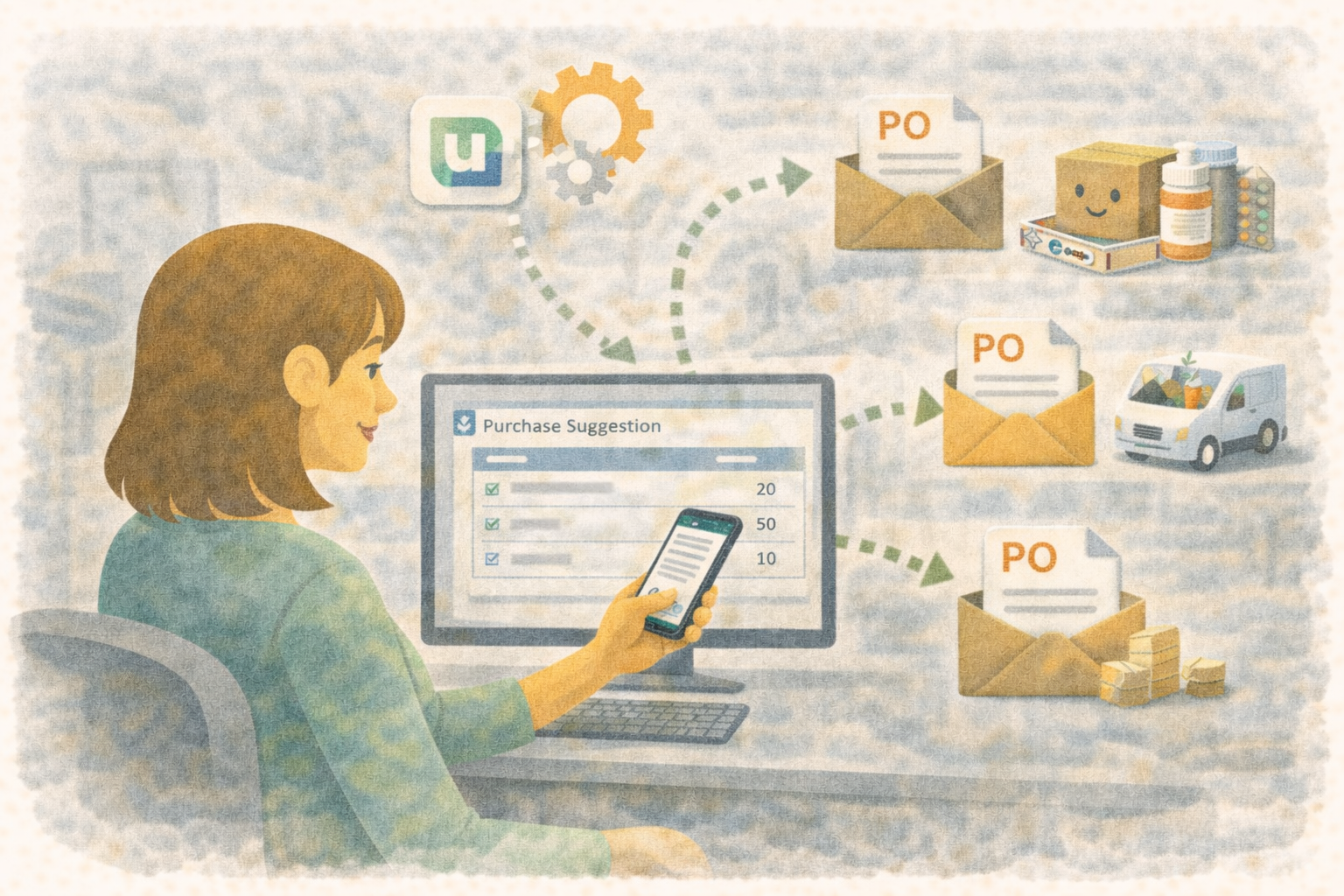
A supplier invoice may describe a product differently from your clinic, count bottles instead of mL, include discounts and taxes, and arrive weeks before you pay it. Entering the total alone leaves out much of that story.
Übik connects those details through expenses. You can enter a purchase by hand or extract it from a document, link the right products, review the amounts, decide whether to receive stock, and track what you still owe the supplier.
This guide follows the whole process. All amounts and product names in the examples are illustrative; copy the amounts and tax treatment supported by your own document.
1. Choose how to create the expense
From the Dashboard, find the Accounting card and click Add expense. The expense editor can hold several rows, which is useful when one invoice contains multiple products or different expense categories.
There are four starting points:
- Manual entry: add a row and enter its details. This works well for rent, bank fees, a simple receipt, or a purchase without a readable document.
- Extract from document (OCR): when AI is enabled for the account, upload an image or PDF and let Übik prepare expense rows from the document. OCR means reading the text and amounts from the page.
- Build expense from purchase order: select an existing purchase order to prepare rows from its lines. Check them against what was actually invoiced and received.
- Fetch SAT expenses: accounts with SAT download configured and enabled can select a completed download and import rows for review. The SAT expense guide explains that setup.
Use one row for each product or expense concept that needs its own category, tax treatment, or product link. Rows from the same invoice can share its supplier and invoice reference. For example, medication and delivery charges can belong on separate rows even though they appear on one invoice.
Before starting, check whether someone has already entered the invoice through another route. Importing the paper copy after entering the SAT version should not create a second purchase.
2. Use OCR and capture sessions to bring in the document
Upload from your computer
Choose Extract from document, select the invoice image or PDF, and select the relevant page regions when prompted. For a multipage PDF, review each page and skip pages that do not belong in the extraction.
Keep product descriptions, quantities, unit prices, discounts, taxes, and totals readable. Cropping away a column header or the invoice totals can remove information needed to check the result.
Übik asks for shared invoice details such as supplier, invoice ID, date, expense type, status, payment method, and tax type. These help prepare the rows together; review each row afterward, especially when an invoice mixes products and services or different taxes.
Upload a paper invoice from your phone
If the invoice is on the desk beside you, use the Upload from mobile option in the extraction menu:
- Leave the expense editor open on your computer and start mobile upload.
- Scan the QR code with your phone. This opens a temporary capture session for sending a photo back to that computer workflow.
- Take or choose a clear photo and upload it.
- Return to the computer and select the uploaded file from the ready list.
- Continue through extraction and review.
Each upload link accepts one file and expires after 10 minutes. For another photo, use the new QR code shown by the capture workflow; an old upload page cannot be reused. If the session expires before uploading, start a fresh one.
Uploading a photo does not save an expense. It supplies the document for extraction. You still review and save the expense rows.
Review what OCR read
OCR prepares a draft. A faint decimal point, a wrapped product name, or a tax percentage printed beside an amount can require correction.
When invoice review opens, compare the extracted lines with the document pages. Check that each product has its own line, its quantity and price belong together, and its subtotal, discount, tax, and total reconcile. If extraction passes the supported checks, Übik may continue directly to invoice details; you can still open invoice review.
If tax information is unresolved, check the source rather than assuming a familiar percentage. A printed “16%” is a rate, not a tax amount of 16. Missing information needs review before the expense is saved.
3. Understand the main fields and Details sections
The main row shows Type, Description, Date, Subtotal, and Status, plus its calculated total and review indicator. Open Details for quantities, supplier information, employee, taxes and discounts, purchase-order links, and source information as applicable.
| Field | What it means in Übik |
|---|---|
| Type | The expense category. It also determines whether the row links to a product or an employee. |
| Description | What this particular line is for. Keep enough detail to recognize it later, such as “October electricity” or the supplier’s product wording. |
| Date | The date assigned to the expense, normally taken from the purchase document. It is separate from the date of a later payment. |
| Subtotal | The complete line amount before the separately entered discount and tax. It is not a payment amount or a per-unit price. |
| Status | Pending or Paid. Once supplier payment entries exist, this follows their coverage of the balance. |
| Product | The inventory item linked to a Cost of Goods Sold row. |
| Employee / User | The person linked to an Employee Expenses row. This is separate from the user who created the record. |
| Invoice quantity | The number of units reported on the invoice. Keep its meaning consistent with the invoice unit price. |
| Packages added | The package-count side of a stock addition, when your inventory setup tracks packages. |
| Invoice unit price | The price for one invoiced unit, used to check quantity × price against Subtotal. It is separate from the product’s selling price. |
| Supplier | The supplier record associated with the purchase and its payable balance. |
| Receipt / Invoice ID | The supplier’s document reference. Reuse it across rows belonging to that invoice. |
| Payment method | How the expense is paid, such as cash, card, check, bank transfer, or electronic payment. Selecting it does not record a payment. |
| Tax paid, Discount, Tax type | The line’s tax amount, discount amount, and tax classification, explained below. |
| Purchase order / Order line | Links the expense to the order and specific line it reconciles. The supplier invoice number provides additional context when available. |
| Source details | Information carried from OCR or SAT, useful when comparing an imported row with its source. |
| Created by | Who recorded the expense. It does not identify the employee being paid or replace payment history. |
Some sections appear only when relevant. The single-expense form also preserves existing purchase-order and source information, while the multirow editor provides the order selectors and shared invoice workflow.
Source details may include the original supplier name/RFC, invoice UUID, currency, issue date, and tax breakdown. Use them to understand the import and compare it with the document; still check the editable expense amounts and links before saving.
4. Choose the type before linking a product or employee
Open the Type menu and hover over an expense type to see its description or definition. This helps you choose the right category while entering the expense.
The category controls more than reporting:
- Cost of Goods Sold requires an inventory product. Use it for the appropriate direct purchase, such as medication, vaccines, or merchandise. This is the row type that connects purchasing to product quantities and the stock-receipt workflow.
- Employee Expenses requires an employee/user. Use it for the relevant salary, wage, or employee-related entry. These rows use their own manual payment status and do not use supplier-payment entries.
- Other types describe the expense without offering the product or employee selector for that purpose. Choose the category that fits the transaction rather than changing it just to make a selector appear.
The complete type list is:
| Type | Example of what the category describes |
|---|---|
| Operating Expenses | Rent, electricity, or routine office supplies. |
| Cost of Goods Sold | A direct product purchase linked to inventory. |
| Marketing and Advertising Expenses | An advertising campaign or promotional materials. |
| Employee Expenses | An employee’s salary or benefits entry. |
| Administrative Expenses | Insurance or general administration costs. |
| Professional Services | An external consultant or specialist’s fee. |
| Bank Fees | Account, transfer, or processing fees. |
| Purchase Discounts | A separate supplier discount or credit-note concept; distinct from the Discount field on a purchase row. |
| Depreciation and Amortization | A periodic asset depreciation or amortization entry. |
| Interest Expenses | Financing interest. |
| Taxes | A tax expense itself; distinct from the tax amount attached to another purchase. |
| Travel and Entertainment Expenses | Business travel or related expenses. |
| Maintenance and Repairs | Equipment or property repairs. |
| Equipment Acquisition | A long-term equipment purchase. It requires a positive subtotal; a pending amount owed or supplier payment entries also require a supplier. |
| Dividend Payment | A shareholder distribution. It requires a positive subtotal. |
For example, Equipment Acquisition does not gain a product link simply because you also have an inventory item called “Ultrasound machine.” The selected expense type determines the available link.
Changing the type can clear product and quantity selections. Choose it early and recheck the Details sections if you change it later.
5. Match the supplier’s wording to your product catalog
Your invoice might say “SOL INY 50ML”, while your clinic calls the item “Injectable Solution — 50 mL vial.” Übik’s vector lookup helps bridge that wording gap by comparing the invoice description with product names and tags in your account.
Think of it as searching by meaning and familiar aliases, not requiring an exact spelling match. With AI enabled, Übik can link a sufficiently confident match automatically. When it cannot find one confidently, the description helps you search and choose the product yourself.
Always confirm the exact presentation: brand, strength, concentration, size, and unit. Similar names can describe different products. Disabled inventory items are excluded from automatic expense matching.
Use tags as useful aliases
In the inventory item’s Tags field, add recognizable alternatives such as:
- The supplier’s usual abbreviated description:
SOL INY 50ML. - An alternate name or spelling your team commonly uses.
- A distinguishing supplier product code that appears with the product description.
- A useful English or Spanish equivalent, when the supplier and clinic use different languages.
Keep the real product name clear for staff. Tags let you retain invoice aliases without renaming the clinic’s catalog to match every supplier.
When you manually select a product for an expense with different invoice wording, Übik may ask whether to save that wording as a tag. Accept it when it is a reusable description of that exact product. Decline it when it contains an invoice-specific reference, a date, or an incorrect OCR reading. You can also edit tags directly on the inventory item.
The tag is saved to the product when you accept the prompt, separately from saving the expense.
As you build a tag list covering the different ways suppliers describe the same product, Übik can automatically match those familiar descriptions to your product on future invoice imports. For example, one supplier might write “SOL INY 50ML” and another “Injectable solution 50 mL.” Saving both as tags helps Übik recognize either description the next time it appears. The time you spend confirming a product now saves repeated searching and manual selection later. Keep reviewing matches, especially when a supplier introduces a new name, strength, or presentation.
Tags do not define a conversion, tax rate, or price. Adding “box of 100” as an alias still requires the correct purchase conversion before receiving stock.
6. Keep invoice units and Übik inventory units consistent
Supplier units exist because how you buy a product can differ from how you use it.
The supplier sells a vial. Your clinic dispenses mL. The supplier invoices a box. Your clinic counts individual syringes. You need to preserve the invoice quantity for checking the bill while adding the correct amount to stock.
- Übik inventory units are the units used to track and dispense that product: pieces, mL, g, and so on.
- Supplier units are the purchase units appearing on the invoice: vials, bottles, boxes, or another presentation.
- Purchase conversion says how many Übik inventory units are in one supplier unit.
Configure conversion when you need it
Open the inventory item and review:
- Unit: choose the unit your clinic actually tracks and uses.
- Quantity per package: enter the number of those inventory units in one package if you track packages.
- Under Purchase conversion, enter a Purchase unit label, such as
vialorbox. - Enter Purchase unit to inventory qty: how many inventory units one invoiced unit represents.
- Save the product, then review the stock-addition preview when recording the purchase.
If you buy and track the same unit, no special conversion is needed. A label alone does not supply a multiplier. The product conversion is a usual purchase default, so check it when a supplier delivers a different presentation; use the conversion helper for that receipt when appropriate.
Example: 10 vials, tracked in mL
Your clinic tracks a solution in mL. Each vial contains 50 mL, and the invoice lists 10 vials at $120 each.
| Setting or field | Value |
|---|---|
| Inventory unit | mL |
| Quantity per package | 50, when one package is one vial |
| Purchase unit label | vial |
| Purchase unit to inventory qty | 50 |
| Expense invoice quantity | 10 |
| Invoice unit price | $120 |
| Expense subtotal | $1,200 |
| Inventory quantity to receive | 10 × 50 = 500 mL |
| Packages to receive | 10, if package stock is tracked as vials |
The invoice stays at 10 × $120 = $1,200. You do not replace its quantity with 500 while leaving its unit price at $120.
For syringes, the same idea applies: 2 boxes × 100 syringes per box = 200 pieces received. If Übik also counts packages as those boxes, the package addition is 2.
Understand the quantity-basis choice when it appears
Some workflows, including partner-transfer expenses, offer Inventory units or Supplier units during stock adjustment:
- Choose Inventory units when the entered amount is already the final Übik stock quantity, such as 500 mL. It is added directly.
- Choose Supplier units when the starting amount is the invoice’s 10 vials. The purchase multiplier converts it before adding stock.
Ordinary supplier-invoice expenses use the purchase-conversion path without always showing this choice. In every case, check the final quantity preview so an amount already converted to mL is not multiplied a second time.
Packages and conversion are related settings with different jobs
Purchase conversion translates the purchase quantity into stock units. Quantity per package describes your package size. Bidirectional package/quantity auto-calc links quantity and package changes when enabled; leave it off when loose quantity and package stock are tracked separately.
For the vial example, the receipt should end up at 500 mL and 10 packages, not 500 mL plus another 500 mL inferred from the packages. Review the linked-calculation or package-sync preview before confirming. Quantities and packages support up to four decimal places when fractions are needed.
7. Enter subtotal, discount, and taxes without counting them twice
Übik calculates each expense row as:
Total = Subtotal − Discount + Tax paid
| Amount | How to enter it |
|---|---|
| Subtotal | The full line amount before the separate discount and tax entries. When quantity and invoice unit price are in the same units, this is normally quantity × unit price. |
| Discount | The money amount deducted from that row. Enter $100 as 100, not 10 because the discount was 10%. |
| Tax paid | The tax amount assigned to that row, in money. The label identifies tax on the expense; it does not mean you have recorded a supplier payment. |
| Tax type | The classification: VAT billed, VAT withheld, ISR withheld, or Exempt. It provides tax context rather than replacing the amount. |
| Total | The result after the discount and tax, used to determine the amount due. |
Example: a discounted line
Suppose a document shows a $1,000 subtotal, a $100 discount, and $144 tax. Enter those three amounts separately:
$1,000 − $100 + $144 = $1,044 total
Do not enter $1,044 as Subtotal and then add the tax again. Likewise, if the document already shows a net amount after discount, reconcile it with the separate Discount field so you do not deduct the same discount twice.
The % helpers calculate a money amount from the entered Subtotal. They are a shortcut, not a substitute for checking the invoice. In this example, a 16% helper applied to $1,000 would produce $160; the document’s $144 must be entered or otherwise calculated from its correct base.
Tax classification alone does not reverse the sign of Tax paid or change the formula above. For invoices with multiple taxes or withholdings, review the source breakdown and final payable total with the person responsible for your accounting before saving. Do not assume selecting “withheld” automatically subtracts the entered amount.
An exempt purchase has no tax charged on that line; use the supported classification and amount from the document. A confirmed zero tax and an unknown tax are different situations. Expense tax fields also do not configure the tax charged when you later sell the product to a client.
For a multiproduct invoice, keep line discounts and taxes on their corresponding rows. Do not repeat the entire invoice tax on every row. Compare the editor’s combined subtotal, discount, tax, and total with the document totals.
Subtotal, tax, discount, and payment amounts use two decimal places. An independent invoice unit price can retain more precision so small per-unit prices are not rounded away before checking the line.
8. Select the supplier and keep its identity consistent
Choose the existing supplier whenever possible. A consistent supplier record connects purchases, outstanding balances, payments, and purchasing history.
Supplier setup includes name, trade name, tax ID/RFC, supplier type, address, country, phone, contact person, and email. Where used, it also includes the seller’s WhatsApp contact, lead time, and default minimum order quantity. The supplier preparation guide explains how to organize supplier information.
In SAT imports, Übik can match the incoming supplier RFC to an existing supplier. If no match exists, review the incoming identity and add or correct the supplier before choosing it. Avoid creating a duplicate merely because the invoice uses a legal name instead of the familiar trade name.
A product can have several configured suppliers. That describes who can supply it; the expense’s Supplier identifies who issued this particular purchase.
Select the supplier before adding supplier payments. A purchase entered without one cannot be followed up in the same way through that supplier’s balance.
9. Review, save, and decide whether to receive inventory
Review indicators help you find missing products or employees, required fields, unresolved tax, or quantity × unit-price differences. If a warning is legitimate, inspect the document and use the offered review action. Do not change a correct invoice amount just to make a warning disappear.
Then save an individual row or use Save all for the remaining unsaved rows. Closing Details returns you to the rows; it does not save them.
When Übik offers Adjust Inventory On Save, review each product:
- Whether this purchase should add stock now.
- The final quantity in the product’s Übik unit and any package addition.
- The conversion and resulting stock balance.
- Lot number and expiry date when lot tracking is enabled.
- Whether the stock has already been received through another workflow.
You might save an unpaid invoice and receive its stock today, then pay next month. You might also enter an invoice for stock already received and leave stock adjustment off. When a linked transfer is marked as already received, its stock adjustment is disabled to prevent adding it again.
If Übik offers cost or selling-price suggestions from the purchase, review those separately. Invoice unit price, business cost per inventory unit, and customer selling price are different values. In the vial example, the $120 per-vial price corresponds to $2.40 per mL before any separate tax or discount effects, not a $120 per-mL business cost.
10. Record supplier payments and understand Status
Saving the purchase records the expense. Recording a supplier payment records how that payable was settled. Neither selecting a payment method nor uploading the invoice transfers money to the supplier.
Pending and Paid
- No supplier payment entries: you can select Pending or Paid manually. For example, mark a receipt already settled in cash as Paid when you are not adding payment history.
- Supplier payment entries exist: status follows whether they cover the amount due. It stays Pending while a balance remains and becomes Paid when fully covered. The selector is locked because the payment entries determine it.
- Employee Expenses: status remains manual; these rows are excluded from supplier-payment accounting.
There is no separate “Partially paid” status in this selector. A partially paid supplier expense remains Pending, with the paid and remaining amounts showing the progress.
Add payments on an expense
In Details → Supplier, add a payment with its amount, date, method, and note. Übik also retains who recorded it. Payment additions and edits in this expense editor remain draft changes until you save the expense.
A payment entry must be positive and cannot exceed the available remaining amount for that expense.
For the $1,044 expense above:
| Event | Recorded paid total | Remaining | Status |
|---|---|---|---|
| Save the unpaid purchase | $0 | $1,044 | Pending |
| Record a $400 bank-transfer payment | $400 | $644 | Pending |
| Record the later $644 payment | $1,044 | $0 | Paid |
The expense Subtotal remains $1,000 throughout. You do not change it to $400 when making the first payment.
Manual Paid is useful for recording that a purchase was already settled; it does not supply dated payment entries. If you need detailed payment history, record the actual payments and avoid entering the same settlement again elsewhere.
Record one payment across several expenses
The supplier-payment workflow also lets you record a payment against the supplier’s open expenses, with payment date, method, reference, and notes. You can access payment recording from the supplier’s history or supplier balance workflow and review the resulting records in Supplier Payments.
Select specific expenses to pay those first. Any remaining payment amount is then applied to other open expenses, oldest first. The preview shows where the money will go; date filters used to find expenses do not restrict this automatic remainder allocation.
For example, a supplier has open balances of $600 and $900. A $1,000 payment can settle the first $600 and apply $400 to the second, leaving $500 pending. This is one payment allocated across purchases, not two new expenses.
Check the preview before saving, especially if you intend to settle one particular invoice. Use the payment reference for a transfer or check identifier, the expense receipt field for the invoice reference, and the notes for helpful context. Recording the payment in Übik documents it; make the actual bank or cash payment through your normal payment process.
In Supplier Payments, review the payment record and its allocations to expenses. A payment’s Posted or Voided status describes that payment record; it is separate from an expense’s Pending or Paid status. If a recorded supplier payment was a mistake, use the available reversal workflow and review the affected expenses. Reversing it restores balances that are still owed; it does not undo a bank transfer.
A final example from paper to payment
A clinic receives 10 vials of 50 mL. The paper invoice uses an abbreviation, charges $120 per vial, shows no discount, and lists $192 tax, for a $1,392 total.
- The administrator starts mobile capture, scans the QR code, uploads the invoice photo, and selects it on the computer.
- OCR prepares the rows. The administrator checks the description, quantity 10, unit price $120, subtotal $1,200, tax $192, and total $1,392.
- The row is Cost of Goods Sold, linked to the correct solution in the clinic’s inventory. If needed, the administrator selects it manually and accepts the useful invoice abbreviation as a product tag.
- The supplier, invoice reference, date, and tax classification are confirmed. Status starts as Pending.
- The product’s purchase conversion is 50 mL per vial. On save, the team confirms 500 mL and, if tracked, 10 vial packages, with the correct lot and expiry.
- A later $500 supplier payment leaves $892 pending. The final $892 payment brings the balance to zero and the expense becomes Paid.
The result preserves the invoice as written, updates stock in the clinic’s own units, and leaves a clear explanation of what was purchased, received, and paid.
Need help setting up your first invoice?
Bring one real supplier invoice and one matching inventory item. We can walk through the product name, tags, purchase conversion, amounts, stock receipt, and payment workflow with your team.
- 📞 WhatsApp: 1-612-383-6374
- 🌐 Website: goubik.com
- 📧 Email: [email protected]