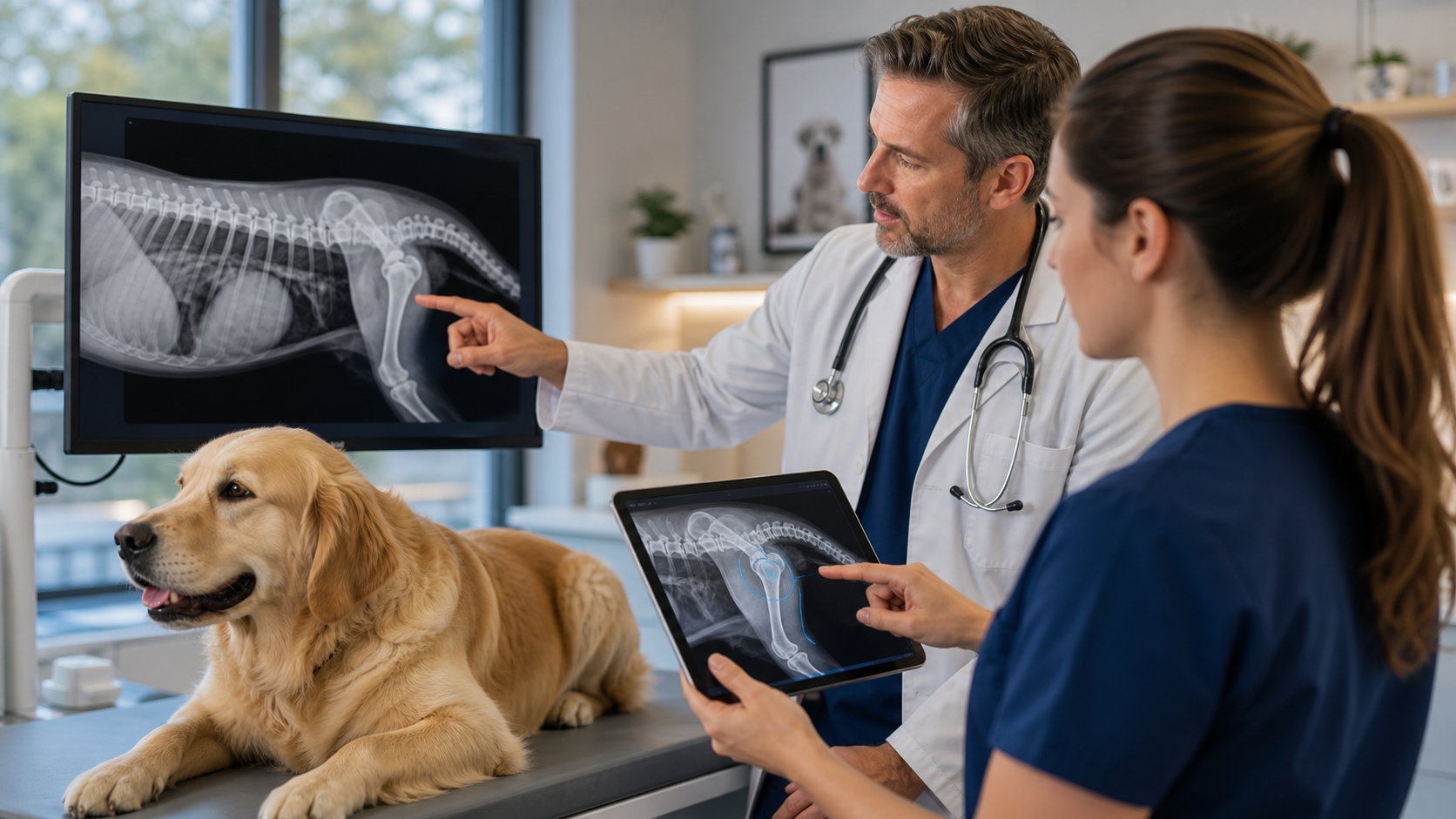
An imaging report brings several things together: the images, the reason for the study, the patient's clinical context, and the veterinarian's interpretation. Keeping those pieces connected makes the report easier to prepare and review.
The November 1 Imaging Study updates bring selected images into the AI drafting workflow. With AI enabled for your clinic, you can choose the linked images and appointment sections to send, generate an editable draft, and review the findings, impression, recommendations, and client summary before applying it.
The workflow stays inside the patient's appointment. Each study keeps its own clinical report fields, and saved studies and their linked images appear automatically in printed and shared reports.
What Changed
| Update | What it means for your team |
|---|---|
| Evaluate selected images | Choose supported images linked to the current study for the AI to consider alongside the study details |
| Choose appointment context | Select the relevant history, exam notes, symptoms, diagnosis, vitals, or patient details and review the input preview |
| Keep text-only drafting | Leave all images unchecked to draft from entered study text and any selected appointment sections |
| Review each study separately | Edit findings, impression, and recommendations for the selected study before applying the draft |
| See estimated AI usage | Review the estimated units before generating, based on the number of selected images |
| Include studies and images in reports automatically | Saved studies with content appear in the report, with linked images grouped by study at the bottom |
You Choose What Goes Into the Evaluation
The Evaluate action opens a review window for the selected study. It shows the linked images available for evaluation, checkboxes for appointment context, and a preview of the selected input.
Study details and notes are included: modality, region, views, reason for imaging, findings notes, and recorded sedation or contrast details. You can add selected appointment sections such as history, physical exam notes, public notes, symptoms, diagnosis, vitals, and patient details. Private notes are not an option in this imaging review.
Linking an image to a study and sending it to AI are separate choices. Linking organizes the study and its report. Checking the image in Evaluate includes it in that AI request. Unchecked linked images can still appear in the report.
You can also leave all images unchecked. The assistant then drafts from the entered text and selected context, without claiming to have examined images.
A Draft the Veterinarian Reviews
With images selected, AI can use their visual content to help prepare the draft. The veterinarian still needs to verify the observations, image quality, uncertainty, and consistency with the patient and views provided, then edit or reject the proposed wording.
The draft contains Findings, Impression, Recommendations, and an owner-facing summary. Generate prepares those fields for review; Apply draft transfers the reviewed text into the form. Applying a draft does not send the report to the client.
Findings, impression, and recommendations belong to the selected study. The separate client summary is shared across the Imaging Study form and is currently labeled Evaluation. Applying a draft with summary text updates that shared field, so review it across the whole case when working with several studies.
Step by Step: From the Dashboard to the Report
1. Open the patient's appointment
Go to the Dashboard and open the left navigation menu. Expand Appointments, select Technician, and open the correct patient's appointment in the Technician Portal.
Confirm the patient and appointment before working. Use an editable appointment and an account with AI enabled. Completed appointments do not allow AI generation or application of drafts.
2. Open Imaging Study and select the study
In the appointment's Supplemental Forms, select Imaging Study from the dropdown and click Add. If the form is already listed, click View beside it. Inside the form, select the study from the list on the left, or click Add to create one.
Give it a clear name and complete the relevant modality, region, laterality, views, reason for imaging, and findings notes. For several study areas, use separate named studies so their images and conclusions remain organized.
3. Link the images that belong to this study
Use Linked documents to select existing appointment files, or Upload from the study to add new files. Check that each image is linked to the intended study; a file stored on the appointment alone is not enough to associate it with a study.
If you need an explanatory arrow or label, Annotate saves a marked copy while preserving the original. Choose deliberately which copies to link and include in the report.
4. Click Evaluate and review the selection
In the selected study's Report draft section, click Evaluate.
Under Images to send, check only the images you want evaluated. The supported selection is up to 6 JPEG, PNG, or WebP images, with a maximum of 8 MB per image and 24 MB total. PDF and DICOM files are not supported by this AI action.
Under Appointment context to send, check the relevant sections. Read the input preview and estimated AI units before continuing. Images are optional; an empty selection uses text only.
5. Generate, edit, and apply the draft
Click Generate. Übik saves the existing study edits and image links before processing so the request uses the saved study association. Generated report text remains in the review window until you apply it.
Read and edit every proposed field. Confirm that the wording matches the actual patient, study, and images, and that missing evidence or uncertain findings are represented appropriately. Review the owner-facing summary as well.
When ready, click Apply draft. Review the resulting study fields and shared summary in the form, then save the appointment/form changes through the normal workflow. Repeat separately for another study as needed.
6. Review the report before sharing
Use Print from Imaging Study to save current edits and open the report. Review the study details and clinical text, then scroll to the bottom for the linked image gallery, grouped under each study and before the veterinarian's signature.
All saved imaging studies with content are included automatically. There is no Include in client report checkbox for Imaging Study. Review every included study before printing or sharing; a draft status is not a report-exclusion control.
When the veterinarian has reviewed the content, use the form's sharing controls to send the report through your clinic's normal workflow.
Understand the AI Usage Before Generating
The review window shows estimated usage. The current provisional formula is 2 AI units per evaluation, plus 4 units per image submitted.
| Images submitted | AI units for a successful generation |
|---|---|
| 0 — text only | 2 |
| 1 | 6 |
| 2 | 10 |
| 6 | 26 |
A successful generation records usage even if you decide not to apply the draft. Failed or incomplete evaluations do not record usage. The subscription's configured AI meter and unit price determine billing; check your account's terms or ask Übik about the applicable price. The table shows units, not a universal currency price.
Selecting only the useful images and context helps you keep each request focused and review its estimated usage before generating.
If Something Does Not Appear
- Evaluate is missing or unavailable: Confirm AI is enabled for the clinic, the appointment is editable, and your user has access to the workflow. Ask an administrator or Übik if it remains unavailable.
- An image is missing from the AI selection: Check that it is linked to the selected study, uses a supported format, and meets the size limits. Save and reopen Evaluate after changing links.
- An image is missing from the report: Check Linked documents, save, and reopen the report. Look under the correct study in the bottom gallery. Missing or deleted files and PDF attachments are not rendered as image tiles.
- Generation fails or returns an incomplete draft: Review the error and selection before trying again. Do not treat an interrupted response as an accepted report; contact support if the problem persists.
For the wider workflow, see Imaging in Ubik: Studies, Images, and Linked Appointments. For help enabling AI or using the updated review window, contact the Übik team.