A doctor adds a wound-dressing service to an appointment. The team uses gauze and other supplies, and the patient may need a protective collar to take home. The service is recorded—but did everyone add the items that went with it? Did the clinic intend to bill for each product, or include some of those supplies in the procedure fee?
Those decisions should follow your clinic's policy, without making every doctor search for the same items and rebuild the same list on every visit.
Associated-item defaults let you prepare that list once, then review it for each patient. A service can suggest its usual linked services and inventory, starting quantities, which items begin selected, how inventory should be billed, and a preferred product within an inventory group. Your team can adjust those choices before approving the add.
Capture the whole visit, with the clinic's charging policy already in view
A complete record and a correct charge are two different things. A supply may need to be recorded because the clinic used it, even when the customer should not receive a separate charge.
Defaults help your team handle both:
- Remember the usual items. Bring the services, products and supplies that normally accompany a procedure into one review, instead of relying on someone to remember every search.
- Charge consistently. Suggest separate billing for products your clinic sells, and internal dispensing for clinic supplies included in the service fee.
- Give doctors fewer repetitive steps. Start with the usual quantities and preferred products, then change only what this patient needs.
These settings belong to the association with that service. The same inventory product can be suggested as an internal dispense for one procedure and as billable for another.
Choose what should be charged—and what should use clinic stock
Inventory associations offer three billing choices:
| Billing choice | What happens |
|---|---|
| Billable | Creates the usual customer charge and uses clinic stock when dispensed. |
| Internal dispense | Uses clinic stock when dispensed, without creating a separate customer charge. |
| External dispense | Creates no customer charge and uses no clinic stock. |
For example, your wound-dressing service might suggest two units of gauze as an internal dispense, because your clinic includes those supplies in the procedure fee. An optional protective collar could be billable when the client purchases one. If the owner supplies the dressing material, the appropriate associated item could be recorded as an external dispense.
Use internal dispensing for supplies consumed from the clinic's inventory without a separate charge. External dispensing is appropriate when that recorded item does not come from clinic stock. Marking clinic supplies as external would leave their stock use unrecorded.
The billing choices apply to inventory. Associated services keep their normal service pricing; linking a service does not make it free or include its charge in the parent service's price.
Set up defaults for a service
1. Open the service and choose its associated items
Open Services, then edit the service you want to configure. Use the existing Associated product and Associated service sections to link the relevant inventory groups, specific inventory items and other services.
Choose a specific inventory item when the service usually uses that product. Choose an inventory group when the team should be able to select a suitable variant during review.
2. Open Defaults beside a linked item
Each selected association has a Defaults button. Configure the starting values that make sense for your clinic:
- Inclusion: Included by default starts checked in the review. Optional starts unchecked.
- Quantity: Keep Use item default quantity, or enter a starting quantity for this association. Check the product's unit when entering inventory quantities.
- Billing: For inventory, choose Billable, External dispense or Internal dispense.
- Additional instructions: Enter directions specific to this association. They append on a new line after the item instructions; staff can edit or remove the extra text before approval.
- Preferred inventory variant: For a linked inventory group, suggest a particular product. Staff can still choose another available variant during review.
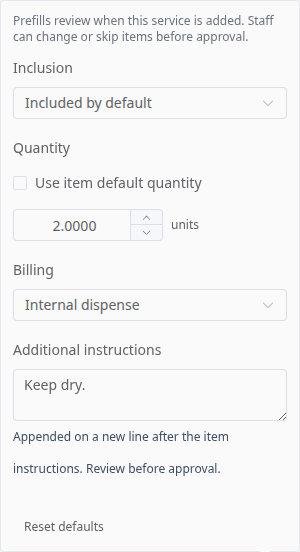
Example settings from the Übik interface using illustrative clinic data.
Included by default is a starting selection, not a mandatory item. Staff can uncheck it when it does not belong in this patient's visit. Use Optional for items that should be offered for consideration but are not routinely needed.
3. Save the service
Click Save to keep the settings. They will be suggested the next time the service's associated items are reviewed. Setting defaults does not add anything to existing appointments.
Use the defaults during an appointment
When you add the configured service, Übik opens the associated-item review with the suggested quantities, selections and inventory billing already filled in.
- Review the list. Check that the services and supplies match what this patient needs. Usual items start selected; optional items remain available to select.
- Select an item to review its details. Adjust quantity, inventory billing or the chosen product variant as needed.
- Check included supplies as well as billable products. Internal dispensing still records clinic inventory use even though it does not create a customer charge.
- Choose Add to approve the reviewed items. Only selected items are added. Use Add with defaults when you want the suggested quantities rather than your quantity edits.
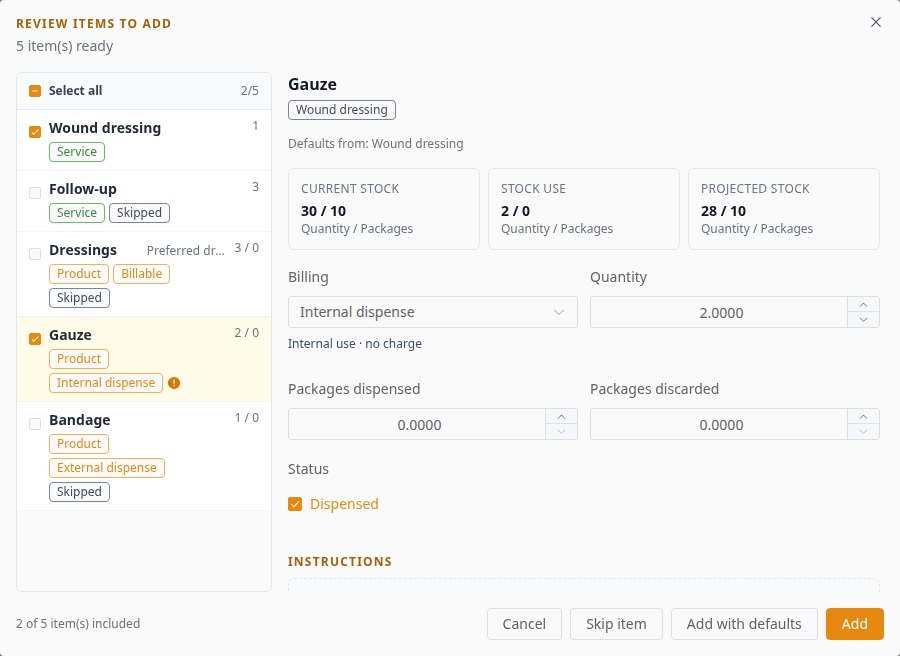
Review each patient's items before approval. This example shows both selected and optional items.
Changing a value during this review affects this add; it does not rewrite the service's saved defaults.
When something needs attention
An internal item is unchecked and shows a permission warning. The person adding it needs Internal Use permission. Skip that item or explicitly choose another billing type that matches the clinic's policy. Übik does not silently turn it into a billable item. Ask your administrator if internal dispensing is needed.
Two linked services suggest different defaults for the same item. The shared item starts unchecked. This also applies when one service links an inventory group and another links a product within that group. The specific product supplies the suggested billing, and the review shows each source service's billing choice. The doctor must review and choose the appropriate billing, then confirm the defaults before approving the item. For example, a group marked Internal dispense and a specific product marked Billable will suggest Billable while waiting for review. Explicit product settings within the same source service override that service's group settings.
The preferred variant is unavailable. Choose an available variant before adding the item. A preference is a useful starting choice, not a way around product availability or stock checks.
You remove an association. Remove the link and save the service; its defaults are removed too. Adding that link again starts fresh. Existing appointment items and history stay unchanged. To keep the association but clear its settings, use Reset defaults.
For hospitalization and boarding, approval creates pending items and requested instruction quantities; actual inventory consumption follows administration. The approved item instructions and additional association text are saved together in the care instruction notes, with the item instructions first. In estimates, the selected billing determines customer cost without dispensing stock or creating clinical records.
Start with one frequent procedure
Pick a service your doctors use often. Agree on which items are routine, which are optional, and which supplies are included in the fee. Set those defaults, then walk through the review with your team.
The result is a faster starting point for the doctor and a clearer checklist for everyone else: record what the clinic used, charge according to policy, and keep the final decision with the person reviewing the visit.
Related guides: Linked services and inventory groups · Internal inventory during appointments