Your service catalog describes the work your clinic performs and the charges your team adds to visits and sales. Preparing it before you start with Übik helps reception, doctors, and technicians use the same names and prices.
Begin with a clear list of services. Then decide which pricing rules, instructions, and related products should be ready for the first day.
Download your service template
- Download the simple service template (.csv) — Service name, type, sale price, business cost, tax-inclusion information, and notes.
- Download the advanced service template (.csv) — Adds identifiers, instructions, price options, weight tiers, linked items, appointment defaults, commission choices, and fiscal details.
Both downloads are blank preparation sheets for onboarding, with one row per distinct service. Send the completed sheet to the team handling your import. They will map the fields, prepare the upload, and review any configuration that needs to happen after the catalog is created.
The essential information
The service editor requires Service Name and Service Type.
- Service Name: Use a name your team can recognize and distinguish from similar work. For example, a first consultation and a follow-up consultation may need separate names if they are separate services in your clinic.
- Service Type: Choose the closest supported type: Imaging, Consult, Medicate, Test, Dressing, Surgery, Fee, Grooming, or Dental. Describe anything that needs a different classification in Notes for review.
Preserve the original names and source IDs when migrating an existing catalog. Review duplicates before combining them. Similar names may represent different procedures, prices, or historical records.
Services and inventory have different jobs
A service represents work performed or a fee. An inventory item represents a physical product whose quantity is tracked.
For example, an administration service and the medicine used during that service can be separate catalog entries. Prepare the physical product in the inventory template, and describe how it relates to the service in the advanced service sheet.
If you sell a procedure as a package, explain what the price includes. The setup team should confirm the linked items and how their charges work before that package is used, so the same work or product is not charged twice.
Useful information to define before selling
| Field | What to provide |
|---|---|
| Sale Price Per Service | The amount charged for one performance of the service. Explain whether it is a visit, procedure, test, or another defined unit of work. |
| Business Cost Per Service | The cost to the clinic for that same unit of work, when known. |
| Sale Price Includes Tax | Yes/No, so the team knows whether the supplied amount is a final price or a price before tax. |
| Currency / Business Cost Includes Tax / Tax Rate | Use the dedicated advanced columns for confirmed amounts and tax treatment. In the simple sheet, explain currency and cost-tax details in Notes. |
| Source Service ID / Barcode | Existing identifiers that help match your original catalog and distinguish similar services. Keep them as text. |
Leave unknown prices or costs blank and explain them in Notes. Use 0 only when you have confirmed a real zero, such as an intentionally free service. A missing price should be resolved before the service is offered for sale.
Keep prices numeric, for example 250.00, without currency symbols. The service price is separate from its tax-inclusion choice; changing one without reviewing the other can change the final charge.
For clinics using CFDI in Mexico, the advanced sheet includes SAT Product Code, SAT Unit Code, and SAT Tax Object. Provide the clinic's confirmed values for review, along with the tax rate. Do not guess fiscal classification from the service name.
Optional settings in the advanced template
Client instructions
Use Instructions for the approved text you want to associate with the service. Use Instruction Prompts to indicate whether staff should complete variable details when preparing those instructions.
Keep onboarding explanations in Notes. Internal comments and unresolved questions should not become client instructions. Existing instruction templates can be matched during setup; adding their names to the preparation sheet does not create those templates automatically.
Discounts and editable prices
Use Discounts Allowed and Sale Price Editable to record the behavior your clinic wants. Use Yes/No when decided and leave the cell blank when it needs review.
These are separate choices. A clinic may permit an approved discount while keeping the base service price fixed. The team can review the detailed discount options during setup.
Pricing by weight
Use Weight Price Tiers when one service has prices that depend on the patient's weight. Provide each range, its weight unit, the customer price, and the business cost when known. Clarify which range includes a boundary weight.
Labels such as Small, Medium, and Large need definitions. Do not assume that the ranges in one clinic's price list apply to another clinic. Keep your original size-based rows available until the team has confirmed whether they should become one tiered service or remain separate services.
Linked products and services
The advanced sheet has columns for Linked Inventory Groups, Linked Inventory Items, and Linked Services.
List exact catalog names, separated by semicolons when there is more than one. Explain quantities, alternatives, and what is included in the price in Notes or in a separate package-detail sheet. An inventory group can allow a choice between related products; a specific inventory item identifies a particular product.
The related catalog entries need to exist and be linked during setup. Review a representative use with the clinic team before using the service package in live visits.
Appointment defaults and commissions
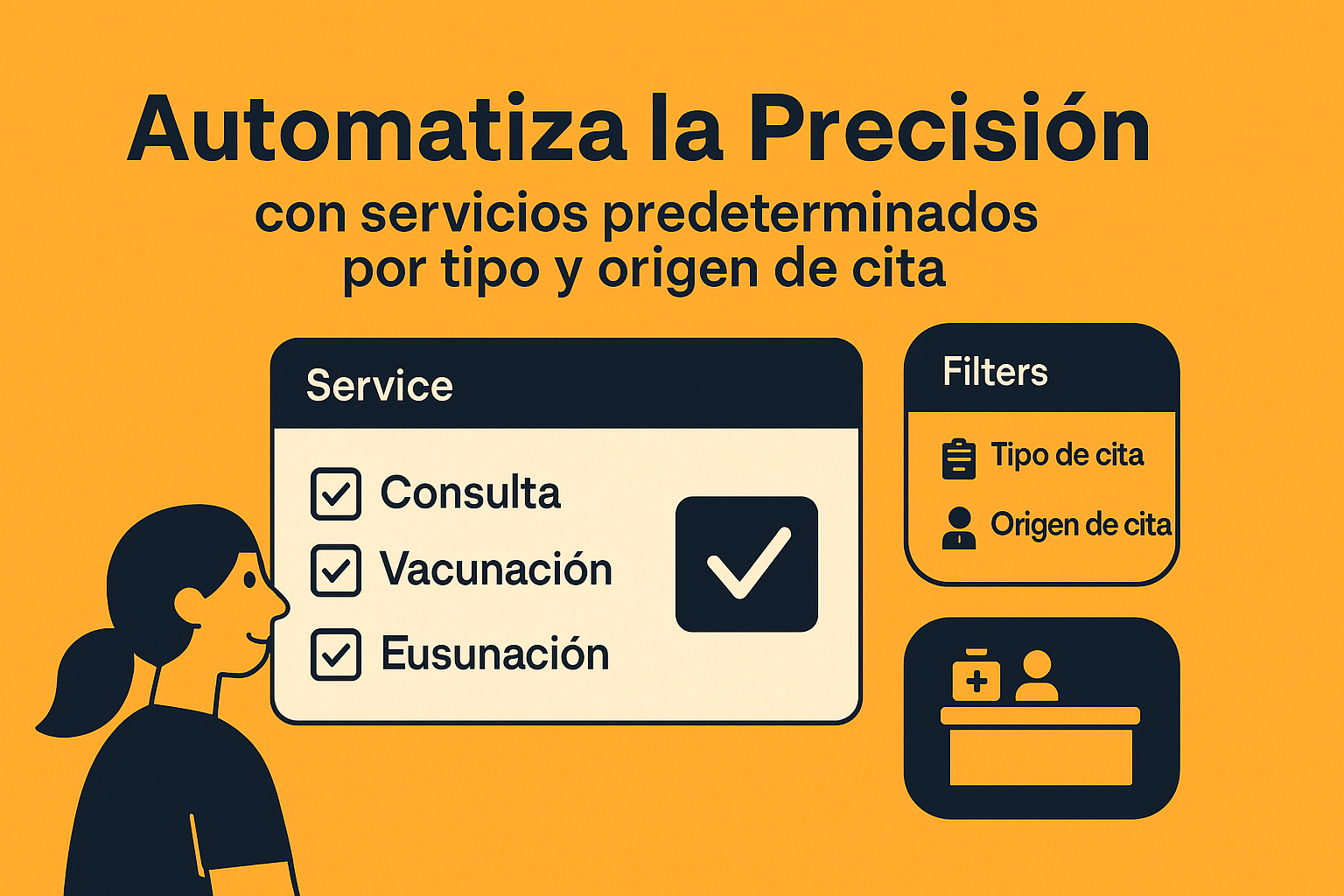
- Default Appointment Types: Record when you want the service considered for automatic addition, such as a consultation fee for a consultation appointment. Confirm the exact rule before enabling it, since it can add charges to new visits.
- Commission Enabled / Commission Percentages: Provide the clinic's approved commission setting and percentage options, separated by semicolons when several apply. Leave undecided values blank for review.
Linked records, appointment defaults, commission settings, and instruction-prompt behavior need configuration beyond the standard service CSV import. The advanced sheet collects those decisions so they can be completed deliberately.
Before you send the file
- Keep one row per distinct service and review retired or duplicate entries separately.
- Confirm the service name and type.
- Check the unit of work, sale price, cost, currency, and whether amounts include tax.
- Define weight ranges explicitly when prices vary by weight.
- Use matching names for linked inventory and services, with clear quantities and package inclusions.
- Keep client instructions separate from onboarding Notes.
- Save as CSV UTF-8, with a comma delimiter, and send the original price list alongside it when interpretation is needed.