Find your way around Übik
Choose the right clinic and portal, find a task, and return to the correct patient or product.
Reviewed against current application source. Screenshots use fictional local training data.
What you will learn
#Übik combines role-based portals with management pages. Your training role describes what you need to learn; it does not grant application permissions. Start each task by checking the active clinic, then choose the portal or management page that owns the work.
- Find Reception, Technician and management tools.
- Recognize the active clinic before editing.
- Use task search and stable lesson section links.
Before you start
#Sign in with your own authorized account. The menu reflects your permissions and the features enabled for this clinic.
Practice with fictional records in a training clinic. A Learning Center example does not authorize changing a real patient, invoice or stock balance.
Do it in Übik
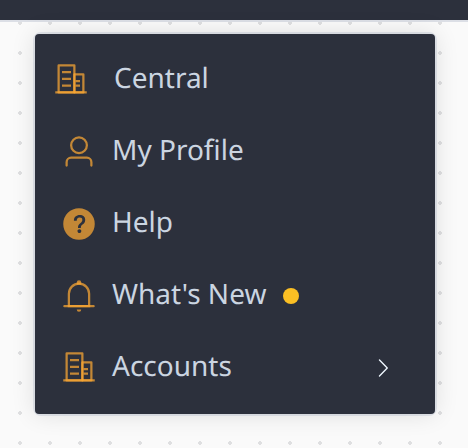
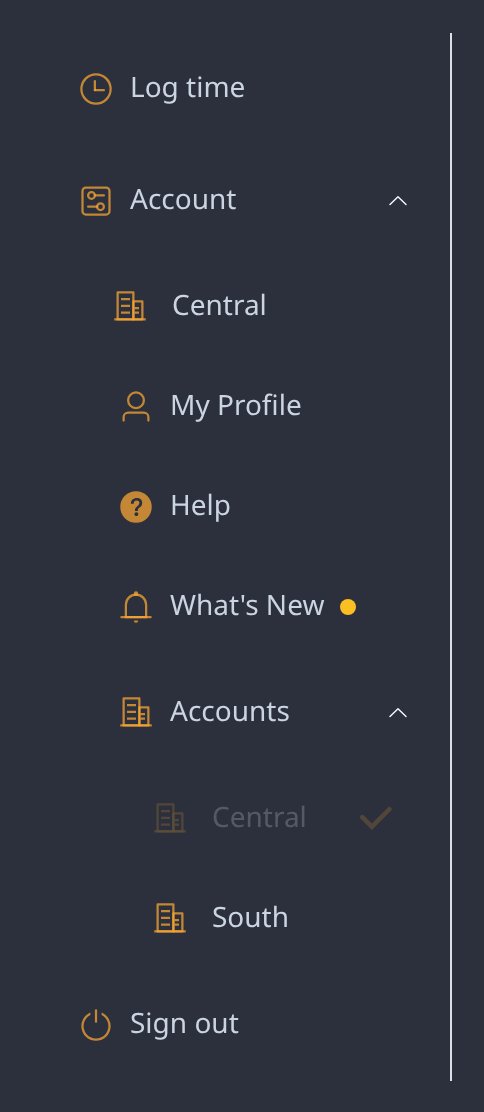
#- Open the application menu from the header; on a narrow screen open the navigation drawer.
- Check the active clinic name. If you can switch clinics, choose the intended account before opening a record.
- Use Portals for daily Reception or Technician work. Use the corresponding management section for Inventory, Accounting or configuration.
- Find the patient, appointment or inventory item using that page’s search and filters; verify identity before editing.
- Use Help to open the Learning Center and search a task such as receiving stock. Choose a lesson in your language.
- Copy a section link with its # anchor when you need a colleague to see the exact instruction. Return to the original work and verify the saved result.
Work through a clinic example
#Demo Clinic has a receptionist and an inventory lead. A client arrives while an invoice awaits entry. Reception checks the appointment in the Reception portal; the inventory lead opens Inventory → Manage. Both work in Demo Clinic, but on different records.
A colleague sends the purchase-conversion link ending in #invoice. It opens the invoice instructions directly. The link explains the task; it does not open a customer record or change a clinic setting.
Common mistakes
#- Assuming a training-role label automatically gives permission.
- Editing the first matching name without checking the pet, owner and clinic.
- Switching clinics to search for a missing record without first checking the original page’s filters.
Troubleshooting and recovery
#If a page is missing, confirm the clinic and ask the administrator to review the relevant permissions and enabled features. A hidden menu does not prove the record was deleted.
If a save is pending or failed, preserve the draft and resolve the visible warning before leaving. Help → New request accepts an issue without requiring AI assistance.
Check your understanding
#Ready to use this workflow
#Saved only in this browser. This is a personal practice checklist, not a clinic training record.
Related guides
- Related workflow guide
- Use individual accounts and the right access
- Follow the patient journey from booking to follow-up
- Public manual
Source: Find your way around Übik · Revision 2