Use reports for a focused daily clinic review
Choose the right analytics area, align date ranges and trace exceptions to the records that explain them.
Reviewed against current application source. Screenshots use fictional local training data.
What you will learn
#A useful daily review begins with a question and the report that can answer it. Appointment, customer, pet, employee, inventory and accounting analytics cover different records. Open the appropriate Analytics option from the Dashboard or navigation and review the visible definitions before treating two totals as comparable.
Cash collected, gross payments, non-cash settlements, sales and profitability describe different things. A promotion or applied credit can settle a bill without adding fresh money to the drawer. A current supplier debt total can include older unpaid purchases even when another chart is filtered to yesterday.
Before you start
#Confirm the clinic and permissions for the analytics areas you need. Agree the review period in clinic local time and define the question: unfinished appointments, unpaid work, unusual discounts, inventory discrepancies or cash collection.
Use a fictional Demo Paws day and avoid using a single dashboard number as proof of a staff error. Review the underlying record and context before assigning a correction or contacting a customer. Record an owner and due time for each real exception.
Follow the workflow
#- From the Dashboard or navigation, open the Analytics area matching the question. Use Appointment Analytics for appointment progress, Inventory Analytics for stock questions and Accounting Analytics for financial review.
- Set the date range and read any range or data message. When comparing reports, align clinic, period and relevant filters; verify whether the metric follows appointment, charge, expense or payment dates.
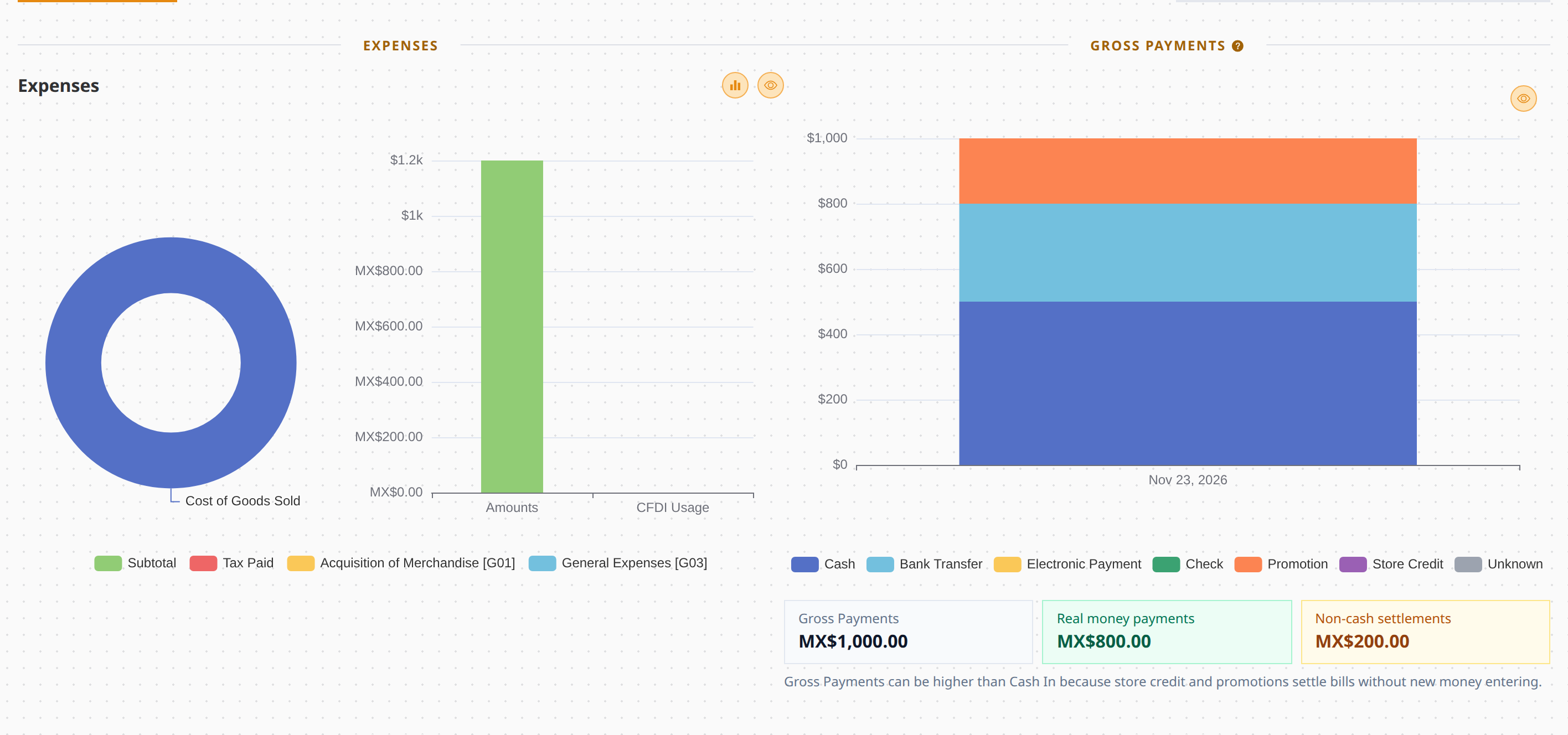
- In Accounting Analytics, review Expenses and income and its Gross payments, Real tender payments and Non-cash settlements explanations. Inspect the supporting rows before comparing the total with cash in the drawer.
- Use Cashflow for the cashflow question and Profitability for the reported revenue and cost view. Do not treat a cashflow result as an interchangeable profit figure.
- For outstanding suppliers, inspect Supplier debts and its current balance explanation independently of the chart date range. Open the expense or payment history that explains a discrepancy.
- Build a short action list from the review: record affected record, observed issue, responsible lead and follow-up. After correction, reopen the relevant report or record and check the result rather than changing figures to fit a target.
Practice with a fictional clinic
#Demo Paws sees 1,000 MXN of gross bill settlement but only 800 of real tender, with 200 of non-cash settlement. The lead reads the breakdown and finds an approved credit or promotion adjustment. The difference alone does not prove that 200 cash is missing.
A supplier debt of 700 remains from an earlier invoice. Yesterday’s expense chart need not show that purchase again. The administrator checks the supplier’s expense and payment allocations, then assigns the actual outstanding payment task rather than editing yesterday’s totals.

Avoid common mistakes
#- Comparing different clinics, periods or date meanings can create a discrepancy that does not exist.
- Calling gross settlement cash collection overlooks promotions and credit applications.
- Using report review to rewrite historical charges without inspecting their payments, stock and fiscal documents risks losing context.
When something does not look right
#- If an Analytics option is missing, review the related reporting permission and feature applicability; Clinic Insights has separate enabled-feature and administrator requirements.
- If a total seems incomplete, read the page’s data message and filters, then inspect a specific included or excluded record instead of assuming a full-data export.
- If the same source records still disagree with the documented metric, capture the period and anonymized example and request support review. Keep payroll, patient and customer details out of general training notes.
Check your understanding
#Complete this lesson
#Saved only in this browser. This is a personal practice checklist, not a clinic training record.
Related guides
- Administrator daily review playbook
- Review attendance, compensation and payroll before creating expenses
- Prepare imports and verify the clinic is ready to launch
- Public manual
Source: Analytics pages available in Ubik · Revision 2