Configure treatment schedules and review actual adherence
Connect an approved schedule to products or services, distinguish due dates from actual events, and configure reminders intentionally.
Reviewed against current application source. Screenshots use fictional local training data.
Understand the workflow
#A Treatment schedule defines when an approved product, inventory group, or service is expected for a matching pet. Its steps can use age from date of birth or timing after the previous dose, with recurrence and an optional effective duration. Taxonomy and lifestyle determine applicability. The schedule records a rule; it does not prove that a treatment was administered.
The pet’s adherence view distinguishes scheduled checkpoints, actual dispenses or rendered services, and configured coverage periods. An appointment booking and a completed treatment are different evidence. Follow Ups can use the treatment schedule for customer reminders or internal appointment suggestions, but those behaviors require their own configuration. Creating a schedule alone is not a promise that a message was delivered.
Before you start
#- Ask the responsible clinician to approve the timing rule and intended target. Use a fictional or authorized training example for practice; do not invent clinical timing from this lesson.
- Confirm access to Treatment schedules and verify the target product, group, or service. Review the pet’s date of birth, taxonomy, lifestyle, and actual treatment history before investigating a due date.
Do it in Übik
#- Open Treatment schedules and add or edit a schedule. Enter a clear Name, review Enabled, and choose the applicable Taxonomy and optional Lifestyle.
- Choose the target type: Inventory, Inventory group, or Service. Select the intended catalog object, checking that actual recorded events will match it.
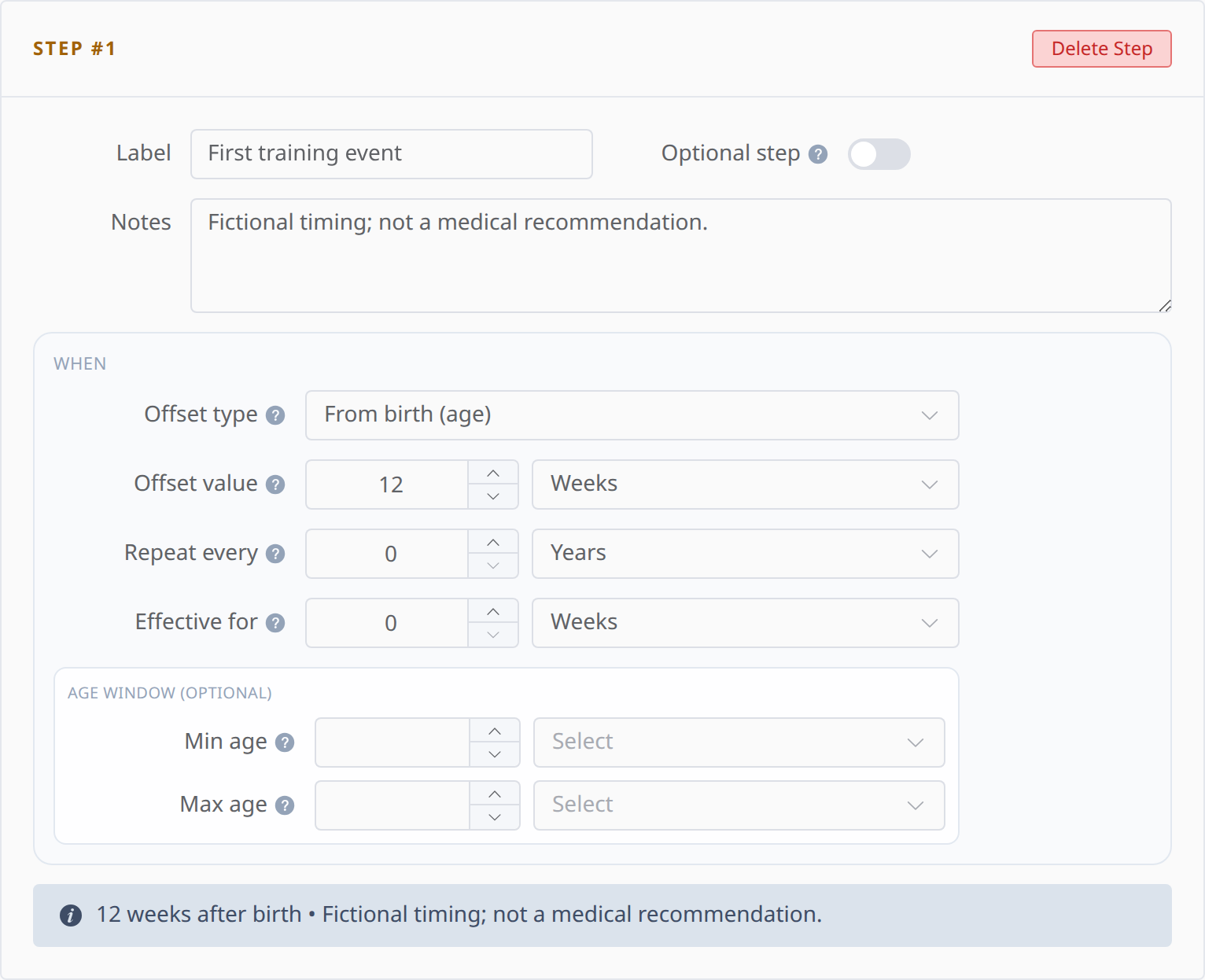
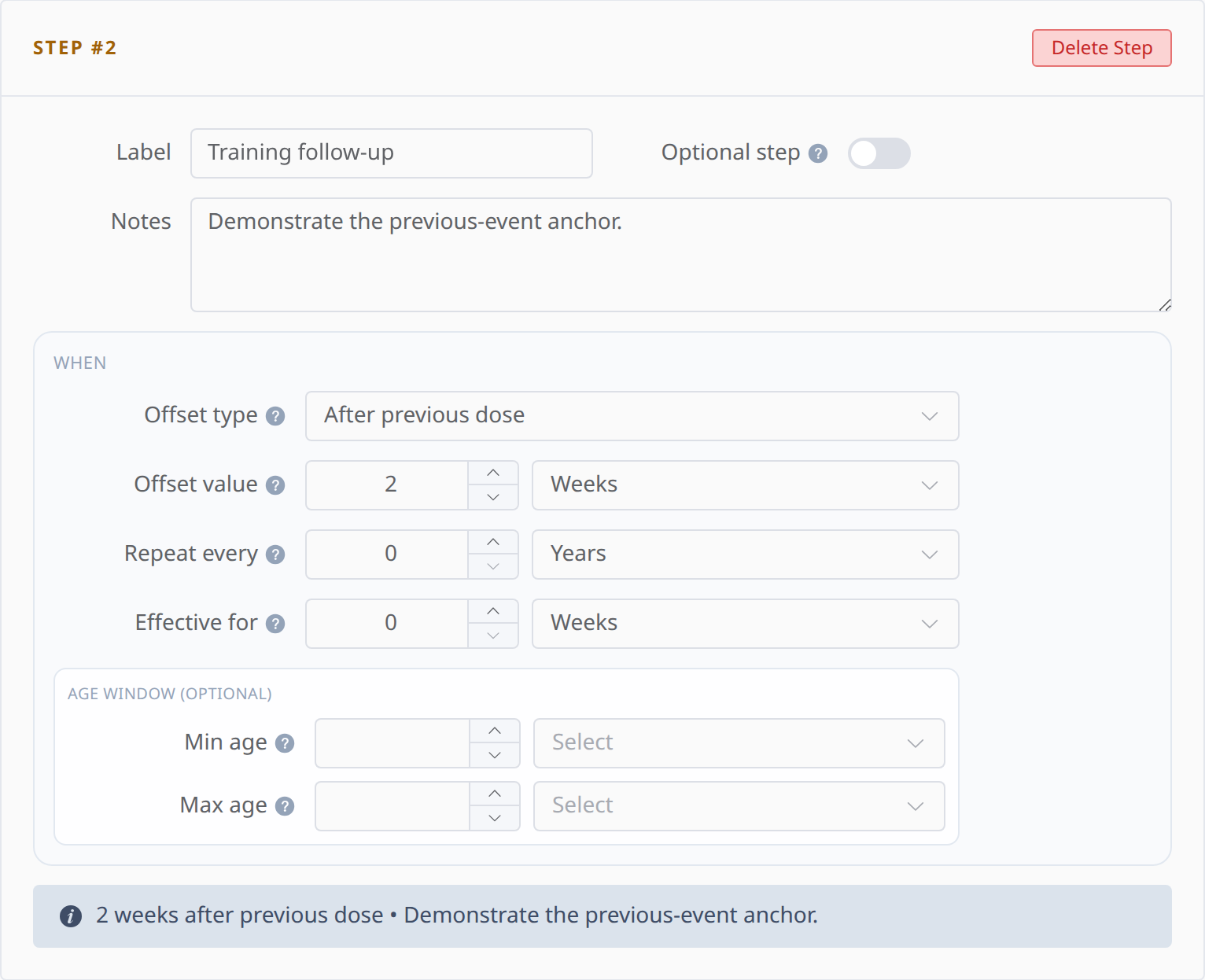
- Add the schedule steps. For each step, review Label, optional status, Notes, Offset type, Offset value, and its unit. Distinguish Age from DOB from After previous dose.
- Set recurrence and Effective for only when they belong to the approved rule. Use the preview to inspect the resulting timing rather than assuming the field names imply the intended schedule.
- Save the schedule and review an applicable pet’s adherence timeline. Compare planned checkpoints with the actual dispense or rendered-service dates; do not alter actual dates merely to make them match the plan.
- If the clinic wants reminders or internal suggestions, open Follow Ups, choose Treatment schedule, select the schedule, and configure the desired message or suggestion behavior. Review existing completed or booked work before arranging another visit.
Try a fictional case
#A fictional “Demo care schedule” targets a training service and uses a second step after the previous recorded event. The administrator selects an age-based offset by mistake. The preview exposes the difference, so the administrator fixes the anchor before enabling the rule.
Later, the team sees a planned checkpoint and an actual event on different dates. They preserve the actual event date and review the timing difference. This exercise demonstrates configuration and evidence; it does not recommend a real preventive or treatment interval.
Avoid common mistakes
#- Choosing a single product when the clinical rule should match a whole group can omit relevant history; choosing too broad a group can match unintended events. Review the approved target.
- Confusing scheduled, booked, and completed work can lead to duplicate care or misleading reminders. Check the actual source event.
- Treating the effective-duration bar as an independent medical guarantee overstates what a configured rule can establish.
Troubleshoot the result
#- If a schedule is missing for a pet, check Enabled, taxonomy, lifestyle, target, and relevant patient details before changing the rule.
- If a checkpoint seems wrong, inspect its timing anchor, offset unit, recurrence, and matched event. A missing first event is different from an overdue later event.
- If the saved rule and patient history do not explain the timeline or follow-up behavior, report the schedule name, affected step, expected date, and observed date through Help without rewriting historical treatment dates.
Check your understanding
#Complete the lesson
#Saved only in this browser. This is a personal practice checklist, not a clinic training record.
Related guides
- Treatment adherence timeline
- Manage boarding care, owner supplies, and pickup
- Prepare discharge documents and the next care step
- Public manual
Source: Configure treatment schedules and review actual adherence · Revision 2