A useful inventory audit answers three questions: What is physically here? Why does it differ from the recorded balance? Which action records what actually happened?
This guide follows Demo Veterinary Clinic through those questions. The screenshots use Übik's actual inventory components connected to an isolated, fictional database. Product names, people, pets, suppliers, lots, and movements are examples. The training banner identifies that environment; your clinic's surrounding navigation can look different.
An agreement between records does not prove that the shelf count is correct. Count the products, then use Übik's evidence to explain differences before changing stock.
On a phone, swipe wide tables sideways and tap a screenshot to enlarge it.
1. Prepare the count
Open Inventory → Manage → Search. You need inventory view permission to inspect items and edit permission for adjustments. Some tools also require their own permissions, such as adding expenses. Ask an administrator if an expected action is unavailable.
Choose a scope: a product, inventory group, supplier, location, or the whole clinic. Search by Name, Manufacturer, Inventory Group, Suppliers, or Location when locations are enabled. Use the table's gear to keep useful columns visible: name, barcode, unit, quantity per package, packages, quantity, and lot tracking.
Assign counting areas and record when each area was counted. Avoid movements during the count where practical. If care must continue, record receipts, dispenses, and transfers so the count has a clear timing boundary. Recount unexplained differences before approving a correction.
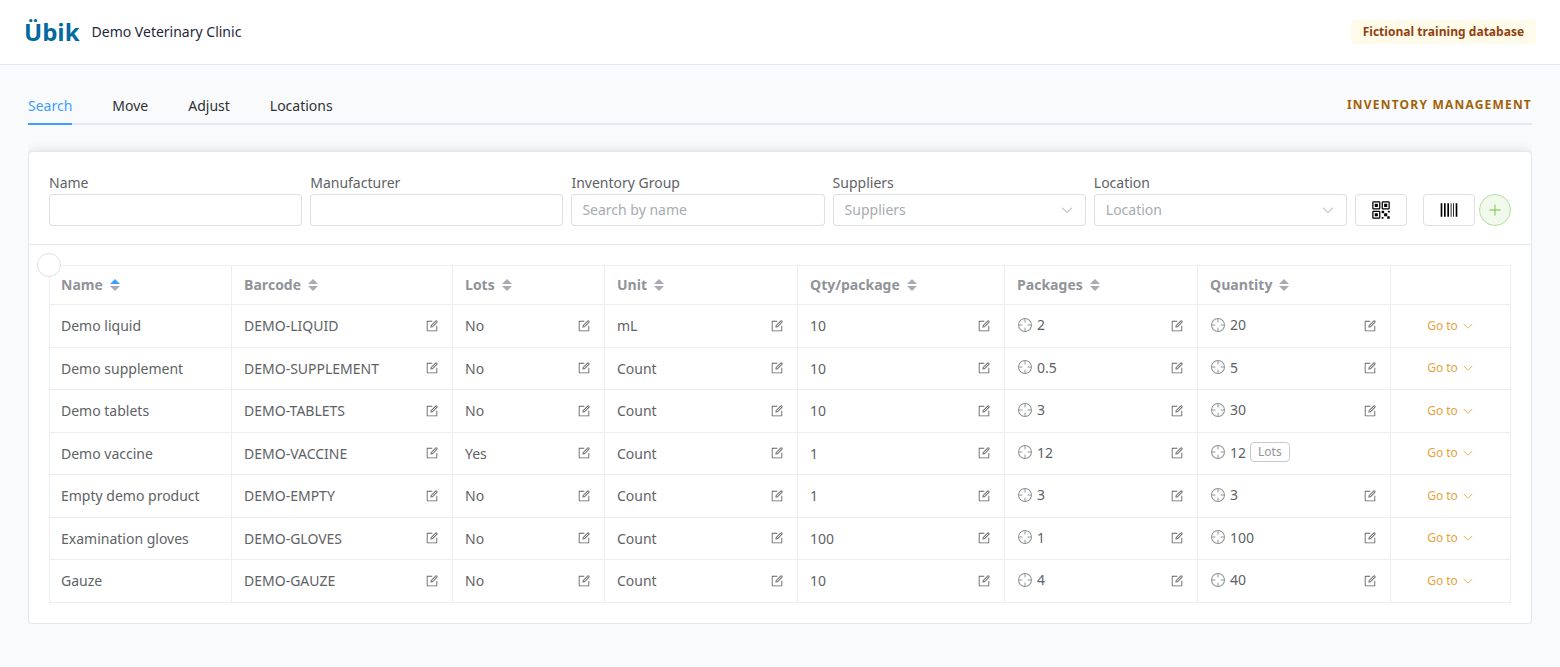
We will use these examples throughout:
| Item | Recorded starting balance | What the team finds |
|---|---|---|
| Examination gloves | 100 units; 1 package | 95 units; investigate five missing units. |
| Demo tablets | 30 tablets; 3 packages of 10 | 25 tablets; package conversion gives 2.5 when enabled. |
| Demo vaccine | 12 units across lots and Untracked | Two expired units belong to lot DEMO-VAC-A. |
| Demo liquid | 20 mL; 2 packages of 10 mL | 18 mL; a pending 2 mL dispense explains the difference. |
| Gauze | 40 units, distributed 30/10 | Still 40, but the count is 20/20 across the two locations. |
| Demo supplement | 5 tablets | A separate, previously unrecorded receipt contains 10 more. |
| Empty demo product | 3 units | Count zero explicitly; also investigate a seeded location mismatch. |
These are separate exercises. A screen showing a staged change is a proposal; it becomes a saved correction only after you apply it successfully.
2. Understand quantity, packages, and pending usage
| Term | Meaning during an audit |
|---|---|
| Quantity / Unit | The amount in the item's configured unit: tablets, mL, pieces, or another unit. |
| Packages | The separately recorded package balance. Confirm how your clinic uses it, especially for opened containers. |
| Qty/package | The conversion factor between one package and quantity. Ten tablets per package means 25 tablets equals 2.5 package equivalents when automatic conversion applies. |
| Auto calc | Links quantity and packages when enabled and supported. Check the displayed calculation before accepting it. |
| Recorded stock | The saved balance. It can differ from physical stock while dispensing awaits scheduled processing. |
| Estimated availability | A calculation using recorded stock and relevant pending usage. It is an estimate, not a physical count. |
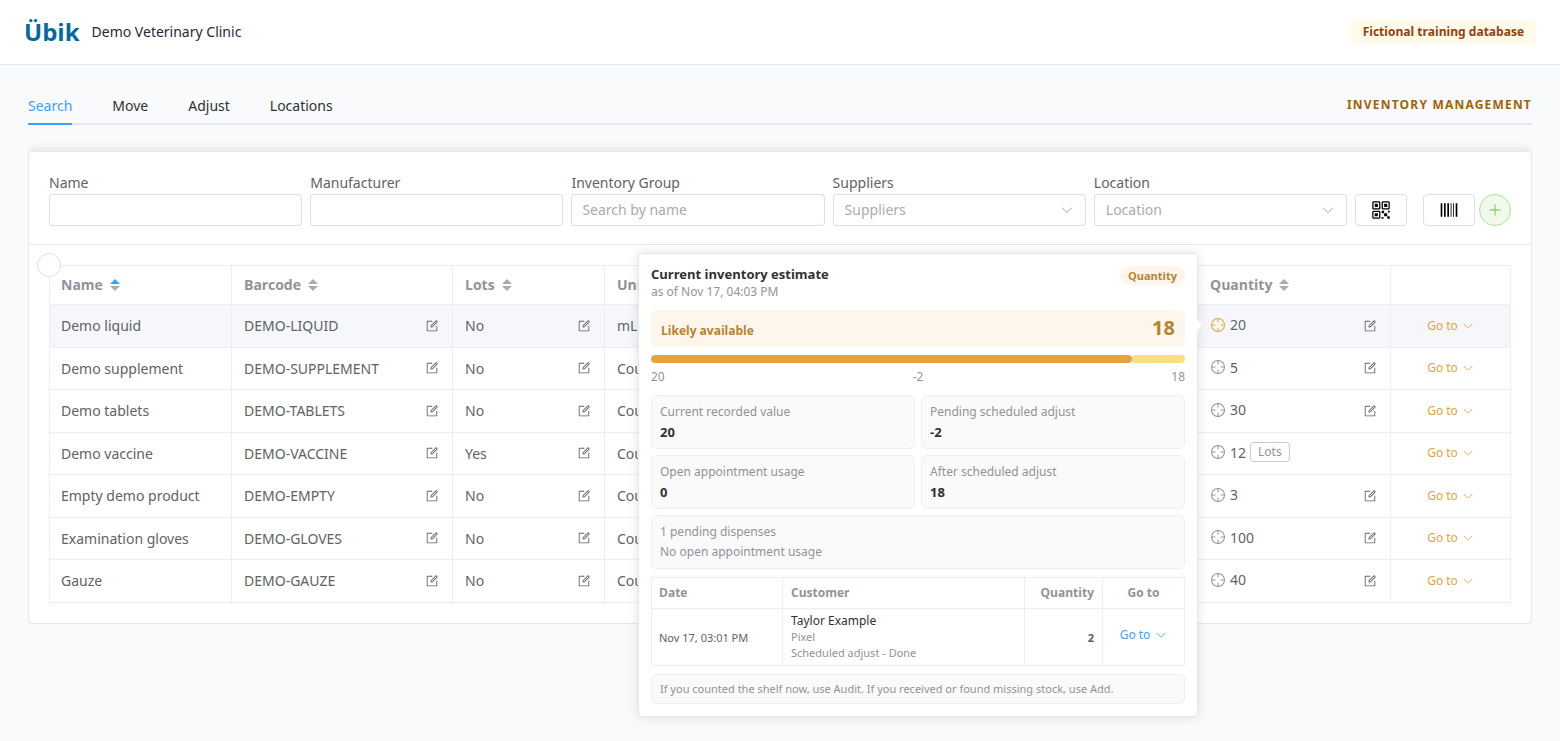
Hover over the target icon beside quantity or packages to open the stock estimate. It separates the recorded amount, pending scheduled adjustment, usage from open appointments when present, and estimated remaining stock. Available dispense details can lead you back to Reception or Technician for investigation.
In our liquid example, 20 recorded − 2 pending = 18 mL estimated, matching the shelf. Do not record an unexplained 2 mL loss just because the saved balance has not yet caught up.
3. Choose Add or Audit
Open Manage → Adjust. This choice controls the meaning of your entry and how earlier pending dispensing is treated.
| Operation | What you enter | Example |
|---|---|---|
| Add | The quantity coming into recorded stock. Earlier pending dispenses still subtract during nightly processing. | Übik shows 5. You receive 10 previously unrecorded tablets. Add 10 proposes 15. |
| Audit | The total physically present now, after earlier use. Earlier pending dispenses are treated as already reflected in that count. | Übik shows 30, but you count 25. Audit 25 proposes a decrease of 5. |
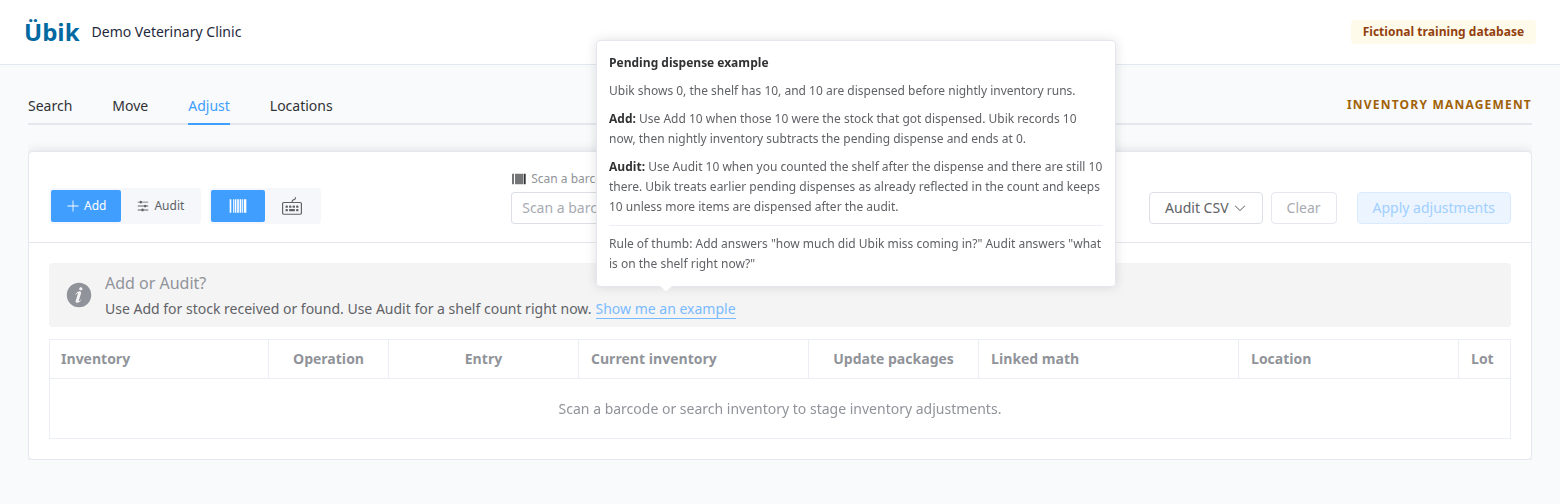
For the liquid example, an Audit of 18 mL describes the shelf after the earlier 2 mL dispense. That earlier dispense should not be manually deducted again. Later dispensing still needs to be processed normally. An Audit can establish a counting boundary even if the number you enter matches the current saved balance.
Use Show me an example for the built-in explanation. Before choosing Add for a missed receipt, verify that a purchase order or expense has not already posted it.
4. Enter counts by scanning or typing
Both entry modes work with scanning or searching:
- Scan/search: each scan or selection adds one unit to the staged entry. Use it when each scan represents one configured inventory unit.
- Scan/search and type: scan or choose a product, then type its quantity. This is convenient for a full box, a partial bottle, or a shelf total.
A barcode identifies a product; scanning a box does not by itself establish how many tablets or mL it contains. Confirm the unit and conversion. QR tools help identify items, and Print QR prints an eligible row's label; printing does not count or change stock.
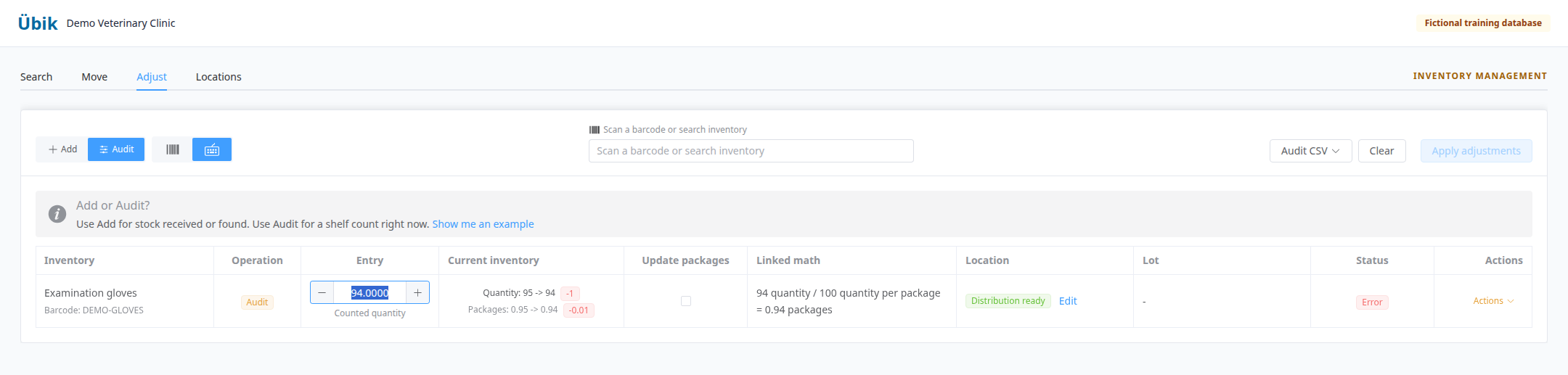
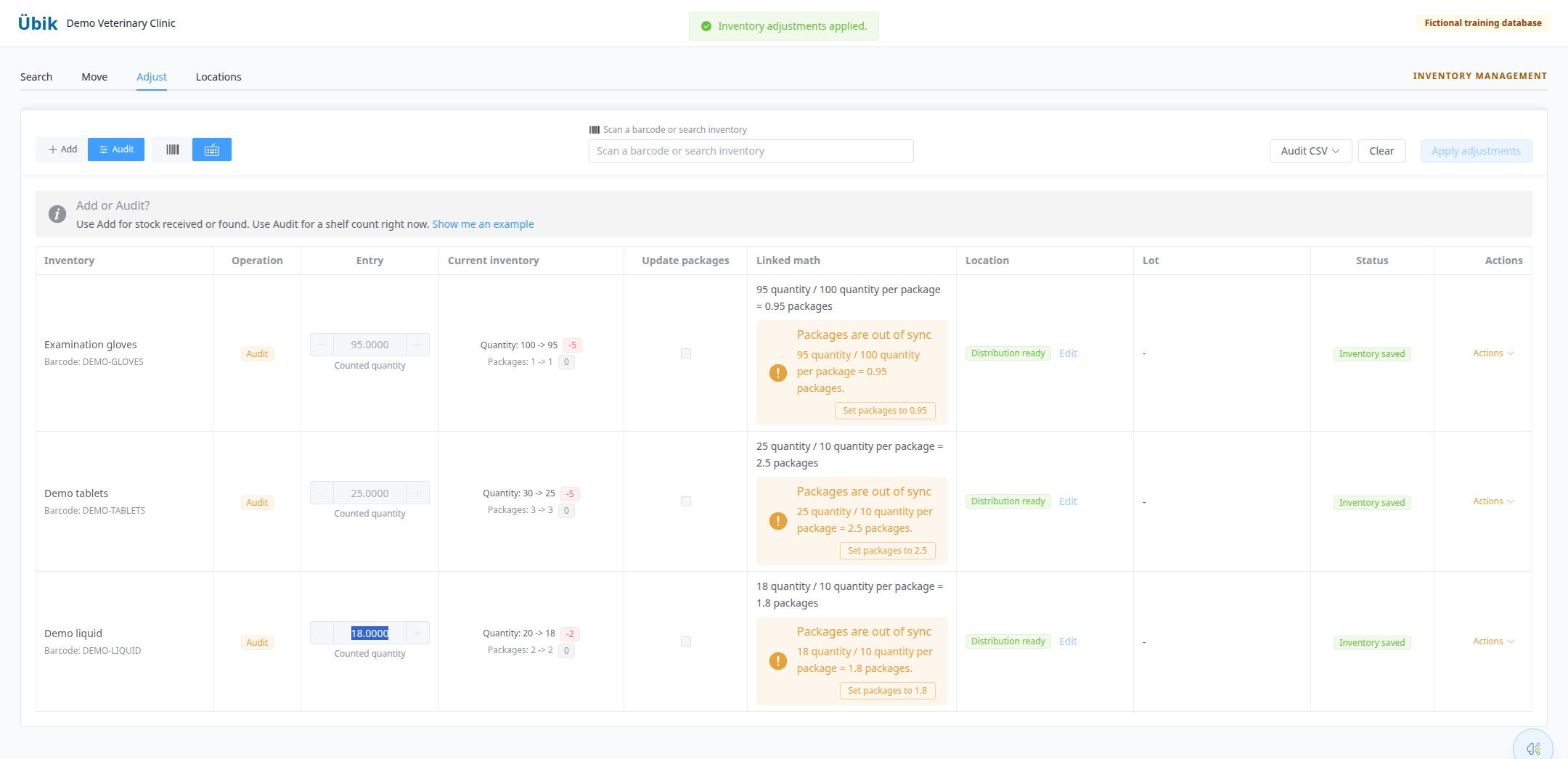
For our tablets, select Audit, choose the typing mode, find Demo tablets, and enter 25. Review the proposed quantity 30 → 25 and package calculation 3 → 2.5. Where locations are enabled, open Distribute, enter the counted amounts by location, and check the totals.
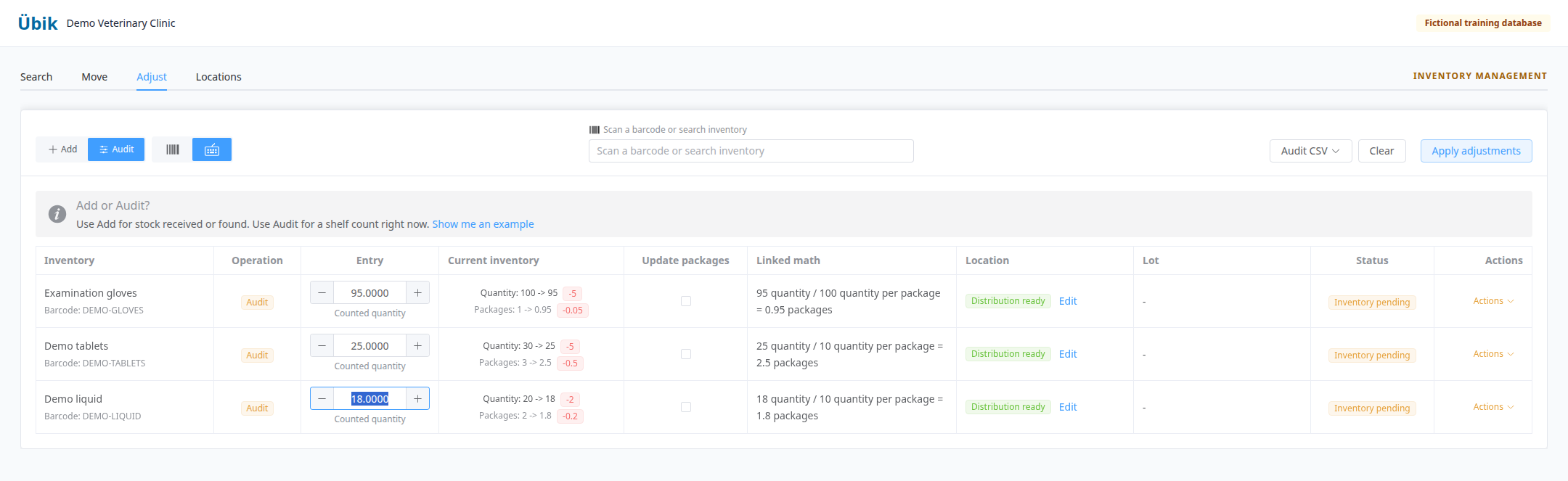
Read every column before applying:
| Control or column | What it does |
|---|---|
| Operation / Entry value | Identifies Add versus Audit and the amount entered. |
| Current inventory / change badges | Shows the starting balance, proposed balance, and positive or negative difference for quantity and packages. |
| Apply packages update / Linked math | Controls a proposed linked conversion and explains its arithmetic. |
| Packages out of sync / Set packages to expected | Offers a conversion-based package value. Accept only when that conversion describes the physical stock. |
| Location / Distribute | Chooses the destination for an addition or stages the counted distribution for an audit. |
| Lot / Assign to lot | Collects required lot information for a tracked increase; tracked decreases require the corresponding loss review. |
| Status | Shows whether a row needs information, has a conflict, failed, or has been saved. Read its tooltip when available. |
| Actions → Refresh | Reloads the row's starting stock. Review the proposal again after refreshing. |
| Actions → Remove / Clear | Removes staged rows. These controls do not reverse adjustments already saved. |
| Apply adjustments | Reviews and submits eligible rows. Check each row's result; a batch can have both successes and failures. |
If stock changes while you are counting, Übik can report a conflict. Refresh the row, investigate the intervening movement, and recount if needed. Do not keep retrying an old proposal.
5. Count many products with Audit CSV
The Audit CSV menu offers Download audit CSV, Download location audit CSV when locations are enabled, and Upload audit CSV. The download covers the account's inventory; search filters are not a promise that the file contains only the visible search results. Keep uncounted rows blank.
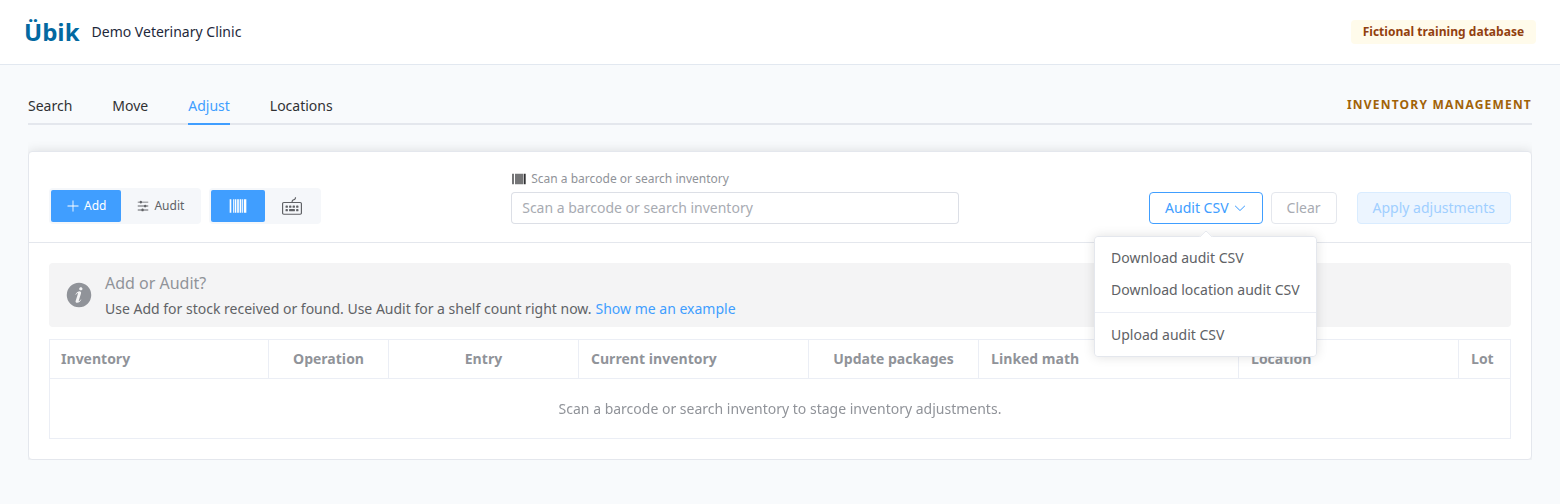
Download a fresh file from your own clinic. Keep the identifiers and recorded starting values intact; they help match products and detect stale counts.
| CSV field | How to use it |
|---|---|
| Inventory name / Inventory group | Recognize the item. Keep names clear and identifiers intact. |
| Current quantity / Current packages | Reference balances from export time; not the columns for your new count. |
| Counted quantity / Counted packages | Enter the physical count on an ordinary item row. Leave packages blank if you want the supported conversion to calculate them. |
| Lot number / Expiration date / Current lot quantity | Identify and understand a lot row. |
| Counted lot quantity | Enter the lot's count on a lot row. Avoid also entering an overall item count that conflicts with that lot count. |
| Inventory location / Current location quantity or packages | Identify the location and its recorded balance. |
| Counted location quantity / Counted location packages | Enter location counts on the location export. Use these columns rather than the disabled item/lot cells. |
| Inventory ID / Lot ID / Location ID / Location balance ID | Matching references. Preserve those supplied by your export. |
| Notes | Record useful counting context; verify the final history and any separate loss notes. |
Blank means no count entered. Zero means you counted none. --- marks a cell that is not intended for entry. Do not fill every blank with zero, type a change such as −5 in a counted-total column, or replace reference values with the desired balance.
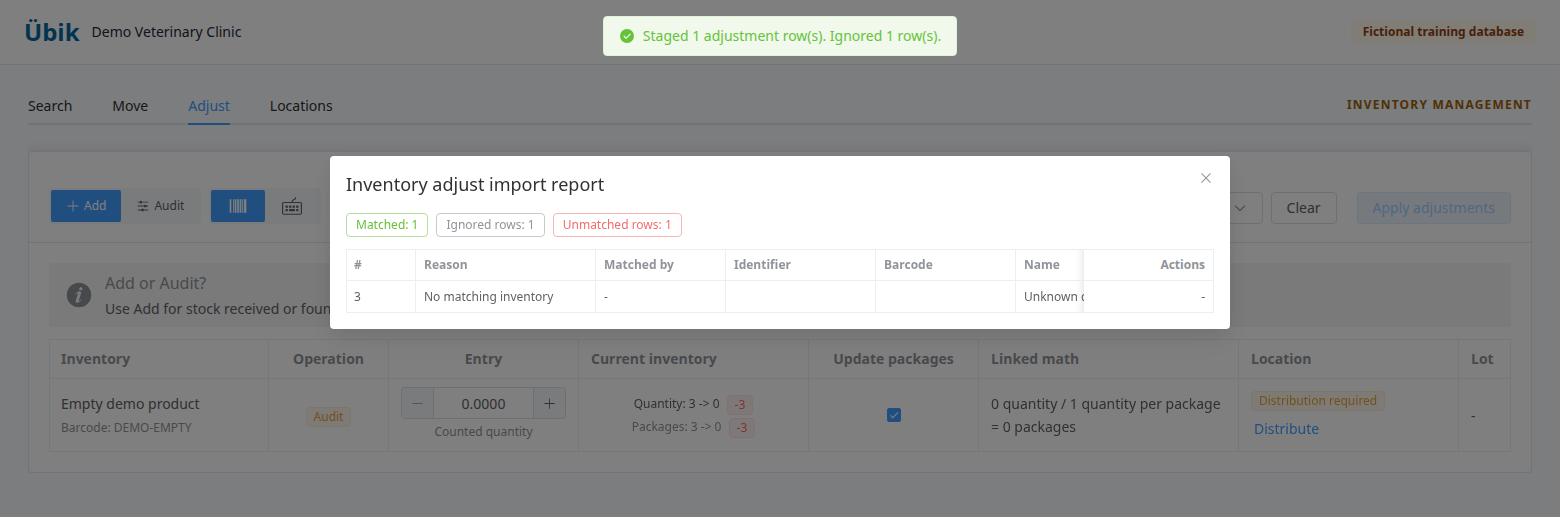
Upload the edited CSV. Read the import report: matched rows are staged; ignored rows have no applicable count or change; unmatched or invalid rows need correction. Review the staged proposals and choose Apply adjustments separately. An upload is not proof that the stock was changed.
Download the fictional examples: item and lot count example and location count example. These contain demo identifiers and are for practice with the demo data. Use your clinic's fresh export for a real audit.
6. Audit lots and expiration dates
Open the item in Edit and expand its lot-tracking section. Review Lot number, Expiration date, Quantity, creation/update dates, the lot order indicator, and the total. Expand a lot row to inspect available history. The order indicator helps explain consumption order; it is not a physical count.
Untracked represents stock without a recorded lot assignment. It is included in the overall stock, not an extra quantity to add again. Its quantity is not directly editable in this table. Investigate the stock and lot evidence before assigning or correcting it.
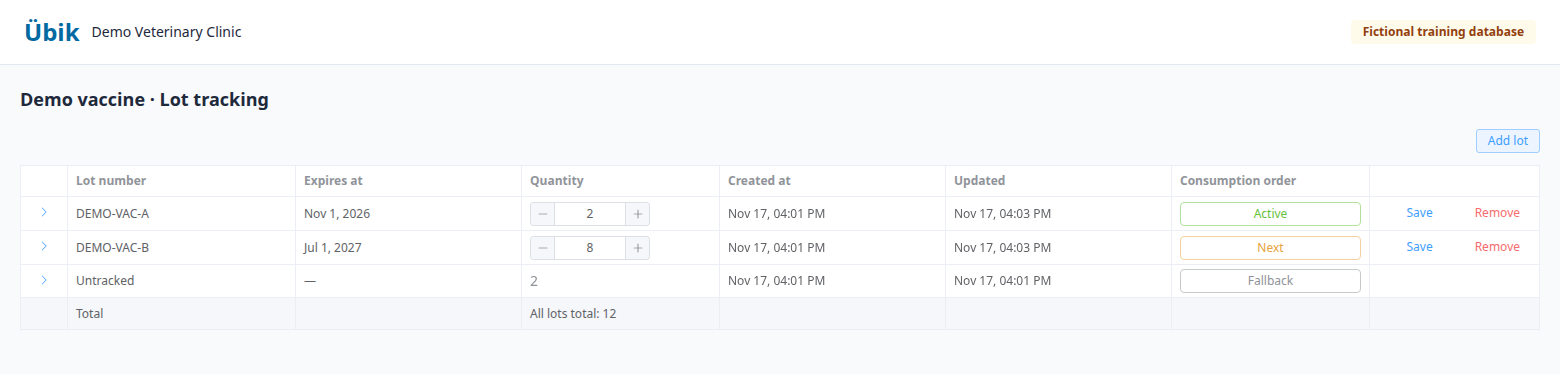
For DEMO-VAC-A, the demo has two recorded units, both expired. The loss proposal reduces that lot to zero. Establish what must be removed, select the correct lot, turn on Report loss, and choose Expired with a note. An overall stock decrease for a lot-tracked item requires a reported loss. A lot-table correction without that choice changes the lot allocation rather than reporting a physical loss; check the overall total and Untracked afterward. Broken describes damaged stock and Missing describes an unexplained shortage after investigation. Select the reason that matches the evidence.
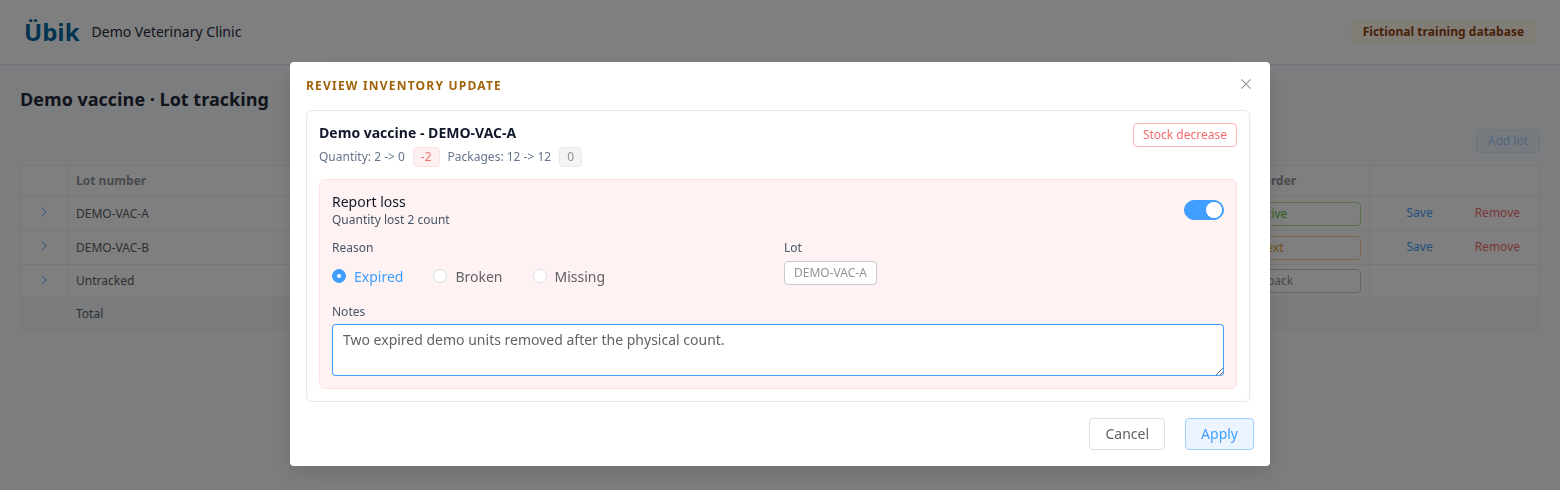
Add lot opens the existing stock-addition workflow. Save reviews a lot quantity edit. Remove removes the lot record after confirmation; it should not be used as a substitute for reporting expired, damaged, or missing units. A lot allocation correction and a stock loss have different consequences, so inspect the review before saving.
7. Count each location and reconcile the distribution
When inventory locations are enabled, open Edit inventory → Locations, or use Adjust → Audit → Distribute. Enter the count for each location and review quantity/package totals.
In our gauze example, the saved distribution is Main stock 30 + Pharmacy 10 = 40. The physical distribution is 20 + 20 = 40. The overall stock is unchanged; the location distribution needs reconciliation. If stock is being moved now, use Move to record the transfer instead.
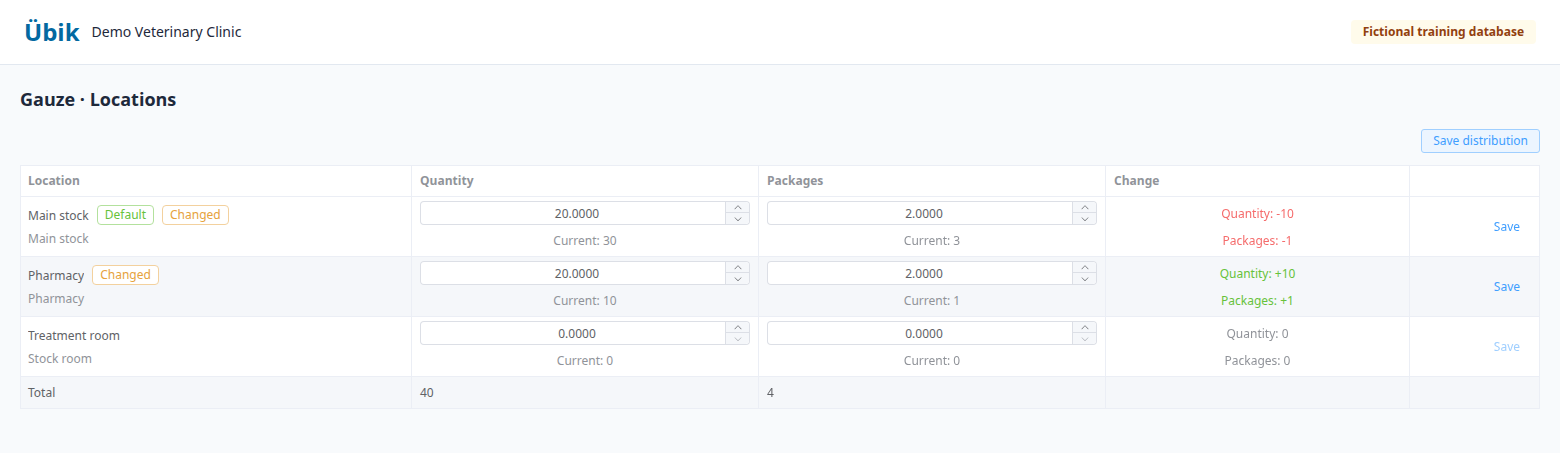
The location editor shows current balances, editable counts, change badges, row Save, and Save distribution. Saving reconciles the full distribution. Where bidirectional auto calculation applies, quantity and packages stay linked. Review the complete table even when saving from one row.
Location setup includes name, type, responsible users, default/active status, and restocking settings. Main stock, stock room, pharmacy, personal stock, and other types describe where stock belongs. Setting a location as default does not physically move stock. An inactive location can retain balances; investigate those records rather than adding them to overall stock again.
Location analytics can help inspect snapshots, movements, transfer flows, responsibility rollups, and exceptions such as negative or mismatched balances. Responsibility rollups identify configured responsibility; they do not prove who caused a shortage. The location analytics date range is limited to 31 days.
8. Review the stock update and related records
The Review inventory updates dialog appears when decisions are needed. Its controls depend on the item's settings and the proposed change.
| Option | What to decide |
|---|---|
| Quantity/packages before → after | Confirm both resulting balances, not just the change badge. |
| Linked package/quantity update | Apply the displayed conversion if appropriate; use the expected-package shortcut only after checking the factor. |
| Lot capture | Supply the lot number and expiration date for an eligible tracked increase. Required information must be complete. |
| Add expense | For an eligible increase, optionally continue into expense entry. Check existing receiving/expense records first to avoid duplicate cost or stock. |
| Report loss | Record the shortage as Expired, Broken, or Missing, with the required lot and explanatory notes. Some tracked decreases make this mandatory. |
| Cancel / Apply | Cancel the pending review or approve the displayed decisions. Recheck row results afterward. |
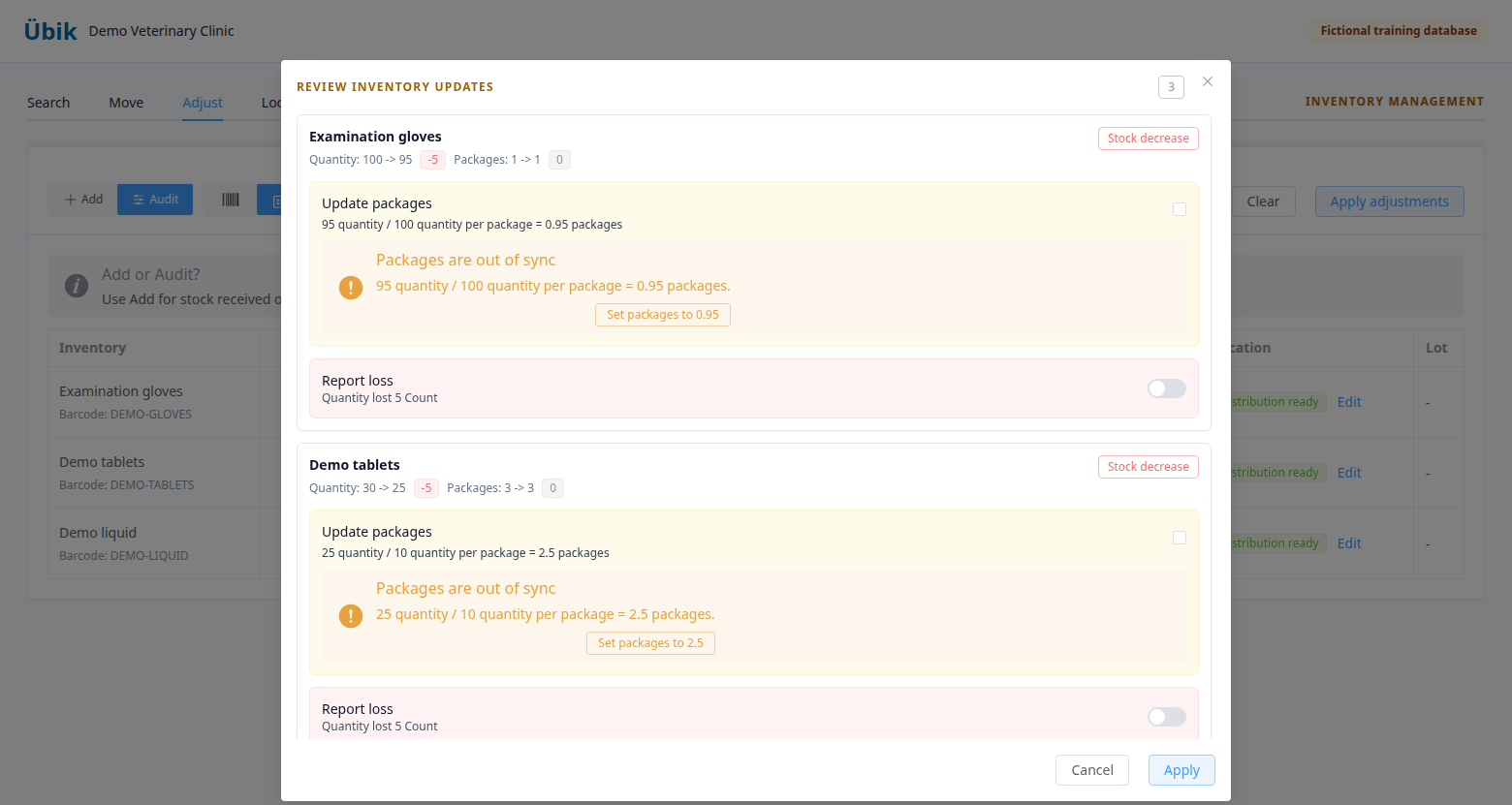
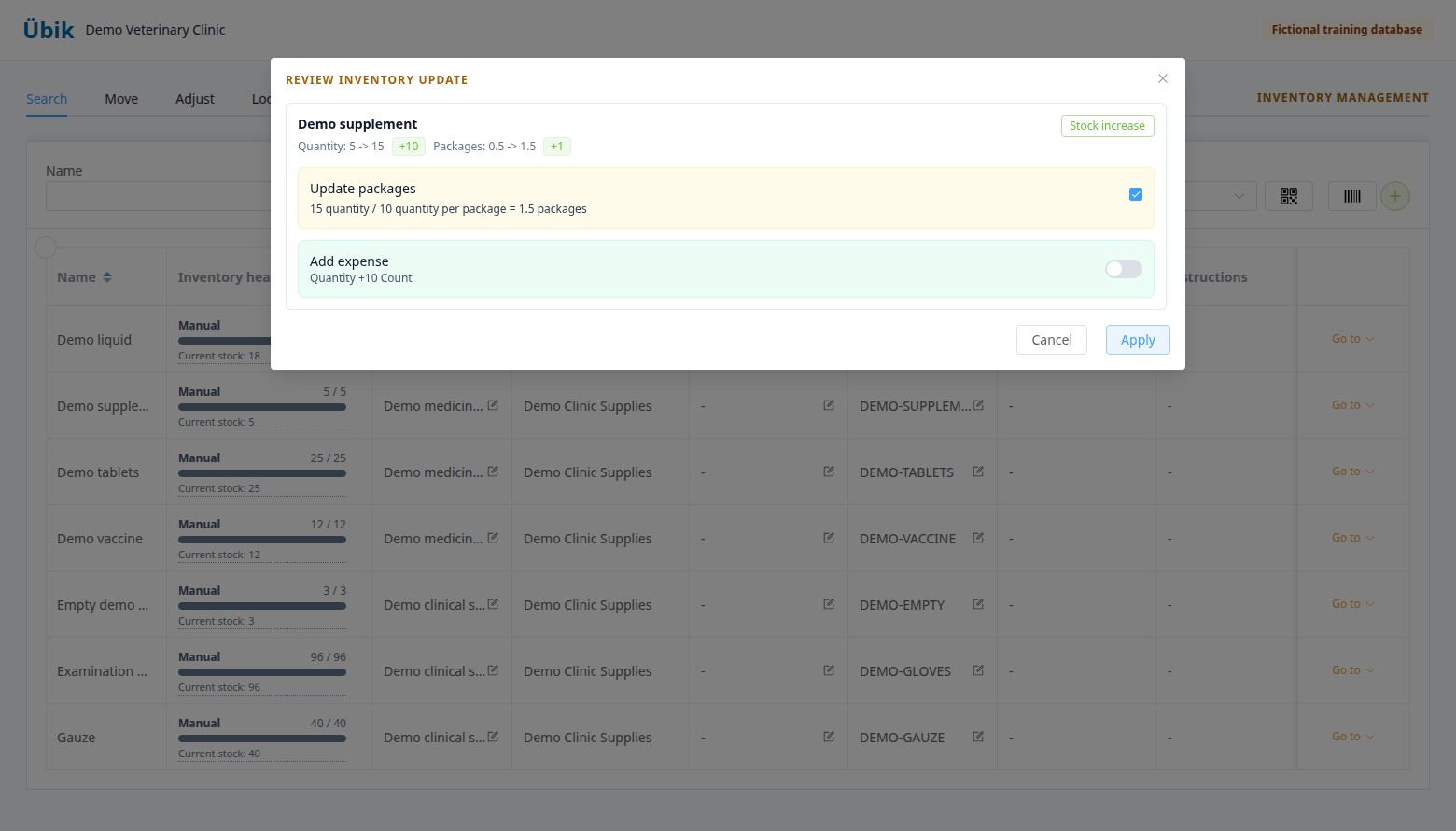
When Übik opens an expense follow-up for an already saved stock adjustment, finishing that prefilled expense records the cost without adding the stock again. Avoid creating a separate second receipt for the same products.
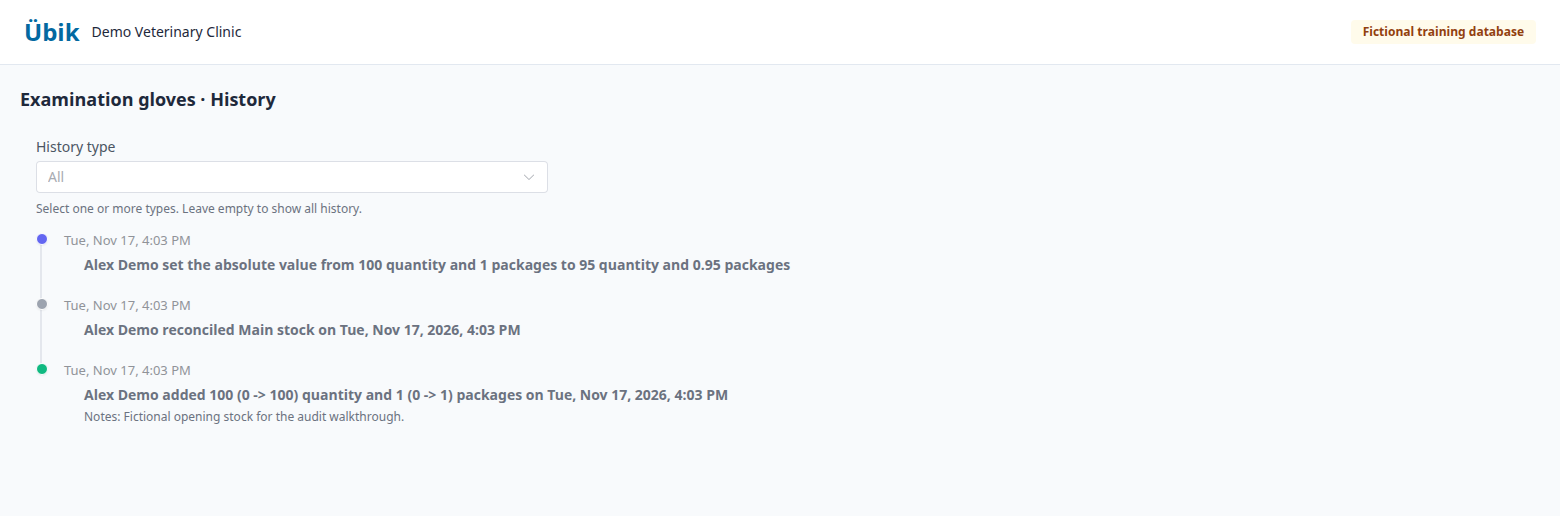
In our glove exercise, confirm five missing units only after the recount and movement review. Apply the correction, then verify the saved 95 and its history. For a missed supplement receipt, Add 10 means ten incoming units, not a final balance of ten.
9. Investigate with Analyze, calculations, and History
Open Search → Go to → View → Analyze, or Edit inventory → Analyze. View also offers Overview, Planning, and Dispenses. Analyze separates Stock checks, Usage and restocking, and History review.
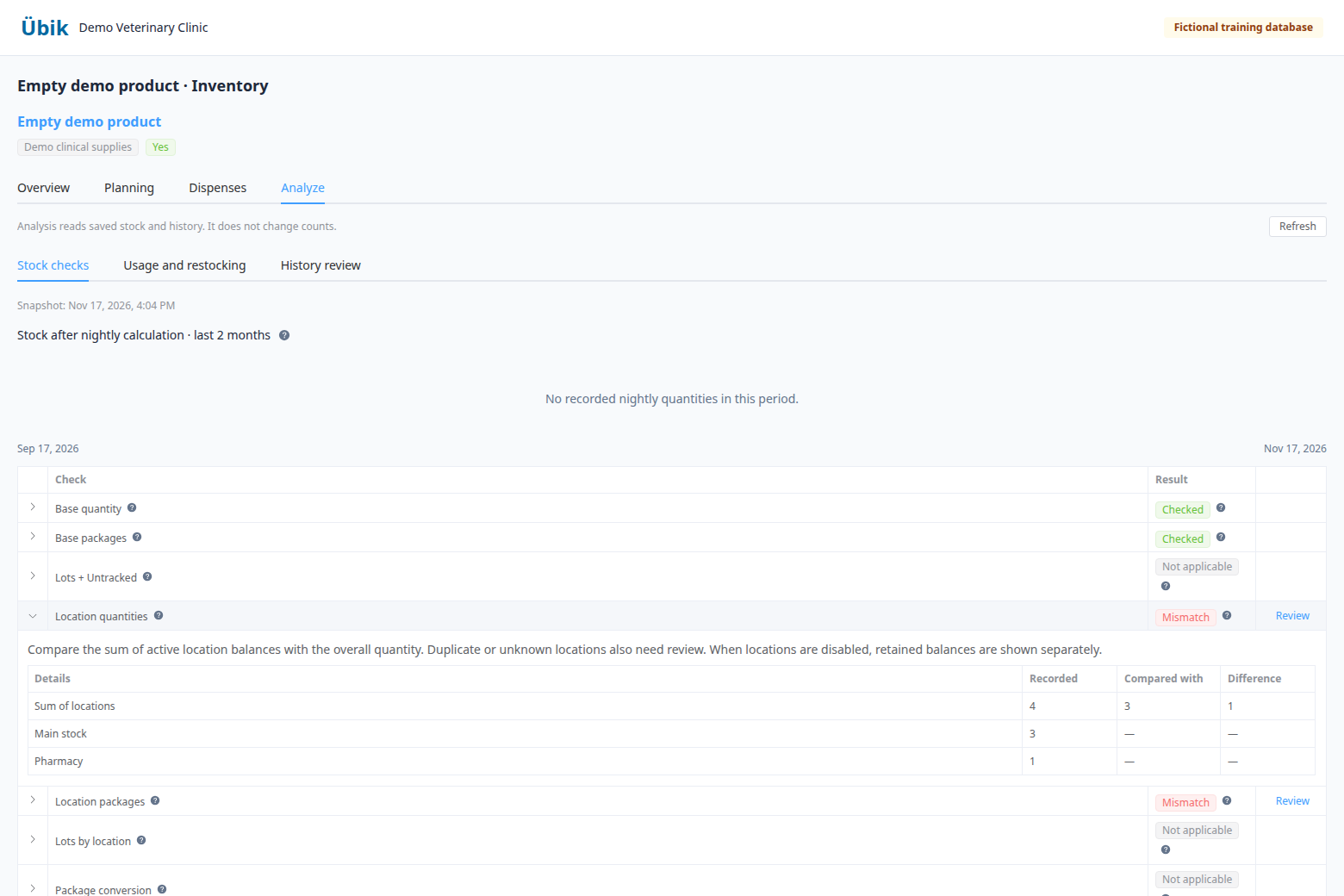
Stock checks compare recorded item totals, lot totals including Untracked, locations, lot allocations within locations, package conversions, and applicable pending deductions. Expand a check to inspect its amounts and differences.
| Result | Meaning |
|---|---|
| Checked | The available comparison agrees. |
| Mismatch | The compared saved balances differ. |
| Review | A pattern or configuration needs investigation. |
| Retained | Balances exist for currently disabled locations; they are not additional stock. |
| Incomplete | The available evidence did not finish the check. |
| Not applicable | The check does not apply to the item's settings. |
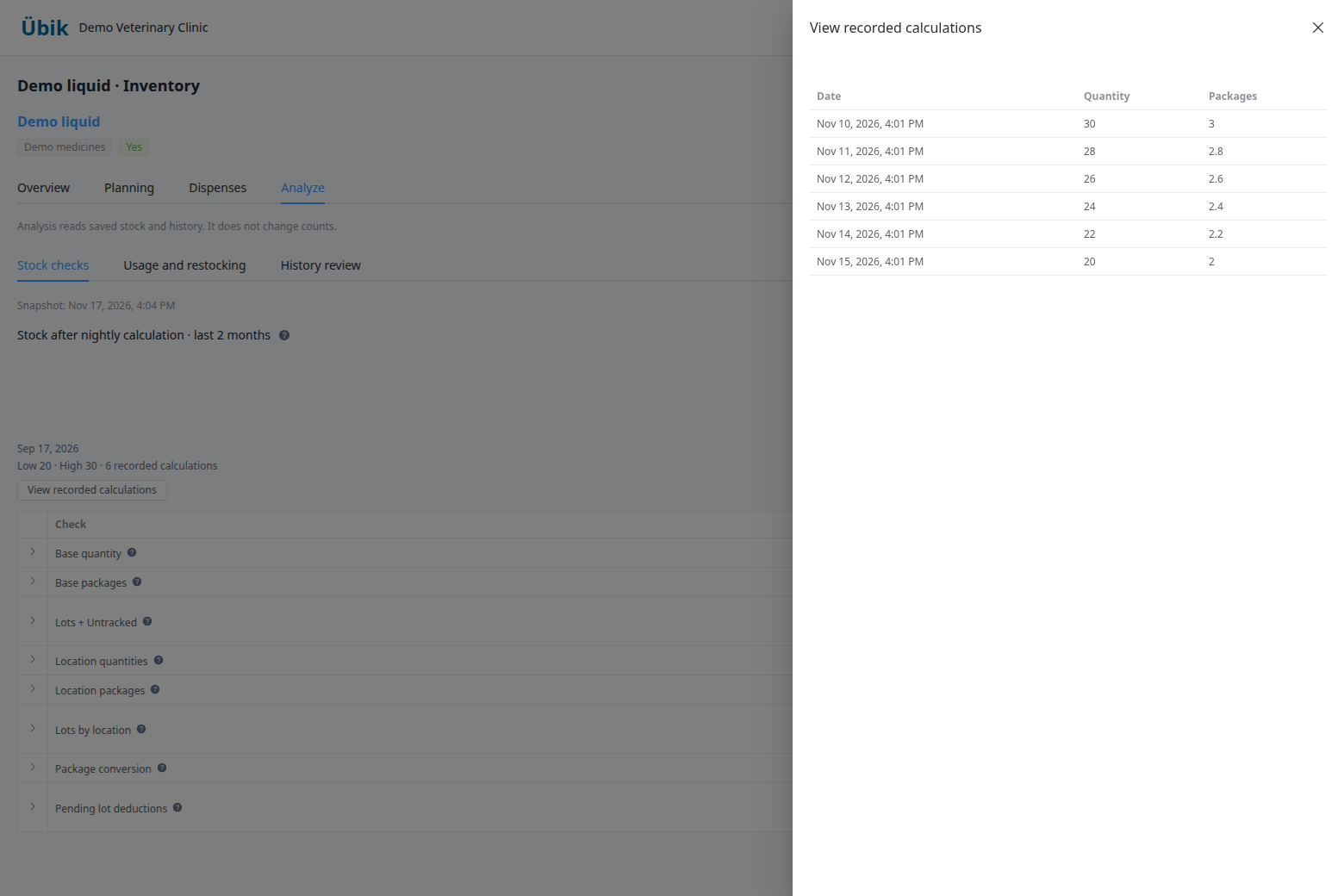
The nightly chart shows saved post-calculation stock over the last two calendar months. View recorded calculations opens the recorded dates, quantities, and packages. Missing calculation days are not invented zeroes, and a chart point need not include dispensing still awaiting processing.
History review checks whether consecutive balances connect and whether available movement evidence supports them. A warning is a reason to investigate, not proof of theft, physical loss, or an overwritten dispense. Review explains a finding; opening Analyze or pressing Refresh does not correct stock or create an order.
Open History for the timeline. Filter all dispenses or regular/internal/external dispenses; manual adjustments or additions; expired/broken/missing reports; restocked returns; administrator corrections; partner transfers/returns; automatic adjustments; and location transfers, receiving, losses, audits, reconciliation, initialization, and scheduled deductions. Filters help focus the evidence; clear them to see the broader sequence.
Expand an automatic adjustment to see its linked dispenses, quantities/packages, dates, available location, staff, customer, pet, and appointment links. Compare each entry's before-state with the prior after-state, then compare the final recorded balance with current stock. Quantity and package balances can move differently.
10. Choose the supporting tool that matches what happened
The AI inventory assistant button opens a text/voice assistant. It can help find products and prepare quantity changes. Check the matched product, action, resulting quantity, and unit before Save or Save all, then complete any required inventory review. Saying “add ten” and “set the count to ten” are different instructions.
Its Admin Questions shortcuts cover stock expiring in 7/30 days, expired lots on hand, missing lot records or expiry dates, lot quantity mismatches, purchase recommendations, projected shortages in 7/14 days, items below reorder point, less than 3 days of coverage, reorder gaps, and supplier pressure. These are starting points for investigation. Verify their underlying records and physical counts before approving changes or orders. The screenshots in this guide use manual entry; no AI-generated result is presented as a count.
| What happened or what you need | Tool and effect |
|---|---|
| Products arrived | Receive through the purchase order or stock-addition workflow. Check whether an existing expense/receipt already changed inventory. |
| The product is absent from the catalog | Use Add/Edit, or the catalog importer available to administrators, to create/configure the item. This is separate from Audit CSV. Check names and barcodes first to avoid duplicates. |
| Products were used by the clinic | Record Internal Use with the required permission. It records stock consumption without a client product charge. |
| A client received clinic stock | Review the actual dispense and its processing state. External dispensing refers to supply elsewhere and does not consume clinic stock. |
| Stock moved between rooms | Move/location transfer changes distribution; it does not create new overall stock. |
| Stock moved to another clinic | Use the authorized partner transfer/return workflow and review its linked records. |
| Stock was returned | Use the return/restock workflow that matches the underlying transaction. A payment refund alone is not evidence of physical restocking. |
| Stock expired, broke, or is missing | Report Loss with quantity, packages as applicable, location, lot where required, and notes. |
| One untracked item's saved count needs correction | Eligible inline quantity/package edits open the existing review. Lot-tracked quantity directs you to lot controls. |
| You need package arithmetic | The item editor's calculator adds/subtracts packages and quantity using the entered factor; it changes the form and still requires Save. It is disabled for lot-tracked item quantity. |
| A dispense itself is wrong | Ask an administrator to review the correction tools. Returning stock, removing a line without stock return, and converting to Internal Use have different consequences. The History Undo action that returns stock is not a routine count adjustment. |
| You need to understand usage or purchasing | Usage/restocking analysis explains recorded demand and supplier recommendations. Refreshing it does not recalculate saved planning statistics or place an order. The saved planning-statistics Refresh/Reset controls read or reset planning data; they do not replace a physical count. |
The inventory dispensing guide, per-item analysis guide, and expense workflow guide explain those related workflows in more detail.
11. Verify and close the audit
- Reopen the item and confirm the saved quantity and packages.
- Confirm applicable lot totals and location distributions; investigate retained or untracked balances.
- Refresh Analyze and review any remaining differences.
- Read History and confirm the correction, reason, notes, and timing make sense.
- Check which batch rows succeeded. Resolve failed or conflicted rows individually without repeating successful receipts or losses.
- Review usage, supplier recommendations, and incoming orders before purchasing.
- Record who counted, when they counted, what was corrected, and which findings remain unresolved.
Why is my count blocked? Check permissions, required location distribution, missing lot details, loss-lot selection, and row conflicts. Read the row's message before changing settings.
Why did packages change? Inspect Auto calc, quantity per package, the linked-update choice, and any explicit counted package value.
Why does the shelf differ from the saved balance? Review pending and open-appointment usage, receipts, losses, transfers, returns, and recent audits before proposing another adjustment.
What should I send to Help? Provide the item, location/lot when applicable, counting time, recorded and physical amounts, relevant receipt/dispense references, and expanded Analyze/History evidence. Preserve the historical records while the issue is investigated.
Start the next audit with a fresh export and a clear count time. The goal is a physical count supported by an understandable history.