Review clinical AI suggestions before saving them
When AI is enabled, review proposed text, matched catalog items, quantities, and saved changes while keeping clinical ownership.
Reviewed against current application source. Screenshots use fictional local training data.
Use this lesson only when this feature is enabled and configured for your clinic. Check the prerequisites before taking action.
Understand the workflow
#Clinical AI tools are available only when the account has AI enabled and the current workflow supports them. In the Technician chart, Quick actions can open AI Chart Assistant; laboratory and stay appointments can expose their own assistants. These are different contexts. Use the tool that matches the work, then review what it proposes before allowing changes into the record.
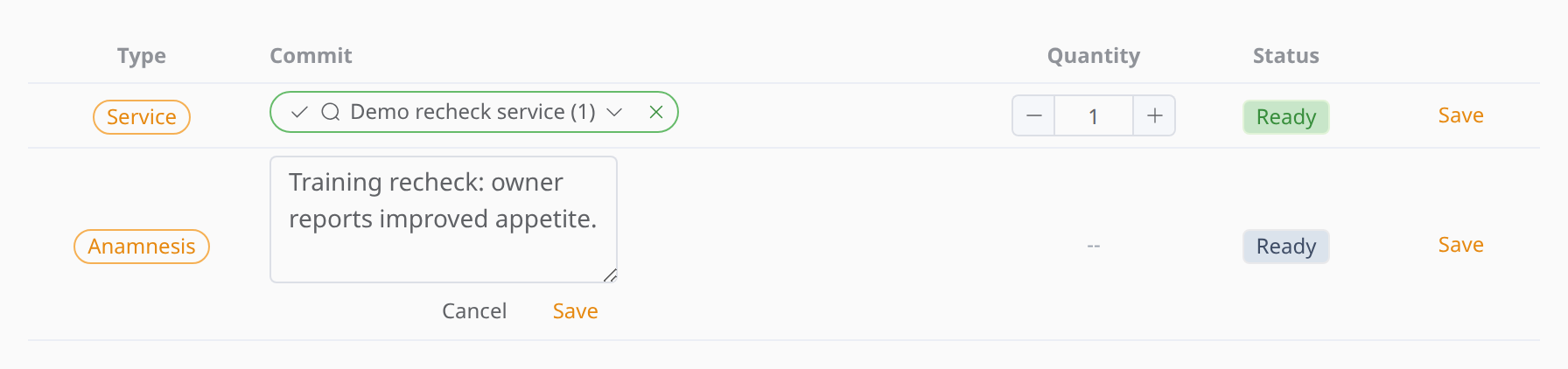
The chart assistant presents staged changes with text, catalog matches, quantities, and status. A Ready match means an item was matched for review; it does not prove that the selected product, diagnosis, amount, or clinical interpretation is correct. The responsible clinician must check the current patient, source information, and actual saved result. Normal charting remains available when assistance cannot be used.
Before you start
#- Confirm the patient and open appointment. Check that AI is enabled and you have permission for the underlying clinical actions. A Done chart remains protected from AI writes.
- Decide what you want help recording and what source information supports it. For practice, use fictional information and do not ask the tool to invent measurements or treatment decisions.
Do it in Übik
#- Open Quick actions in the Technician workspace and choose AI Chart Assistant when it is offered. Confirm the appointment context before entering or speaking information.
- Describe the approved findings or documentation task clearly. Review the returned staged text against what was actually observed, measured, or approved.
- For a suggested diagnosis, product, or service, inspect the matched catalog object. If the match is wrong, use the available selection or override review; do not accept a similar name merely because it says Ready.
- Review quantities and proposed field text individually. Edit wording or values when needed, remove inappropriate staged entries, and use the row Save action only after that entry is correct.
- Inspect the resulting chart, item setup, and any stock or charge interpretation triggered by the saved suggestion. The assistant’s response is not the final check of what the application stored.
- Resolve any pending-save marker and confirm the completed record before leaving. If the tool is unavailable or uncertain, continue through the regular chart fields and report a reproducible problem through Help or Report issue.

Try a fictional case
#For fictional patient Tula, the clinician dictates a measured weight and an approved service. The assistant proposes the correct text but matches a similarly named service variant. The clinician inspects the match, selects the intended service, and reviews the quantity before saving.
The clinician then checks the saved chart and service row. No suggested medication or diagnosis is accepted solely because the tool generated it. This exercise is about reviewing documentation and catalog selection; it does not request a real diagnosis or medical plan.
Avoid common mistakes
#- Accepting all staged entries because one field looks correct can save an unrelated catalog match or amount. Review each proposed change.
- Treating a generated explanation as new measured evidence adds unsupported facts. Preserve uncertainty and verify against the actual case.
- Repeatedly saving a suggested product when the result is unclear can duplicate stock or charge activity. Inspect the chart first.
Troubleshoot the result
#- If the assistant is absent, check account AI configuration, appointment type, and completed status. Continue normal charting instead of changing the clinical case to obtain AI access.
- If voice or generation fails, check the displayed session state and relevant browser permissions. Keep clinical documentation in the normal fields while resolving the tool.
- If the proposed or saved change is wrong, preserve the record, stop repeating the save, and report the affected field or item and action through Help. An authorized clinician must review any clinical correction.
Check your understanding
#Complete the lesson
#Saved only in this browser. This is a personal practice checklist, not a clinic training record.
Related guides
- Run a virtual visit and capture documents from a phone
- Send and receive a partner-clinic referral
- Public manual
Source: Review clinical AI suggestions before saving them · Revision 2