Send and receive a partner-clinic referral
For clinics using partnerships, review destination, urgency, patient identity, and the resulting appointment without duplicating referrals.
Reviewed against current application source. Screenshots use fictional local training data.
Use this lesson only when this feature is enabled and configured for your clinic. Check the prerequisites before taking action.
Understand the workflow
#This lesson applies when your clinic has an active partner-clinic agreement and uses referrals. A referral identifies the destination clinic, patient, originating appointment, urgency, and reason. Sending it creates an inbound item for the receiving clinic; it is not proof that the receiving clinic has accepted the case, booked the appointment, or completed care.
Reception manages incoming items in Referral Inbox. An active sent referral remains in that list until it is converted or dismissed. Converting creates the receiving appointment using the selected appointment type, day, and time. Dismissing removes it from the active inbox; it does not mean that the patient received treatment.
Before you start
#- Confirm the partner relationship and intended destination with the responsible team. Verify the customer, pet, clinical reason, and urgency before sharing a case.
- For receiving staff, review how the patient and customer match local records and which appointment types the receiving account permits. Available slots still depend on the clinic’s scheduling configuration.
Do it in Übik
#- Open the originating appointment and use Refer where a valid partner agreement is available. If multiple appointments are offered, choose the intended appointment or review Refer all carefully.
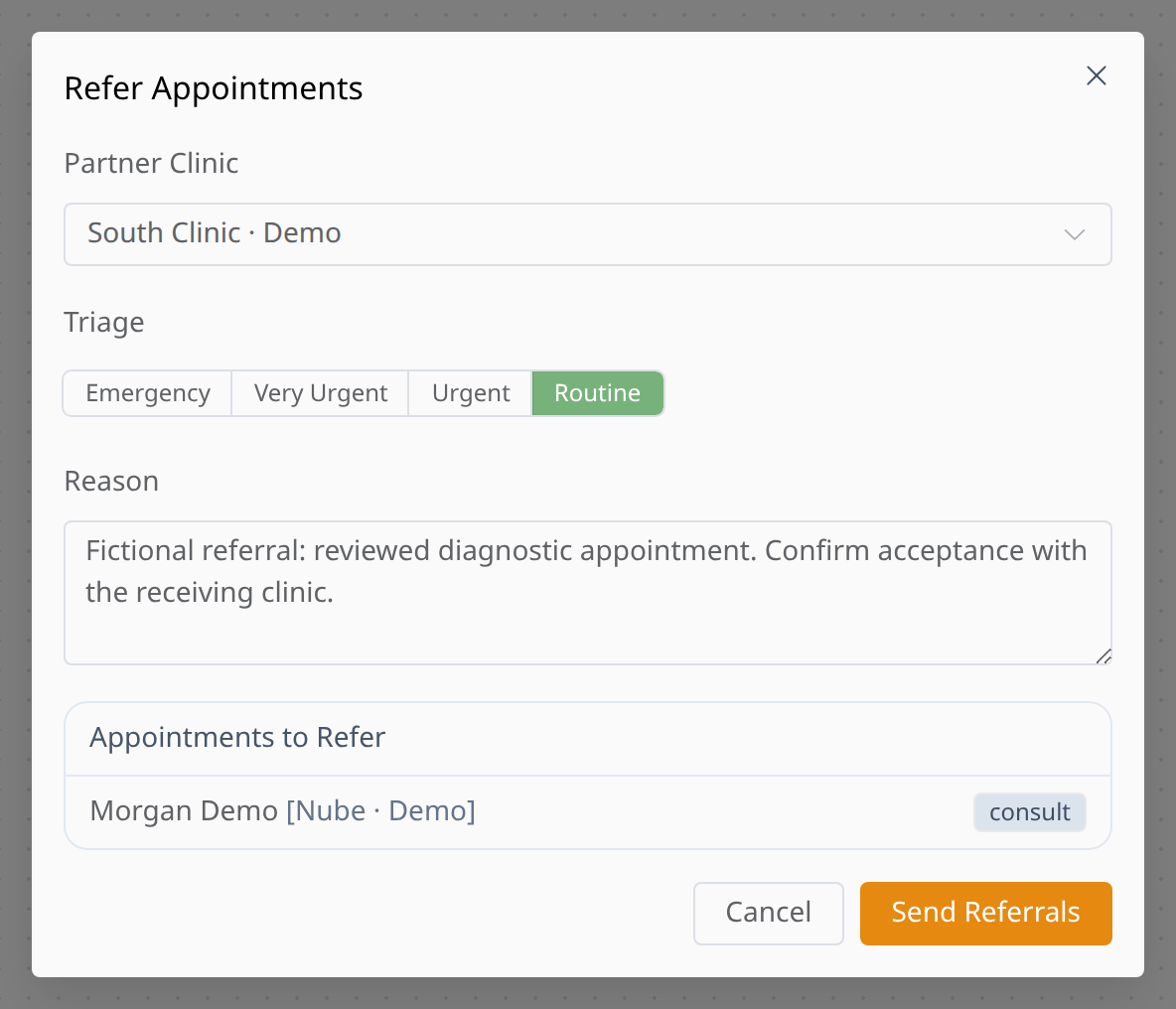
- In the referral dialog, select Partner clinic. Review Triage and enter a clear Reason describing the requested work and relevant handoff context. Confirm the selected patient and appointment list.
- Use Send referrals once, then review the result before trying again. A multi-appointment operation should not be repeated blindly if its result is uncertain.
- At the receiving clinic, open Reception > Referral Inbox. Review customer, pet, triage, reason, status, and sent date; choose View for the intended referral.
- Review the local customer and pet context. Select the permitted Appointment type, then choose a day and time. Confirm the resulting appointment instead of also creating an unrelated manual booking.
- Check that the referral is converted and find the appointment in the receiving schedule. Communicate acceptance and the next clinical handoff using the clinic’s agreed process; use Delete only when intentionally dismissing an inbox item.
Try a fictional case
#Fictional clinic North sends a referral for patient Beto to clinic South for a reviewed diagnostic appointment. North chooses South, checks urgency, and writes the reason. South reviews the inbox item and books the appropriate available appointment type.
The item disappears from the active inbox after conversion. Reception checks the resulting appointment rather than interpreting the disappearance as a lost referral or sending another copy. The planned visit and eventual clinical completion remain distinct.

Avoid common mistakes
#- Selecting the wrong partner or referring every open appointment can share more work than intended. Review the destination and selected list before sending.
- Creating both a referral conversion and a separate manual appointment duplicates the visit. Find the resulting appointment first.
- Treating Delete as clinical completion misrepresents the referral. It dismisses the active inbox item.
Troubleshoot the result
#- If Refer is unavailable, ask an administrator to review the active agreement and destination. Do not switch accounts or patients to make the button appear.
- If an appointment type is missing, check the receiving account’s exclusions. Sale is unavailable in referral intake; Laboratory and Virtual depend on the same account configuration as other types.
- If sending or conversion reports an uncertain error, inspect the inbox and schedule for an existing result before retrying. Report the destination, patient context, action, and approximate time through Help if the result remains unclear.
Check your understanding
#Complete the lesson
#Saved only in this browser. This is a personal practice checklist, not a clinic training record.
Related guides
- Coordinate home visits, pickups, and dropoffs
- Use memberships and insurance as distinct optional workflows
- Public manual
Source: Review Inbound Partner Referrals · Revision 2