Use memberships and insurance as distinct optional workflows
Prepare membership benefits and insurance claims without confusing recurring dues, visit charges or insurer settlement.
Reviewed against current application source. Screenshots use fictional local training data.
Use this lesson only when this feature is enabled and configured for your clinic. Check the prerequisites before taking action.
What you will learn
#Memberships and Insurance Claims are separate optional features with separate setup, permissions and payment meaning. A membership connects recurring dues to eligible visit benefits. An insurance claim tracks an insurer’s responsibility for a particular appointment. Neither should be used as a generic way to hide a normal unpaid customer balance.
For memberships, dues and the visit bill are separate: the membership establishes eligibility, and staff apply approved linked promotions to qualifying charges. For insurance, the clinic price and provider’s allowed amount can differ; that difference needs the carrier’s configured review, write-off or customer-balance policy.
Before you start
#Confirm whether the clinic actually uses either feature. An administrator reviews Subscription and Payments and the applicable enabled-feature conditions. Have approved membership terms or insurer agreements before making customer promises. Staff also need the appropriate customer and accounting access.
For memberships, coordinate the existing payment-account connection and recurring-price readiness with the Übik team using the detailed membership guide. This lesson does not configure a payment provider. For insurance, complete carrier contact and recipient details and any required fiscal setup with accounting before production issuance.
Follow the workflow
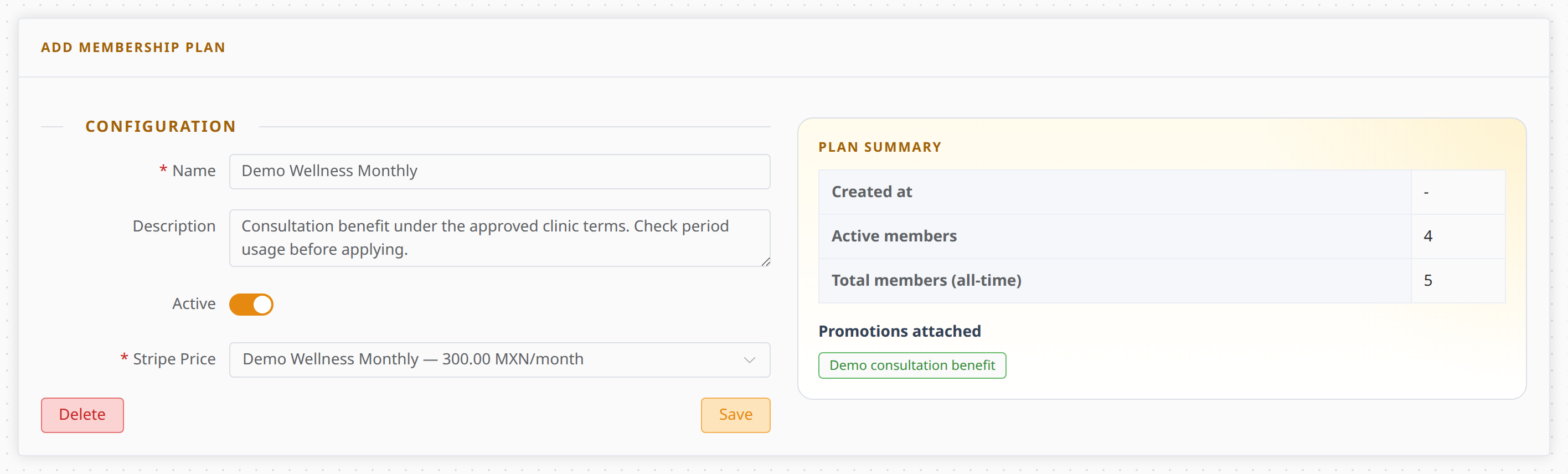
#- For memberships, open Accounting > Membership Plans. Create or review Name, Description, Active and the intended available recurring Stripe Price. Check amount, currency and billing interval through the approved setup; a missing price requires connection/setup review.
- Configure the actual benefits on Promotions and select their Membership Plans. Reopen the plan and review Promotions attached. A plan description alone does not create a discount or automatically enforce a written use limit.
- On the correct customer record, use Memberships > Send Signup Link for the approved plan. Sending the link is not activation: inspect the resulting membership status and period before treating the customer as eligible.
- At checkout, review membership benefits, current-period usage and the plan terms. Apply the intended promotion and inspect the remaining visit balance. Applying that benefit does not collect recurring dues again.
- For insurance, open Accounting > Insurance Claims. Create or review the carrier, allowed fee schedule and difference policy. Add coverage for the intended customer/pet with policy and member references where applicable.
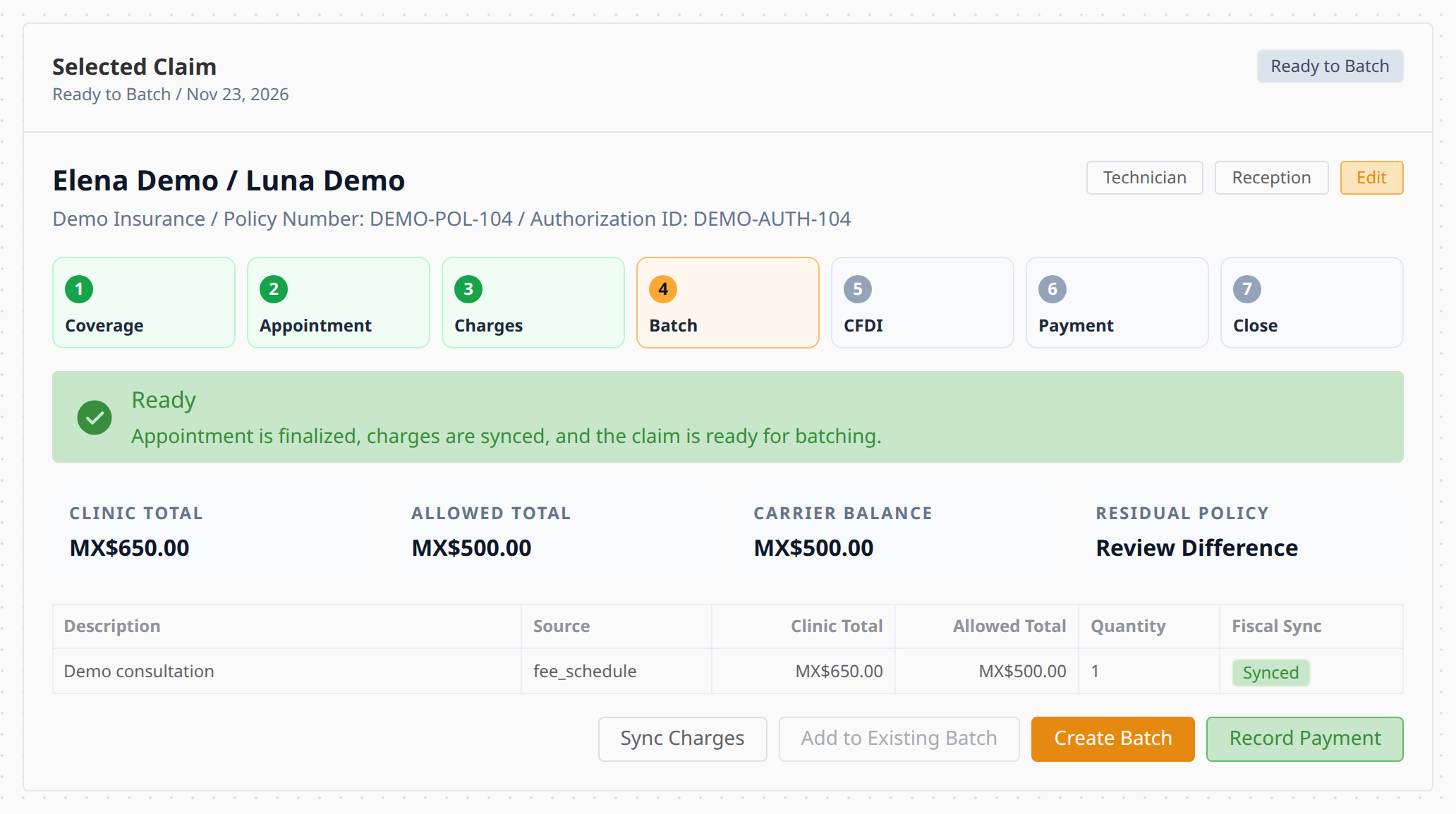
- Create the claim for the correct appointment, enter its authorization, sync the appointment lines and review allowed totals. Mark Pending insurance when appropriate, group reviewed claims into a same-carrier batch and follow the approved sending and fiscal-review steps.
- Record insurer settlement only when payment evidence exists. Inspect partial balances and the difference policy before closing the work; a submitted claim, sent email or issued invoice does not prove money was collected.
Practice with a fictional clinic
#Demo Wellness provides an approved consultation benefit to an active member. Reception reviews the period use count, applies the linked service promotion and collects the remaining visit balance. Writing “one per month” in the plan description is not an automatic redemption limit, so staff still follow the terms and inspect usage.
For another patient, Demo Insurance allows 500 MXN on a 650 consultation. The 150 difference remains a separate decision under the carrier policy. Creating the claim does not mark the insurer’s 500 as received; accounting records settlement when it arrives.
Avoid common mistakes
#- Treating a sent membership link as active enrollment or expecting a plan description to create benefits skips required confirmation.
- Applying a membership promotion to unrelated charges or beyond agreed use terms creates an incorrect adjustment.
- Marking insurance work paid because a batch was sent confuses submission with collection.
When something does not look right
#- If membership prices or menus are missing, check enabled feature, permission and the clinic’s prepared connection. Ask the responsible team to investigate before creating another subscription or sending repeated links.
- If a benefit is missing, review membership status, linked promotion, eligible charges and current-period use. Inspect the saved adjustment before applying it again.
- If an insurance balance remains, inspect appointment lines, allowed amounts, payment evidence and difference policy. Obtain accounting review for disputed coverage or CFDI rather than writing off the difference merely to clear the queue.
Check your understanding
#Complete this lesson
#Saved only in this browser. This is a personal practice checklist, not a clinic training record.
Related guides
- Membership setup and benefits guide
- Insurance claims workflow guide
- Send and receive a partner-clinic referral
- Coordinate home visits, pickups, and dropoffs
- Public manual
Source: Set up and track insurance claims · Revision 2