Find instructions, report a problem and follow a request
Use the Learning Center and Help to get answers, report defects and track feature requests.
Reviewed against current application source. Screenshots use fictional local training data.
What you will learn
#Start with the lesson for the task when you need instructions. Use Help → New request for a question, possible software defect or feature request. The existing reporting workflow remains available without AI assistance; an unanswered AI prompt must not prevent submission.
- Search a task and link its exact section.
- Describe expected and observed behavior.
- Follow a request without creating duplicate reports.
Before you start
#Confirm the clinic and the task you are trying to complete. Preserve drafts and operational evidence when an action’s outcome is uncertain.
Review screenshots before attaching them. Exclude credentials and unnecessary customer, patient or financial details.
Do it in Übik
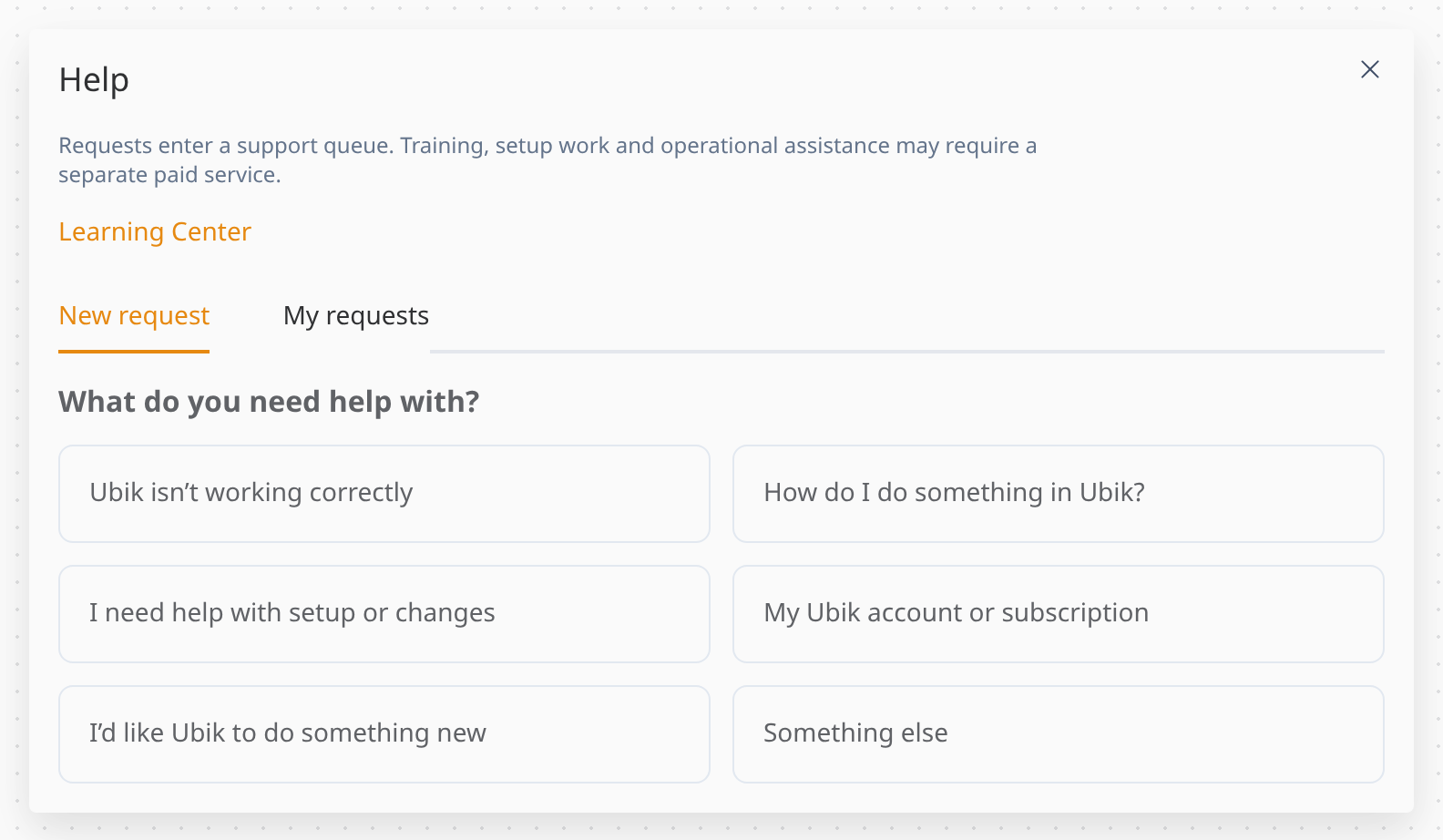
#- Open Help from the application header and choose the Learning Center when you need step-by-step instructions.
- Search using a task or control name. Read prerequisites, the relevant steps and troubleshooting. Share its section link if asking a colleague.
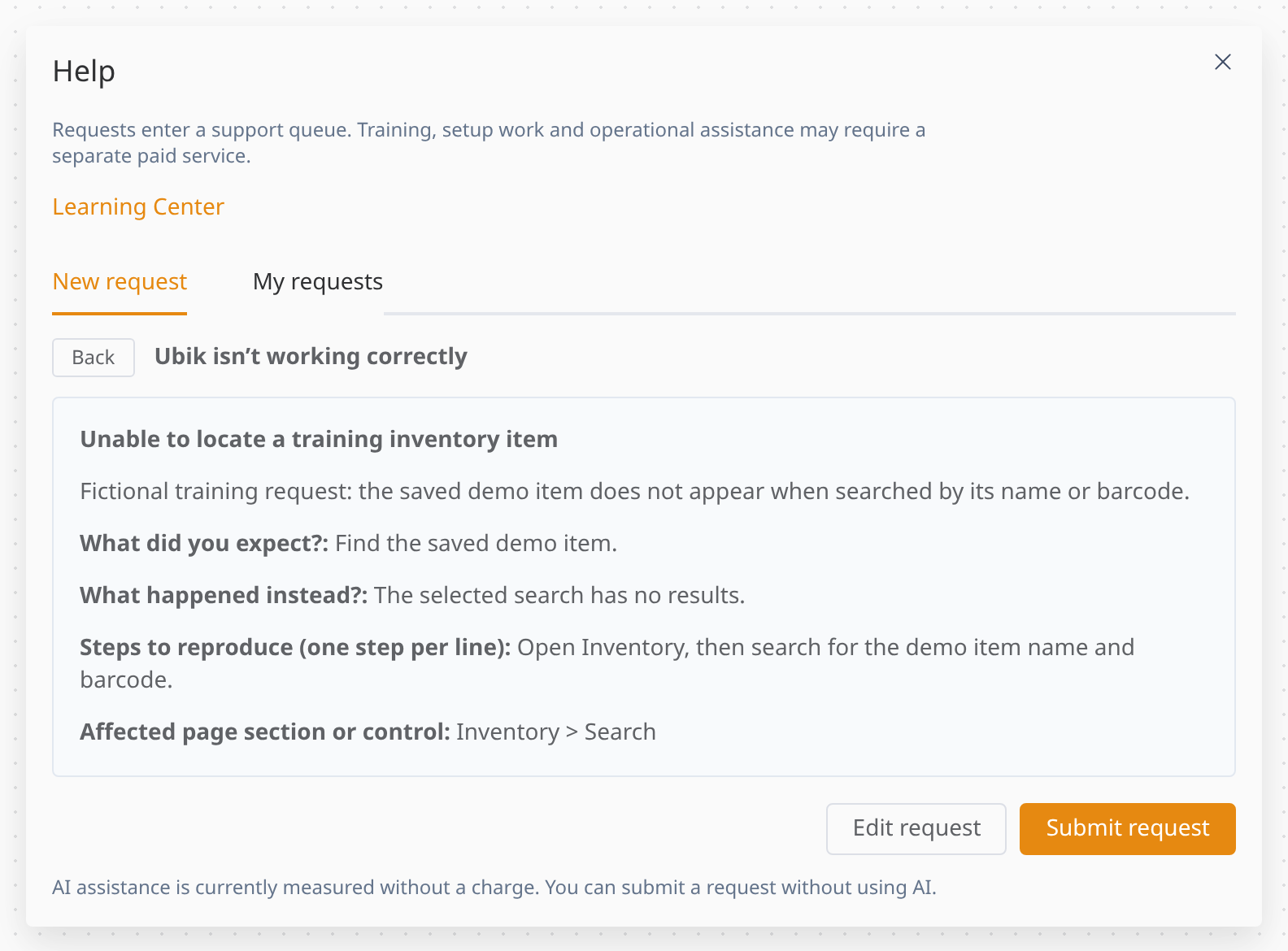
- If unresolved, choose New request in Help. State the page section, reproduction steps and the expected and actual result.
- Describe the operational impact and when it happened. Add a reviewed screenshot if it clarifies the problem. Keep private information out of the attachment.
- Use optional AI assistance if useful, or submit the request directly. Do not postpone reporting an operational failure while waiting for AI.
- Open My requests to read replies and add relevant new information to the existing request. Keep related evidence together rather than submitting the same incident repeatedly.
Work through a clinic example
#The receiving preview shows 500 mL but the saved result looks different. The inventory lead preserves the invoice and checks History before another stock action. Their request states the conversion, incoming amount, expected balance and observed balance, and links the receiving lesson.
For a feature request, describe the task and the missing behavior. Avoid presenting a desired new feature as proof that the current documented workflow is broken.
Common mistakes
#- Reporting only “it does not work” without the task or result.
- Repeating a payment or receipt to obtain a better screenshot.
- Attaching an entire customer record when a cropped, reviewed control explains the issue.
Open a lesson from an AI answer
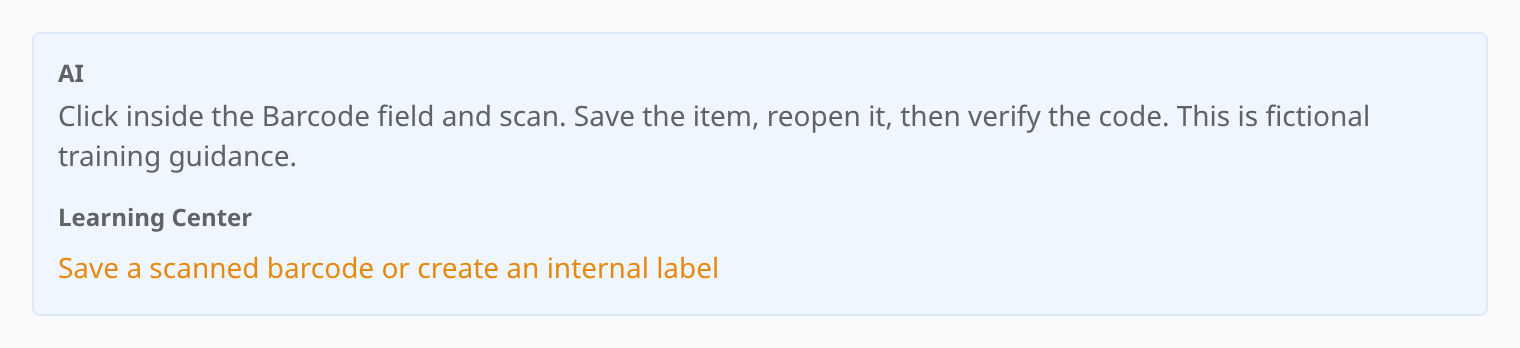
#When AI assistance shows Learning Center references, open the section link to review its instructions and examples. You can continue and submit without AI.
Lessons and examples explain the workflow; they do not verify your clinic’s stock or transactions. A lesson reference does not establish that a problem was reproduced.
Troubleshooting and recovery
#If AI is slow or cannot answer, submit through the normal reporting path. If the request already exists, add your new evidence there.
For critical operational impact, state what work is blocked and the existing request reference. Severity and available evidence help prioritization; no lesson promises a universal resolution time or finalized paid-training rate.
Check your understanding
#Ready to use this workflow
#Saved only in this browser. This is a personal practice checklist, not a clinic training record.
Related guides
- Related workflow guide
- Follow the patient journey from booking to follow-up
- Choose inventory units and package settings
- Public manual
Source: Find instructions, report a problem and follow a request · Revision 5