Count inventory, investigate differences and audit safely
Understand Audit versus Add, count the correct scope and verify saved balances without repeating earlier usage.
Reviewed against current application source. Screenshots use fictional local training data.
What you will learn
#An audit records a final physical count. Add records incoming stock. For a non-lot item, Audit uses the item’s final quantity; for a lot-tracked item, it counts the selected lot. Earlier pending dispensing covered by the count must not be deducted manually again. Accurate scope and timing matter as much as arithmetic.
Use Inventory > Manage > Adjust > Audit CSV > Download audit CSV. The Audit CSV menu also offers Download location audit CSV when inventory locations are enabled and Upload audit CSV. The file shows localized column names such as Inventory name, Current quantity, Counted quantity, Current packages, Counted packages, and lot rows when lots exist. Enter only the counted values you audited, then choose Audit CSV > Upload audit CSV on the Adjust tab to upload the same file. Blank counted fields are ignored, so uncounted items do not stage adjustments. Entered 0 is a real count. Cells marked --- are not meant for entry. For normal item rows, use Counted quantity and optionally Counted packages. Leave Counted packages blank when you want Ubik to calculate packages from the counted quantity when possible. For lot rows, use Counted lot quantity. Lot rows show --- in the overall quantity and package columns; their balance is under Current lot quantity. Keep the matching item summary row and its original Current quantity and Current packages references when uploading lot counts. If those references are missing or inconsistent, download a fresh audit CSV and enter the counts again. Screenshot walkthrough using fictional data: /blog/inventory-audit-guide/
- Choose Add, Audit, loss or a movement deliberately.
- Use manual counts or the supported audit CSV.
- Review the combined result, save outcomes and genuine conflicts.
Before you start
#Choose a count scope and time boundary with the Inventory Lead. Review receipts, transfers and pending dispensing; keep a record of movements during counting. Recount unexplained differences before approving adjustments.
You need Inventory edit permission. Prepare separate rows for different lots. Successful manual lot rows carry balances forward automatically. Outside changes still require review; a batch can partially save.
Audit versus Add: final count or incoming amount?
#Audit records the final physical count within the chosen scope. Add records a genuinely new incoming amount on top of existing stock. Do not pick an operation merely to make a preview match. An Audit can also establish a count time boundary even if the number stays unchanged; Add is not a count cutoff.
| Operation | Saved 30; enter 25 | Meaning |
|---|---|---|
| Audit | 25 | The final count is 25; change −5. |
| Add | 55 | 25 new units arrived; change +25. |
Saved only in this browser. This is a personal practice checklist, not a clinic training record.
Add incoming stock once
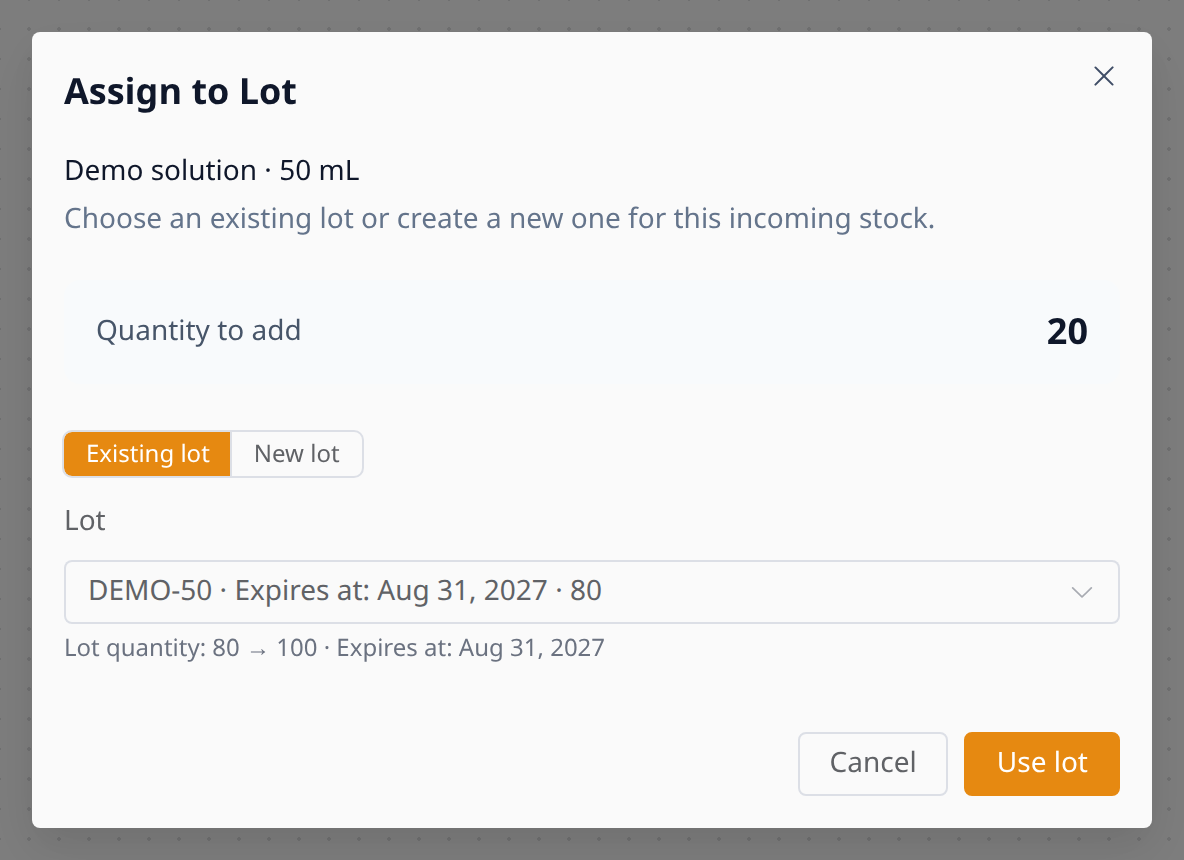
#The pictured Add dialog assigns 20 incoming units to a lot. With 100 already recorded in that lot, a receipt proposes 120. In Audit, a final count of 20 would instead leave that lot at 20. Opening or choosing a lot does not post the movement: complete the normal final review and inspect History.
Do not Add stock that was already received by an invoice handoff, purchase/branch transfer or opening balance. After an uncertain or partial save, inspect saved item/lot/location amounts before retrying.
Do it in Übik
#- Open Inventory → Manage → Adjust and choose Audit for a final count. Choose Add only for a genuinely unrecorded incoming receipt.
- For lot tracking, select Existing lot or New lot and enter that lot’s final physical count. Without lots, enter the whole-item count.
- For spreadsheet counting use Audit CSV → Download audit CSV. Enter only counted values; blank means uncounted, while 0 is an actual count. Keep matching reference rows and IDs intact.
- Upload the same supported CSV and review the import report and staged quantities. Lot counts belong in Counted lot quantity, not the item summary count.
- Review current-to-proposed balances, location distributions, required lot/reason information and any stale-stock warnings. Save this row or Save all ready rows, then complete final review.
- Check History and saved item/lot/location balances. After any error or partial batch, identify what already saved before submitting anything again.

Work through a clinic example
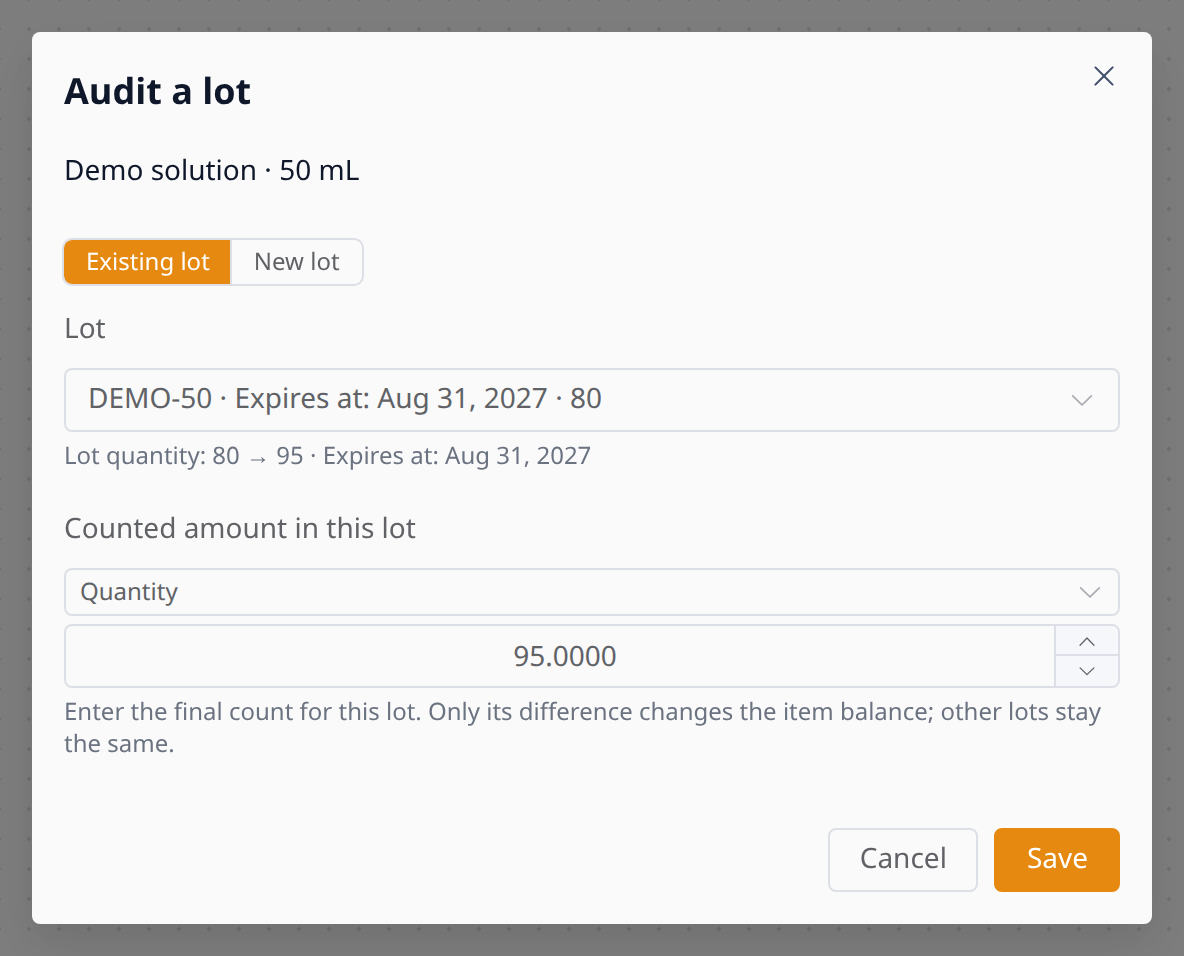
#A fictional liquid item shows 20 mL recorded and a pending 2 mL dispense; the shelf holds 18 mL. The estimate explains the difference, so an unexplained loss is inappropriate. A deliberate Audit of 18 establishes the count boundary for covered earlier usage.
For a separate item with 30 tablets recorded and 25 counted, Audit 25 proposes −5. Add 25 would instead propose 55. Choose the operation by what happened, not by which preview looks convenient.
Change the numbers and check the result
Practice only · fictional examples. Does not change records or approve movements or payments. This simplified calculation excludes taxes, other movements and location allocations.
Common mistakes
#- Entering the difference into Audit instead of the final count.
- Treating a blank CSV cell as zero or editing reference balances.
- Assuming every row failed because a batch showed an error.
Troubleshooting and recovery
#If reference balances changed, use the visible reload/review action and reconcile current physical stock. Do not overwrite concurrent movements with an old count.
For a new manual lot save with an interrupted response, use Actions → Check / retry this save. Do not create another addition. For older/CSV/expense saves without that recovery action, review saved balances and History before retrying.
If item and lot totals already disagree, physically count all stock and use Reconcile counted lots, including Untracked and each location. Blank does not mean zero. Missing/duplicate records need Help review.
Identify existing Untracked stock
#Untracked is existing stock with no known lot assignment, including opening stock while migrating to lots. It is part of the inventory total, not extra stock.
Use Assign from Untracked in the lot panel or row Actions. Enter the amount to identify and select/create the named lot. Moving 15 units from Untracked 40 to a named lot changes Untracked to 25 and leaves the item total unchanged. The source must have enough stock, including at the selected location.
Use Add only for additional stock. A physical lot Audit changes the inventory total by its counted difference and leaves Untracked unchanged. Count Untracked separately if its physical stock changed; never zero it merely to finish migration.
Fix the item total from correct saved lots
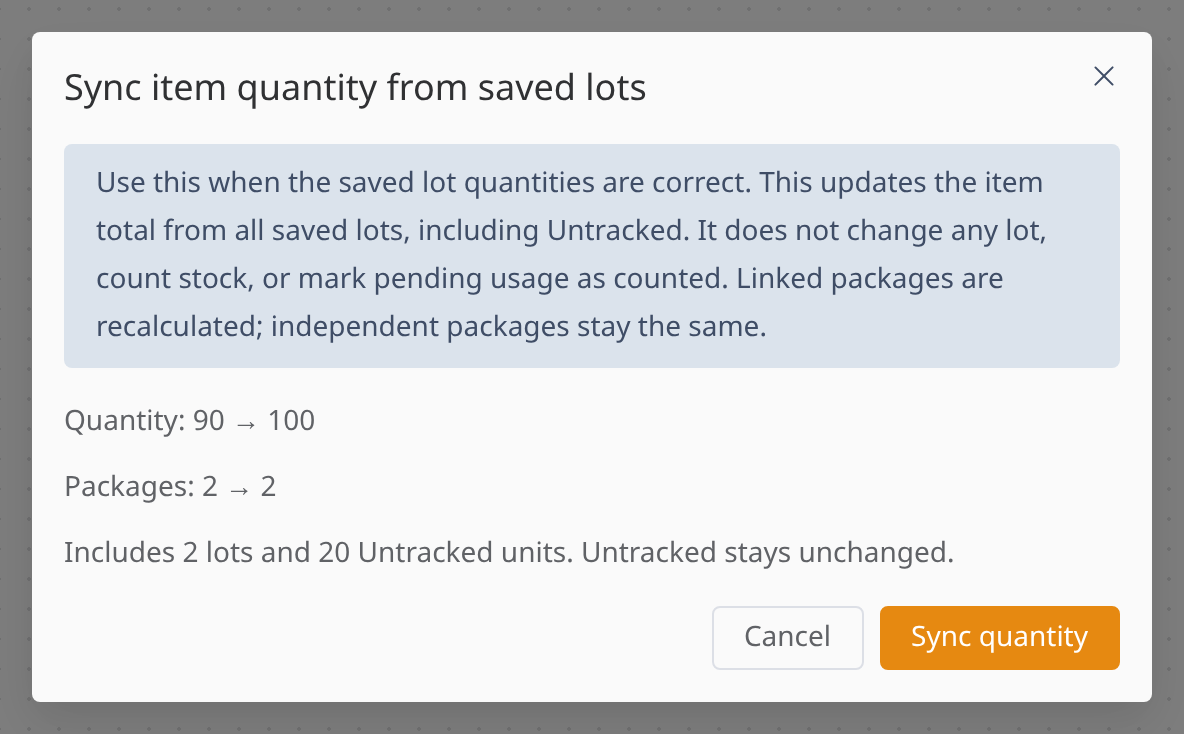
#- Open Edit for the saved item. In “Lot total does not match item quantity”, choose Fix.
- Use this only when all saved lot quantities are correct. Review the current → proposed quantity and packages. The total includes Untracked; Untracked and named lots stay unchanged.
- Choose Sync quantity. This records a balance sync, not an audit: pending usage still processes normally. Linked packages recalculate; independent packages remain unchanged.
- If location balances disagree, stock is invalid, or a known consumption shortage exists, stop and review the records. Use Reconcile counted lots when saved lot counts themselves need a complete physical recount. A stale preview must be refreshed.
Repair an existing mismatch with a complete count
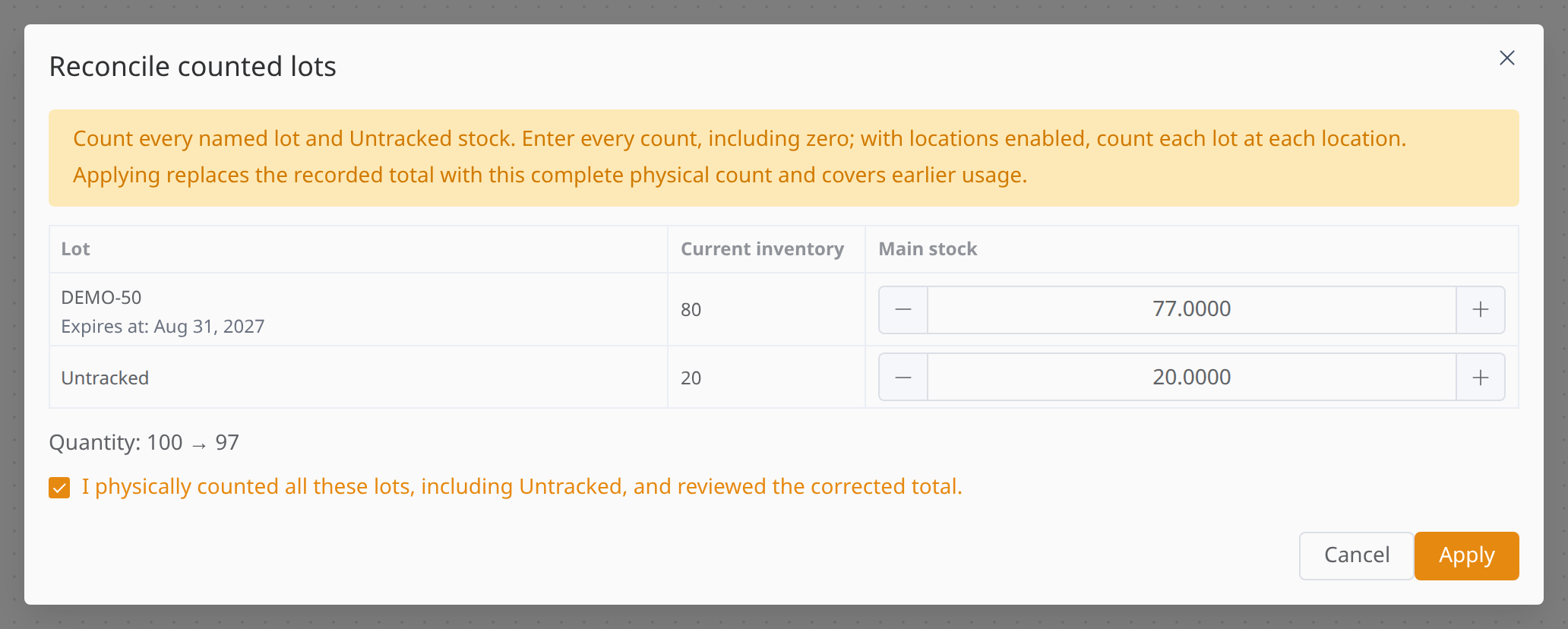
#- Open the saved item’s lot section and choose Reconcile counted lots.
- Physically count every named lot and Untracked stock. Enter every count, including zero. With locations enabled, enter every lot at every listed location and independent package counts.
- Review the calculated item total, acknowledge the complete physical count, and Apply once. Earlier usage is covered by the full count.
- Verify item, lot and location totals and History. If a balance changed during counting, review/recount before continuing; never delete historical evidence.
Change a row and save several lots
#In Inventory Management > Adjust, assign the first row to an Existing lot or New lot and Save in the lot dialog to stage it. Select the same item again for another lot. An unassigned row is reused; Edit changes that row. Actions > Change to Audit or Change to Add switches an unsaved manual row while retaining its lot and amount; check the new meaning and preview. Add records additional stock; Audit records that lot's final physical count. A lot count changes the item by the counted difference and leaves Untracked unchanged; Report loss adds a reason but is not required to update stock. Review Combined result and Save all ready rows once: confirmed balances carry forward automatically between different lots of the same item. There is no manual reload between successful rows. A genuine outside balance change pauses that item; check saved rows, Reload current balances and review the remaining counts. Other items may finish, so a batch can partially save. If the response to a new manual lot save is interrupted, use Actions > Check / retry this save to recover the same save without double-counting. Do not create another Add row to retry it. For legacy/CSV/expense workflows or any unclear result without that recovery action, inspect saved balances and History before any retry and ask Help. Guide: /learn/en/lessons/inventory-audit/#row-actions
| Action | Meaning |
|---|---|
| Add | Additional incoming stock |
| Audit | Final physical count of the selected lot |
| Assign from Untracked | Existing stock moves to a named lot; total unchanged |
Check your understanding
#Ready to use this workflow
#Saved only in this browser. This is a personal practice checklist, not a clinic training record.
Related guides
- Related workflow guide
- Manage lots, expiration dates and locations
- Record dispensing and internal clinic use
- Read History before correcting a discrepancy
- Public manual
Source: Audit inventory counts with a CSV · Revision 9