Manage lots, expiration dates and locations
Save the inventory item first, enable lot tracking, then assign batches, expiration dates and locations without duplicating stock.
Reviewed against current application source. Screenshots use fictional local training data.
What you will learn
#Lots identify batches and expiration dates; locations describe where stock is held. The same lot can be distributed across locations. A manual lot Audit counts the selected lot across all locations, while Add assigns only an incoming amount. Choose the correct scope before interpreting a number.
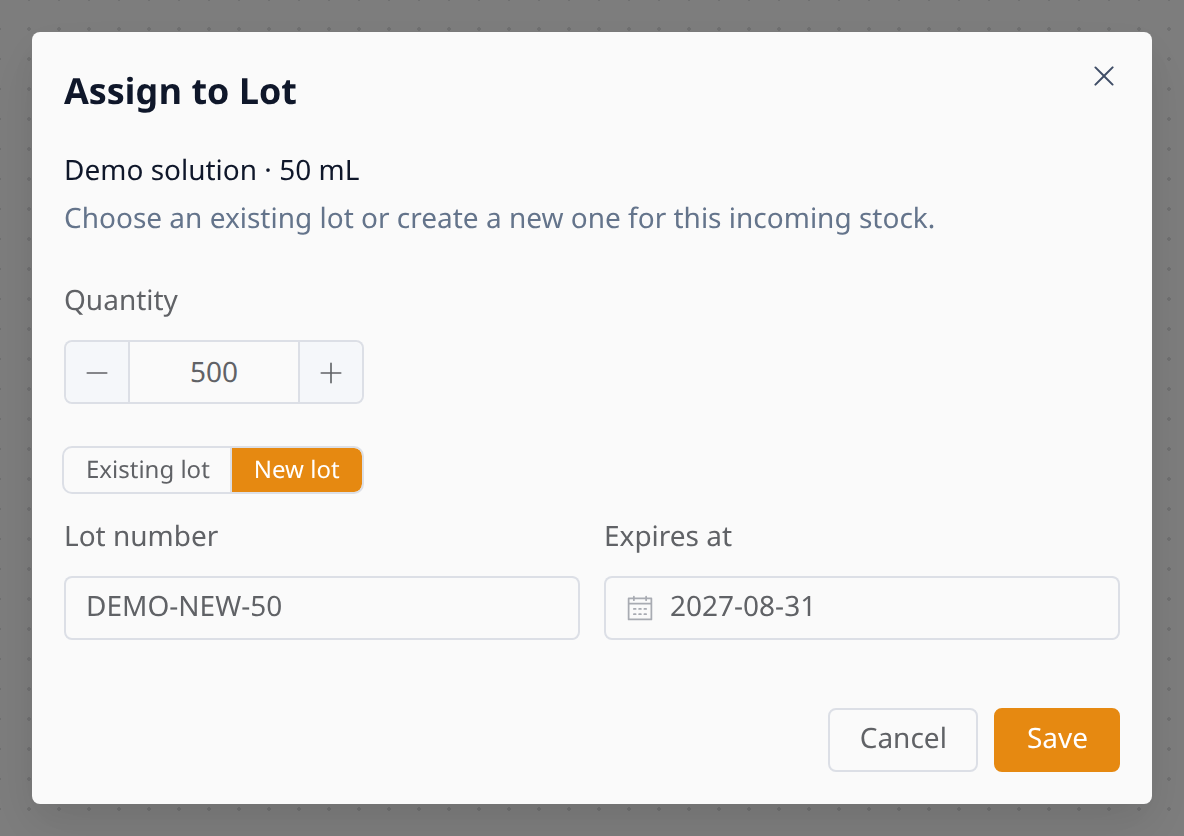
In Inventory Management > Adjust, Audit for an item with lots enabled counts one lot, not the entire item. In the Lot column click Select lot, choose Existing lot or New lot, then enter the final count for that lot. Existing lot includes depleted lots and saved expiry; select explicitly when lot numbers repeat. Counting a lot from 20 to 12 changes an item balance of 40 to 32; other lots stay unchanged. A new lot starts at zero, so a count of 8 adds 8. Use Quantity, Packages or Loose units + packages when Link quantity and packages and a valid Quantity per package are enabled; 3 packages at 4 units each means a final lot count of 12. Unlinked lots count quantity only and leave packages unchanged. Save stages the count; Apply posts it after review. With locations enabled, count the lot across all locations and choose where to post the difference; a decrease requires enough of that lot at the selected location. Refresh and review changed balances. A duplicate new-lot number and expiry must be selected as an existing lot. Add keeps Assign to lot: its added quantity is read-only in that dialog, and only the increase goes to the chosen lot. An item without lots retains whole-item Audit. Opening or canceling changes no stock. The lot count covers earlier pending dispenses assigned to that lot; other lots and later dispenses still subtract. If pending dispenses have no lot, complete the inventory calculation and review balances first. History identifies the final lot count. Unsaved manual rows can switch Add/Audit in Actions. Assign from Untracked identifies existing stock without increasing inventory. Successful lot rows carry confirmed balances forward automatically; a counted shortage updates total stock even without Report loss. For an old mismatch, use Reconcile counted lots after counting all lots and Untracked.
- Select the exact lot and expiry.
- Distinguish incoming quantities from final lot counts.
- Review item, lot and location totals together.
Before you start
#Confirm inventory view/edit access and whether lot tracking and locations are enabled. Physically identify the batch and count the correct scope.
You need Inventory edit permission. Prepare separate rows for different lots. Successful manual lot rows carry balances forward automatically. Outside changes still require review; a batch can partially save.
Create the inventory item before creating lots
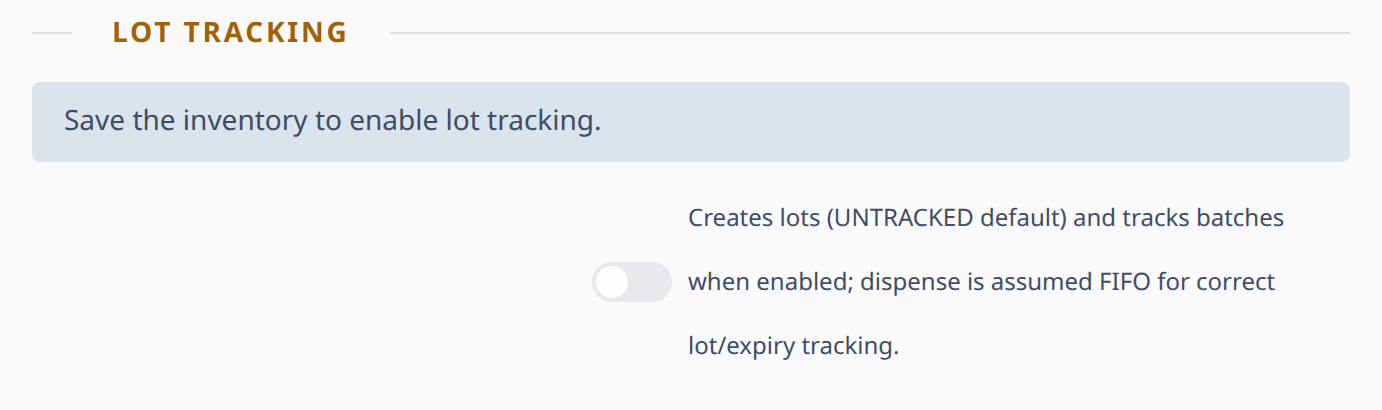
#- Create the inventory item with its Name, Unit, package setup, group and supplier. Save it first: lot tracking is locked while the item is new.
- Reopen the saved item, enable lot tracking and save the change. You need inventory edit permission. The saved item provides the identity that its lots belong to.
- If existing stock is present, enabling tracking places its recorded quantity in UNTRACKED. Übik cannot infer physical batch numbers or expiration dates. Review existing UNTRACKED stock and the appropriate count/allocation workflow with the Inventory Lead before distributing it to named lots.
- For genuinely new incoming stock, open Adjust → Add, choose Existing lot or New lot, enter its label and expiry, and review the exact incoming amount before applying. Do not receive stock again if an earlier invoice receipt or transfer already posted it.
Do not create named lots by adding the same existing stock again. Enabling tracking and assigning batch labels are separate from receiving new stock.
Do it in Übik
#- Open the inventory item and review its lot and location information. Compare recorded balances with physical labels.
- When receiving in Add, choose Select lot, then Existing lot or New lot. Review expiry and the fixed incoming quantity.
- When auditing, select the lot first and enter its final physical count, covering that lot across all locations.
- Select the location where the difference is posted when required. A decrease needs sufficient selected-lot stock there.
- Use lot stages the selection in review; complete Apply or the applicable final save to record the movement.
- Open lot History and review the item and location totals. Use the location workflow for stock that moved shelves without changing clinic-wide quantity.
Work through a clinic example
#A fictional item has 40 units: 20 in lot A and 20 in lot B. Counting lot A as 12 proposes an item total of 32; lot B remains 20. Enter 12 as the final lot count, not −8 or 32.
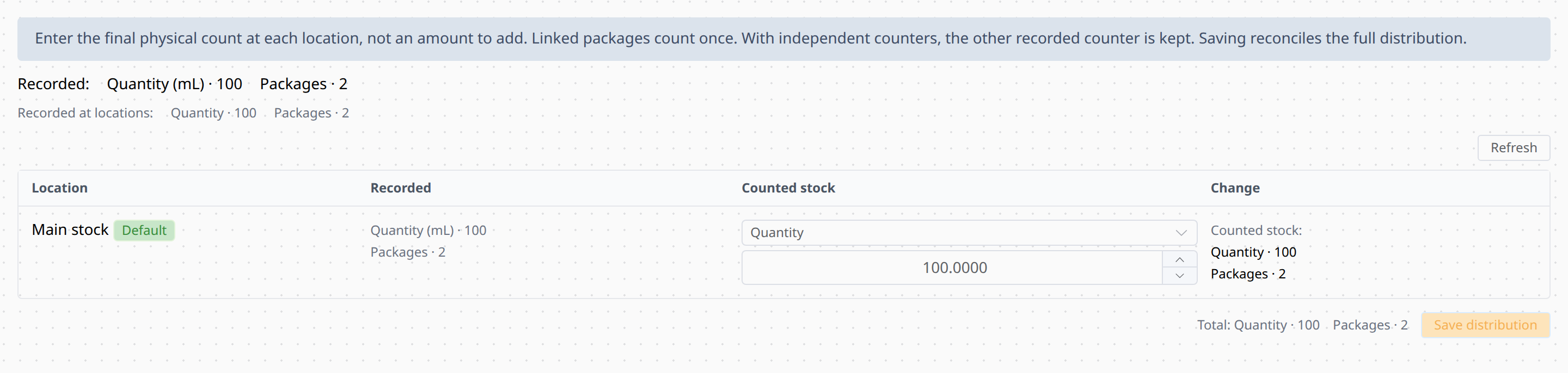
If all 40 units still exist but ten moved from the storeroom to Reception, that is a location movement or reviewed distribution issue. It is not a new purchase and does not increase the clinic total.
Change the numbers and check the result
Practice only · fictional examples. Does not change records or approve movements or payments. This simplified calculation excludes taxes, other movements and location allocations.
Common mistakes
#- Selecting a lot by number without checking repeated numbers and expiry.
- Entering a whole-item total into one lot’s final count.
- Treating a shelf move as new stock or deleting old location evidence to hide a mismatch.
Troubleshooting and recovery
#If lots fail to load, Refresh and review before continuing. If a new lot duplicates a number/expiry already present, choose the existing lot. Canceling the lot dialog does not move stock.
If a required location has insufficient lot quantity, recount and investigate the actual distribution. Do not choose an unrelated location to bypass the balance check.
For a new manual lot save with an interrupted response, use Actions → Check / retry this save. Do not create another addition. For older/CSV/expense saves without that recovery action, review saved balances and History before retrying.
If item and lot totals already disagree, physically count all stock and use Reconcile counted lots, including Untracked and each location. Blank does not mean zero. Missing/duplicate records need Help review.
Identify existing Untracked stock
#Untracked is existing stock with no known lot assignment, including opening stock while migrating to lots. It is part of the inventory total, not extra stock.
Use Assign from Untracked in the lot panel or row Actions. Enter the amount to identify and select/create the named lot. Moving 15 units from Untracked 40 to a named lot changes Untracked to 25 and leaves the item total unchanged. The source must have enough stock, including at the selected location.
Use Add only for additional stock. A physical lot Audit changes the inventory total by its counted difference and leaves Untracked unchanged. Count Untracked separately if its physical stock changed; never zero it merely to finish migration.
Fix the item total from correct saved lots
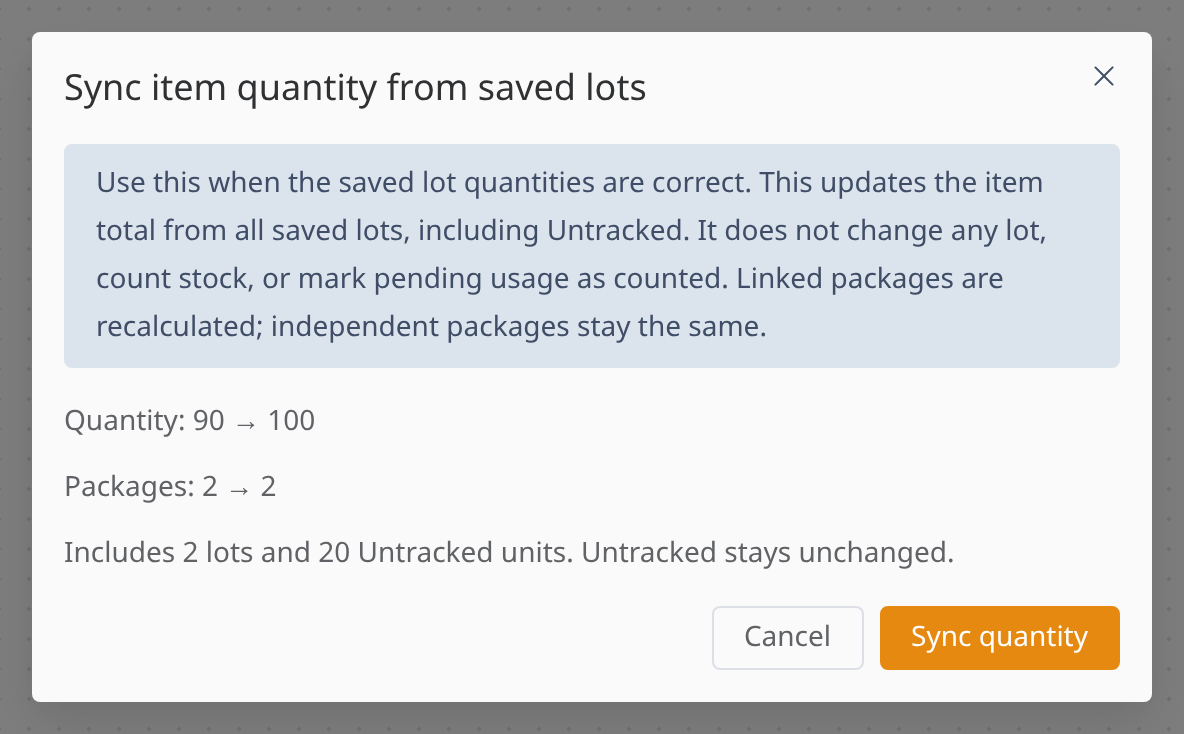
#- Open Edit for the saved item. In “Lot total does not match item quantity”, choose Fix.
- Use this only when all saved lot quantities are correct. Review the current → proposed quantity and packages. The total includes Untracked; Untracked and named lots stay unchanged.
- Choose Sync quantity. This records a balance sync, not an audit: pending usage still processes normally. Linked packages recalculate; independent packages remain unchanged.
- If location balances disagree, stock is invalid, or a known consumption shortage exists, stop and review the records. Use Reconcile counted lots when saved lot counts themselves need a complete physical recount. A stale preview must be refreshed.
Repair an existing mismatch with a complete count
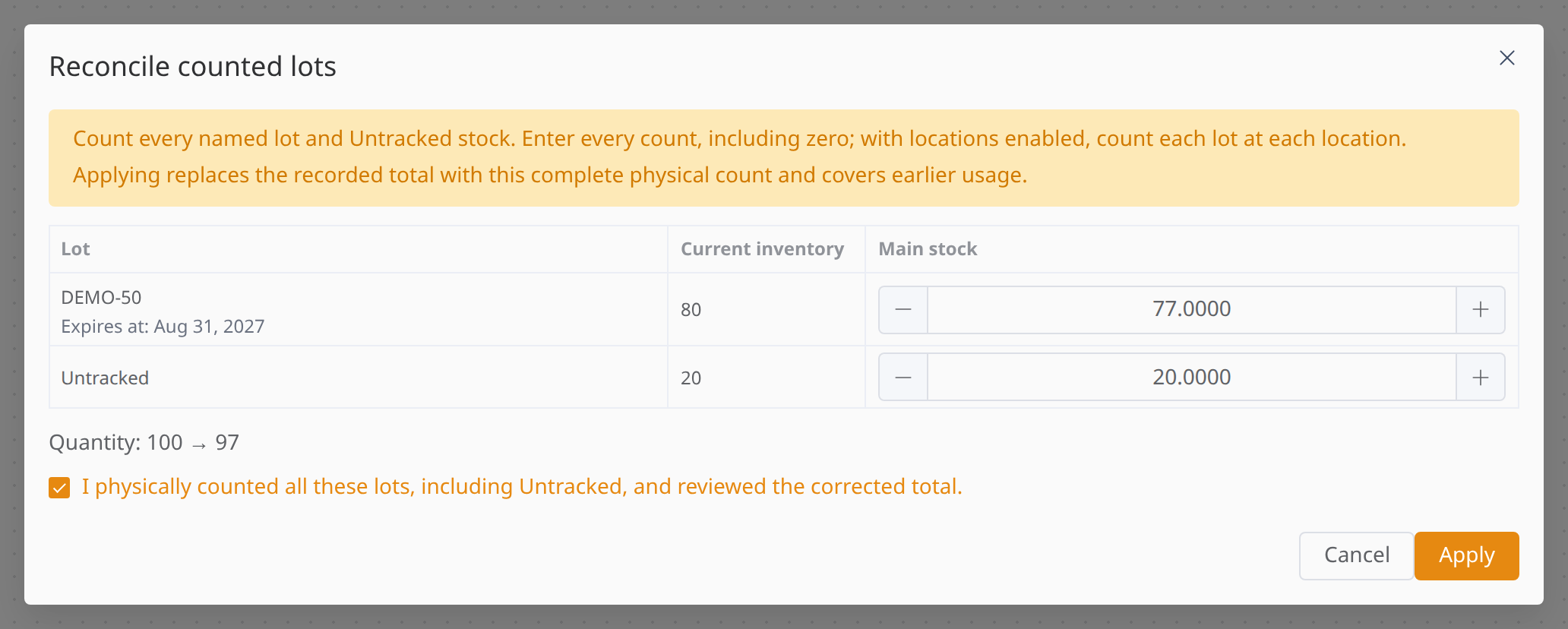
#- Open the saved item’s lot section and choose Reconcile counted lots.
- Physically count every named lot and Untracked stock. Enter every count, including zero. With locations enabled, enter every lot at every listed location and independent package counts.
- Review the calculated item total, acknowledge the complete physical count, and Apply once. Earlier usage is covered by the full count.
- Verify item, lot and location totals and History. If a balance changed during counting, review/recount before continuing; never delete historical evidence.
Check your understanding
#Ready to use this workflow
#Saved only in this browser. This is a personal practice checklist, not a clinic training record.
Related guides
- Related workflow guide
- Receive purchased stock and partial deliveries
- Count inventory, investigate differences and audit safely
- Public manual
Source: Count an existing or new lot in Audit; assign added stock in Add · Revision 8