Prepare, issue and review Mexico CFDI documents
For eligible Mexico clinics, validate fiscal data, follow the correct payment path and review failures without duplicating records.
Reviewed against current application source. Screenshots use fictional local training data.
Use this lesson only when this feature is enabled and configured for your clinic. Check the prerequisites before taking action.
What you will learn
#This lesson applies to Mexico-market accounts with CFDI enabled and the required fiscal setup. It describes Übik’s operational controls; the clinic’s accountant supplies the approved issuer, recipient, product and tax treatment. A normal payment receipt and an issued CFDI are different documents with different states.
CFDI preparation checks the clinic as issuer, customer as recipient and charged items. A request or queued status is not proof of issuance. Review the final document status and UUID, and use the existing payment and ledger records when investigating a failure instead of collecting payment again.
Before you start
#Confirm administrator and appropriate accounting/payment access, the enabled feature and complete clinic fiscal configuration. Have the customer’s approved fiscal data and correctly configured products and services available before the checkout rush. Do not guess SAT codes, tax rates or recipient details.
Use a training scenario only; this lesson does not instruct you to issue a production tax document as an exercise. Identify who may correct fiscal data, request issuance and reconcile a failed or previously canceled document.
Prepare catalog items with the accountant
#Before issuance, review SAT product/service key, fiscal unit, ObjetoImp, supported tax treatment and tax-included customer-price meaning for both inventory and services. Item defaults and recipient fiscal profiles are persistent setup, not temporary edits to one invoice. Use the linked setup lesson for editor limits and accountant responsibilities.
Follow the workflow
#- Review the clinic’s fiscal settings in Account Settings and the customer/item fiscal information relevant to the bill. Resolve missing information with the responsible person before requesting issuance.
- While collecting an eligible payment, use the CFDI option and review the validation dialog for issuer, customer and items. The document request follows that flow; a payment confirmation alone is not the final invoice.
- For an already paid bill, open its payment page and inspect the completed full-balance payment row. Issue CFDI is available only for eligible finalized full-balance payments without an active issued CFDI, excluding deposits, promotions and partial payments.
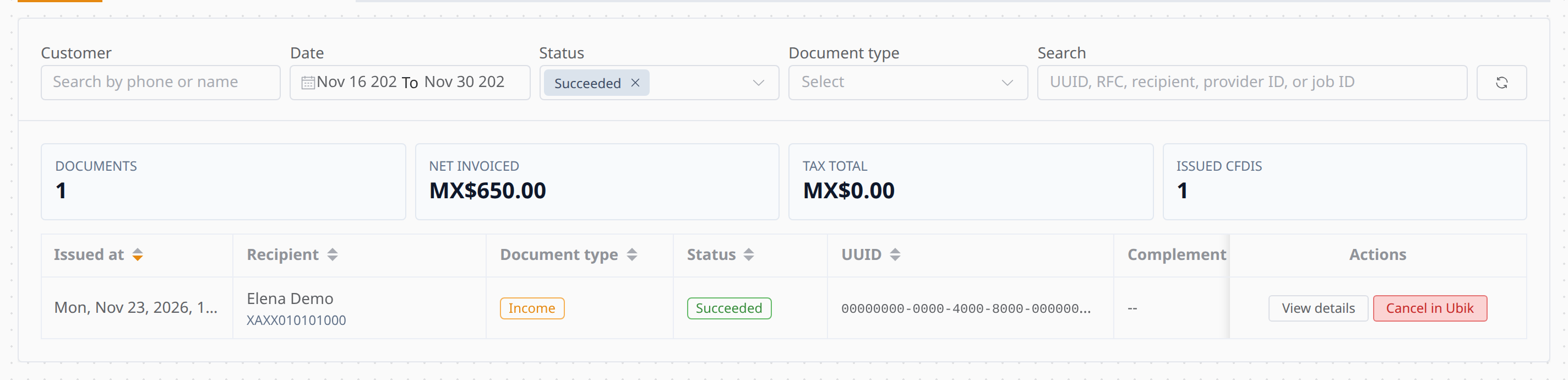
- If the row shows CFDI Requested, review the existing request rather than creating another payment. Use Accounting > CFDI Ledger to inspect document state and open the review details when you need charges, payments and saved fiscal values.
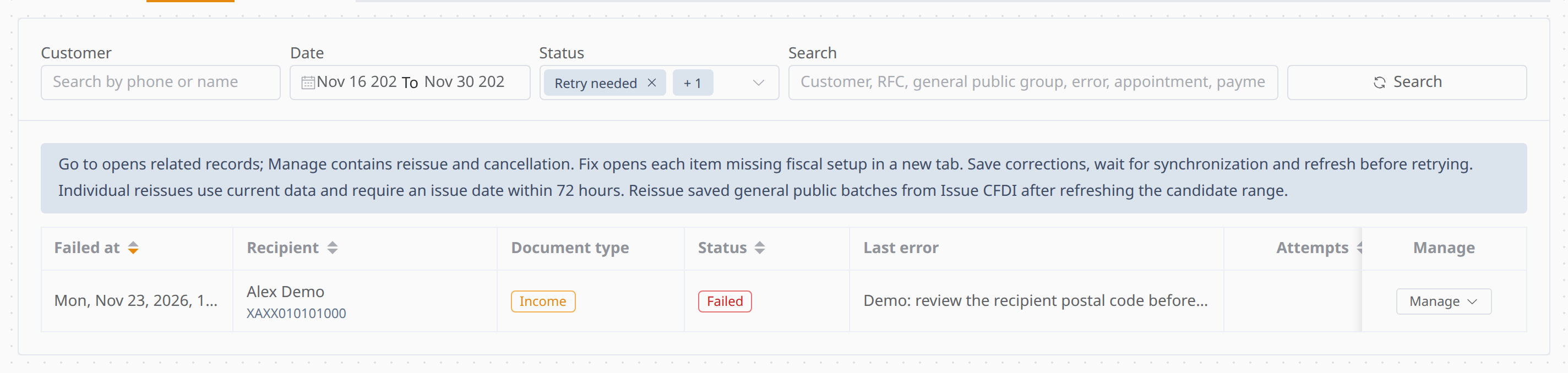
- For a failed request, open Failed CFDIs and read the latest error. Open the related customer or appointment/sale, correct the identified fiscal data, return and use Reissue CFDI only where supported. Review the requested new issue date/time.
- For split tender, pay-later, deposits, global documents or payment complements, follow the applicable supported flow with accounting review. If a document was already canceled in SAT, record that cancellation with Cancel in Ubik before reissuing; do not use that action as a substitute for SAT cancellation.
Practice with a fictional clinic
#A fictional Luna visit has a consultation and medication. Validation identifies a missing fiscal unit on one item. The authorized lead completes the approved data and reviews the request. The receptionist does not change the customer’s payment amount to remove the warning.
Later the payment is complete but the CFDI request failed. The lead opens Failed CFDIs, reads the specific error and fixes the affected record. A second payment would duplicate money collection and would not repair the failed fiscal data.
Avoid common mistakes
#- Treating Requested as Issued overlooks pending or failed work.
- Using a full-balance Issue CFDI action for a deposit or partial payment ignores the different fiscal flow and its eligibility rules.
- Choosing Cancel in Ubik before the document has actually been canceled in SAT misrepresents the cancellation state.
When something does not look right
#- If CFDI options are missing, confirm Mexico-market applicability, enabled feature, permission and payment eligibility before editing the payment.
- If validation fails, correct the identified issuer, recipient or item data using approved information; do not invent values or repeatedly request the same failure.
- If state is uncertain, inspect the ledger, document review and current request first. Escalate with the visible error and relevant reference through support, keeping certificates, passwords and customer fiscal documents out of public training material.
Check your understanding
#Complete this lesson
#Saved only in this browser. This is a personal practice checklist, not a clinic training record.
Related guides
- CFDI preparation and issuance overview
- Prepare imports and verify the clinic is ready to launch
- Coordinate home visits, pickups, and dropoffs
- What the accountant should review on each item/service
- Public manual
Source: Issue an individual CFDI after a payment is completed · Revision 3