CFDI item setup: what your accountant should review
Prepare inventory/service fiscal fields, understand supported limits and verify issuance separately from payment.
Reviewed against current application source. Screenshots use fictional local training data.
Mexico-market clinic with CFDI enabled and authorized fiscal setup.
Prepare the item before requesting CFDI
#Before issuance, the accountant must approve what is being billed, its SAT product/service classification and fiscal unit, ObjetoImp, supported tax treatment and whether the selling price includes tax. Inventory stock units, barcode, supplier conversion and SAT fiscal unit have different purposes. A valid barcode does not supply a SAT product code.
What the accountant should provide
#SAT’s current issuer guidance lists recipient fiscal data, concept quantities/units, unit prices, payment information and applicable taxes. The accountant should use current SAT catalogs and the real transaction; this lesson supplies no recommended tax rate or product classification.
- Approved classification and description for each product/service, fiscal unit and ObjetoImp. Do not copy another item’s classification without review.
- Tax identifier, factor, rate and any retention/multiple-tax requirements; confirm the editor can represent the real treatment.
- Approved meaning of the customer price, issuer configuration and recipient RFC, name, fiscal regime, fiscal ZIP and CFDI use.
Review inventory CFDI issuance fields
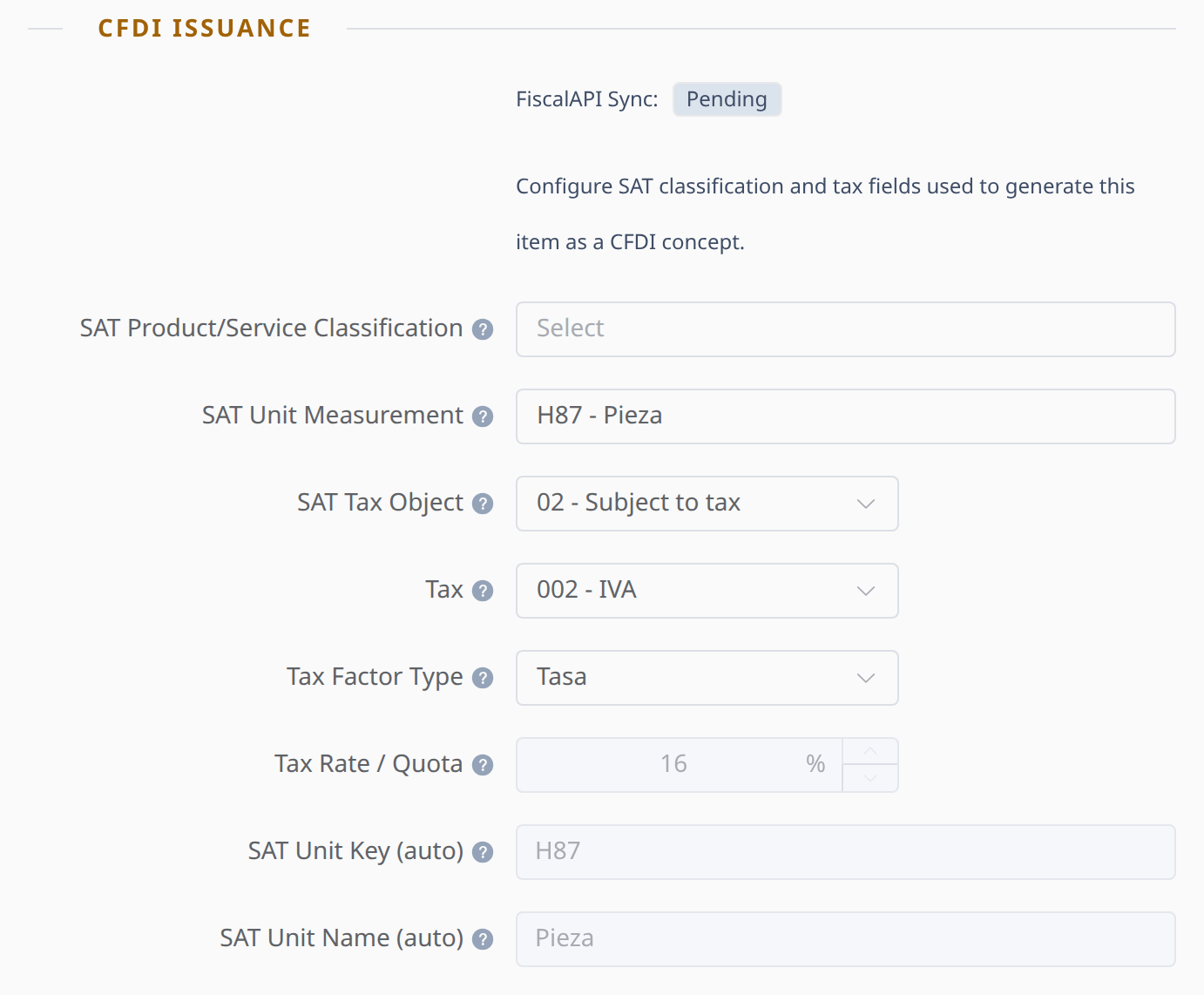
#- Open Inventory → Manage → Go to → Edit. Find CFDI issuance in a Mexico-market clinic with CFDI enabled. Review the saved fiscal description, SAT product/service key, unit and ObjetoImp with the accountant.
- Review the displayed tax identifier, factor and rate. The inventory rate in this CFDI panel is read-only; do not assume it is an editable service-style field. If it does not match approved treatment, stop and ask the authorized setup owner or Help. In inventory, the editable Tax rate is under Controls and compliance and synchronizes the read-only CFDI rate; use it only for supported accountant-approved treatment.
- Review Customer price includes tax independently from the stock unit/package settings. Save only a fully reviewed supported setup, then inspect a new training charge and the fiscal validation preview.
Review the same decisions for services
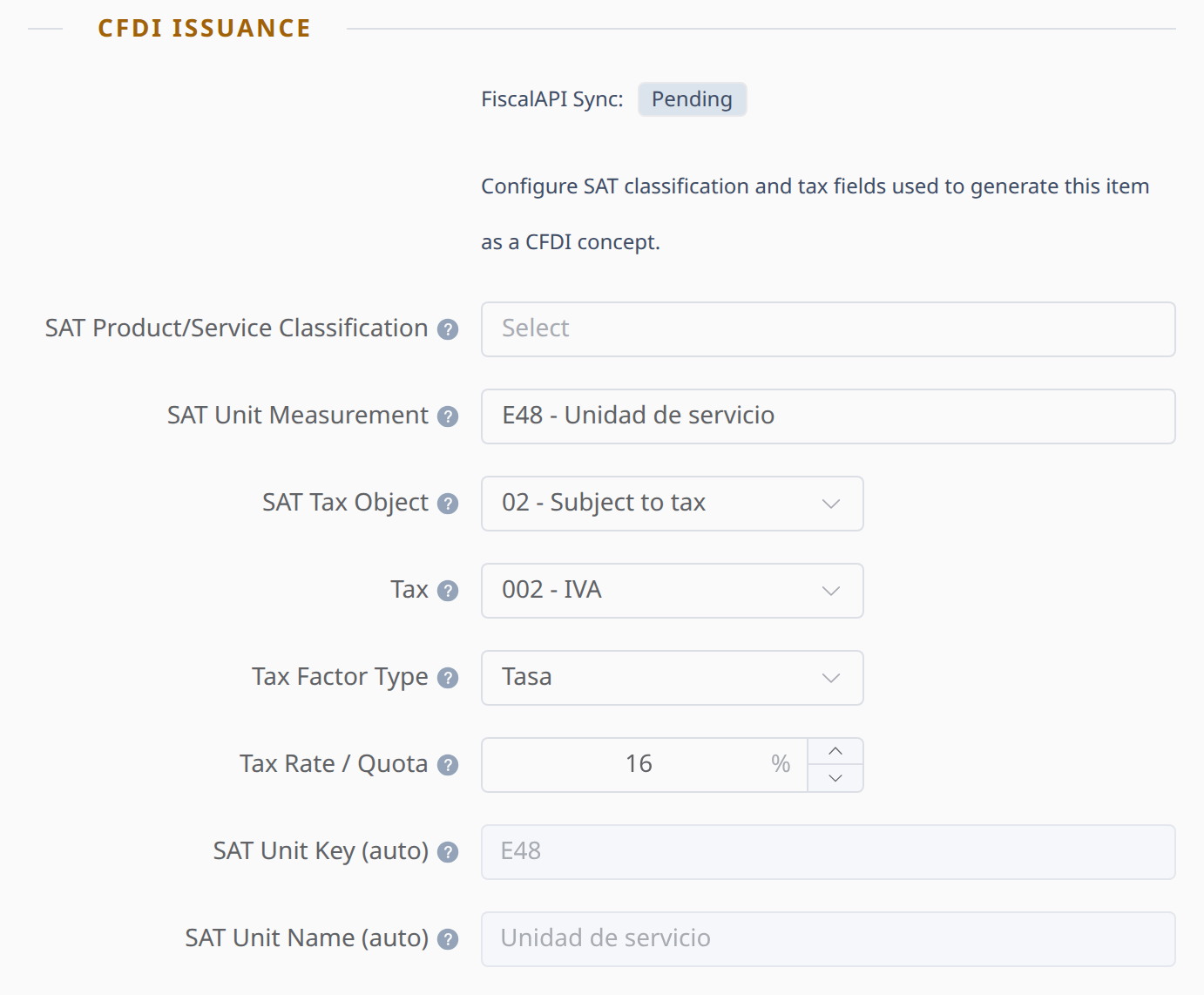
#Services → Edit also has CFDI issuance controls. Confirm its description, product/service classification, fiscal unit, ObjetoImp and tax fields. The service rate can be editable for taxable non-Exento setup. The fictional screenshots show where fields live; their simple tax example and units are not recommendations for your business.
Know the editor’s supported limits
#These editors expose ObjetoImp 01/02/03, one primary tax row and whole-percent rate handling. They are not a general editor for every SAT classification, multiple simultaneous taxes, retentions or fractional rates. Other SAT cases exist. If approved treatment is outside those controls, ask the accountant and Help before saving or issuing; do not substitute a nearby code, zero rate or Exento to pass validation.
Existing advanced tax arrays can be reduced to the first row by these editors. Do not casually reopen and save an advanced/multi-tax record. Fiscal changes and tier/customer-price changes must preserve the meaning of existing paid or invoiced charges.
Issue through the supported payment flow
#Saving fiscal validation can persist issuer data, customer fiscal profiles and catalog defaults. Review these as reusable clinic setup, not a one-invoice experiment. Ubik/provider validation also asks for email and issuer series/currency; these workflow fields are separate from the SAT recipient taxpayer data listed in the official guidance.
- Complete issuer/recipient/item review before the payment-time CFDI request or the eligible Issue CFDI action on an already paid bill. Follow the linked issuance lesson for eligibility, deposits and split payments.
- A receipt, requested state or queued request is not proof of issued CFDI. Review Accounting → CFDI Ledger for status, document and UUID.
- On rejection, read the actual error and correct/synchronize the identified fiscal profile or supported item setup. Reissue only when the request is eligible. An uncertain issuance needs verification before another request; do not collect another payment to fix a fiscal error.
Common mistakes
#- Guessing SAT codes or assuming barcode, stock Unit and fiscal unit are interchangeable.
- Changing tax-included pricing to force a total, or forcing unsupported tax treatment into a single-row editor.
- Treating Requested as Issued, or repeating a payment/request after an uncertain response.
Escalate the actual fiscal mismatch
#Give the accountant/Help the affected item or service reference, supported field that does not fit, validation error and request state. Keep original payments, charges and issued-document evidence. Do not promise that editing the catalog rewrites an existing CFDI, cancels it at SAT or automatically issues a credit note.
Check your understanding
#Ready to apply this lesson
#Saved only in this browser. This is a personal practice checklist, not a clinic training record.
Related guides
- Prepare, issue and review Mexico CFDI documents
- Configure services, prices and discount boundaries
- How tier pricing works for inventory and services
- Add inventory individually or import a catalog
- SAT: information needed to issue an invoice
- Public manual
Source: CFDI item setup: what your accountant should review · Revision 2