Technician basics: open a visit, record care and hand off
Follow a basic Technician workflow from the waiting patient through notes, vitals, completed services, dispensing and the Reception handoff.
Reviewed against current application source. Screenshots use fictional local training data.
Your basic Technician workflow
#The Technician workspace connects the correct patient and appointment to the care actually recorded. First identify the visit, begin the appropriate stage, document the approved care, verify services and stock use, then hand the visit to the next team. Technicians and clinicians follow the permissions and responsibilities assigned by their clinic. This lesson teaches software recording, not treatment decisions.
Before you start
#Sign in with your own account and confirm the clinic. You need access to the Technician portal and the relevant appointment, chart and dispensing actions. A hidden or disabled action may reflect permissions or a protected visit; ask the authorized lead rather than changing another record to bypass it.
Reception should establish the existing customer, pet, reason for visit and appointment. Search before creating another visit. Use a fictional training appointment to practice, and follow the clinic’s real patient-identity procedure.
Open the correct visit and begin care
#- Open Portals → Technician and select the appropriate Office when prompted. Check the appointment list’s clinic, date, status and assignee filters if the expected patient is missing. Open the intended existing visit.
- Confirm the customer, pet, appointment type and reason. Review relevant patient history, saved intake context and who is responsible before starting.
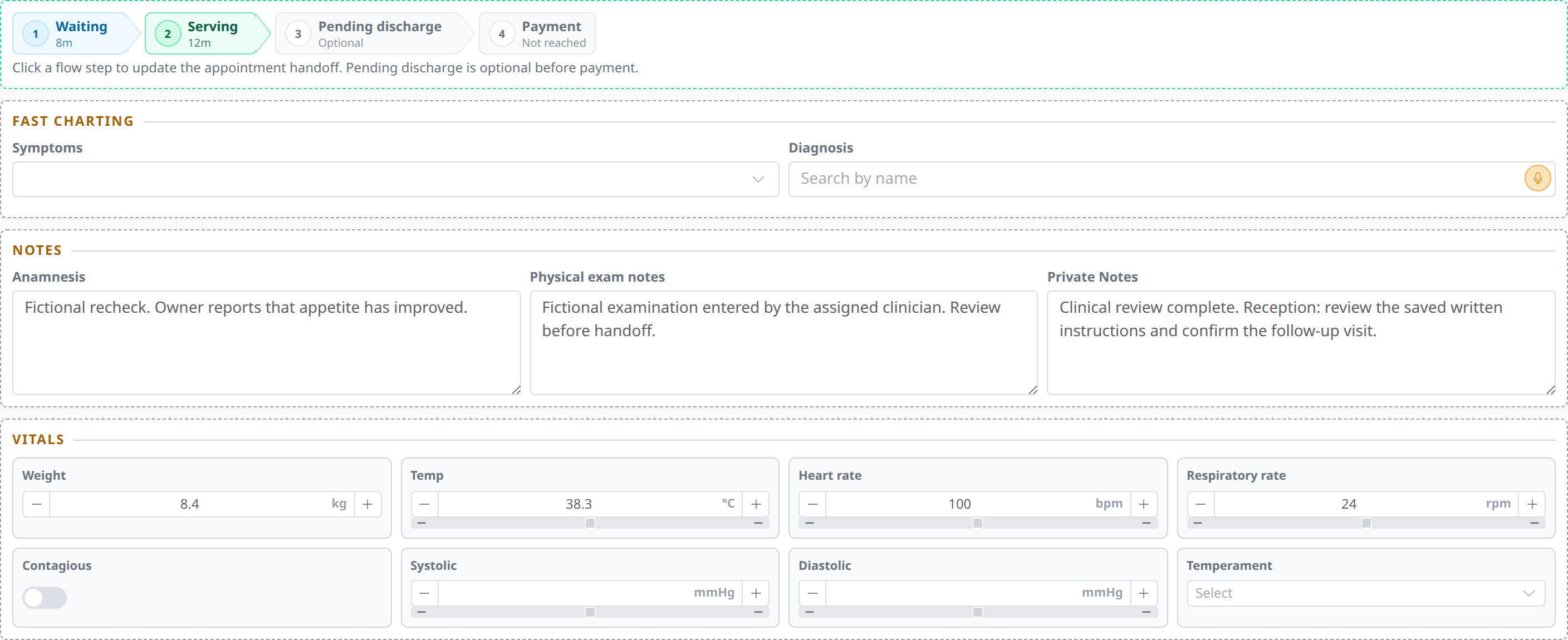
- Use the workflow steps above the chart to move a standard consultation from Waiting to Serving when care actually begins. Surgery, Hospitalization and Boarding have their own stages; do not force a routine-consultation sequence onto a stay.
Record notes and vitals; confirm they saved
#Confirm the saved note remains on the same appointment before leaving. Item setup uses its own Add or Save changes confirmation; notes saving does not approve an unfinished item setup.
- Record the relevant observations in the intended clinical sections and enter measured vitals in their labeled units. Review weight especially carefully when pricing or an approved item setup depends on it. Do not copy another patient’s values.
- Main chart notes save when you leave the field; vitals save on change, and weight also uses a short delayed save and blur. There is no general Save button for these main chart fields. Leave the edited field, allow saving to finish and resolve visible errors before changing the workflow stage or handing off.
- Use Private notes for internal coordination and Notes to customer for approved owner-facing instructions. Review documents before sharing; a private handoff note is not an owner instruction.
Record services and products actually used or handed over
#- In Items, Services, and Charges, add the approved services or products and review associated selections. Choose the exact product variant, amount, billing mode, lot and location when offered.
- For services, review Rendered. For products, review Dispensed only when actual handoff or use occurred. A planned item is not proof it was performed or supplied. Check the stock-use preview and distinguish individual units from packages.
- Billable, Internal use and External dispense have different charge and stock meanings. Follow the approved plan and your permissions; do not select a different billing mode to bypass a blocked action. Review saved rows and owner instructions after confirming the item setup.

Hand off to Reception
#- Check that the chart changes saved, service/product statuses match what happened, and the intended prescriptions or discharge instructions are ready. Explicit stock actions and sending documents still require their normal confirmation.
- If clinical review is complete but pickup or an owner discussion remains, use Pending discharge when appropriate. Tell Reception what remains outstanding and who owns the next action.
- Use Payment when the visit is ready for checkout. Reception must still review charges, deposits and payments. Selecting Payment does not mean money was collected, and a paid visit alone does not prove every care or stock action was recorded.
Try a complete handoff
#Fictional patient Nube has a recheck appointment. The assigned clinician begins Serving, records the visit and measured vitals, verifies a Rendered recheck service and the actual Dispensed amount of an approved take-home item, then checks saved owner instructions. The owner has not arrived for pickup: use the appropriate Pending discharge stage and an internal handoff. When ready for checkout, hand the visit to Reception through Payment. Ask the receiving colleague to identify what remains before closing the training visit.
Common mistakes
#- Creating a duplicate visit because the date, assignee or status filter hid the original.
- Leaving a note field with an unresolved save error, marking planned care as completed, or confusing a package count with individual units.
- Putting internal notes in owner-facing instructions or treating the Payment stage as a payment receipt.
If something is missing, locked or did not save
#Check the same clinic, patient, appointment reference, date/status/assignee filters and your permissions. A Done or canceled visit and protected stock history can restrict editing. Preserve saved records; ask an authorized administrator or Help to review a necessary correction.
If a save or explicit stock action has an uncertain result, inspect the saved chart, item row and History before repeating. Do not create another item or visit to force the expected total. Include the workflow stage and expected versus observed behavior in a Help request.
Check your understanding
#Ready for a basic Technician shift
#Saved only in this browser. This is a personal practice checklist, not a clinic training record.
Related guides
- Start a consultation and hand off the patient
- Review history and save a useful clinical chart
- Add services, medications, and clear prescription instructions
- Complete checkout and deliver the correct receipt
- Public manual
Source: Technician basics: open a visit, record care and hand off · Revision 2