Reschedule, cancel, and handle missed appointments
Change the existing booking, preserve the reason and history, and review deposits separately from schedule changes.
Reviewed against current application source. Screenshots use fictional local training data.
Understand the task
#Rescheduling changes when an existing appointment will happen. Canceling records that the visit will not proceed. Neither action should be replaced by deleting a patient’s history or making another appointment without reviewing the original.
A late patient is not automatically a canceled visit. Confirm the situation with the owner and clinical team. The current workflow has Canceled and a cancellation reason; this lesson does not assume a separate No-show status or automatic financial settlement.
Before you start
#Use the correct clinic and confirm customer, pet, appointment date, and reference. Editing the booking requires appointment-edit access. Coordinate changes to already-started clinical care with the responsible clinician.
Check whether the booking has a deposit, charges, attached forms, or linked care. Schedule changes and money movements need separate review. Do not promise that canceling refunds a payment or that rescheduling sends an update through every communication channel.
Do it in Übik
#- Find the existing appointment in Reception or Appointment search. Review its current status, patient, scheduled time, and any related appointment or payment.
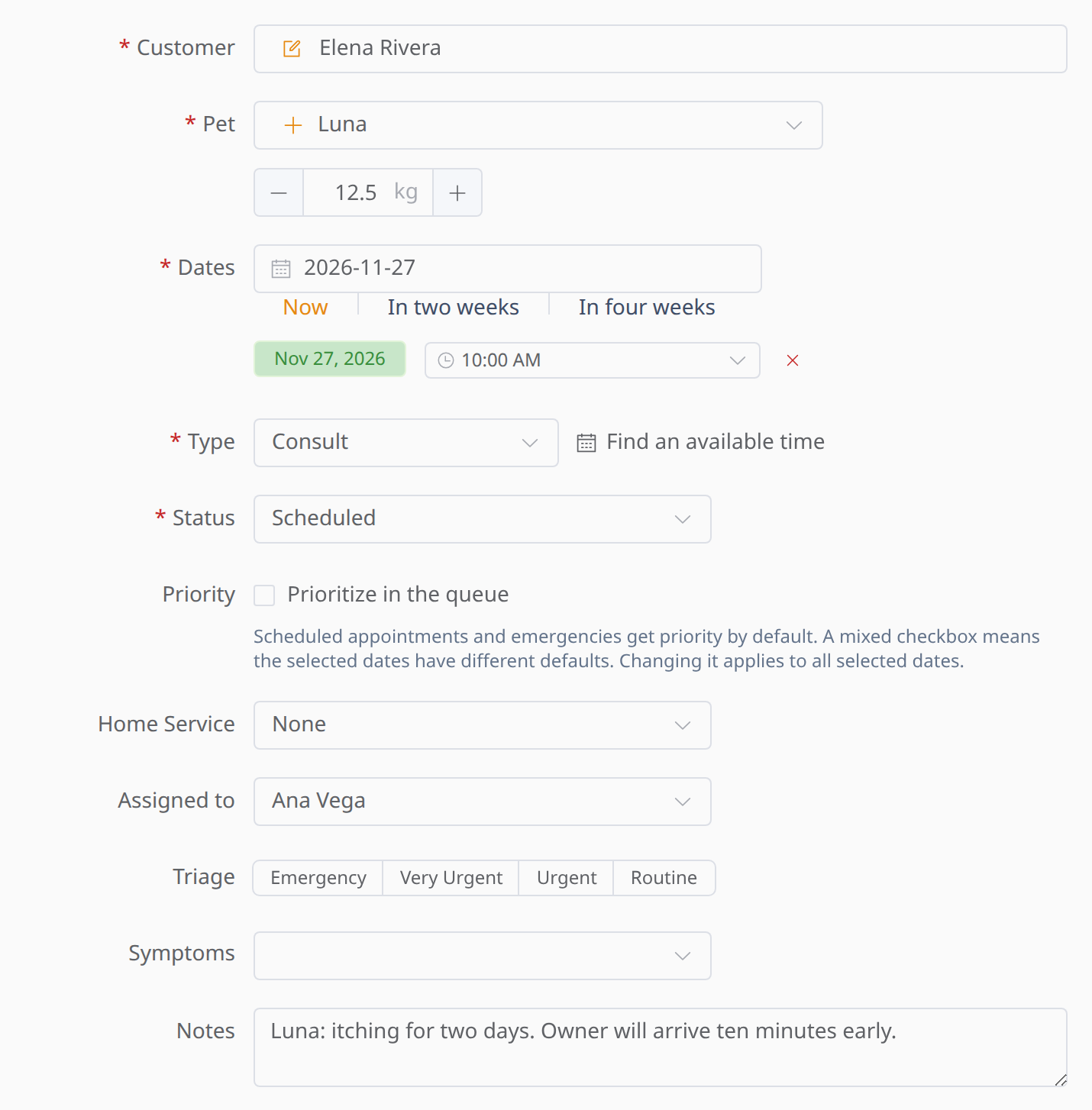
- For rescheduling, use the appointment’s Go to → Edit action. Change the intended date/time on the existing record and review clinician availability and assignment.
- Check that only the intended date remains selected. Save, then find the same appointment again and verify the new date/time and status.
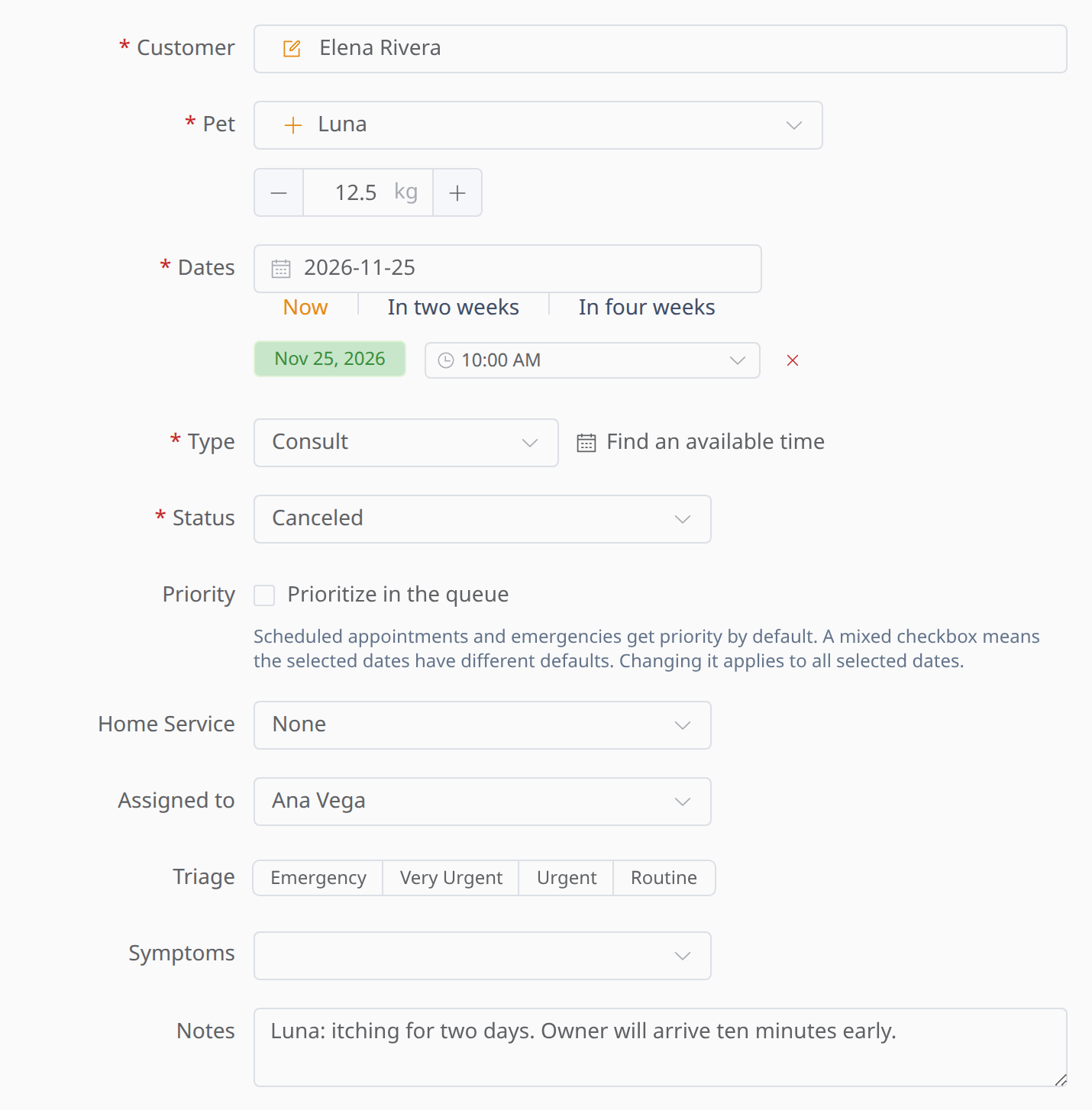
- For a cancellation, use the appointment’s Status control in Reception and choose Canceled. Enter a clear cancellation reason when prompted, such as the owner’s request or a confirmed missed visit.
- After saving, check the appointment’s status and History. Keep any original payment and clinical records intact; review deposits with the authorized financial workflow.
- Confirm the new plan with the owner through the clinic’s approved contact process and tell the clinical team. For a missed visit, document what was actually confirmed and arrange follow-up if needed.
Try a fictional clinic example
#Fictional dog Bruno has a Tuesday 10:00 appointment and a MXN 300 deposit. The owner asks for Thursday. Edit Bruno’s existing appointment, verify Thursday’s availability, and save the new time. The recorded deposit must be reviewed on the same booking rather than collected again.
For another appointment, the owner confirms they cannot attend. Cancel with the factual reason and leave the payment history available for the clinic’s deposit decision. A canceled label is not proof that money has been returned.
Avoid these mistakes
#- Creating a replacement visit without reviewing the original can leave both dates active.
- Canceling solely because the patient is late can misrepresent a visit that is still expected. Contact the owner or clinical lead first.
- Deleting payments or recording a second deposit to force a balance changes financial history and is not a scheduling correction.
Troubleshoot and recover
#- If Edit is unavailable, ask the administrator to review appointment-edit access; do not use another employee’s account.
- If date/type controls are locked on a hospitalization or boarding record, use the supported stay workflow and consult the clinical lead rather than bypassing the restriction.
- If a save is interrupted, reopen the same appointment and check its date/status and History before repeating. Escalate unresolved deposit or linked-record differences with the appointment reference.
Check your understanding
#Check the result
#Saved only in this browser. This is a personal practice checklist, not a clinic training record.
Related guides
- Reception portal guide
- Book appointments and walk-ins
- Review online bookings and intake notes
- Public manual
Source: Reschedule, cancel, and handle missed appointments · Revision 2