Book appointments and walk-ins
Create the right visit for the right patient, review dates and availability, and verify the saved appointment.
Reviewed against current application source. Screenshots use fictional local training data.
Understand the task
#Use Add Appointment when the customer is booking care. Use Create Estimate when the customer only wants a quote, and Sell Product for a product-only purchase. Choosing the right action keeps the schedule and financial records meaningful.
The appointment’s date, type, status, and assignment describe different things. Scheduling a future visit does not mean the patient has arrived, and assigning a clinician does not prove the clinician is available.
Before you start
#You need appointment-add permission; selecting or creating customers and pets also depends on customer permissions. Assignment to another staff member requires the relevant assignment permission. Confirm the correct clinic and existing owner/pet first.
Availability suggestions depend on configured work schedules and eligible appointment types. If setup is incomplete, coordinate with the clinic before promising a slot. Practice with a fictional patient rather than creating training appointments in a live schedule.
Do it in Übik
#- Open Portals → Reception and choose Add Appointment. Select the existing customer by phone or name, then select the intended Pet.
- Choose the date or dates. For an immediate walk-in, Now sets the current time; review the resulting date and time. For a future visit, select its actual slot.
- Review every date’s time. Remove unintended dates with the red remove control. Multiple selected dates create multiple visits, so do not leave extras as reminders.
- Choose Type and any applicable Specialty. Use Find an available time beside the appointment type or specialty when the clinic has configured availability.
- Choose the status that reflects the actual situation: Scheduled for a future booking, Waiting for an arrived patient, or Serving only when care has started. Multiple dates use automatically determined statuses.
- Assign a clinician when authorized, review the calendar preview, and Save. Search/open the saved appointment and confirm the customer, pet, date, type, status, and assignment.
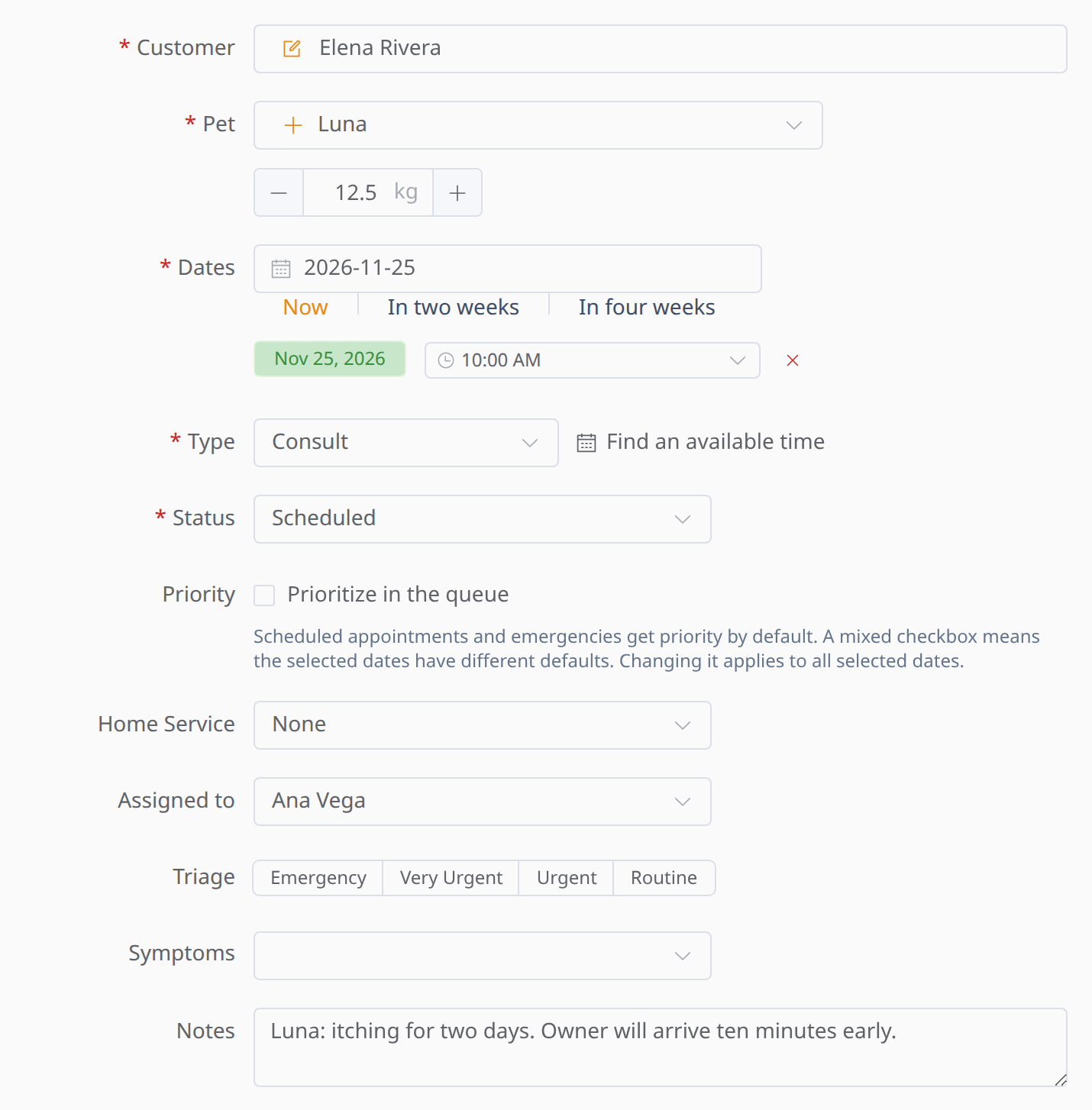
Try a fictional clinic example
#Fictional dog Milo needs a vaccination next Tuesday, while another patient, Nala, is already at the desk. Milo receives a future dated vaccination appointment. Nala uses Now and Waiting after arrival; neither should be marked Serving merely because Reception created the visit.
For practice, select two future dates for Milo and give each a time. Before saving, remove the unintended second date and explain why an estimate is unnecessary when the customer has already decided to book.
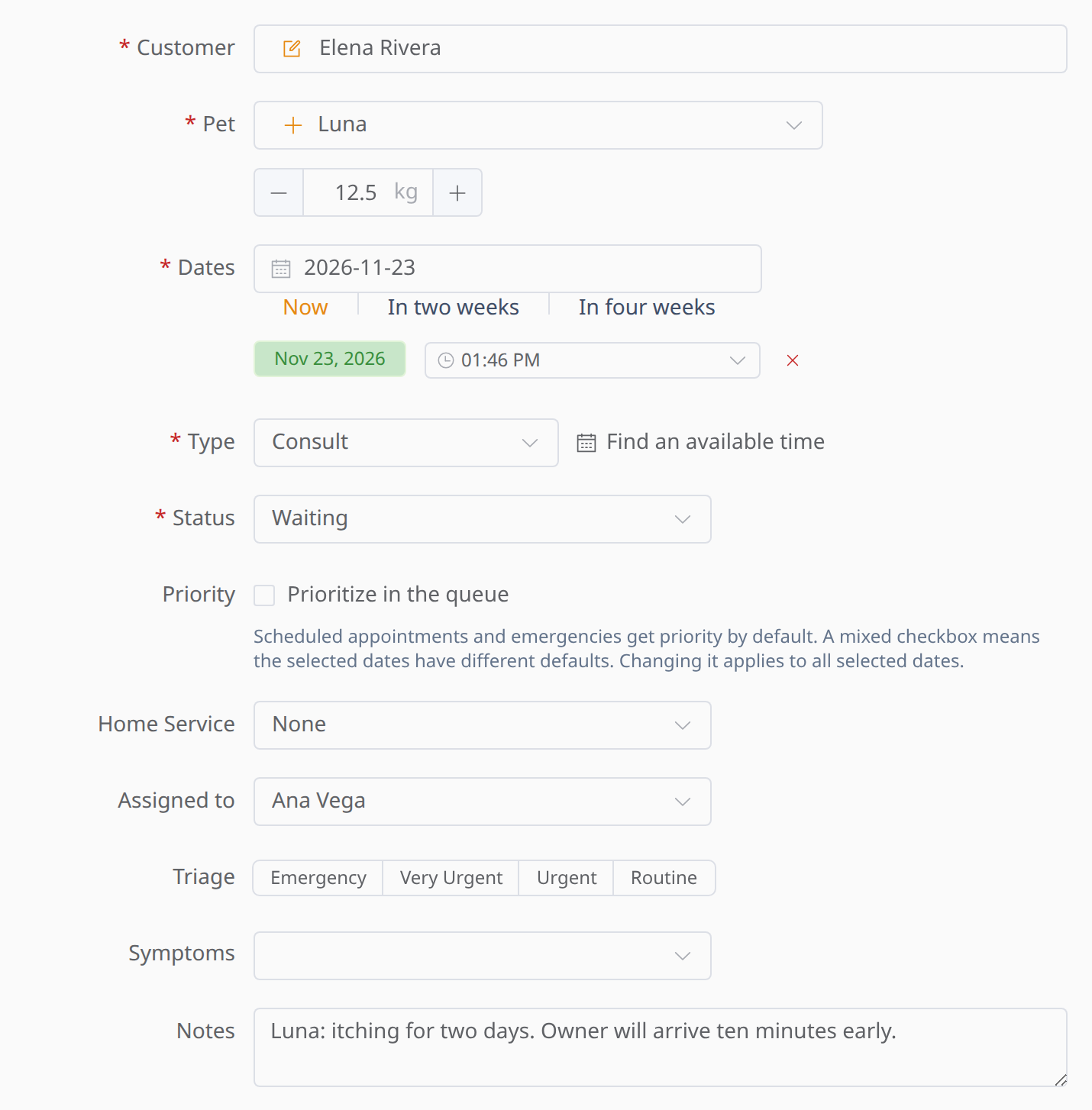
Avoid these mistakes
#- Using an appointment to look up prices creates unnecessary visits. Use Create Estimate instead.
- Selecting several dates without reviewing all times can create unwanted appointments.
- The calendar preview is context; it does not replace checking staff eligibility, real capacity, and the patient’s needs.
Troubleshoot and recover
#- If Add Appointment is missing, ask the administrator to check appointment-add access rather than using another employee’s login.
- If no suitable time appears, check appointment type, optional specialty, selected clinician, and configured hours with the clinic lead.
- After an interrupted Save, search the patient and time for an existing appointment before creating another one. Record any error and escalate unresolved differences.
Check your understanding
#Check the result
#Saved only in this browser. This is a personal practice checklist, not a clinic training record.
Related guides
- Reception portal guide
- Create and maintain customers and pets
- Reschedule, cancel, and handle missed appointments
- Public manual
Source: Book appointments and walk-ins · Revision 2