Configure your clinic and confirm the operating context
Review clinic identity, country, time zone and enabled workflows before the team starts working.
Reviewed against current application source. Screenshots use fictional local training data.
What you will learn
#Clinic settings establish the identity and operating context used by the team. Name, address and contact details help staff recognize the right clinic; country and time zone influence the options and dates they encounter. Treat this as a controlled setup task with a named administrator, rather than a place to experiment during a busy shift.
A training responsibility such as Administrative Lead does not automatically grant administrator access. Feature switches also have their own subscription, country and setup conditions. A visible switch is the beginning of configuration, not evidence that every related workflow is ready.
Before you start
#Use an administrator account for the intended clinic. Have the approved clinic name, business contact details, country and time zone available. Identify who owns booking, catalog, payments and clinical setup so each decision has someone responsible for checking it.
For practice, use the fictional Demo Paws Clinic and a training account. Record the current values before changing an existing clinic. If a country or time-zone correction affects established operational records, involve the account owner before making the change.
Follow the workflow
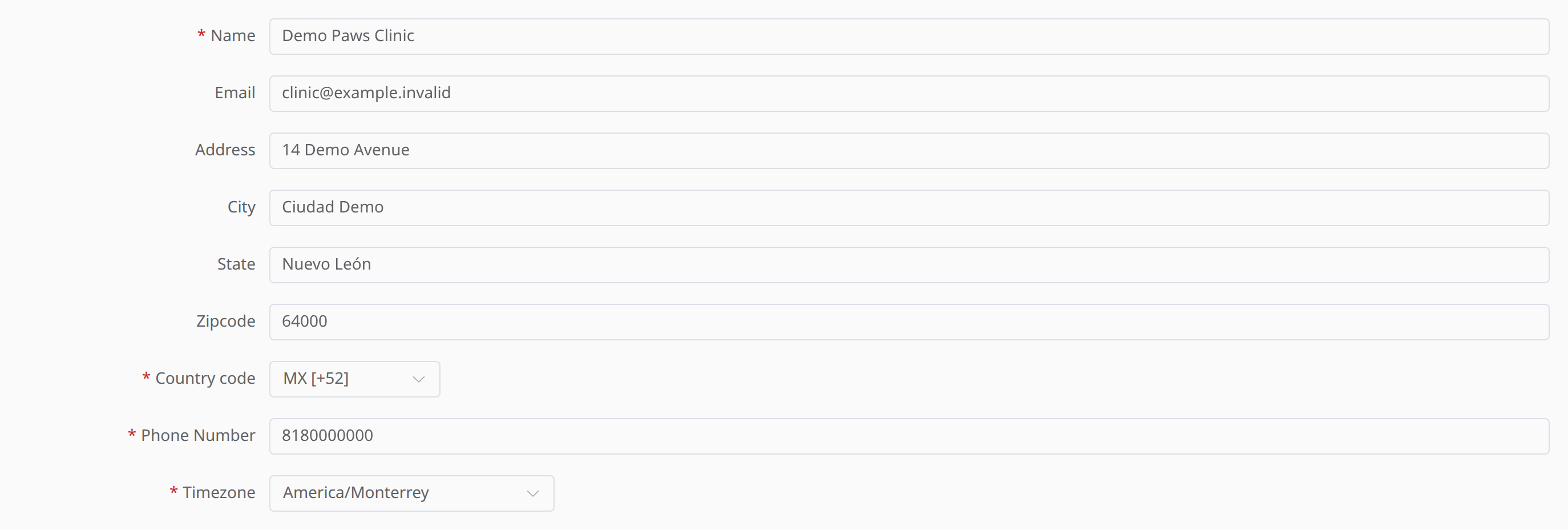
#- Open Account Settings and confirm the clinic shown before editing. Review Name, Email, Address, City, State, ZIP/postal code and Phone against the approved clinic details.
- Review Country and Time Zone deliberately. Choose the clinic’s real operating location; do not change the country to make a fiscal or subscription option appear.
- Save the account, reopen its settings and confirm that the values persisted. Check a familiar appointment time with the Reception Lead to establish that the team is interpreting dates consistently.
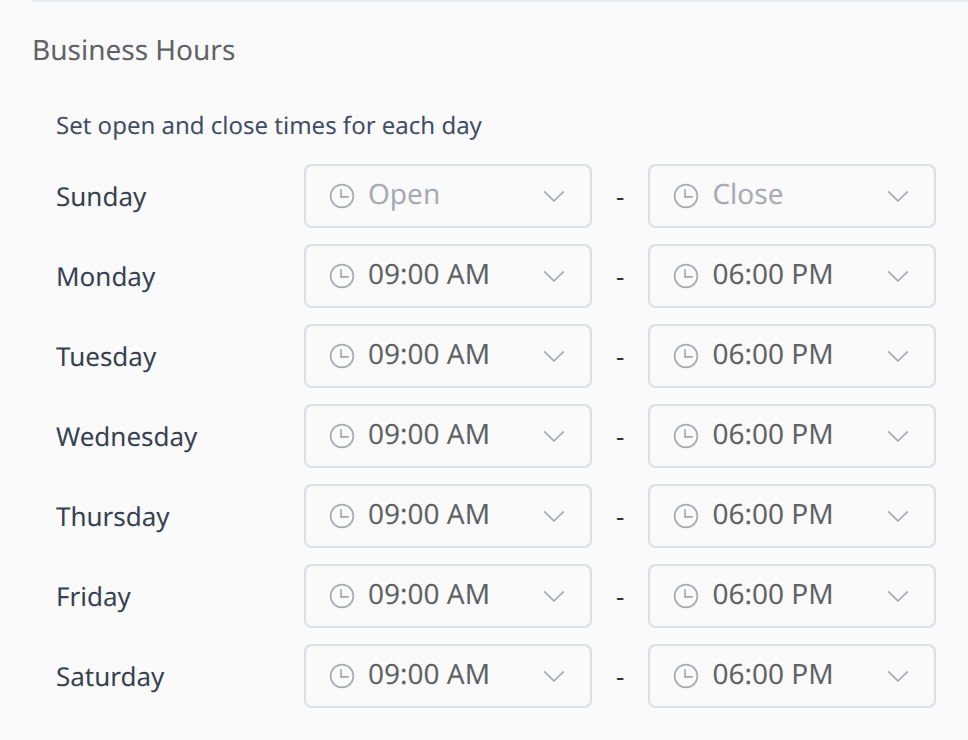
- Review the relevant configuration groups, such as online scheduling, clinic activities, and Subscription and Payments. Enable only the workflows the clinic intends to use and is eligible to configure.
- Assign the remaining setup to the appropriate lead. Booking needs availability rules; services need prices and defaults; staff need individual accounts and permissions. Review those areas through their dedicated lessons.
Practice with a fictional clinic
#Demo Paws Clinic has an approved clinic email and operates in one local time zone. The administrator enters those details, saves, then asks Reception to compare tomorrow’s 10:00 appointment with the agreed schedule. Both must be discussing the same clinic and local time.
The clinic does not yet offer memberships. Leaving that workflow unused is a valid setup decision. If the clinic later adopts it, enabling the switch still requires the separate plan, benefits and enrollment preparation; today’s setup checklist should record who owns that future work.
Avoid common mistakes
#- Using a shared administrator login hides who changed important settings. Give staff individual access and teach them which clinic they are working in.
- Changing country or enabling every optional feature to explore the menus creates confusing setup. Confirm applicability and ownership first.
- Assuming the clinic is ready because identity fields are complete skips service prices, staff access, opening stock and booking rules.
When something does not look right
#- If settings are missing or read-only, confirm the current clinic and administrator access before asking another person to change them.
- If a feature is disabled, check its subscription and country conditions and the related setup guide. Do not repeatedly toggle it or substitute another country.
- If a saved value does not persist, capture the visible validation message and the affected setting. Ask support to review the issue without including credentials or customer records.
Check your understanding
#Complete this lesson
#Saved only in this browser. This is a personal practice checklist, not a clinic training record.
Related guides
- First 90 days administrator playbook
- Give staff individual accounts and appropriate permissions
- Configure treatment schedules and review actual adherence
- Public manual
Source: Configure your clinic and confirm the operating context · Revision 2