Give staff individual accounts and appropriate permissions
Configure each person’s clinic access, default portal and permission categories, then verify the tasks they need.
Reviewed against current application source. Screenshots use fictional local training data.
What you will learn
#Every staff member should use an individual account. A role describes the clinic relationship, while the permission categories determine which work the person can perform. Appointment, inventory, customer, calendar, employee, data and accounting permissions are separate areas; a job title does not replace their review.
Start from the person’s real duties. The objective is access that lets them complete their work and protects areas they do not manage. A default page makes the correct daily portal easier to find, but it does not grant the permissions needed inside that portal.
Before you start
#Use an administrator account and confirm the target clinic. Obtain the employee’s correct email, name and responsibilities. Decide who approves access to payroll, financial reports, data tools, inventory adjustments and sensitive clinical work.
For this exercise, configure fictional Dr. Avery in a training account. Do not use a colleague’s login to imitate the employee. The final access check should be performed through that person’s own sign-in without sharing passwords.
Follow the workflow
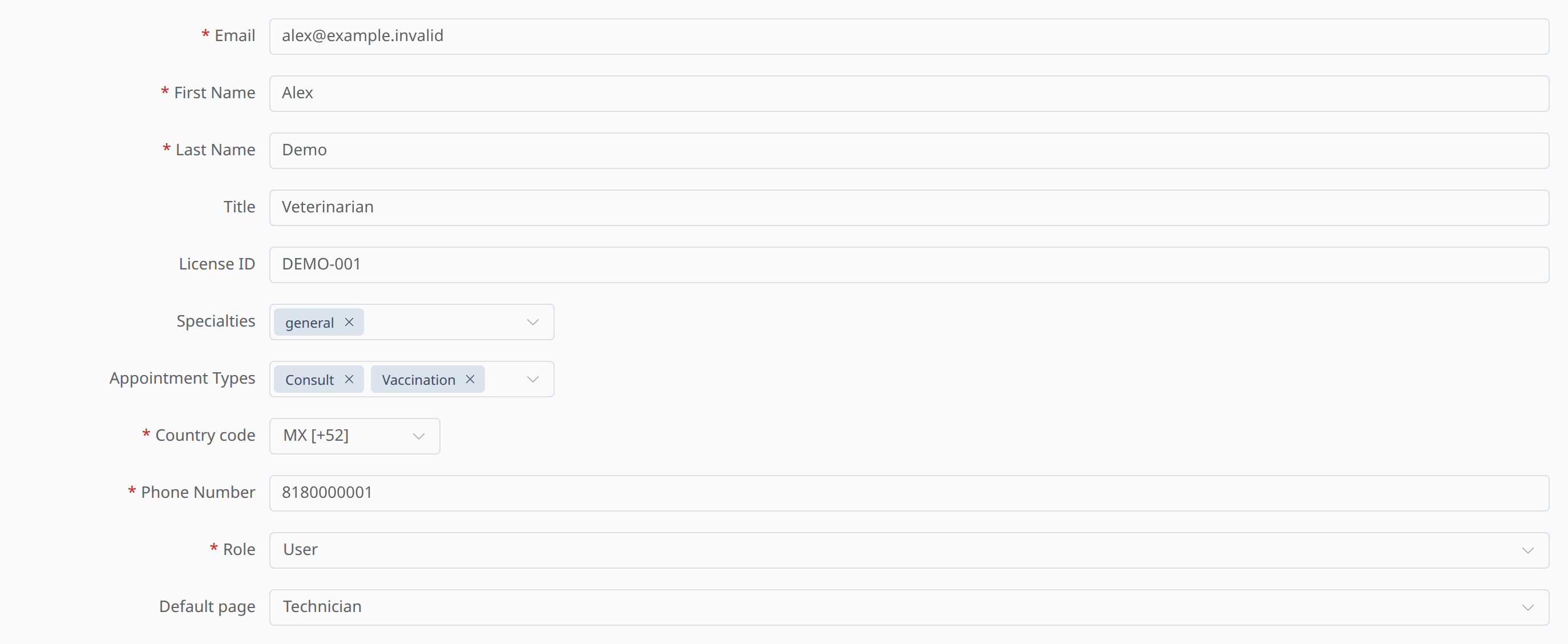
#- Open User Search and add or edit the intended employee. Enter the correct email, first name, last name and job details; review professional information such as license and specialties when applicable.
- Select Role to match the clinic’s workflow. Choose the appropriate Default page so Reception opens its portal and clinical staff can reach the relevant workspace easily.
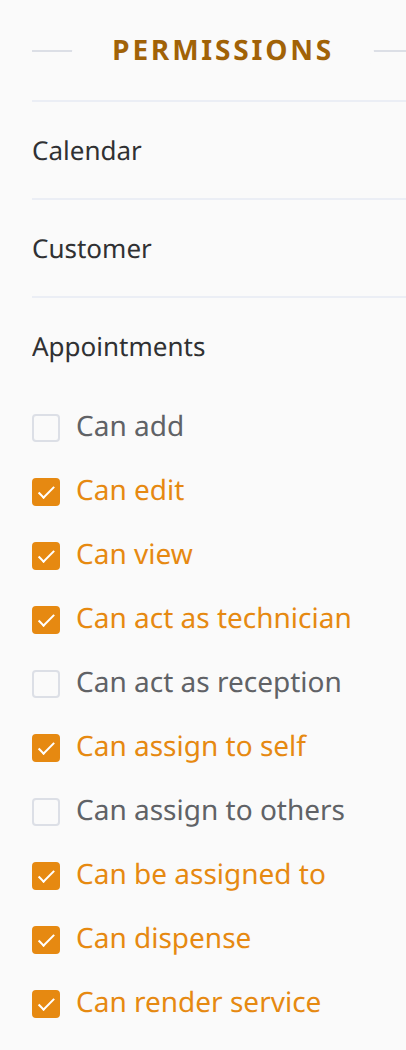
- Review each permission category against the job. Check the required view, add, edit or workflow actions where offered, including appointment and customer access for the person’s clinical duties.
- Review reporting, employee administration, accounting and data permissions separately. Do not grant those areas merely to solve one missing button in a different workflow.
- Save the user settings. Have the employee sign in to the correct clinic, open the expected portal and perform a harmless access check for the tasks they will use.
- Record any missing action precisely, such as viewing inventory versus changing an adjustment. Return to the relevant permission category and verify again after saving.
Practice with a fictional clinic
#Dr. Avery needs to read patient history, work on assigned appointments and see products used during care. The administrator reviews those clinical and catalog permissions, sets an appropriate starting page and asks Dr. Avery to open a fictional appointment.
Dr. Avery does not manage payroll or supplier payments. If a treatment action is unavailable, the administrator checks the specific clinical permission and current clinic first. Promoting the doctor to administrator would add unrelated access and make the original permission problem harder to understand.
Avoid common mistakes
#- Using one login for the entire shift loses individual responsibility for changes and handoffs.
- Assuming a job title, Default page or training role automatically grants all required app actions leaves gaps in access.
- Giving administrator access whenever a button is missing bypasses the review of the specific permission and feature condition.
When something does not look right
#- If an invitation is not received, check the saved email and the recipient’s normal mail and spam folders before creating another user.
- If the person sees a different clinic, confirm clinic membership and selection before changing permissions.
- If a control remains missing, note the portal, task and exact disabled action. Check the related permission, enabled feature and record status; ask support if the expected access still fails.
Check your understanding
#Complete this lesson
#Saved only in this browser. This is a personal practice checklist, not a clinic training record.
Related guides
- Configure your clinic and confirm the operating context
- Configure working hours and online booking availability
- Public manual
Source: Add a doctor user · Revision 2