Configure working hours and online booking availability
Connect scheduling settings, staff skills, work shifts and breaks so customers see appropriate booking times.
Reviewed against current application source. Screenshots use fictional local training data.
What you will learn
#Online availability combines several decisions: which appointment types can be booked, how start times are offered, how much capacity each time has and whether appropriate staff are scheduled. The booking page reflects that configuration; it cannot infer a complete rota from who happened to check in today.
Saved work shifts provide staff coverage. Staff must support the appointment type and cover the start time outside recorded breaks. A named doctor also needs no conflicting recorded absence or assigned booking. A staff-dependent time without the required work schedule is unavailable even if the doctor is physically present.
Before you start
#Use administrator access for Account Settings and the appropriate employee scheduling permission for the Employee Calendar. Agree the real opening hours, supported visit types, booking interval and staffing expectations before making the public calendar available.
Use fictional Dr. Avery and a training booking page. Separate planned shifts from actual attendance: a schedule describes availability; check-in and check-out records describe attendance. Keep those two sources accurate for their different purposes.
Follow the workflow
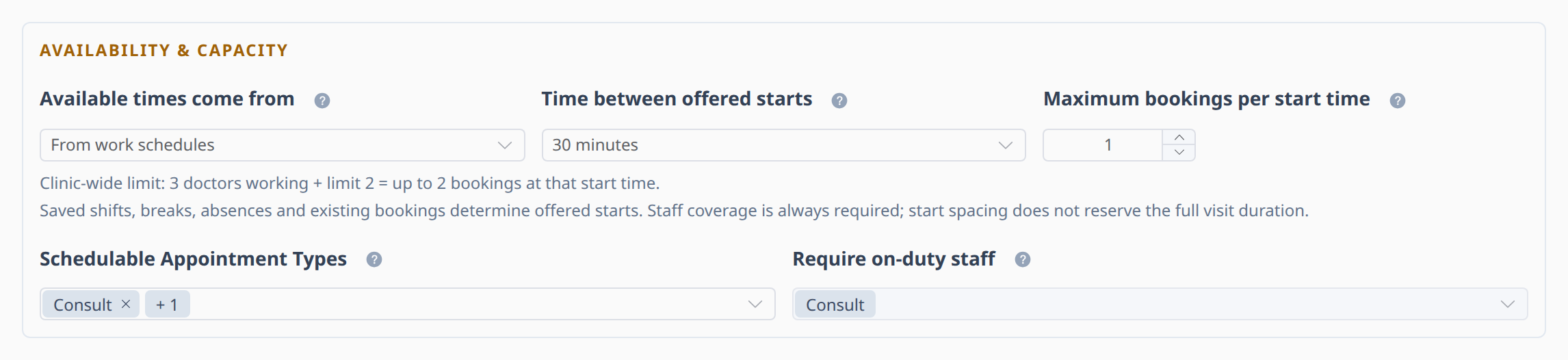
#- Open Account Settings and the Online scheduling configuration. Review the allowed appointment types and decide whether the clinic uses manually offered times or times derived from work schedules.
- For work-schedule mode, review the start interval options of 15, 30 or 60 minutes. Review maximum bookings per time and the staff requirements. Do not assume a larger capacity creates additional clinical staff.
- For manual mode, review the offered times and any appointment types requiring on-duty staff. A manually listed time can still depend on saved staff coverage when that requirement applies.
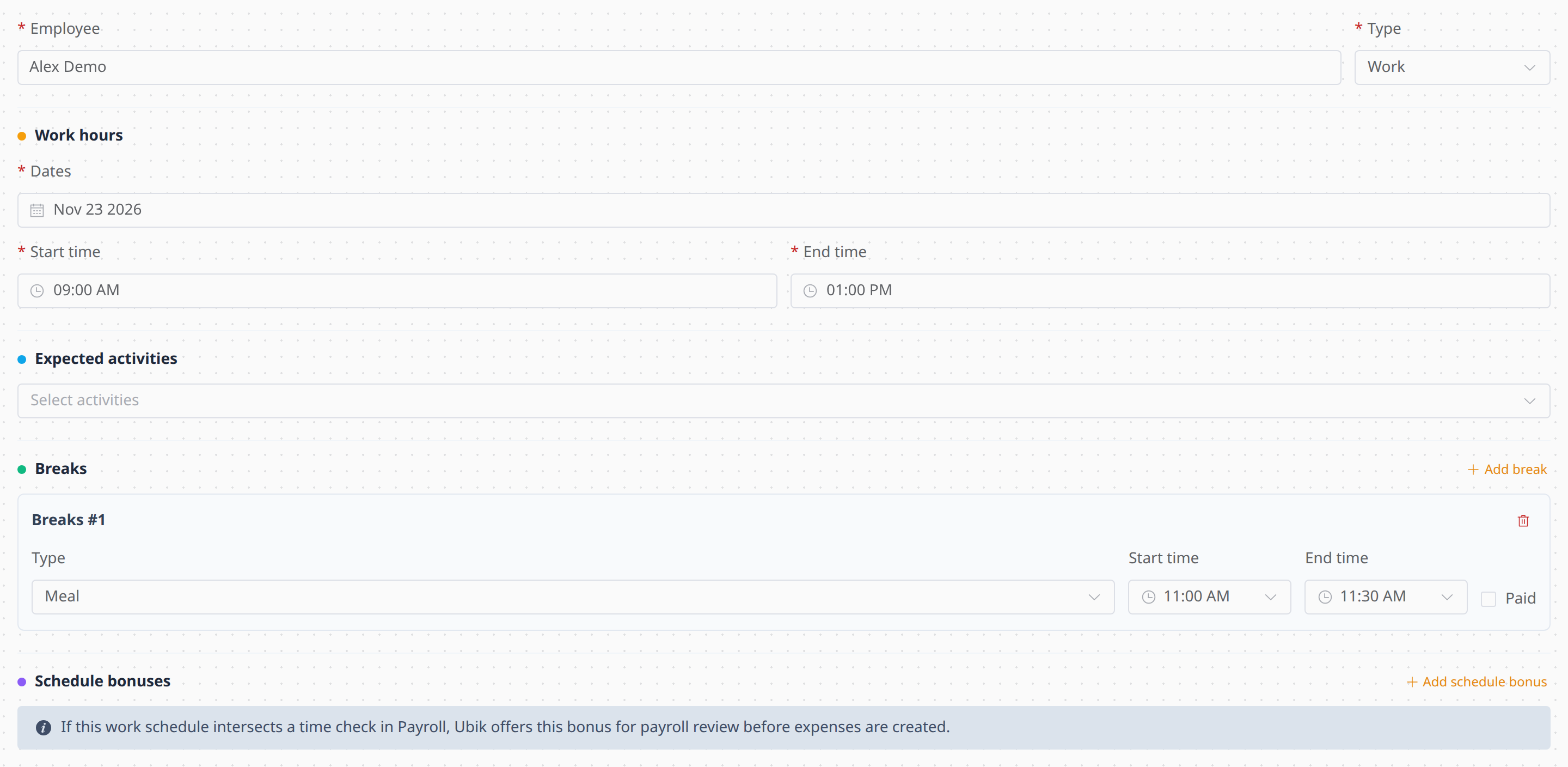
- Open User Search and review the clinician’s supported appointment types and specialties. Then open the Employee Calendar and create or edit the relevant Work schedule with the correct employee, dates, start, end and breaks.
- Save the account and schedule changes. Inspect the clinic’s booking flow for a representative date, visit type and doctor selection. Compare offered times against the actual rota and an existing assigned booking.
- Have Reception review a normal slot, a break and a time without staff coverage. Correct the underlying settings or schedule when the offer does not match the agreed operation.
Practice with a fictional clinic
#Demo Paws schedules Dr. Avery from 09:00 to 13:00, with a recorded break from 11:00 to 11:30. A customer choosing that doctor should not rely on the doctor’s check-in to make the break bookable. Review the supported appointment type, saved shift, break and assigned appointments together.
If the clinic uses 30-minute starts, increasing maximum bookings per time from one to two changes capacity rules; it does not add a second doctor. Before using that capacity, the lead must confirm the clinic can deliver the work and that any required staff configuration is correct.
Avoid common mistakes
#- Creating time checks instead of work schedules to make future online slots appear confuses attendance with availability.
- Reviewing only opening hours misses the employee’s appointment types, breaks and named-doctor conflicts.
- Offering more capacity than the team can serve produces a scheduling problem even if the form accepts the value.
When something does not look right
#- If no times appear, check booking mode, date, allowed appointment type and the required saved shifts in the clinic’s local time.
- If a particular doctor is unavailable, inspect supported appointment types, work coverage, breaks, absences and assigned bookings before changing general capacity.
- If the public flow disagrees with saved settings after review, record the date, appointment type and expected time without patient information and ask support to trace it.
Check your understanding
#Complete this lesson
#Saved only in this browser. This is a personal practice checklist, not a clinic training record.
Related guides
- Expected activities in employee schedules
- Give staff individual accounts and appropriate permissions
- Configure services, prices and discount boundaries
- Public manual
Source: Does online doctor availability use check-ins or work schedules? · Revision 2