Prepare estimates and collect appointment deposits
Keep a quote separate from a real visit, review weight-based pricing, and verify the deposit recorded against the intended appointment.
Reviewed against current application source. Screenshots use fictional local training data.
Understand the task
#Create Estimate is a quote. It does not create appointment charges or collect money. A deposit is a recorded payment associated with the actual appointment. Keep these steps distinct when discussing a proposed procedure with the client.
Estimated weight affects items that use weight-based tiers. Review weight before adding those items, then verify quantities and unit prices. The quote is an estimate of the proposed work, not evidence that care or payment has happened.
Before you start
#Confirm the customer/pet when known and use the clinic’s approved catalog, pricing, and deposit policy. Creating the eventual appointment requires appointment-add access; recording money requires the clinic’s authorized payment workflow.
Practice amounts here use fictional currency values for arithmetic. Do not take a training deposit in a live clinic. Mexico fiscal advances and invoicing have separate requirements and should be reviewed by Accounting when applicable.
Do it in Übik
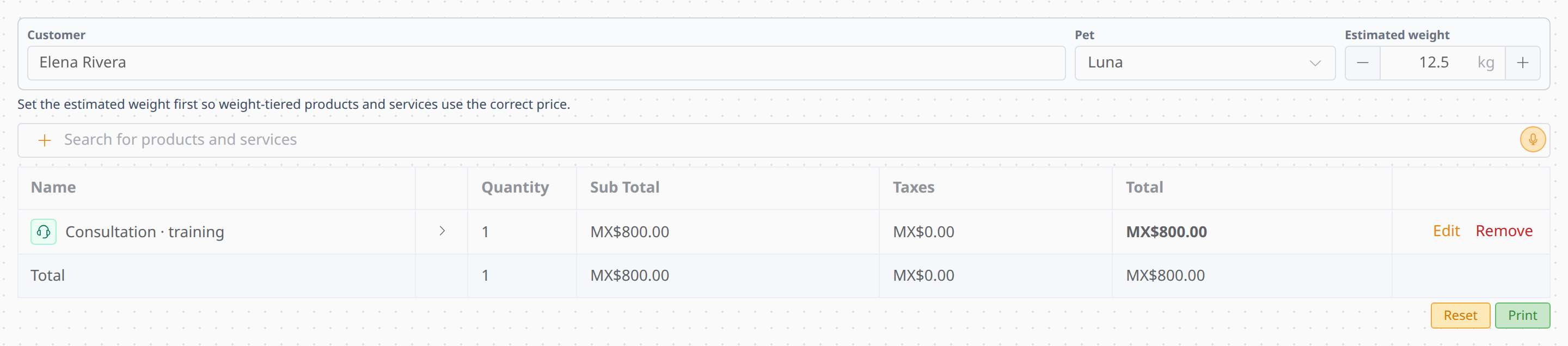
#- In Reception, choose Create Estimate. Select the intended customer and pet when available; check Estimated weight in kg before adding tier-priced services or products.
- Add the proposed products and services, including their intended variants and quantities. Review the selected unit price, line amounts, taxes where shown, and total.
- Use Print to provide the quote. Explain what it covers and that final care may change the amount; a printed estimate has not collected payment.
- When the client chooses to book, use Add Appointment and review the patient, dates, type, and assignment. Use Save and take deposit from the Save menu when collecting a deposit at creation.
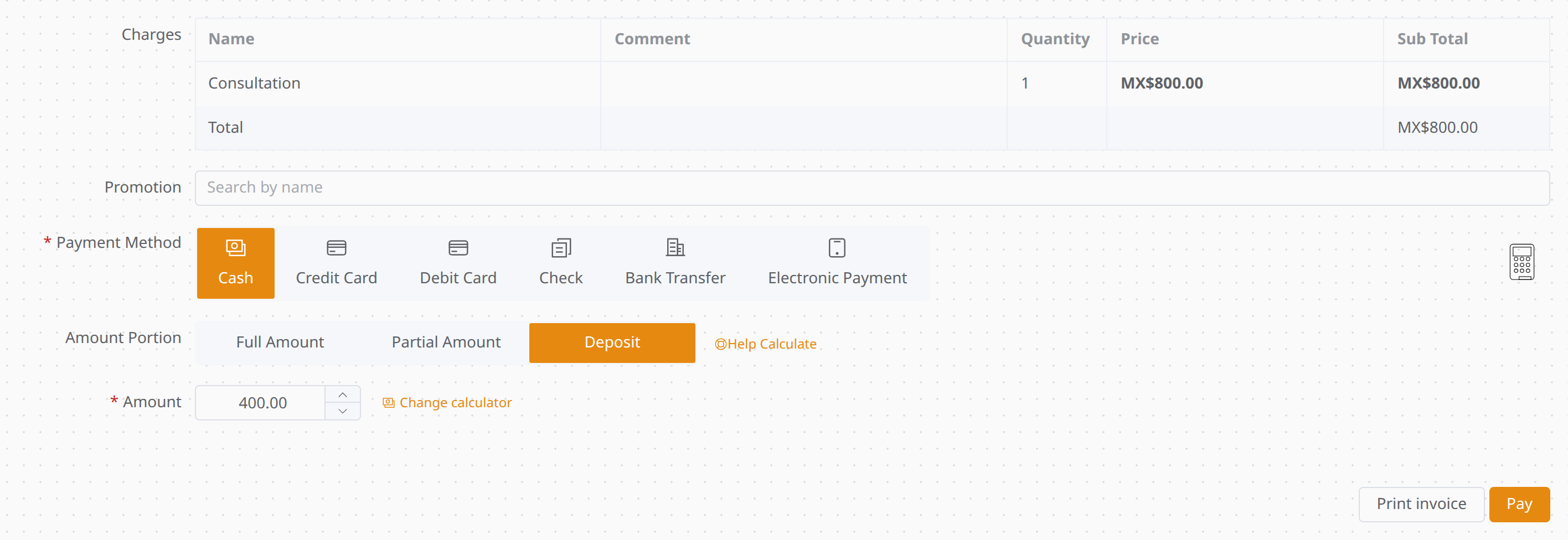
- In the payment form, choose the actual Payment method and deposit Amount. Help calculate can show a suggested amount from expected items; review the suggestion before using it.
- Record the deposit once, then check the saved payment, method, appointment, and receipt. At checkout, compare final charges with saved payments and resolve any remaining balance or unused deposit through its intended action.
Try a fictional clinic example
#A fictional estimate for Luna includes MXN 800 of services and MXN 400 of supplies, totaling MXN 1,200. The clinic asks for a MXN 400 deposit. The quote remains MXN 1,200; the recorded deposit is MXN 400. If final charges stay MXN 1,200, the amount still to pay is MXN 800.
For practice, decide what happens if the final bill becomes MXN 300 after a MXN 400 deposit: review the MXN 100 remainder using the deposit refund/customer-credit workflow. Do not enter another payment or silently change the original deposit.
Avoid these mistakes
#- Starting a sale or appointment only to answer a price question creates operational records that a quote avoids.
- Adding weight-tiered items before checking the weight can leave the wrong quoted price. Review the actual line.
- Treating a suggested deposit as money already received or counting the deposit again at checkout duplicates receipts.
Troubleshoot and recover
#- If a quoted price looks wrong, review weight, quantity, selected variant, and configured tier with the catalog owner before sending it.
- After an interrupted deposit save, check the appointment’s payment list and receipt before trying again. If the result is uncertain, ask Accounting or Help with the reference and amount.
- If a deposit exceeds final charges, use the offered remainder actions and have Accounting review fiscal or unexplained exceptions; do not delete original history to force a zero balance.
Check your understanding
#Check the result
#Saved only in this browser. This is a personal practice checklist, not a clinic training record.
Related guides
- Reception portal guide
- Appointment and deposit guide
- Check arrivals and manage the waiting queue
- Complete checkout and deliver the correct receipt
- Create a counter sale in Reception or POS
- Public manual
Source: Weight-based pricing on appointment estimates · Revision 3