Coordinate home visits, pickups, and dropoffs
For clinics using home services: verify addresses, plan realistic routes, assign drivers, and send reviewed changes deliberately.
Reviewed against current application source. Screenshots use fictional local training data.
Use this lesson only when this feature is enabled and configured for your clinic. Check the prerequisites before taking action.
Understand the task
#This lesson applies when your clinic provides home visits or pet transport. Home visit, pickup, dropoff, and pickup plus dropoff are different appointment choices. Check the actual service needed before planning transport.
Plan routes creates a draft plan; Send to drivers is the explicit dispatch action. Customer ETA messages additionally depend on the clinic’s configured follow-ups and reachable contacts. Planning alone is not proof that a driver or client received an update.
Before you start
#Confirm clinic address/location, the customer’s address and Access instructions, scheduled appointment times, drivers, and realistic vehicle capacity. Do not place access instructions in a public lesson or use real addresses in practice.
Viewing routes requires appropriate appointment-view access or admin/manager access. Planning/timing changes require admin/manager, appointment-edit, or assign-to-others access. Customer route notifications need the configured Home Pickup, Home Dropoff, or Home Visit follow-up trigger.
Do it in Übik
#- On the intended appointment, review Home service and choose Home Visit, Home Pickup, Home Dropoff, or Pickup & Dropoff as needed. Save and confirm the customer’s address and Access instructions.
- Open Home Visit Search → Route planning. Choose the planning date and review the day’s pickups, dropoffs, visits, and missing-address warnings.
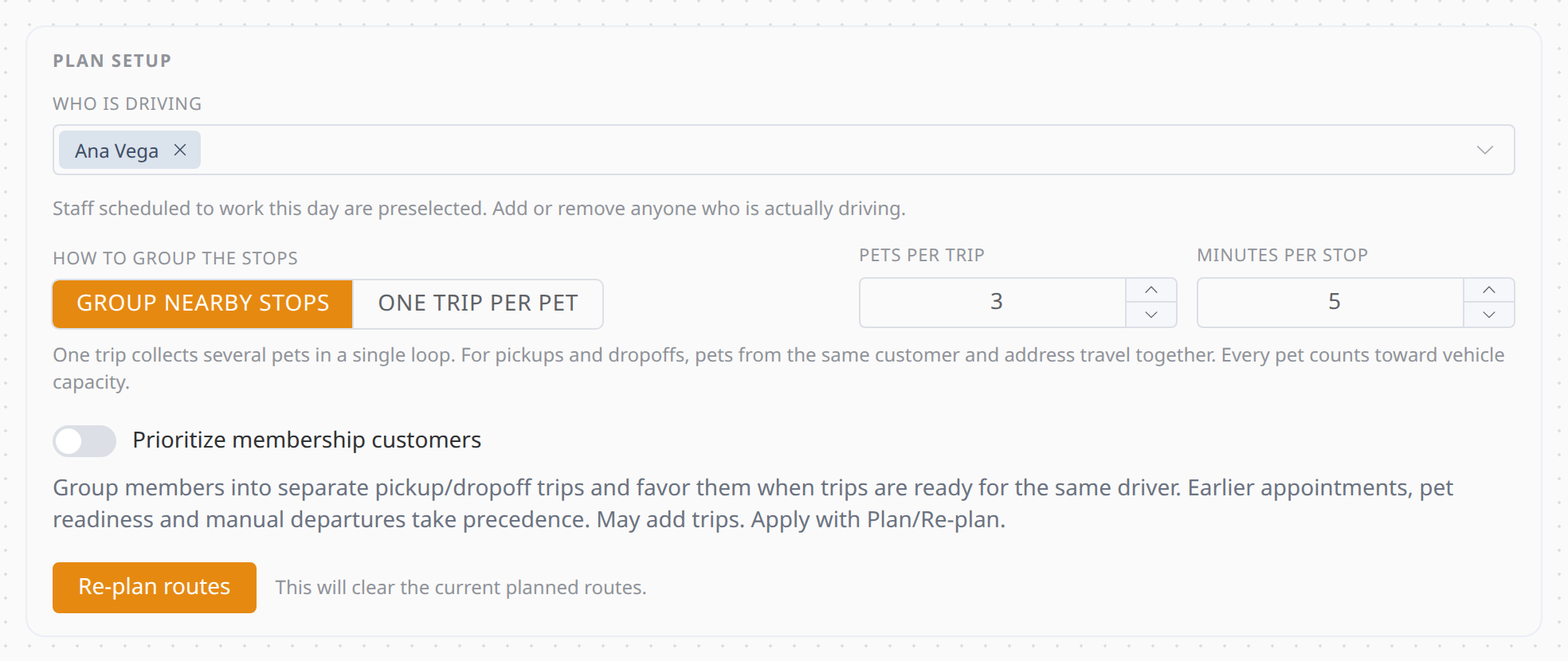
- Select drivers, grouping, actual Pets per trip capacity, and minutes per stop. Group nearby stops can keep pets at the same customer/address together, but each pet still counts toward capacity.
- Review Dropoff order: Same as pickup, Fastest route, or Ready time according to the clinic’s plan. Choose Plan routes, inspect the proposal, and assign a driver to every trip.
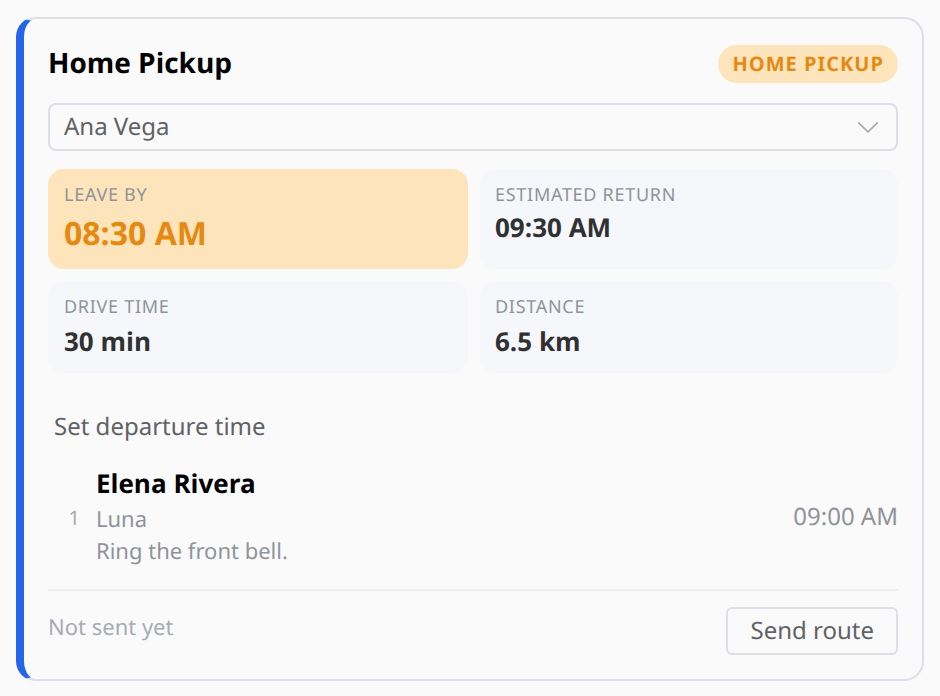
- If a specific departure is needed, use Assign and send → Set departure time. Check the clinic timezone, driver conflicts, readiness, and resulting arrival/return times. Use automatic time removes that override.
- Choose Send to drivers after review. After changes, inspect Needs resend and resend deliberately. Re-plan routes replaces the day’s planned trips and clears manual departure overrides after confirmation; review and send the replacement plan.
Try a fictional clinic example
#A fictional household has two pets needing pickup. With capacity three, grouped planning can show one household stop while consuming two pet places. A third pet from another home uses the remaining place; a household larger than capacity cannot be solved by pretending it is only one pet.
For practice, a shared dropoff contains one pet ready at 15:00 and another at 16:00. The trip cannot leave before both are ready. Review driver availability and departure before sending; do not assume an edited plan has already updated the owner’s earlier message.
Avoid these mistakes
#- Leaving a missing or incorrect address unresolved can send a driver to the wrong place. Confirm it with the customer.
- Counting households instead of pets can exceed real transport capacity.
- Replanning after sending does not automatically deliver every update. Earlier client messages remain part of the history.
Troubleshoot and recover
#- If Plan routes is unavailable, confirm there is work for the date and at least one selected driver, then have the administrator check route access.
- If a departure is rejected, check overlapping driver trips and the latest ready pet. For dropoff readiness, checkout time is used when available; otherwise the planner assumes one hour after appointment time.
- If a send response is interrupted, review saved trip status and communication history before dispatching again. Check warnings for late arrivals or trips outside known shifts; contact affected customers when previously sent information has changed.
Check your understanding
#Check the result
#Saved only in this browser. This is a personal practice checklist, not a clinic training record.
Related guides
- Home visits guide
- Prepare, issue and review Mexico CFDI documents
- Send and receive a partner-clinic referral
- Public manual
Source: Plan pickup and dropoff routes for a day · Revision 2