Prepare imports and verify the clinic is ready to launch
Use the correct import path, review staged records and preserve customer-pet links before opening day.
Reviewed against current application source. Screenshots use fictional local training data.
What you will learn
#Importing is a review process, not simply uploading a file. Catalog imports and customer-pet migration have different requirements. Use the supported workflow and matching template for each data type; a readable preparation sheet for onboarding is not automatically the app’s ready-to-save format.
Catalog import stages rows so an administrator can review them before Save Records creates clinic data. Save draft row and Save locally preserve preparation rather than creating products. Customer and pet preparation must preserve stable source references so each patient remains attached to the correct responsible customer.
Before you start
#Choose the target clinic, an administrator for catalog import and the person responsible for migration review. Keep an unchanged source copy and agree which existing records should remain. Decide who will resolve duplicates, unknown values and missing required fields.
Use fictional customers Alex Demo and Sam Demo, each with a pet named Luna. Names alone cannot establish ownership. Preserve separate source customer and pet IDs. Do not put real customer files into public lesson exercises or use fabricated contact details to bypass a required field.
Follow the workflow
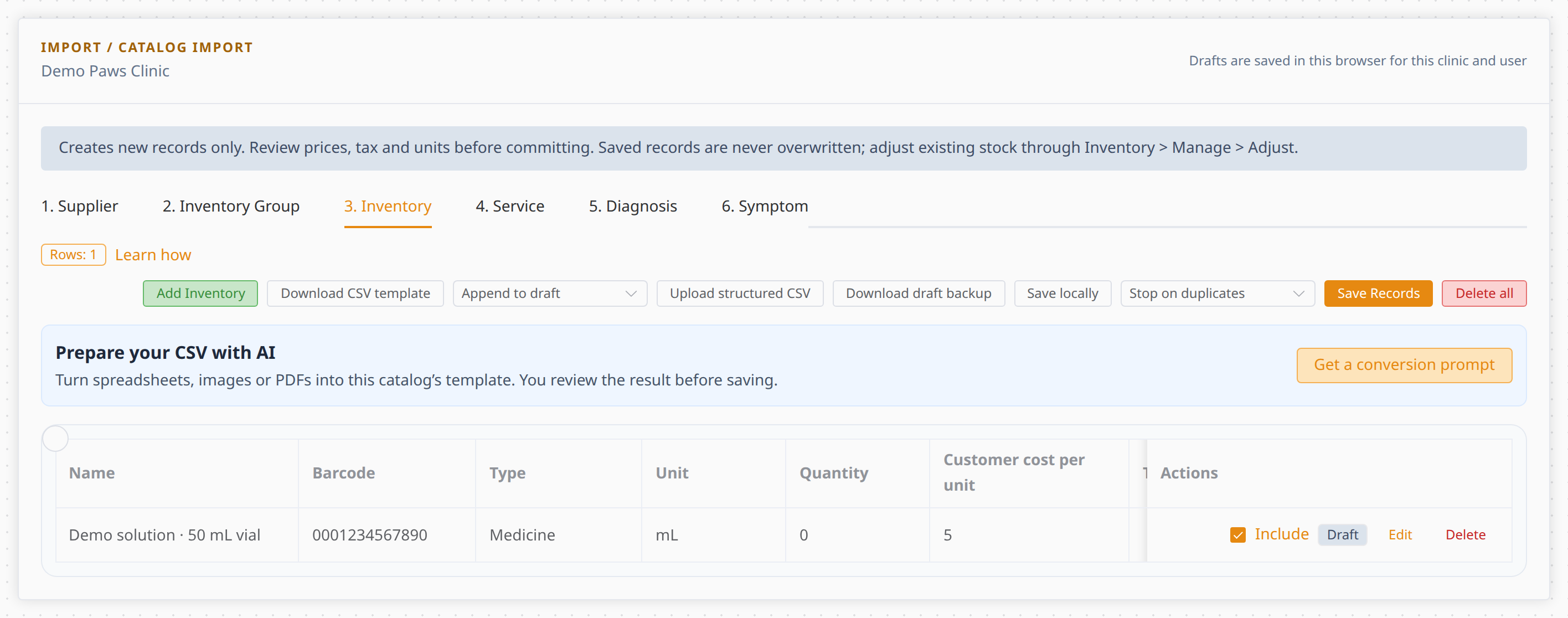
#- For inventory, open Inventory > Manage > Add (+) > Import as an administrator. Suppliers, Services, Inventory Groups, Diagnoses and Symptoms search pages also offer Add > Import for their matching Catalog import tab.
- Download Required fields or All fields for that tab. Prepare UTF-8 CSV, keep barcodes as text and use decimal numbers without currency symbols. Use recognized headers and choices; review reported unsupported columns instead of assuming they were imported.
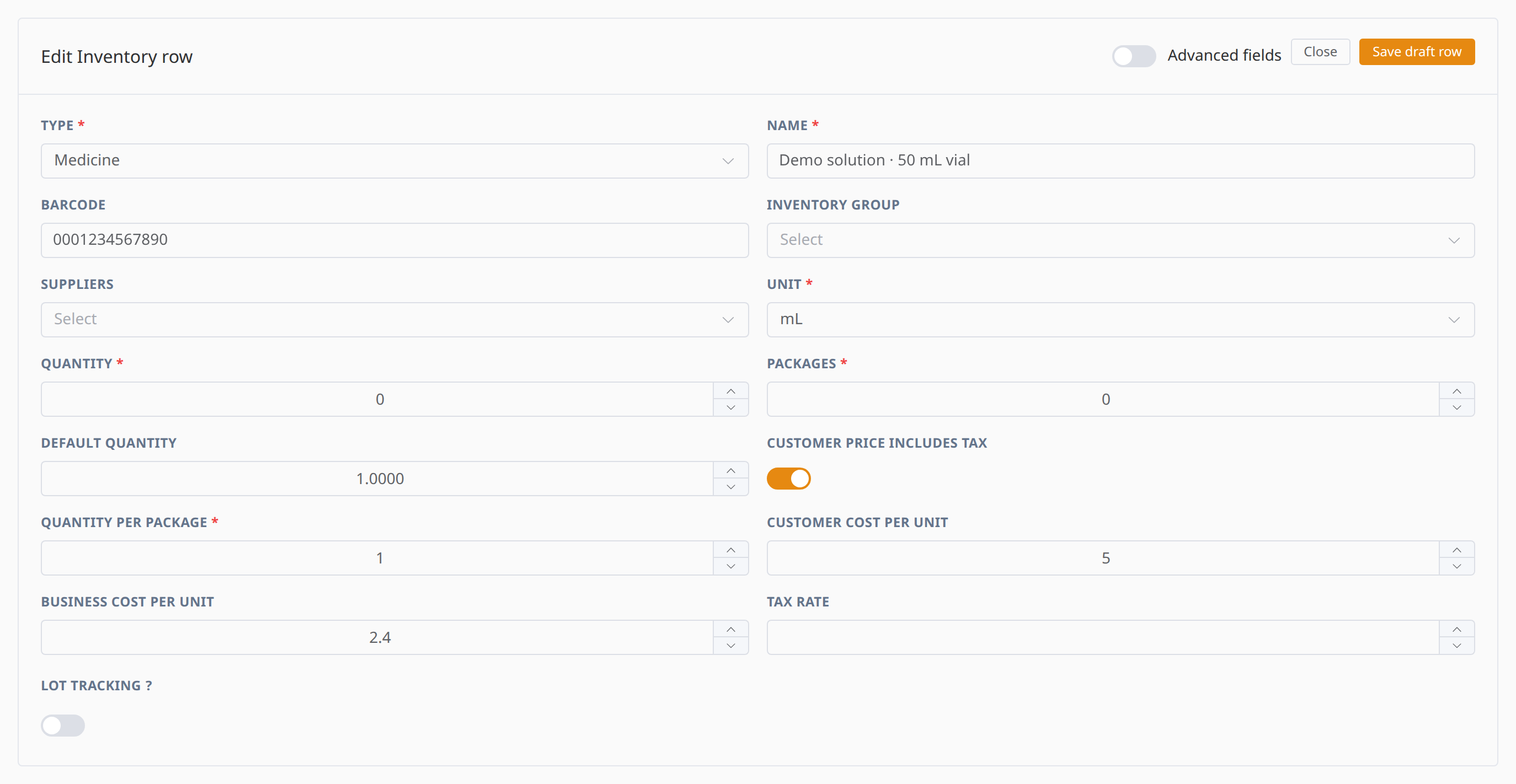
- Upload the CSV and inspect every staged row. Check units, package meanings, tax-included pricing, supplier/group links and relevant advanced fields. Choose the duplicate policy deliberately; appending or replacing draft rows is different from editing existing clinic records.
- Use Save locally or Export draft while preparation remains incomplete. When ready, review the clinic and record count in Save Records, confirm once and inspect saved/failed results before attempting another batch.
- For customers and pets, use the published preparation sheets and work with the onboarding team to map them to the supported upload. Import customers first; hold unresolved pet-owner references for review instead of matching by a similar name.
- After the import, open representative saved records and check ownership, contact information, units, prices and links. Complete a launch rehearsal covering booking, clinical documentation, checkout and the applicable stock movement before treating the clinic as ready.
Practice with a fictional clinic
#Alex Demo has source customer ID 1001 and pet Luna 2001. Sam Demo has customer ID 1002 and a different Luna 2002. The pet sheet carries the matching source customer ID on each row. A reviewer can preserve the relationship even though the names repeat.
A catalog draft contains ten products and one invalid unit. The administrator corrects the row and reviews prices before saving. If a later batch is interrupted, the results and saved records are checked first. Uploading the entire source again without checking would risk duplicates.
Avoid common mistakes
#- Treating Save locally as a completed import leaves the clinic searching for records that were never created.
- Matching pets to owners by display name or deleting original IDs loses reliable relationships.
- Repeating a partially successful import without reviewing saved records can duplicate completed work.
When something does not look right
#- If Import is missing, confirm administrator access and that you opened the correct search page and Add menu. Direct Add remains a separate action for staff.
- If rows are rejected, compare the matching template, required fields, supported choices and duplicate result; resolve the row rather than inventing a value.
- If customer links or a partial save are uncertain, retain the original file and results and ask the onboarding lead to reconcile before retrying. A migrated record is only useful when its meaning and relationships are verified.
Check your understanding
#Complete this lesson
#Saved only in this browser. This is a personal practice checklist, not a clinic training record.
Related guides
- Customer and pet import preparation
- Use reports for a focused daily clinic review
- Prepare, issue and review Mexico CFDI documents
- Create one item, import inventory and save barcodes
- Public manual
Source: Import inventory from a structured CSV · Revision 3