Return a product from the original sale
Find the original purchase, record this partial or full return, choose stock handling and separately record any actual money refund.
Reviewed against current application source. Screenshots use fictional local training data.
Return the product, review stock, then review money
#A product return belongs to the original charge and sale. It records how much of that purchase is being returned. Returning stock and recording money refunded are separate choices: a product may stay deducted because it cannot return to a usable shelf, and recording a refund does not itself send money through a bank or card provider.
Before you start
#Locate the original customer, sale/appointment reference, original sale date and intended product. Confirm the active clinic and follow its assigned responsibilities for returns. Review the actual returned amount, condition of the product, agreed money outcome and refund method. Obtain Accounting review when fiscal documents or an invoiced advance are involved.
Review previous returns before doing anything. Do not delete the charged item or recreate a negative sale to hide the original. Keep evidence of what was sold, what was returned and what money actually moved.
Find the original purchase
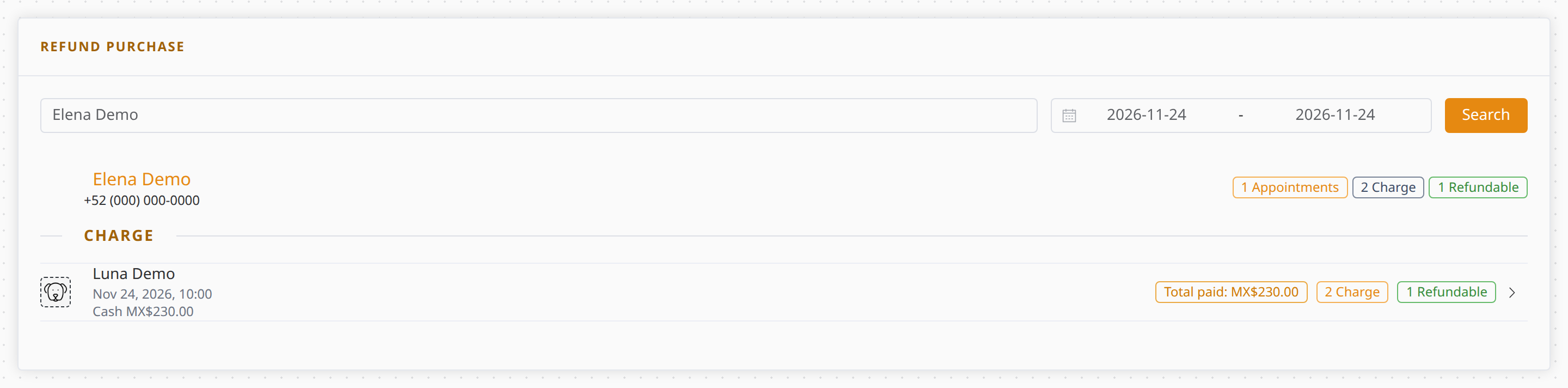
#- Open Reception → Refund Purchase. In normal clinic mode choose the Customer and a date range covering the original sale or appointment date, then Search. The date range is not simply today’s return date.
- Expand the intended original appointment/sale and identify the exact charge. Compare item, original quantity, price and any already returned quantities.
- Choose Refund on that charge. A fully returned charge cannot be returned again. If no eligible quantity remains or the record is protected, stop and review the saved return history.
Enter the amount for this return only
#Enter the quantity being returned now, within the displayed remaining amount. Previous returns are cumulative history; the input for this operation is not a replacement cumulative total. For a mixed quantity/packages charge, review both components and their separate original, prior and remaining amounts. Do not collapse them into one guessed number.
Review the displayed amount using the original saved pricing, discounts and taxes. Do not recalculate it from today’s catalog price. Add a clear reason explaining the return and keep any needed original-sale reference.
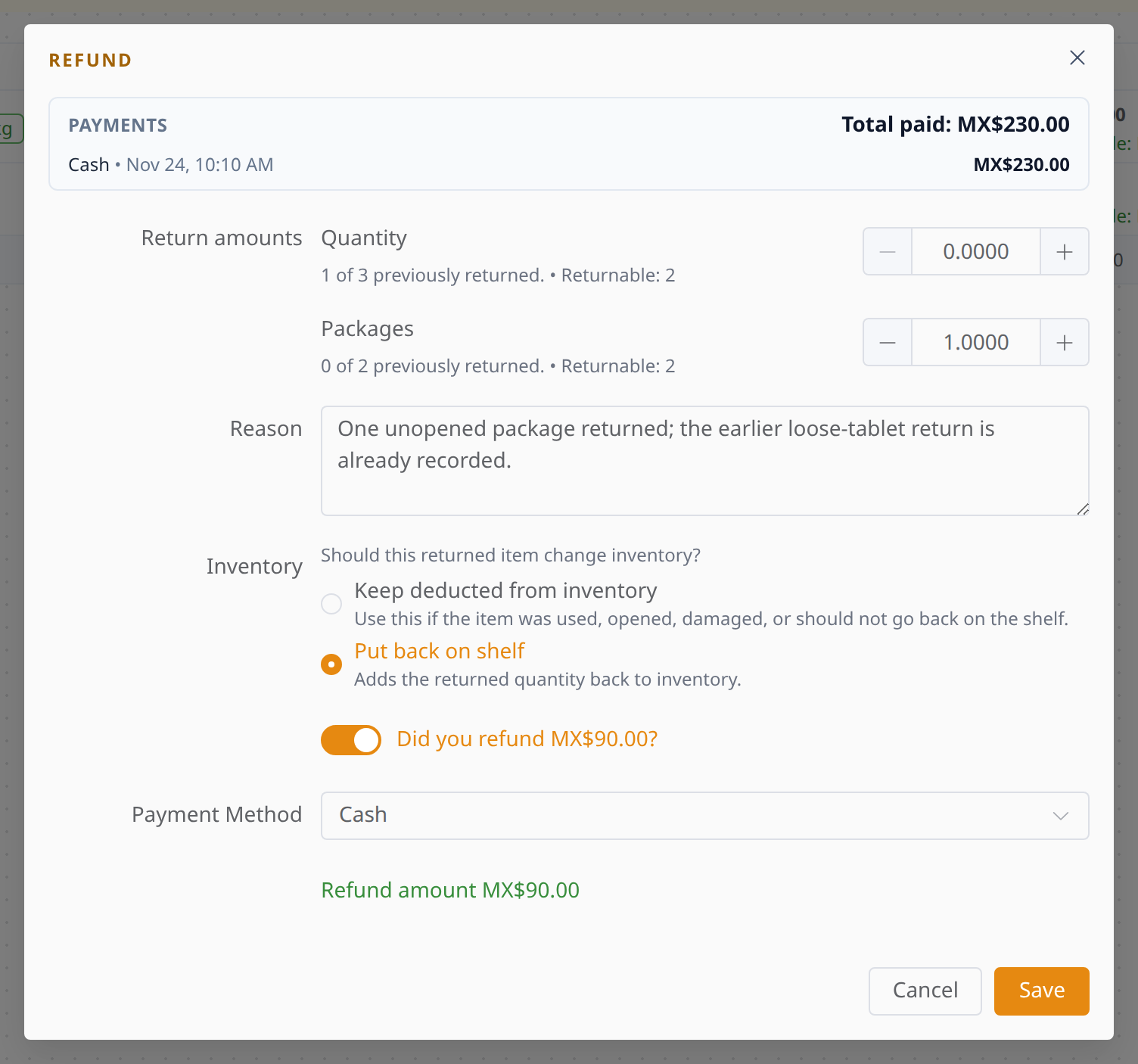
The mixed-entry screenshot uses an original 3 loose units plus 2 packages of 10, with 1 loose unit already returned. To return one package now, enter Quantity = 0 and Packages = 1. Do not enter 10 loose units as well. With linking enabled, shelf return restores 10 stock units and 1 package equivalent; the refund preview uses the original package price, MXN 90 in this fictional example.
Choose stock handling and record the actual refund
#- When the charge links to an inventory dispense, review the stock choice. The default is Keep deducted from inventory. Choose Put back on shelf only if eligible stock is actually returning for reuse under clinic policy. If no linked dispense exists, this stock choice may not appear.
- Review Did you refund {amount}? Turn it on only when the money/credit outcome being recorded actually occurred. With it off, the product return still updates returned quantities and charges, but creates no money-refund record. It does not automatically convert an excess payment into customer credit.
- If recording a refund, choose the actual method and Payment Type when required for a card. Store credit has a different outcome from returning cash: it records the credit reissue. Saving this form records the outcome; it does not call a card/provider refund service.
- Review quantities, reason, stock choice, amount and method together. Save once. Check the original charge/return history, stock History when relevant, and saved refund/credit records. Inspect lot/location balances too; this form is not a promise that every allocation was restored automatically.
Work through a partial product return
#A fictional customer paid for two retail treat bags at MXN 150 each, with no discount or tax. They now return one bag: this return is 1 bag, leaving 1 of the original 2 not returned. At the original price the proposed refund is MXN 150, subject to the displayed saved amounts and remaining refundable payment.
If that bag cannot go back to usable stock, keep it deducted. If MXN 150 was actually handed back as cash, record that cash refund. If no money was returned yet, do not claim it was; resolve the financial outcome with the responsible person. Practice explaining those independent decisions before saving in a training clinic.
Common mistakes
#- Searching only today when the original purchase happened earlier, or returning a similarly named item from another sale.
- Entering the cumulative total as this return, exceeding what remains, or restoring unsuitable goods to usable stock.
- Recording money refunded before it happened, assuming a saved record executes a provider refund, or deleting returned-item history.
Limits, uncertain saves and Accounting review
#If Refund is unavailable, check the exact original charge, prior returns and remaining eligible quantities. The refund cannot exceed the appointment’s net payments after prior refunds. Fiscal-advance payments require supported Accounting review; do not promise automatic CFDI cancellation or a credit note from this form.
After an interrupted save, reopen the original sale and inspect cumulative returned amounts, refund records and stock History before trying again. Returned or partially returned items keep their history and cannot be removed or converted to internal use to reverse the return. Ask an administrator or Help to review a wrong return instead of repeating or deleting it.
Current mixed partial-return summaries can show a subtotal that disagrees with the saved remaining amount. Compare the original component quantities, pricing and refund preview. Stop and ask Accounting or Help to review an unexplained mismatch; do not change prices or add a payment to force the totals to agree.
Check your understanding
#Ready to review a product return
#Saved only in this browser. This is a personal practice checklist, not a clinic training record.
Related guides
- Create a counter sale in Reception or POS
- Handle balances, customer credit, and refunds
- Handle losses, expiration and inventory returns
- Close the register and hand over the drawer
- Public manual
Source: Return a product from the original sale · Revision 2