Configure purchase conversion and receive the right stock
Understand supplier-to-Übik conversion, configure purchase units, and receive the correct quantity without counting packages twice.
Reviewed against current application source. Screenshots use fictional local training data.
What you will learn
#Expense quantity and amount come from the supplier invoice. If Purchase unit to inventory qty is blank and there is no purchase unit label, Ubik treats one invoice unit as one inventory unit. If you named a purchase unit such as box or vial but left the factor blank, Ubik asks for that conversion before comparing unit cost. Set how many Ubik inventory units one invoice unit represents when the invoice unit is not the same as the inventory unit.
- Choose the unit your clinic actually counts or dispenses.
- Keep invoice quantity and invoice price together in supplier units.
- Review incoming stock separately from invoice amounts and selling prices.
Before you start
#Use a practice account for the exercises. Screenshots show actual Übik controls with fictional data; no customer or patient records are used.
Confirm the correct clinic, product, presentation and inventory unit. You need inventory edit permission to configure the item and receive stock. Entering expenses also requires the appropriate accounting/data access; ask your administrator if an action is unavailable.
What is conversion from supplier units to Übik quantity?
#Purchase conversion is the number of Übik inventory units contained in one supplier purchase unit. Incoming Übik quantity = invoice quantity in supplier units × conversion factor. For 3 boxes of 100 syringes, the factor is 100 and the incoming quantity is 300 individual syringes.
| Setting | Meaning | Vial example |
|---|---|---|
| Inventory unit | What the clinic counts or dispenses | mL |
| Purchase unit label + conversion | Inventory units represented by one supplier unit | vial × 50 mL |
| Quantity per package + Link quantity and packages | Package size and whether package/quantity changes are linked | 50 mL per package, if one package is one vial |
A supplier unit can differ from a package. A case of several vials needs the units in the whole invoiced case, not automatically the size of one vial.
Configure the inventory item
#- Open Inventory → Manage, find the product and choose Edit.
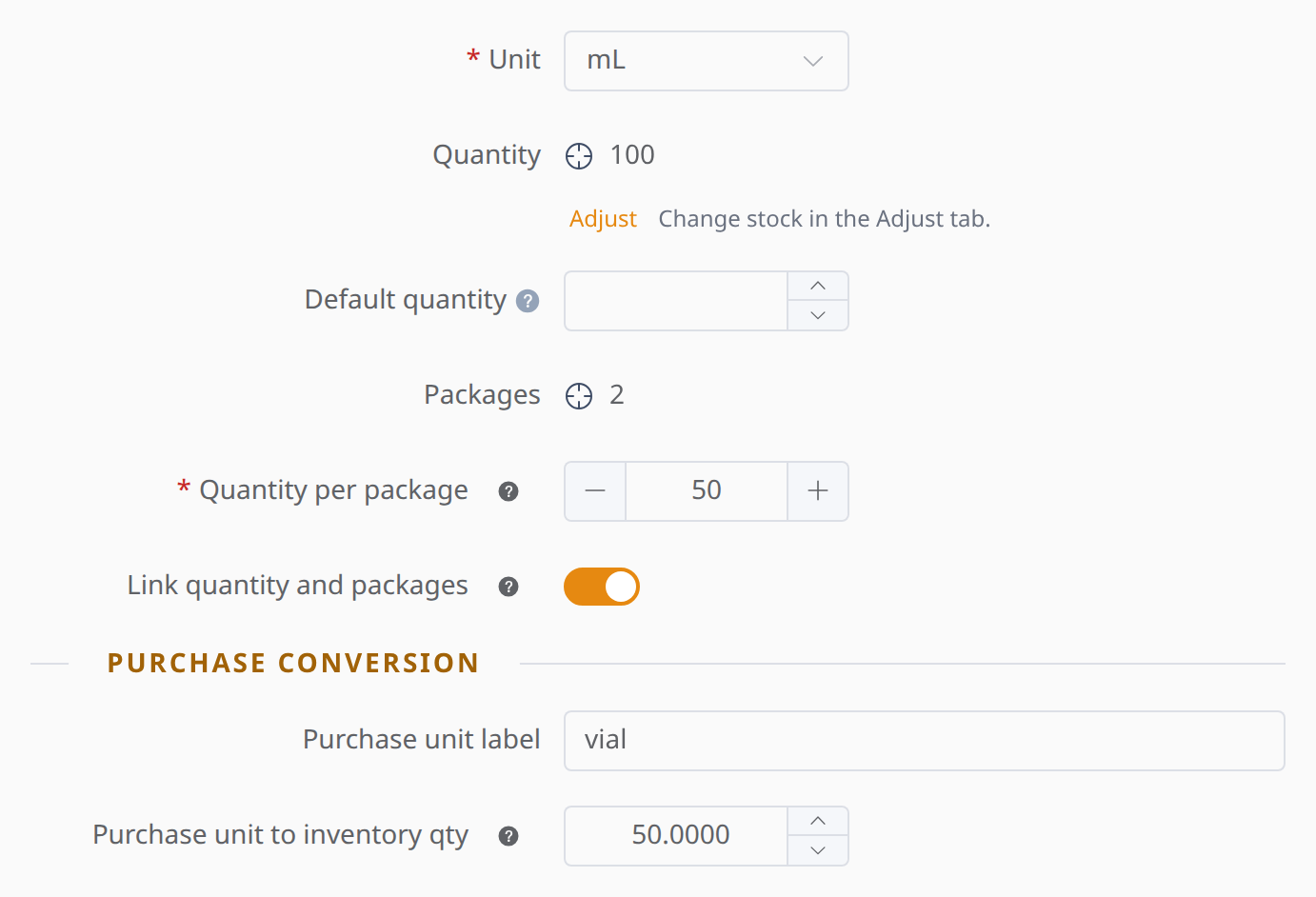
- Set Unit to the unit used for inventory. For this exercise, choose mL.
- Review Quantity per package and Link quantity and packages according to how this product is tracked. They do not define the supplier conversion.
- Under Purchase conversion, set Purchase unit label to vial and Purchase unit to inventory qty to 50.
- Save the inventory configuration. This sets the usual purchase default; it does not receive stock.
Keep the invoice in supplier units
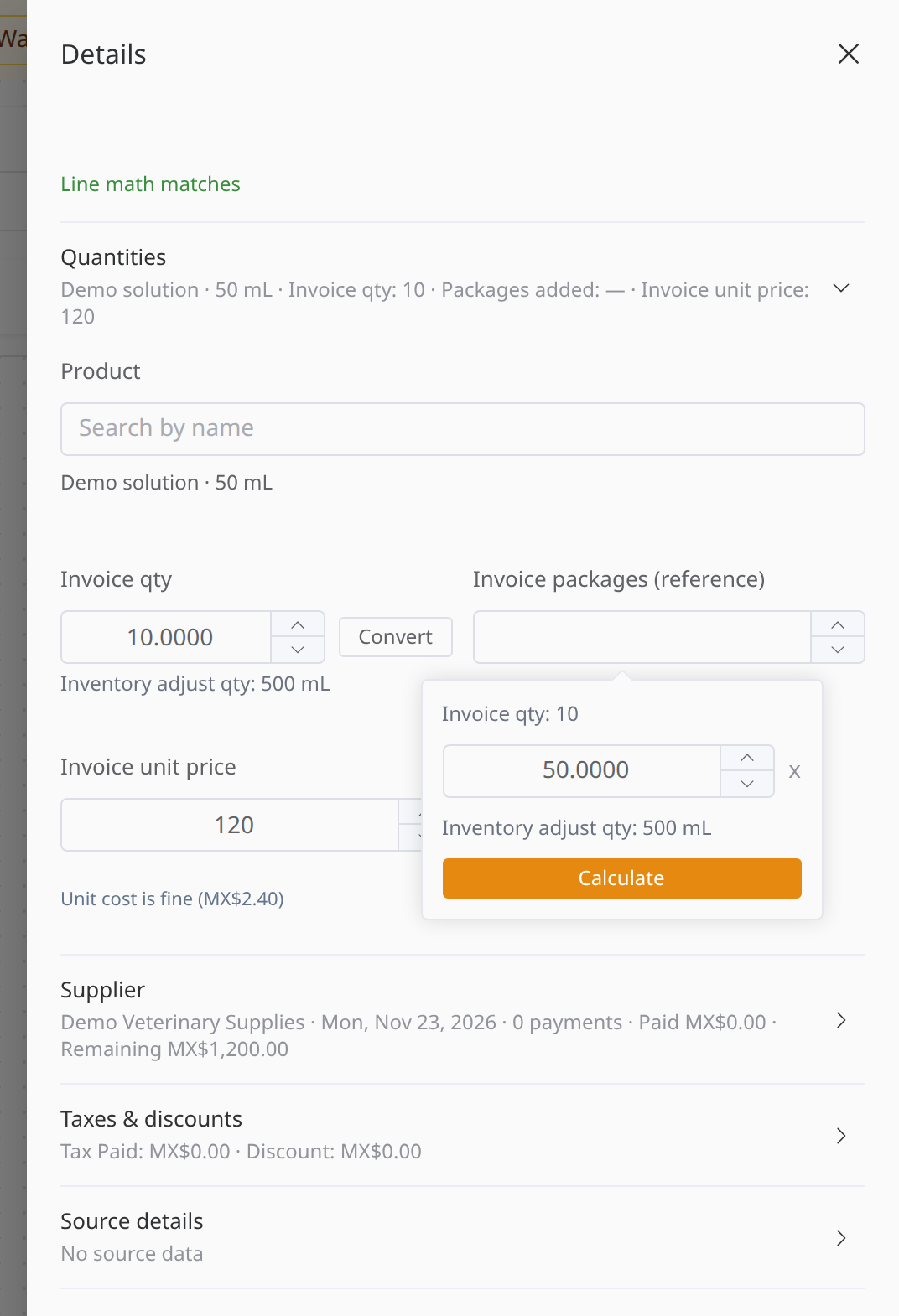
#A fictional invoice lists 10 vials at MXN 120 each. Each vial contains 50 mL. Enter invoice quantity 10, invoice unit price 120, and subtotal 1,200. The stock conversion is 10 × 50 = 500 mL.
Do not replace invoice quantity with 500 while keeping the price at 120. Before separate discounts or taxes, this example represents MXN 2.40 per mL. Business cost and customer selling price are reviewed separately; a purchase does not authorize a selling-price change.
The expense quantity conversion helper lets you review a different presentation for this receipt. If a quantity-basis choice is shown, use Supplier units for 10 vials and Inventory units for an amount already converted to 500 mL. Convert only once.
Receive and verify purchased stock
#- Review the expense, product match, conversion and any optional cost/price suggestions, then save the expense.
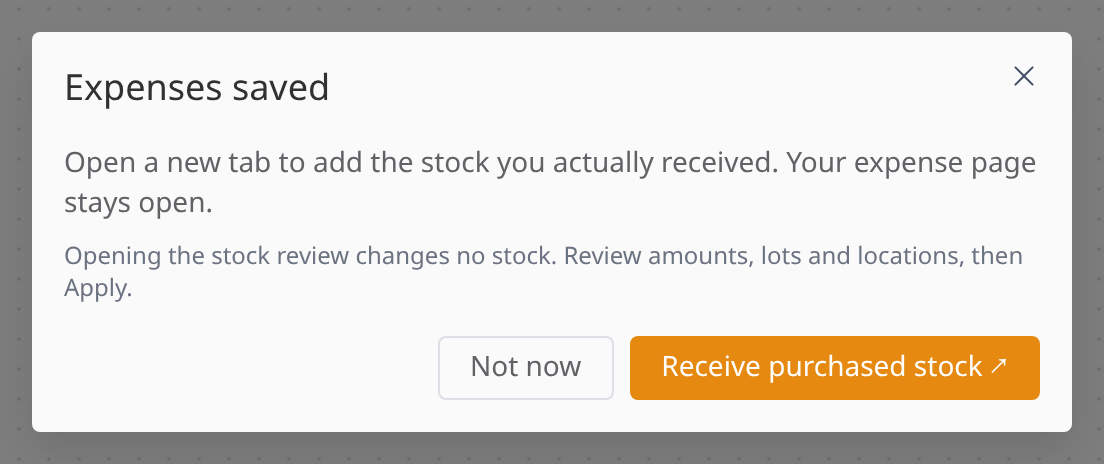
- Choose Receive purchased stock to open Adjust in a new tab. Not now leaves the stock receipt for later. Opening the tab changes no stock.
- In Add, review the actual incoming amount. Assign the existing or new lot and expiry when required, and select a location if locations are enabled.
- Use Save this row or Save all ready rows, then complete the final review. At 100 mL recorded stock, receiving 500 mL should result in 600 mL. Do not add package references to the converted quantity a second time.
- Check the saved item, lot, location and History. Already-received purchases and records requiring history review should not be added again.
If a save fails or its outcome is unclear, inspect saved balances and History before retrying. Part of a batch may already have saved. Ask Help to review an uncertain result.
Try a purchase conversion
#Change the numbers to explore a fictional purchase. This practice tool uses quantity only; lot, location and package review still happen in Übik.
Practice only · fictional examples
Incoming quantity
Resulting stock
Invoice subtotal
Cost per inventory unit
Practice cost uses subtotal before separate taxes or discounts. It does not change saved business cost or selling prices.
Common mistakes
#- Using the supplier unit price as the business cost per mL without converting.
- Assuming that saving or paying the expense means its stock has been received.
- Receiving an invoice again after a partner transfer or another receipt already posted the stock.
- A named supplier unit is missing its purchase conversion.
- The invoice uses boxes or vials while inventory uses individual units or mL.
- An already converted inventory quantity was entered as supplier units.
Troubleshooting and Help
#For an unresolved issue, open Help → New request in Übik. Include the page section, your steps, expected and observed quantities, and a reviewed screenshot when useful. You can submit without AI assistance. Reference this lesson and its section link.
| What you see | What to check |
|---|---|
| Conversion is blank | With no label and no factor, the default is 1:1. A named purchase unit without a factor needs review; a label alone supplies no conversion. |
| Receive action is unavailable | Check the active clinic and inventory edit permission. |
| Incoming quantity looks wrong | Check the invoice basis, factor and presentation. Do not compensate by changing the correct invoice subtotal. |
| History review or already-received notice | Inspect the previous receipt/transfer and current balances before taking another stock action. |
Check your understanding
#Ready to use this workflow
#Saved only in this browser. This is a personal practice checklist, not a clinic training record.
Related guides
- Inventory audit and recovery guide
- Create and maintain the inventory catalog
- Enter and review a supplier invoice
- Public manual
Source: Purchase conversion for expense unit cost · Revision 3