Enter and review a supplier invoice
Keep invoice quantities and prices together, review discrepancies and save expenses before receiving stock.
Reviewed against current application source. Screenshots use fictional local training data.
What you will learn
#An expense records the supplier document and accounting amounts. Receiving stock and paying the supplier are separate workflows. Keep invoice quantity and independent invoice unit price in the supplier’s units; use conversion for inventory quantity rather than changing the document’s meaning.
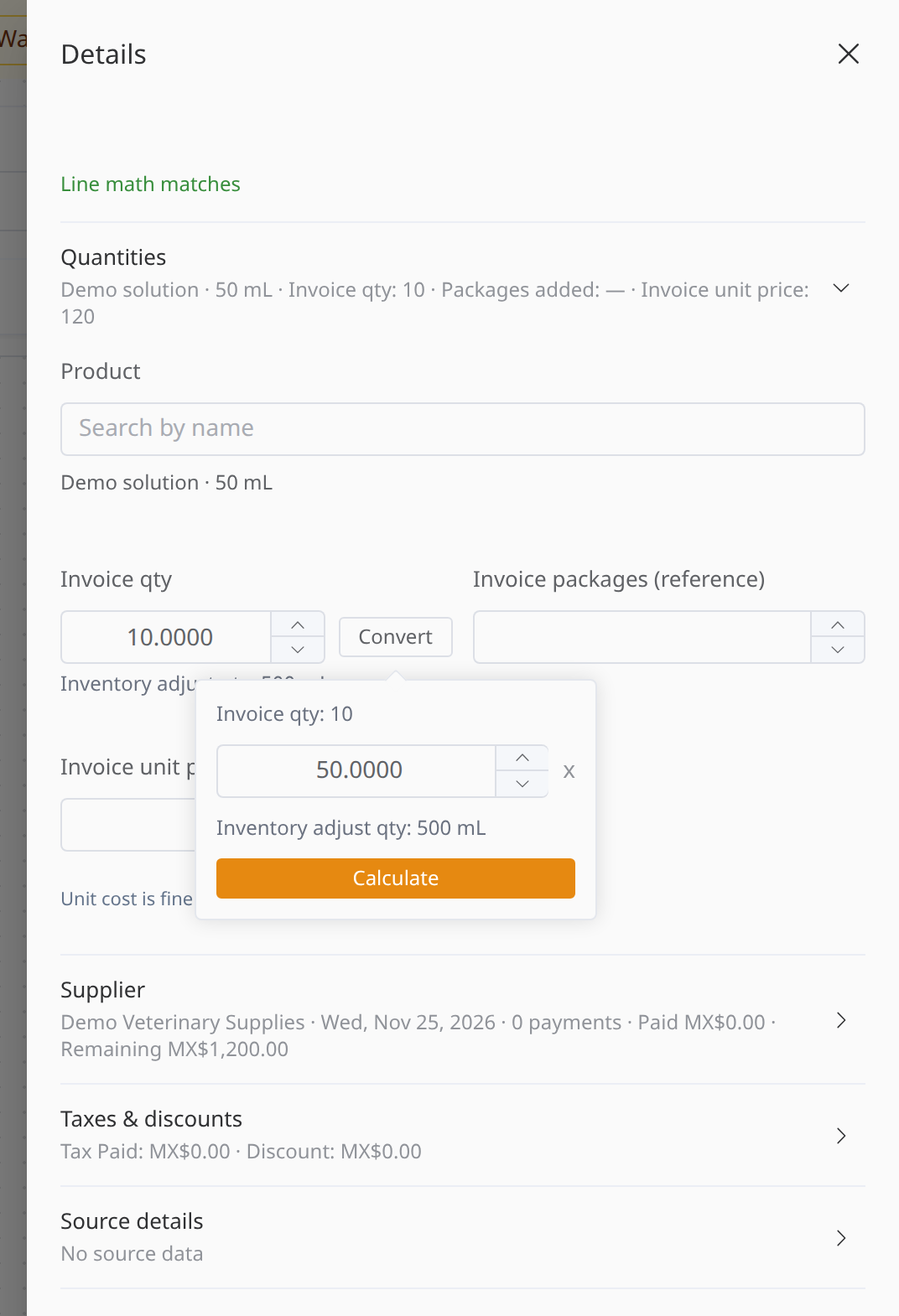
Type, Description, Date, Subtotal and Status stay together on one row on larger screens; the second line summarizes populated context. Open Details. Quantities groups product, invoice quantity, packages, independent invoice unit price and inventory/conversion hints. Supplier groups supplier, receipt reference, payment method and payment records. Employee expenses have an Employee section. Taxes & discounts, Purchase order and Source details retain the other controls. Every section header summarizes current values. Missing required fields open the relevant section; Back to expenses keeps draft edits. Save all checks every unsaved expense before saving, including closed sections.
- Enter the source invoice accurately.
- Review quantity × price discrepancies.
- Separate expense, payment and stock receipt.
Before you start
#Have the supplier invoice and permission to add/edit the relevant expenses. Confirm clinic, supplier and product presentation. Read the purchase-conversion lesson first for boxes, vials or other supplier units.
Do not use a real supplier document for practice. Taxes and discounts must match the document and the clinic’s approved accounting process.
Do it in Übik
#- Open the expense editor and enter Type, Description, Date, Subtotal and Status on the base row.
- Open Details. In Quantities choose the actual product, invoice quantity and independent invoice unit price.
- Check the quantity basis and purchase conversion. Ten 50 mL vials remain invoice quantity 10 at the price per vial.
- Complete Supplier information and relevant Taxes & discounts. Do not mark paid unless the corresponding payment actually exists.
- Hover over or focus any math warning to see quantity × unit price compared with subtotal before discount. Verify the invoice and edit only known mistakes; Keep entered values acknowledges a reviewed difference without changing amounts.
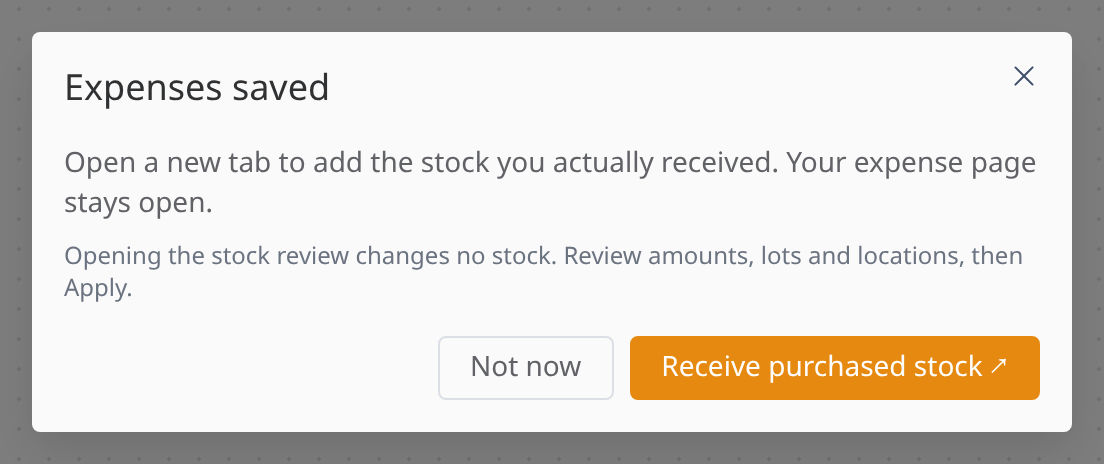
- Review every unsaved row before Save all. Confirm the expense is saved, then review Receive purchased stock separately if this purchase should add stock.
Crop the invoice table
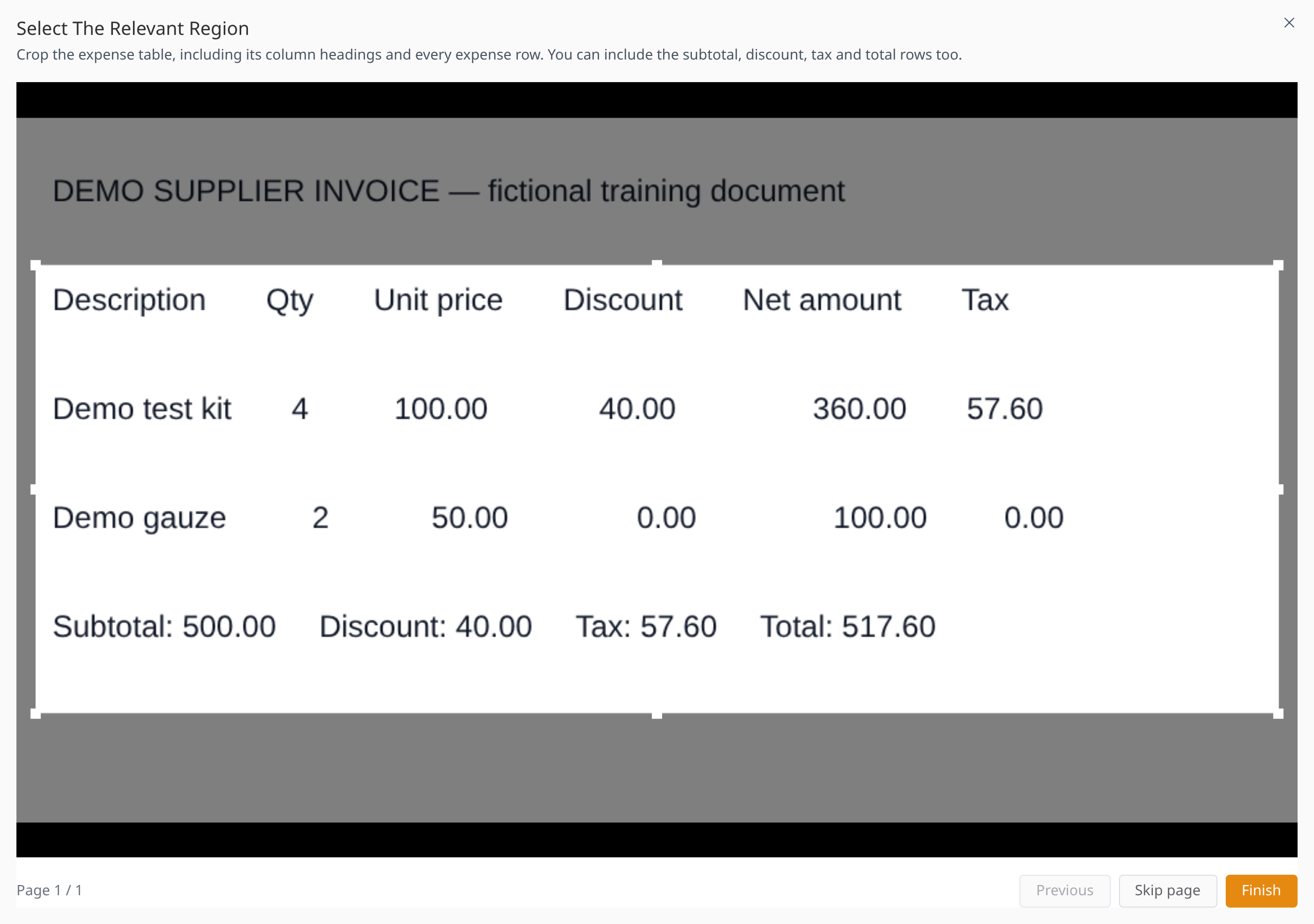
#With account AI enabled and normal expense access, use Extract document. In Select The Relevant Region, keep the column headings and every expense row. You can include the subtotal, discount, tax and total rows too. Do not cut off the first or last product or its tax columns. The instruction appears below the existing cropper title; navigation and confirmation stay in their normal positions.
Review amounts printed after discount
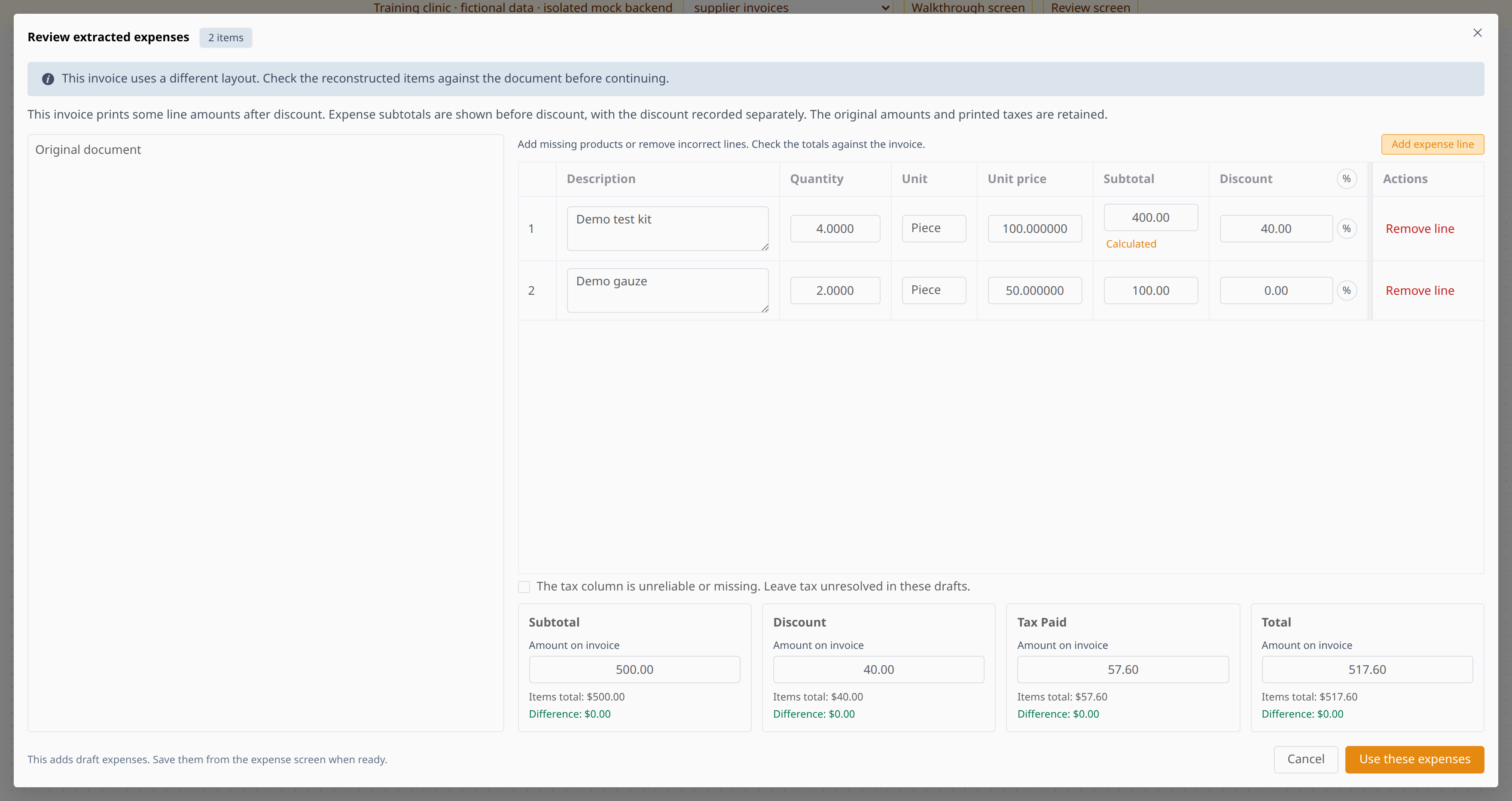
#Some invoices print a line subtotal after discount, while Übik records gross subtotal and discount separately. When independent quantity, unit price, printed discount and taxable base or complete invoice totals agree, extraction normalizes the amount and explains the change. In this fictional example, 4 × 100 − 40 = 360 on the document becomes subtotal 400 and discount 40 in the expense, with printed tax 57.60 retained. The discount is subtracted once. Conflicting evidence remains highlighted for review. Hover, focus or tap Calculated beside the subtotal to see the original invoice amount plus discount and why Übik records the amount before discount. This keeps the discount from being deducted twice. The indicator disappears if related amounts, quantity or unit price are edited.
Keep source precision and printed tax. A percentage helper reuses the confirmed source base and rounding while related values are unchanged; edited quantities, prices, subtotals or discounts require a fresh calculation and review. Extraction creates unsaved drafts.
Work through a clinic example
#The fictional invoice lists 10 vials at MXN 120: subtotal MXN 1,200 before separate tax or discounts. Each vial contains 50 mL, so the stock receipt is 500 mL. Changing quantity to 500 while retaining price 120 would misrepresent the invoice.
If a supplier document includes a genuine rounding difference, compare the warning and approved amounts. Do not invent an unrelated expense or stock correction to clear it.
Common mistakes
#- Converting invoice quantity and then applying the factor again.
- Treating Line math not checked as proof the amounts are correct.
- Assuming a saved expense means supplier payment or stock receipt is complete.
- Subtracting a discount again from an amount already printed after discount.
Troubleshooting and recovery
#If required data is missing, open the section indicated by the validation and review all unsaved rows. A closed section can still contain missing fields.
If the save outcome is unclear, check the existing expense and payment/receipt evidence before resubmitting. Report the source amounts and observed warning through Help without exposing unnecessary document data.
Check your understanding
#Ready to use this workflow
#Saved only in this browser. This is a personal practice checklist, not a clinic training record.
Related guides
- Related workflow guide
- Receive purchased stock and partial deliveries
- Create and maintain the inventory catalog
- Public manual
Source: Find base expense fields and the details drawer · Revision 6