Plan replenishment and manage purchase orders
Review suggestions, choose the right quantity basis and track supplier orders through fulfillment.
Reviewed against current application source. Screenshots use fictional local training data.
What you will learn
#Planning suggestions support a purchasing decision; they do not prove the shelf count or automatically authorize an order. Supplier purchase orders, branch transfers and internal location restocking solve different needs. Review recommendation reasons, current stock and counted incoming orders before committing to another purchase.
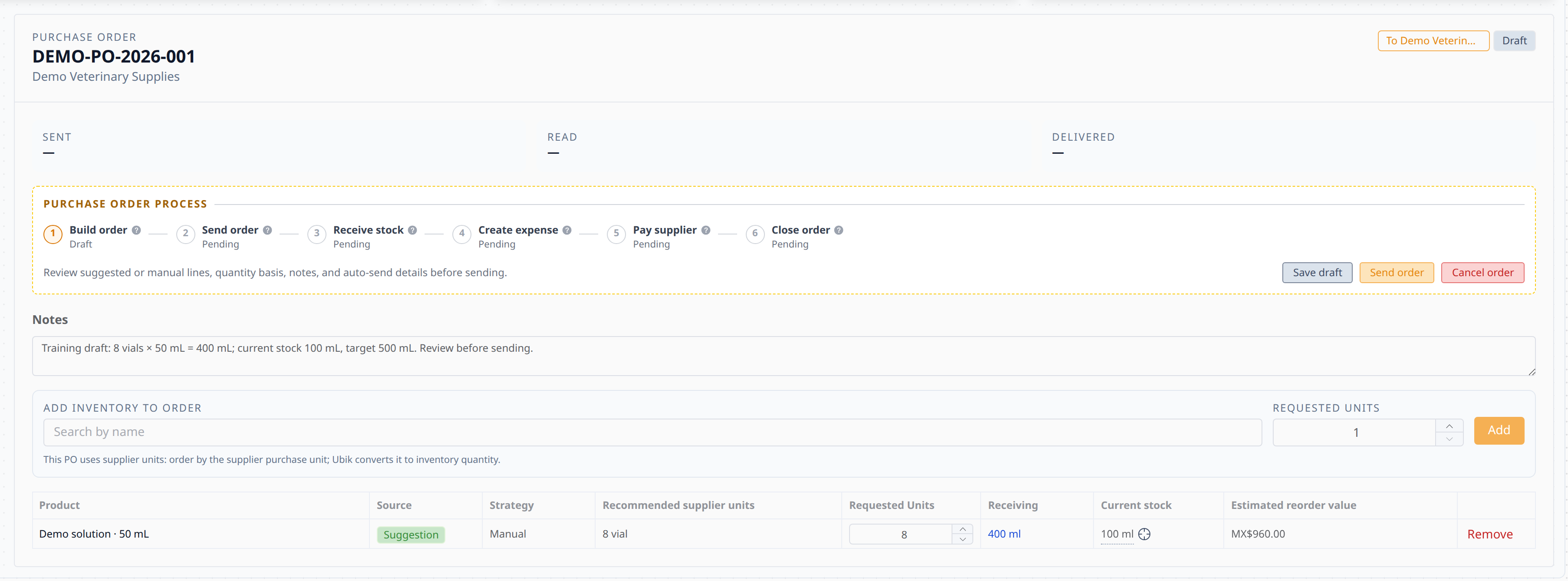
From the dashboard, open the left navigation, expand Purchase Orders, and click Orders, which opens /inventory/purchase-orders. Use the Orders you send section to create a draft from a supplier-backed suggestion or start a blank draft by choosing a supplier yourself. Add inventory lines and quantities. The Add inventory row explains whether the whole PO is using supplier units or Ubik inventory units, and supplier-linked search results are tagged This supplier. Save the draft, then send the order when it is ready. Draft and sent orders stay together in the Active tab, where filters show issues, orders needing action, scheduled auto-sends, and orders waiting on the supplier or partner.
- Inspect planning evidence before ordering.
- Create and review supplier drafts.
- Separate purchasing from internal restocking.
Before you start
#Confirm supplier links, package/purchase settings, planning limits and purchase-order permissions. Review physical stock, expiry, incoming orders and saved statistics.
Usage and restocking is read-only when opened. Missing, stale or limited history can hold a recommendation; a model quantity shown during a hold is not an instruction to order.
Do it in Übik
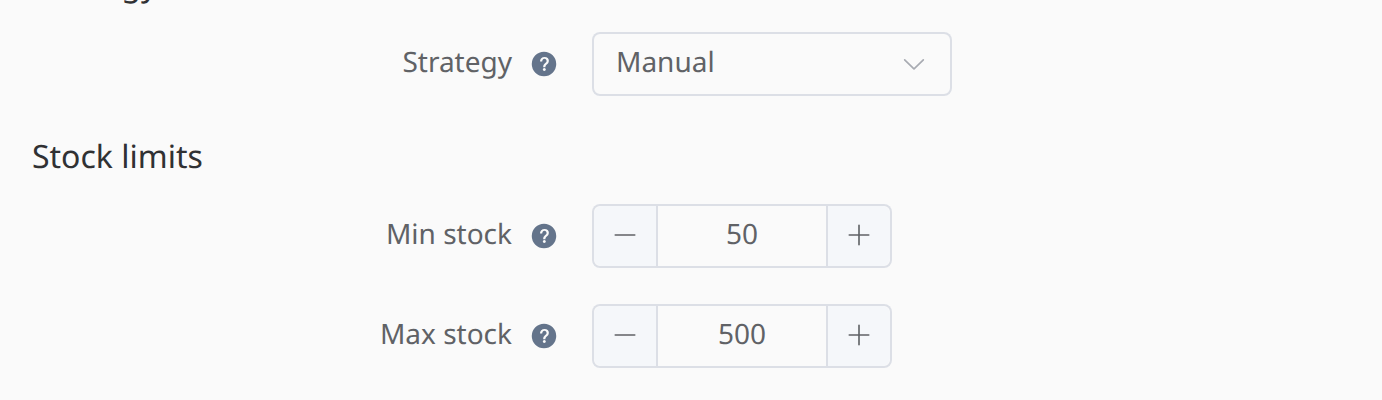
#- Open the item’s Analyze → Usage and restocking. Review demand, coverage, supplier lead time, safety buffer and recommendation reasons. Use View calculation for its saved inputs.
- Open Purchase Orders → Orders. In Orders you send choose Create draft order from a supplier-backed suggestion or start a blank draft and select the supplier.
- Add inventory lines. Review This supplier matches and the note explaining whether this PO uses supplier purchase units or exact inventory units.
- Check quantities, existing incoming stock, expiry/capacity and notes. Save draft, then Send order only when authorized and correct.
- Track the order in Active and review partial fulfillment, issue and supplier-waiting states. Verify actual receiving separately.
- For internal shelf needs, use Restock locations when enabled: Refresh, choose destination/items and Review move. Review and record the physical move; it does not create new clinic-wide stock.
Work through a clinic example
#A fictional item has a suggested order but pending lot deductions and an old count require review. The lead resolves stock evidence before ordering rather than treating the displayed model quantity as mandatory.
Reception needs supplies from the storeroom. Restock locations prepares a location move; buying the same quantity again would create unnecessary demand. Limited history and source reserves can restrict the suggested internal move.
Common mistakes
#- Ordering a held model recommendation without resolving its reason.
- Entering supplier cases when the PO expects exact inventory units.
- Treating internal replenishment as a supplier purchase or assuming a sent order is received stock.
Troubleshooting and recovery
#For stale statistics, limited history or held recommendations, inspect the explanation and current physical stock; opening analysis does not recalculate or reset saved statistics.
If a replenishment suggestion expired, Refresh and review again. For an interrupted move or receipt, inspect History before retrying and preserve the original saved row when using a supported recovery.
Check your understanding
#Ready to use this workflow
#Saved only in this browser. This is a personal practice checklist, not a clinic training record.
Related guides
- Related workflow guide
- Transfer inventory between branches and locations
- Create and maintain customers and pets
- Why inventory groups matter and which categories to use
- Set up suppliers for purchase-order recommendations
- Choose Auto, EOQ, JIT or Manual
- Investigate stock differences with History
- Public manual
Source: Create a supplier purchase order · Revision 4