Configure services, prices and discount boundaries
Set service prices, tax-included behavior, editable-price rules and approved discounts, then review a new charge.
Reviewed against current application source. Screenshots use fictional local training data.
What you will learn
#Service setup controls more than the number shown in the catalog. The customer price, tax-included option, price-editing rule and allowed discounts all affect how staff prepare charges. Business cost and commission settings have different purposes and should be reviewed separately from the customer’s selling price.
Changing today’s catalog is a decision about current setup. Existing charges can retain the values saved when they were created. Check a newly created estimate or charge when verifying the change, and review a historical correction through its proper workflow instead of expecting a catalog edit to rewrite old bills.
Before you start
#Confirm permission to edit services and obtain the approved service names, prices, tax treatment and discount policy. Identify who may approve price overrides and commissions. Use the clinic’s accountant-approved tax data rather than copying the fictional figures in this exercise.
Practice with a fictional General consultation service. Decide whether its displayed amount is before tax or the final tax-included customer price. A vague instruction such as “consultation is 650” is incomplete until that meaning is clear.
Follow the workflow
#- Open Services search and edit the intended service, or add a training service. Review Enabled, Type and Name so Reception selects the correct item.
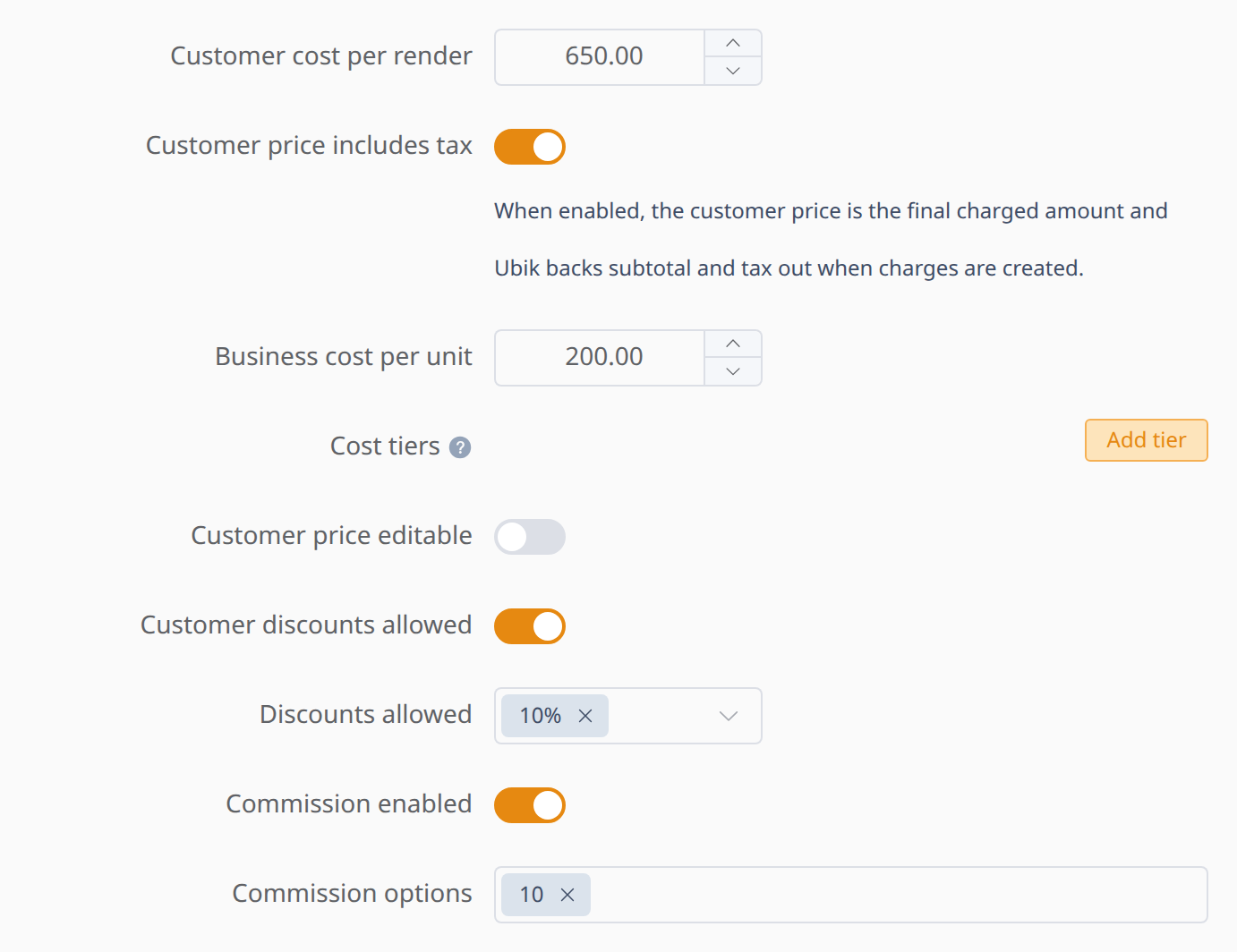
- Enter the customer price in the applicable service price field. Review Customer price includes tax: enable it only when the entered amount is intended as the final tax-included price.
- Review Cost to business and any weight-based cost tiers separately. Do not use business cost as a substitute for the customer price, and check tier boundaries when the service uses weight pricing.
- Set Customer price editable according to the clinic’s approved override policy. Review Customer discounts allowed and the allowed discount values instead of assuming every staff member should choose any amount.
- Review Commission enabled and its approved options only if the service participates in commissions. If appropriate, inspect the appointment type, source or specialty defaults so the service is added where intended.
- Save, then create a new fictional estimate or charge. Check quantity, subtotal, discount, tax and final amount. Confirm that the available staff controls match the approved editing and discount rules.
Practice with a fictional clinic
#Demo Paws intends a consultation to cost the customer 650 MXN including the configured tax. The administrator enters 650, enables Customer price includes tax, saves and checks a new charge. The final result should match that pricing meaning, subject to the quantity and any approved adjustment.
A second older appointment still shows its original charge. That is not proof the new setting failed. The administrator first verifies a new charge, then separately reviews whether a legitimate correction is needed on the historical appointment, especially when payment or CFDI documents already exist.
Avoid common mistakes
#- Confusing customer price with Cost to business causes incorrect billing or margin expectations.
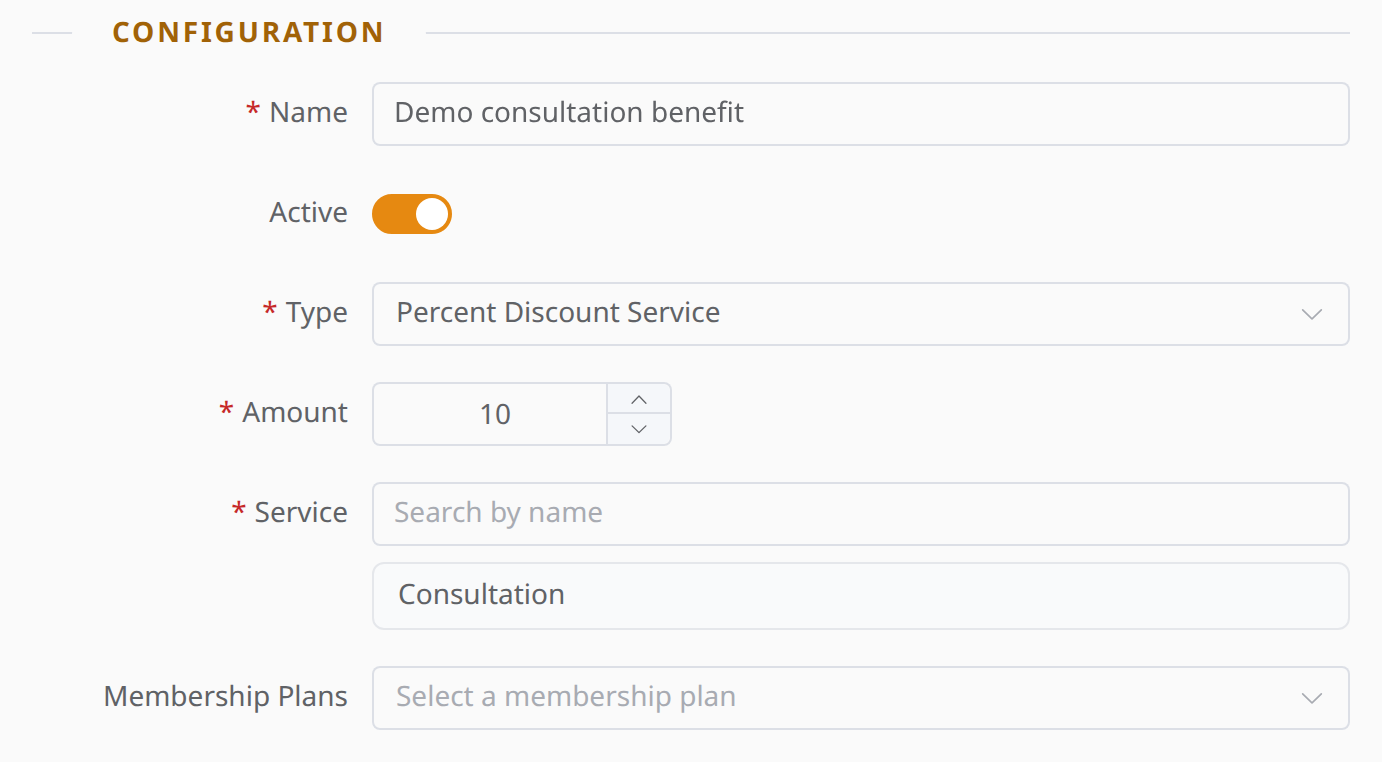
- Applying a total-bill promotion when the clinic intended a specific service benefit gives the adjustment a broader scope.
- Editing catalog prices to repair a paid historical bill without inspecting the saved charge, payments and fiscal documents can leave unresolved balances.
When something does not look right
#- If a new charge differs, inspect the selected service, render, weight tier, quantity, tax mode and saved promotions before editing the price again.
- If editing or discount controls are unavailable, review the saved service rules and the staff member’s permissions. Do not enable unrestricted overrides merely to remove a warning.
- If an older paid charge needs correction, ask the responsible administrator to inspect its current balance and documents through the supported correction workflow; preserve the payment and inventory history.
Check your understanding
#Complete this lesson
#Saved only in this browser. This is a personal practice checklist, not a clinic training record.
Related guides
- Configure working hours and online booking availability
- Record expenses and reconcile supplier balances
- Same weight-tier unit pricing for inventory and services
- Public manual
Source: Set a customer price that already includes tax · Revision 3