Send client documents and verify waiver completion
Use the correct contact preference, prepare a complete document, and distinguish sending, signing, and communication history.
Reviewed against current application source. Screenshots use fictional local training data.
Understand the task
#A prepared document, sent message, and signed waiver are separate results. Confirm each one rather than treating a Sent banner as proof that the owner received or signed the document. Use the appointment’s document actions for waivers and specialty forms.
The customer Communication tab provides communication history. Its general free-text composer is currently disabled; use the existing document, receipt, reminder, or approved clinic contact workflow for the actual task.
Before you start
#Confirm the owner, pet, appointment, contact details, and agreed Preferred contact method. Customer communications must be configured for clinic delivery, and Unreachable/None can prevent that delivery path. Do not change consent or reachability merely to bypass an error.
Waiver templates must already exist. Staff must complete manual text, number, and date fields before electronic sending. Use a fictional training document for practice; no lesson exercise should send a real client message.
Do it in Übik
#- Open the intended appointment in Reception. From Actions choose Send → Waivers, or Specialty forms for the relevant form.
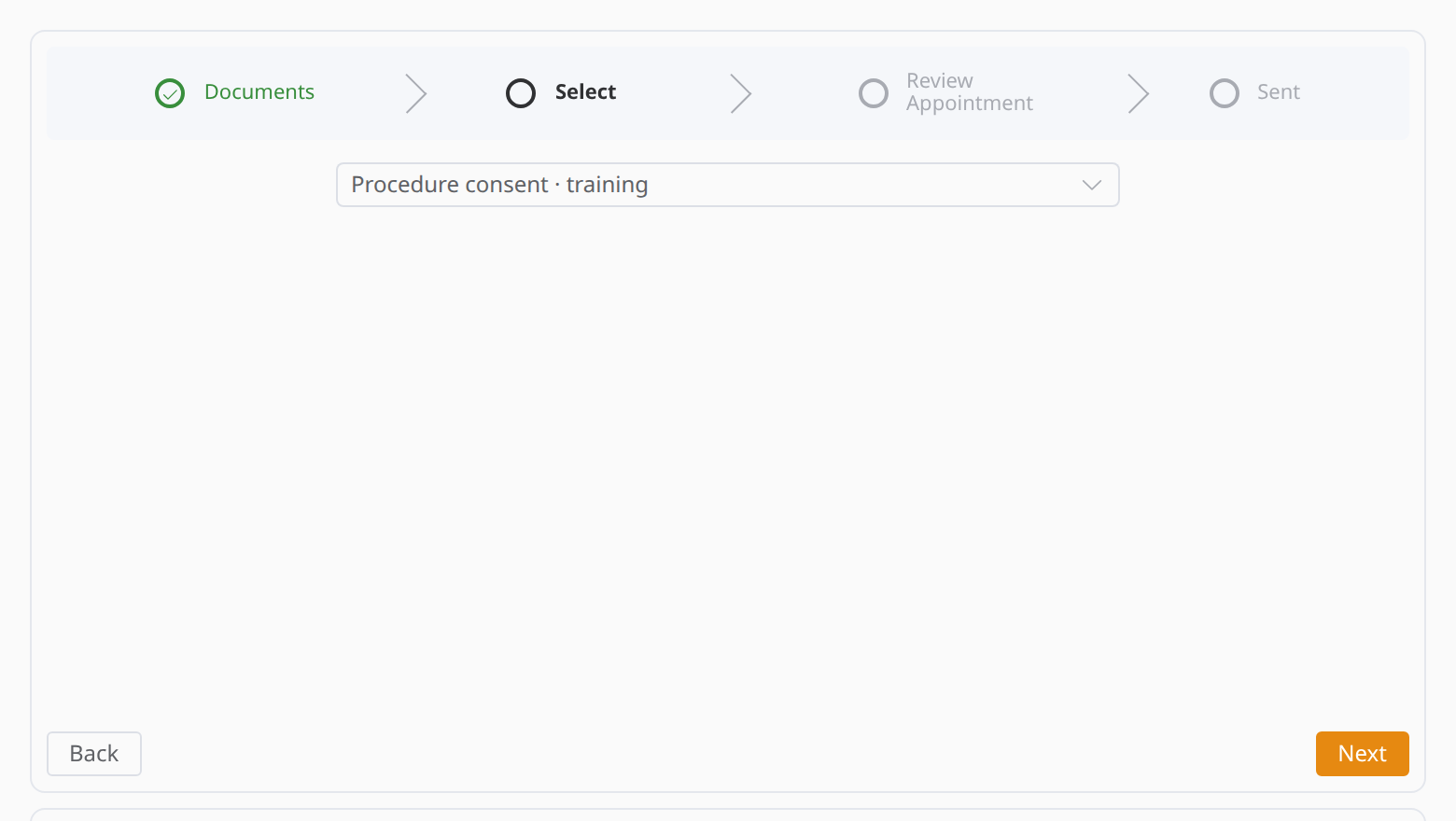
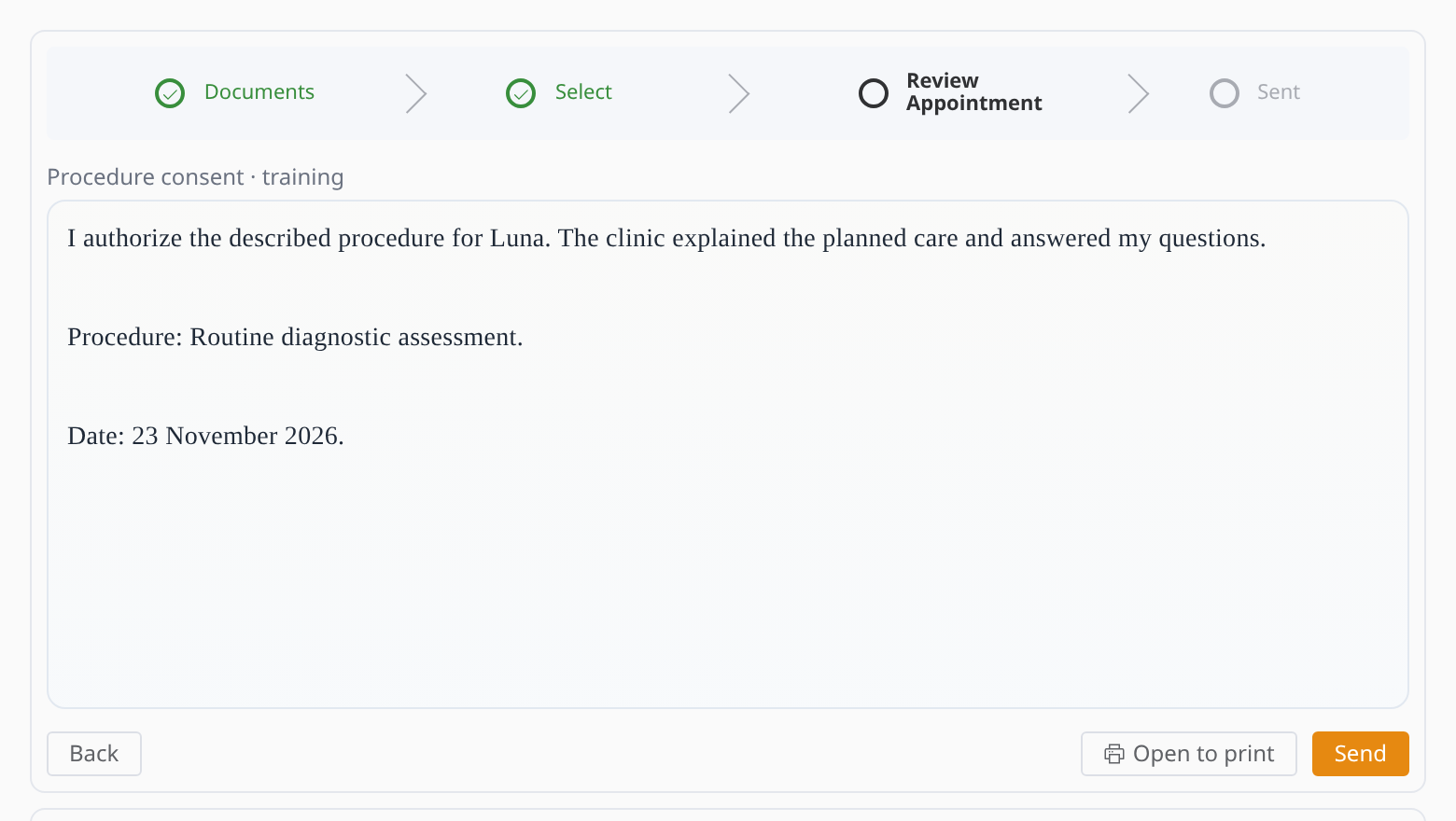
- Follow Documents → Select → Review: choose the document type and intended template/form, then review the actual text and patient context. Fill every required staff-entered field before sending.
- Use Open to print when a paper workflow is intended. An unsigned paper copy and a completed electronic signature have different evidence.
- Choose Send for the electronic workflow. If offered, choose the clinic’s Übik WhatsApp path or My WhatsApp according to policy. My WhatsApp opens a draft/link externally; complete the send there and confirm the intended recipient.
- Check the document list and customer communication history for the resulting record/status. Open the original signed waiver to review signer name, signing date, saved text, and any integrity information.
- If text must change after issuing, prepare another document and preserve the original issued copy/signature. Share signing links and verification evidence only with intended, authorized recipients.
Try a fictional clinic example
#Fictional cat Coco is scheduled for a procedure. The consent template contains a manual procedure field and date. Fill these in, review the owner and patient, and send the correct document. Later the owner’s signature should appear on that issued copy; a message entry alone does not establish signature.
For practice, compare “prepared,” “sent,” and “signed.” Explain why opening My WhatsApp with a draft is not yet a confirmed delivery and why an old signed copy should remain available when corrected wording is needed.
Avoid these mistakes
#- Sending a template with blank staff-entered fields creates an incomplete document. Prepare a new completed copy instead of asking the owner to sign blanks.
- Editing clinical or private notes is not a substitute for sending a client document.
- An integrity seal checks saved text/signing data; it does not certify identity or establish a legal conclusion. Do not describe it as an identity check.
Troubleshoot and recover
#- If delivery is blocked, review the saved contact preference, phone/email, reachability warning, and clinic communication setup with the owner or administrator.
- If the owner cannot sign, use the original link or send the intended completed document again after checking existing records. If interrupted, reopen the same document to check whether the signature saved before repeating.
- If verification fails or the wrong owner/pet appears, preserve the original document and contact Help with its appointment reference. Do not alter signing data or backdate a signature.
Check your understanding
#Check the result
#Saved only in this browser. This is a personal practice checklist, not a clinic training record.
Related guides
- Reception portal guide
- Waiver signing and evidence
- Handle balances, customer credit, and refunds
- Start a consultation and hand off the patient
- Public manual
Source: Resolve an incomplete or unavailable waiver signing request · Revision 2