Create a counter sale in Reception or POS
Start a product sale, select the right customer, review items and totals, record payment and verify the receipt in Reception or configured POS mode.
Reviewed against current application source. Screenshots use fictional local training data.
A sale, payment and stock action are different records
#A counter sale records the products or services being sold. Saving its items establishes the sale and charges; the payment step records how it was paid. The receipt lets you check the saved result. Do not assume that opening the screen, printing a receipt or adding a planned item completed every financial and stock action.
Before you start
#Confirm the clinic, customer and your sales/payment permissions. Review the intended product presentation, available stock and catalog price. Use an existing customer/pet when applicable; do not duplicate records. A banned customer cannot be used for new business, and anonymous sale is not a workaround for that restriction.
Start a sale from Reception
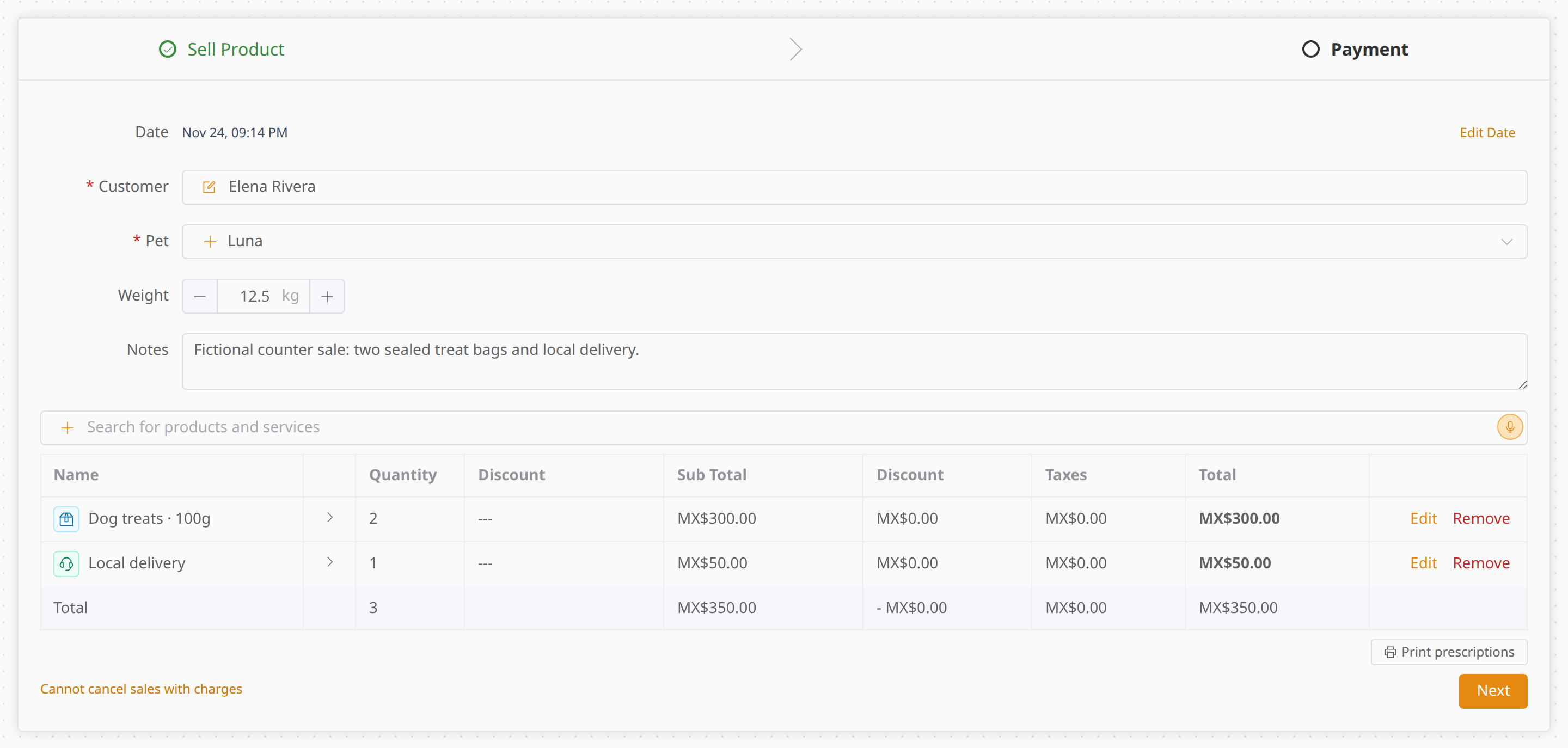
#- Open Reception → Sell product. In the ordinary clinic sale form, select both Customer and Pet. Confirm identity before saving.
- Save the new sale to create its unpaid record. Products and services become available on the saved sale. Keep working on that record rather than creating another if you need to change a selection.
- Add the intended products or services. Review each variant, quantity, inventory unit/package interpretation, unit price, any permitted discount and the total. Confirm actual product handoff and any dispensing options offered by this workflow. New product setup normally starts with Dispensed checked: confirm it matches the actual handoff. Discounts appear only when the catalog allows them and offers configured options.
- Review the saved cart and choose Next for payment. A saved unpaid sale is not a completed payment; keep its reference if payment will happen later.
When the clinic uses POS mode
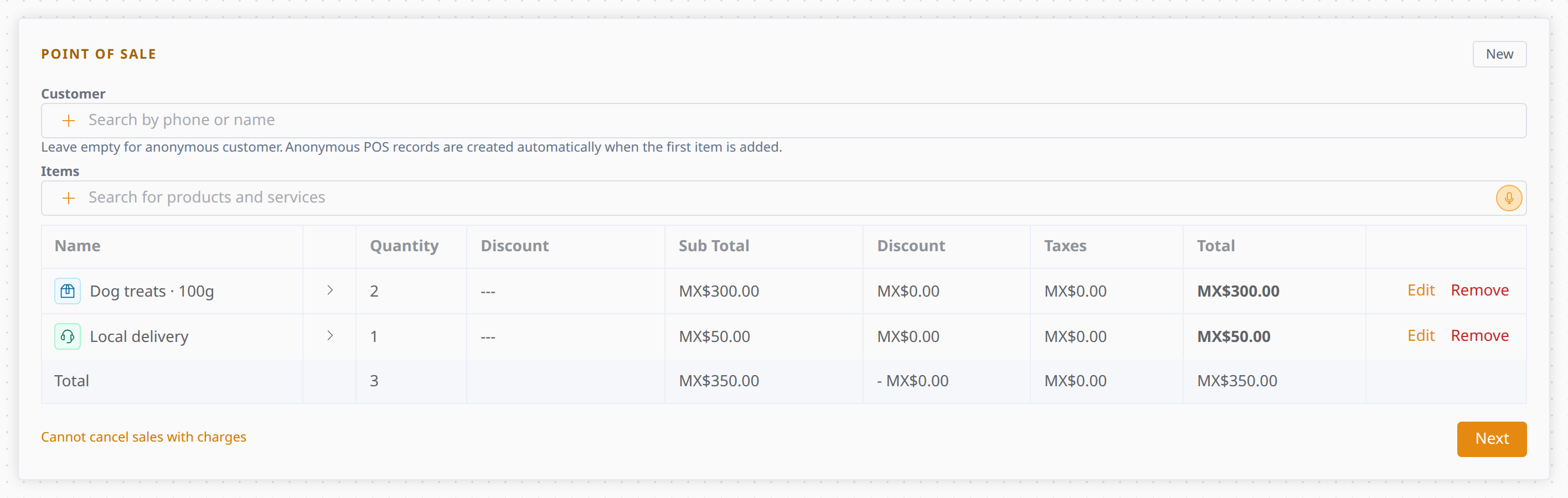
#If POS is enabled for the clinic, the sale entry uses the POS screen. Customer is optional there: leaving it blank uses the clinic’s configured anonymous customer and default pet. It does not create a sale with missing ownership fields. Choose the actual customer when identification, customer credit or later retrieval requires it.
In POS, adding the first item creates the unpaid sale with the selected customer or configured defaults. Review the cart before moving to payment. If configured defaults are missing or a customer is blocked, ask the administrator to fix setup; do not substitute an unrelated customer.
Record the actual payment and review the receipt
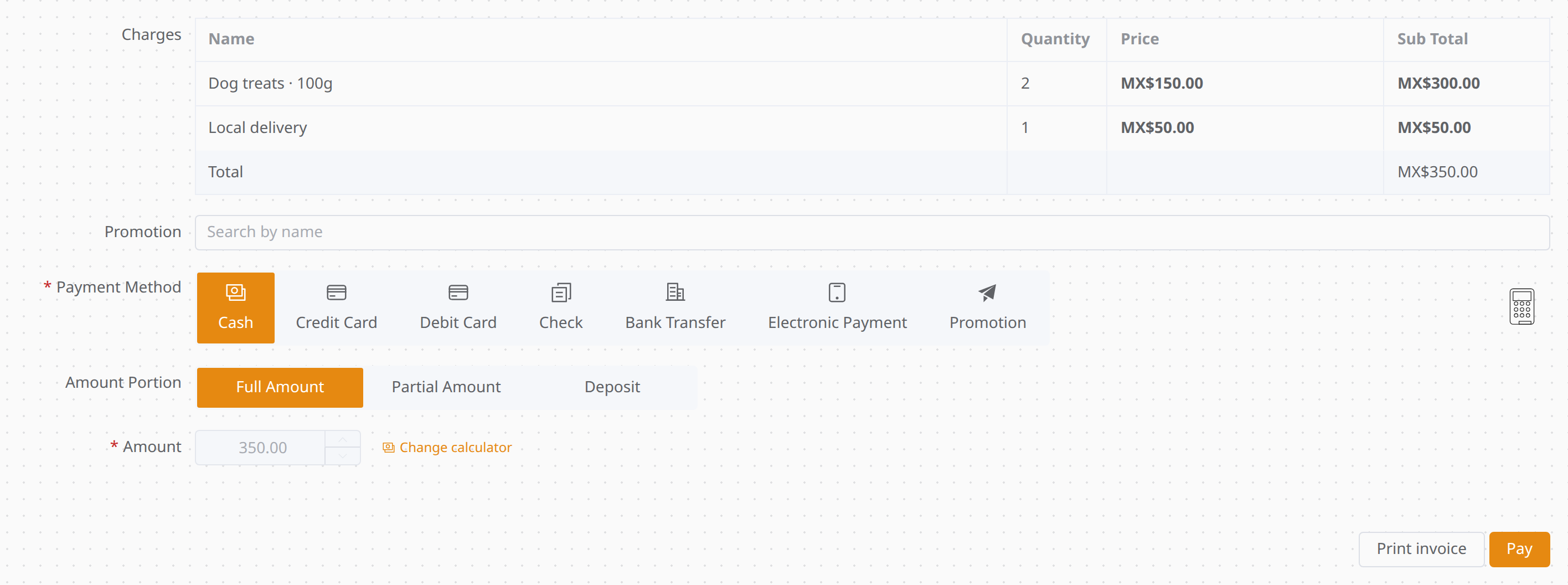
#Before a payment is recorded, the print action can say Print invoice; after payment it says Print receipt. Inspect the saved payment and balance rather than treating either printed document as proof of collection.
- In the payment step, review charges, existing payments/deposits and the remaining balance. Choose the actual Payment method and Full amount or Partial amount. Add any required payment type or reference.
- Record only the amount actually applied through that method. For split tender, verify the first saved payment and remaining balance before entering the next method. Cash received and change are distinct from the payment applied to charges.
- Confirm Pay once, then verify saved payments, balance and the receipt before printing or sharing it. Printing is not a payment. Review whether products were actually handed over and inspect the item/stock history when uncertain.
Try a fictional retail sale
#A fictional customer buys two retail treat bags at MXN 150 each plus a delivery service priced at MXN 50, with no tax or discount in this example. Review a total of MXN 350. If the customer pays MXN 200 cash and MXN 150 by card, those two payments total MXN 350; entering MXN 350 for each would collect twice the intended amount. Follow clinic authorization for discounts and review the receipt.
In the practice calculator, try Total = 350, Deposit/previous payment = 0 and New payment = 350. The remaining balance is zero. This browser exercise records no actual sale or payment.
Change the numbers and check the result
Practice only · fictional examples. Does not change records or approve movements or payments. This simplified calculation excludes taxes, other movements and location allocations.
Common mistakes
#- Starting another sale after an interrupted save without looking for the original.
- Using a package quantity as an individual-unit quantity, changing a price without authority, or choosing an unrelated customer.
- Assuming a saved cart, printed receipt or anonymous-sale default proves that payment and stock handling were completed.
If a sale, item or payment looks wrong
#Check the active clinic, configured sale mode, customer restrictions, product enabled status and permissions. If a selection or payment is blocked, read the displayed reason; ask the authorized catalog owner or Accounting to review. Do not bypass a validation through an unrelated record.
After an uncertain save or payment response, search the saved sale and inspect payments, receipt and stock history before repeating. For a returned product, use Refund Purchase on the original sale instead of deleting its charged item.
Saving several selected items can succeed for some rows before another fails. Reopen the saved sale and inspect existing items before retrying the selection; the same caution applies to an uncertain payment.
Check your understanding
#Ready to complete a counter sale
#Saved only in this browser. This is a personal practice checklist, not a clinic training record.
Related guides
- Create and maintain customers and pets
- Complete checkout and deliver the correct receipt
- Return a product from the original sale
- Configure services, prices and discount boundaries
- Public manual
Source: Create a counter sale in Reception or POS · Revision 2