Create and maintain customers and pets
Find the right owner, keep contact preferences accurate, and attach each pet to the correct customer record.
Reviewed against current application source. Screenshots use fictional local training data.
Understand the task
#The customer is the owner or responsible contact; the pet is the patient attached to that customer. Search existing records before adding either one. Using one correct customer record keeps appointments, balances, pets, and communication history together.
A familiar name is not sufficient identification. Confirm the phone number and pet details with the client. A warning such as Banned or Unreachable describes the existing record; it is not a reason to make a second record.
Before you start
#Work in the correct clinic with customer-add permission for new owners and customer-edit permission for corrections and adding pets. Ask an administrator if a permitted action is disabled. Pets are available in the veterinary workflow; a product-only operating mode may show different tabs.
Use a training clinic and fictional contact details for practice. Agree on the preferred contact method with the client. Email is optional, but an email communication preference requires an address. Do not select a messaging preference merely to remove a warning.
Do it in Übik
#- Open Customer search and search by phone or name. Confirm country code and phone before choosing the existing record. You can also select or add the customer from Reception → Add Appointment.
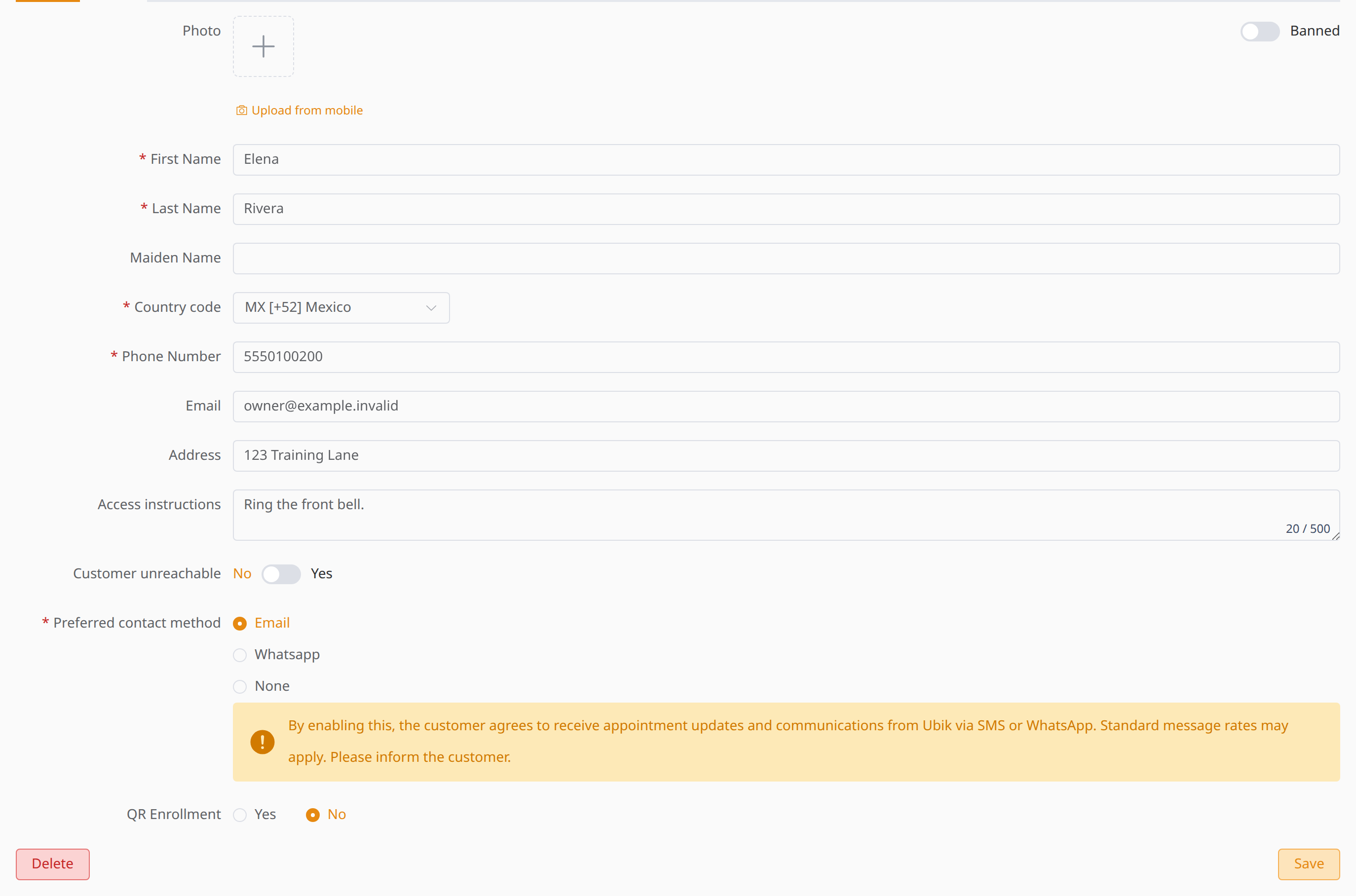
- For a genuinely new owner, choose Add Customer. Complete the required first name, last name, country code, and phone fields; add email and address when appropriate.
- Set Preferred contact method to the agreed option. Review QR enrollment if your clinic uses customer QR lookup, then Save the customer.
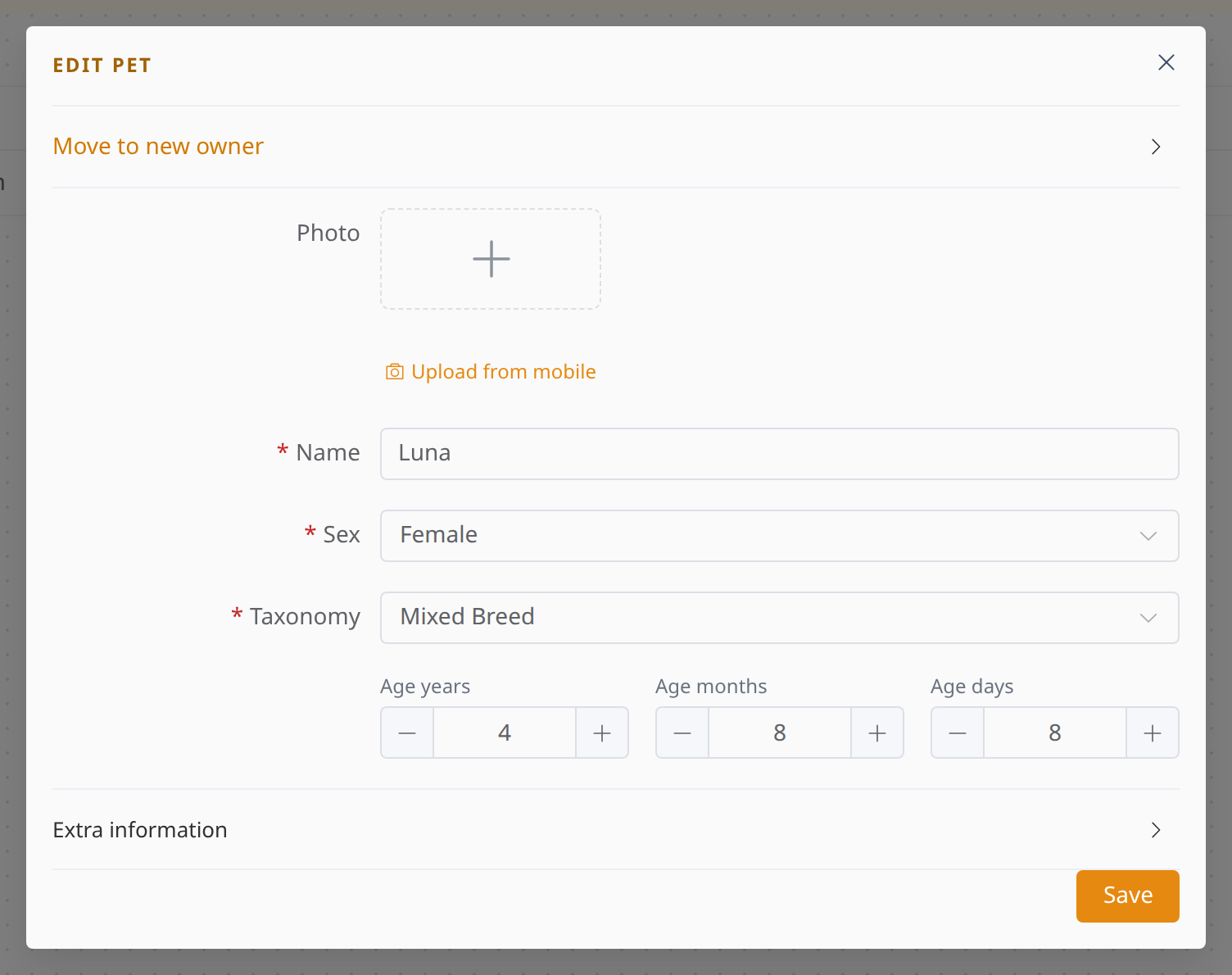
- Open the Pets tab, add a pet, and enter Name, Sex, and Taxonomy. Record age as known; use Extra information for microchip, color, and other relevant details.
- Save the pet, return to the intended appointment, and select the correct pet under that owner. Confirm species, sex, and distinguishing details when names repeat.
- For later corrections, edit and save the original record. Moving a pet to a different owner is a separate, deliberate action; verify the destination customer before using Move to new owner.
Try a fictional clinic example
#A fictional client, Elena Rivera, brings a dog named Luna and later a cat named Coco. Searching the phone finds Elena’s existing customer record. Add Coco to Elena’s Pets tab instead of creating a second Elena. The appointment must show Coco, not the first pet in the list.
For a safe exercise, compare two fictional customers named Elena. State which phone and pet information identifies the intended owner, then check the saved pet’s owner after reopening the profile.
Avoid these mistakes
#- Creating another customer because a phone number or spelling changed fragments the history. Correct the existing record after confirming identity.
- Choosing a pet by name alone can attach care to the wrong patient. Compare owner and taxonomy too.
- Marking a pet deceased or moving ownership to hide a duplicate is inappropriate. Ask an administrator to review duplicate records.
Troubleshoot and recover
#- If a pet is missing, first check the selected customer and any Deceased grouping. Do not recreate the patient until the clinic checks the original record.
- If saving fails, preserve the entered details and read the validation message. Reopen/search for the record before trying another creation, especially after an interrupted response.
- A banned customer can still pay existing records, but new appointments and sales are blocked. Do not bypass the restriction with another owner record or anonymous sale.
Check your understanding
#Check the result
#Saved only in this browser. This is a personal practice checklist, not a clinic training record.
Related guides
- Reception portal guide
- Plan replenishment and manage purchase orders
- Book appointments and walk-ins
- Public manual
Source: Create and maintain customers and pets · Revision 2