Set up suppliers for purchase-order recommendations
Supplier records identify who supplies an item; item supplier links make that supplier available to purchasing. Recommendations also depend on the saved item planning strategy, demand, reorder point and existing orders. Saving a supplier or adding an email address alone does not guarantee a recommendation or send an order.
Reviewed against current application source. Screenshots use fictional local training data.
What supplier setup does
#Supplier records identify who supplies an item; item supplier links make that supplier available to purchasing. Recommendations also depend on the saved item planning strategy, demand, reorder point and existing orders. Saving a supplier or adding an email address alone does not guarantee a recommendation or send an order.
Before you start
#Gather the supplier’s correct name, required tax ID, purchasing lead time and minimum order agreement. Confirm the clinic, Data permissions for supplier maintenance and inventory edit permission for item links and planning. Use fictional records in a training clinic for practice.
Create or edit the supplier
#- Open Data → Supplier and search before adding a duplicate. Choose Add or Edit; complete required Name and tax ID plus the relevant contact details.
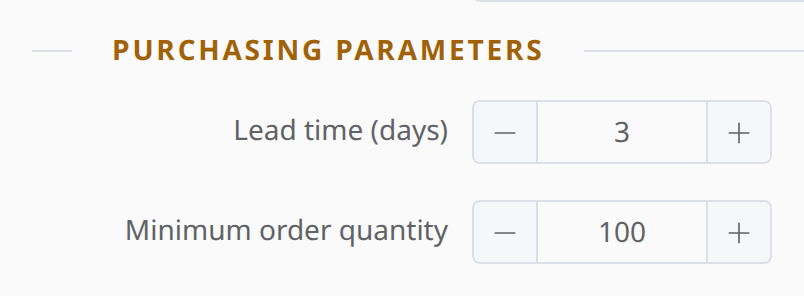
- Under Purchasing parameters, enter Lead time (days) and review Minimum order quantity. The minimum is an inventory-quantity floor applied to each item, not a currency amount or automatically a number of supplier boxes.
- Save the supplier. Type is free text; it is not a recommendation eligibility selector. Do not mark an ordinary vendor as partner to obtain suggestions.
Link the supplier and configure the saved item
#- Open Inventory → Manage, find the exact presentation, then choose Go to → Edit. Select the supplier in Suppliers and save. The item can have several suppliers; the supplier on an Inventory Group is not enough for this link.
- Save a new item before configuring planning, which is locked until it exists. Choose an appropriate strategy: EOQ, JIT or Auto; Manual is excluded from generated recommendations. Auto uses JIT for perishable items and EOQ otherwise.
- Review item minimum/maximum stock, package size, purchase conversion and optional lead-time override. EOQ needs usable demand and positive ordering/holding costs. Do not enter arbitrary values to clear a warning.
- Keep the item lead-time override blank to inherit from the supplier, then clinic policy if absent. Zero is an explicit zero-day override. Reopen the saved record and verify supplier links and planning values.

Translate the minimum into the item’s units
#A fictional solution is counted in mL and purchased as 50 mL vials. Supplier minimum 100 means a floor of 100 mL, equivalent to 2 vials. If the agreement is 10 vials, that means 500 mL for this item. Minimum order quantity is not a monetary total.
A shared supplier default can be unsuitable for products with different inventory units. Review every suggested row against the agreement. A blank supplier minimum falls back to the item’s Quantity per package; zero removes the positive supplier-minimum floor, but package/purchase-unit rounding still applies. A minimum does not create demand when the proposed quantity is zero.
Review recommendations before ordering
#Review Inventory analytics → Planning status and the purchasing review. Generated suggestions consider enabled linked items below their reorder point or with a shortage and positive calculated need. An active order can already cover the item, including a draft; review it before creating another.
Every linked supplier can be evaluated for its own recommendation using its lead time and minimum. The first supplier in the list is not a preferred-supplier rule, and linking several does not automatically choose the cheapest or authorize ordering from all of them. Compare rows and avoid duplicate purchases.
Recommendation, draft readiness, sending and receiving are separate steps. An ordinary supplier draft requires the tax ID and seller WhatsApp country/number for that workflow; ordinary phone/email alone are insufficient. Review authorization and recipient before sending. A recommendation or sent order does not increase stock.
Try the setup review
#In a training clinic, link Demo Veterinary Supplies to a saved 50 mL item. Confirm a 3-day supplier lead time, blank item override, supplier minimum 100 mL and purchase factor 50 mL/vial. Ask what would change if the supplier actually required 10 vials or if another active order already covered the item. Review the explanation before making a draft; this exercise does not place an order.
Common mistakes
#- Entering a supplier minimum of 10 when the agreement means 10 vials but the item counts mL.
- Linking only the group’s supplier, leaving the item unlinked or on Manual, or assuming list order chooses a preferred supplier.
- Creating a duplicate order to compensate for stale statistics or an unexplained recommendation.
Why is there no recommendation?
#Check saved supplier links, item enabled status, planning strategy, current stock/reorder point, demand and active orders. Review whether the configured costs, minimum and rounding fit the maximum stock capacity.
Usage/restocking explanations may hold a proposal for missing or stale statistics, too little observed history, invalid demand/costs, changed settings, incomplete reads or stock/lot/location mismatches. These review holds are not all universal nightly-generator rules. Refresh and investigate the displayed reason with the Inventory Lead; do not reset history or fabricate usage to force a suggestion.
Check your understanding
#Ready to review purchasing
#Saved only in this browser. This is a personal practice checklist, not a clinic training record.
Related guides
- Create and maintain the inventory catalog
- Quantity and automatic packages
- Supplier-to-Übik conversion
- Review purchase orders
- Public manual
Source: Set up suppliers for purchase-order recommendations · Revision 2