Complete checkout and deliver the correct receipt
Review the visits being paid, apply the actual payment methods, and distinguish charges, recorded payments, balance, and cash change.
Reviewed against current application source. Screenshots use fictional local training data.
Understand the task
#Start checkout from the existing appointment or sale. Reception’s Ready for Payment tab gathers the relevant handoffs, but a missing visit may have another status. Confirm the patient and charges before accepting money.
A receipt describes included charges and payments. Printing does not collect money. A combined receipt may contain several pets or visits; similar product descriptions can be separate charges on different visits and should not be merged just because the words match.
Before you start
#Use your own authorized Reception/payment access and confirm the correct clinic, customer, and visit. Know which methods your clinic accepts and whether a receipt/reference is required. Coordinate unexplained charges with the clinical team.
A hospital or boarding payment does not necessarily end the stay. Only mark a stay finalized after the responsible team confirms the patient has actually finished it.
Do it in Übik
#- Open Reception → Ready for Payment. Find the patient and open View; if missing, review date/status filters and the clinical handoff before creating anything new.
- Review charges, recorded deposits/payments, and remaining balance. Choose Pay on the intended existing appointment.
- If related checkout records appear, choose Pay all appointments, Pay selected appointments, or Pay this one according to what the client is actually paying. Review the selected pets, dates, and references.
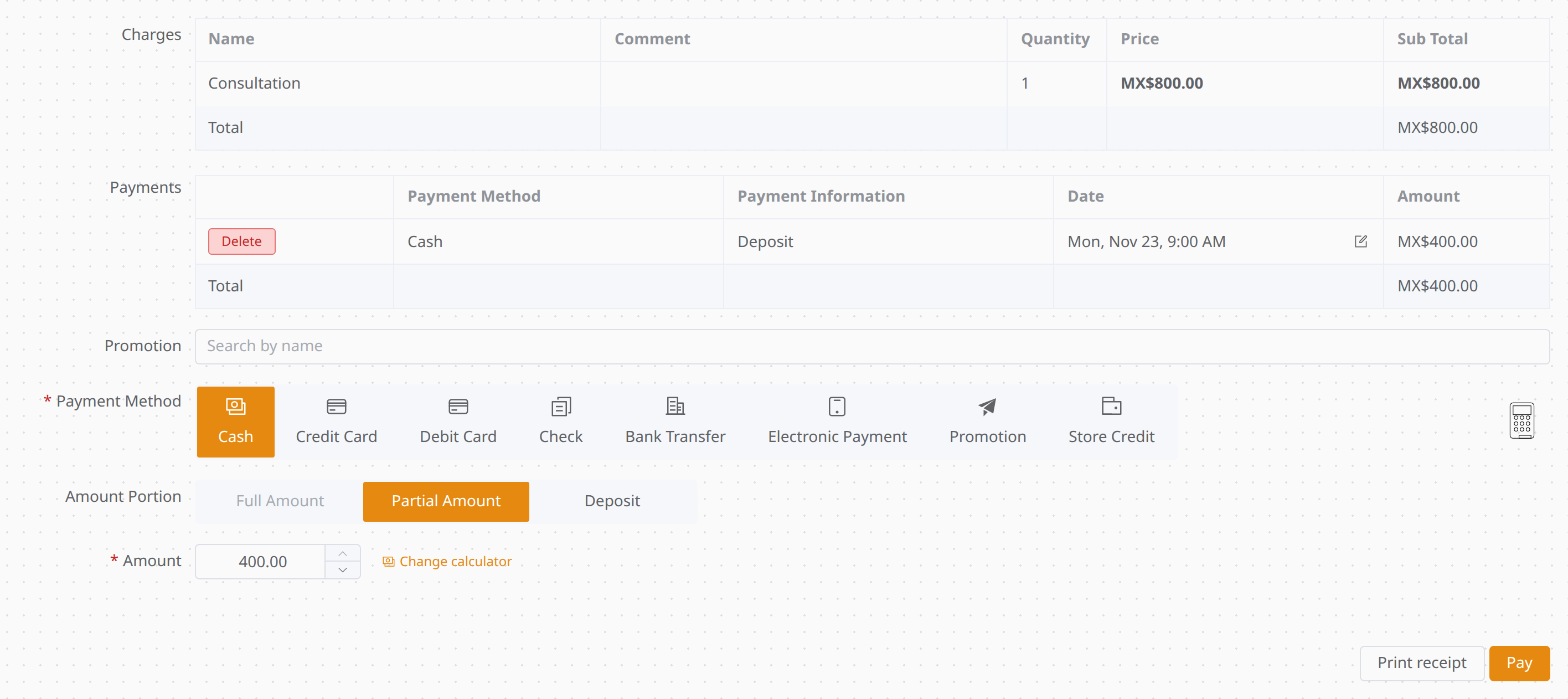
- Choose Payment method and Full amount or Partial amount as appropriate. Enter the actual amount for that method and any required payment type/reference. Record it once.
- For split tender, review the first saved payment and remaining balance before entering the next method. Use Calculate change for cash tender; cash received and change are distinct from the amount applied to charges.
- Open the resulting receipt and verify included visits, Total charges, Payments recorded, and Remaining balance. Send or print through the existing receipt action, and confirm any completion/discharge choice with the team.
Try a fictional clinic example
#Milo’s fictional visit totals MXN 1,200 and already has a MXN 400 deposit. The owner pays the remaining MXN 800 with MXN 300 cash and MXN 500 card. Recorded payments should total MXN 1,200. If the owner hands over MXN 500 for the cash part, cash change is MXN 200; the cash payment applied remains MXN 300.
Practice choosing only Milo’s visit when the same owner has another pet’s unpaid sale. Explain why printing both visits on a combined receipt would change which balance the document describes.
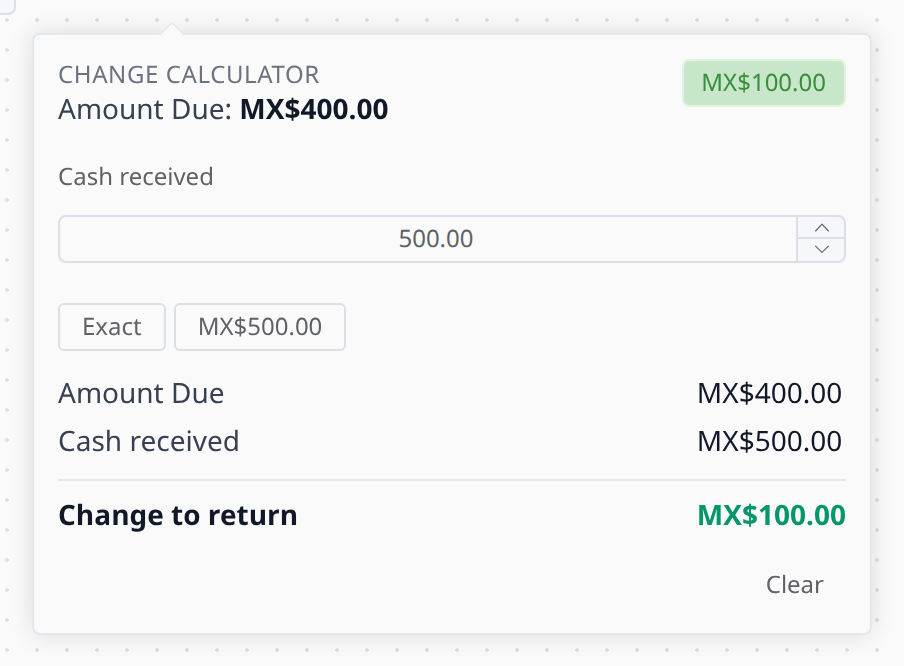
Change the numbers and check the result
Practice only · fictional examples. Does not change records or approve movements or payments. This simplified calculation excludes taxes, other movements and location allocations.
Avoid these mistakes
#- Choosing Pay all without checking the list can include visits the owner did not intend to settle.
- Recording the cash tender as the bill payment instead of using the change helper can overstate the payment.
- A receipt with no recorded payments remains unpaid, and an excess shown on a receipt does not automatically create credit or a refund.
Troubleshoot and recover
#- After an interrupted payment response, inspect saved payments and the receipt before repeating; if uncertain, contact Accounting or Help with visit, time, method, and amount.
- If totals disagree, preserve the receipt and original records. Do not add payments or delete history simply to force zero. Use the authorized correction review.
- If a combined receipt shows the wrong visit, verify the selected records and references before printing or sharing again. A Generated on date is the document generation date, not the appointment date.
Check your understanding
#Check the result
#Saved only in this browser. This is a personal practice checklist, not a clinic training record.
Related guides
- Reception portal guide
- Reception payment guide
- Prepare estimates and collect appointment deposits
- Handle balances, customer credit, and refunds
- Create a counter sale in Reception or POS
- Return a product from the original sale
- Public manual
Source: Pay can show other checkout appointments or sales for the same customer · Revision 3